
Inexaccessories 726634875035
Inexaccessories Double Din Car Stereo User Manual
Model: 726634875035
Your comprehensive guide to installation, operation, and maintenance.
Introduction
This manual provides detailed instructions for the installation, operation, and maintenance of your Inexaccessories Double Din Car Stereo. Designed for an enhanced in-car audio and entertainment experience, this unit features a 7-inch HD touchscreen, CD/DVD player, Apple CarPlay, Android Auto, Bluetooth, Mirror Link, and support for a backup camera. Please read this manual thoroughly before use to ensure proper functionality and safety.
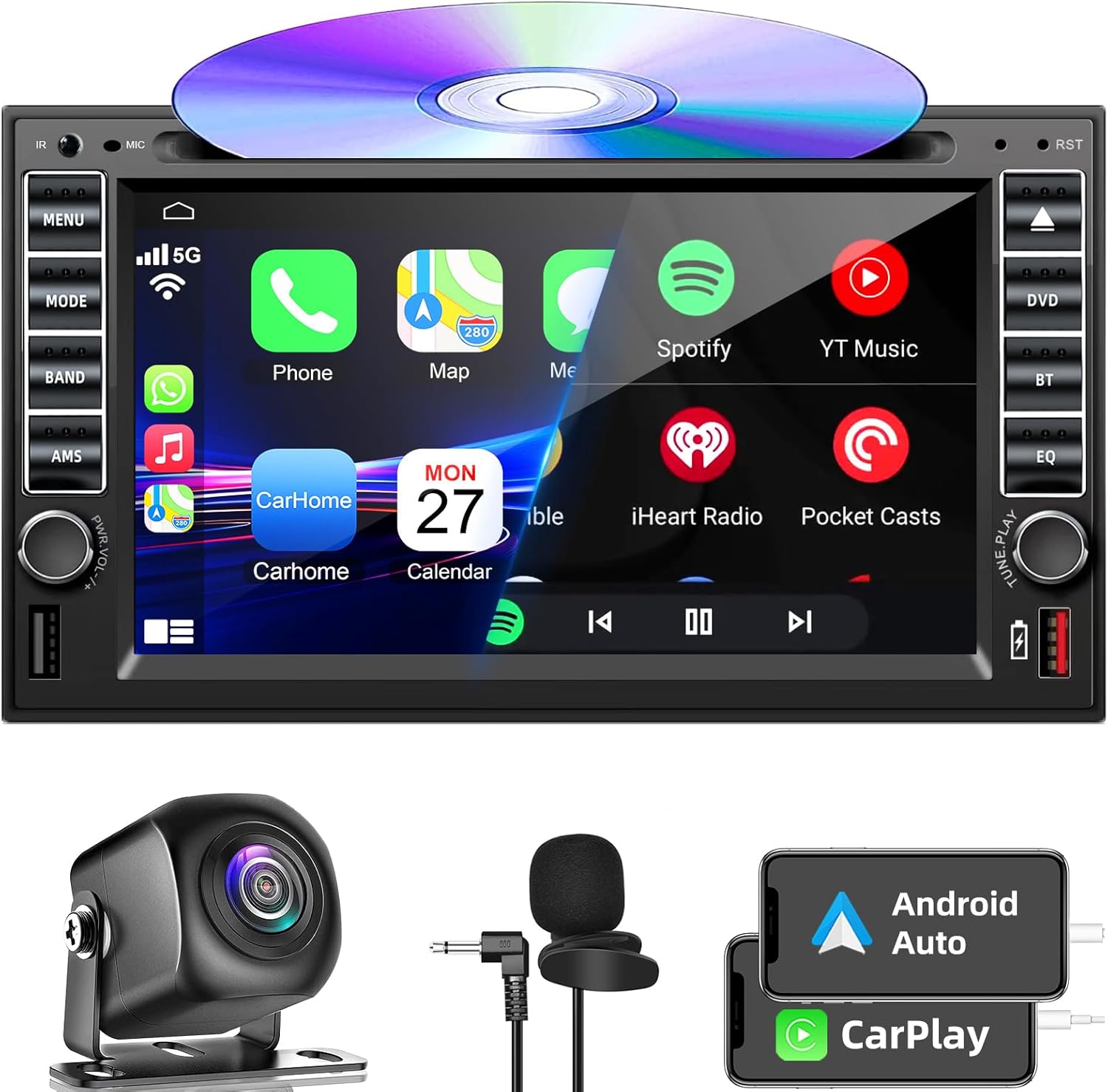
Figure 1: Inexaccessories Double Din Car Stereo with included components like backup camera and microphone.
Setup and Installation
Proper installation is crucial for optimal performance. It is recommended to have this unit installed by a professional. Ensure your vehicle's dashboard opening size is compatible. A suitable dash kit may be required if the stereo size does not match.
1. Package Contents
Verify all components are present before beginning installation:
- Double Din Car Stereo Unit
- Rearview Camera
- Microphone
- Power Cable Harness
- Connecting Line
- Brackets
- Screws
- Camera Cable
- Disassembly Tool
- User Manual
- Trim Ring

Figure 2: Illustration of package contents and a detailed wiring diagram for installation.
2. Wiring Connections
Refer to the wiring diagram provided in the package and below for correct connections. Incorrect wiring can damage the unit or vehicle electrical system.
- Power Connection: Connect the power cable harness to the vehicle's power supply. Ensure correct polarity (B+, ACC, GND).
- Speaker Connections: Connect front and rear speaker wires according to the diagram.
- Rear View Camera: Connect the camera cable to the "Rear Camera Input" on the unit. The unit will automatically display the rear view when the vehicle shifts into reverse.
- Audio/Video Inputs/Outputs: Utilize RCA inputs/outputs for external devices like subwoofers, additional monitors, or auxiliary audio sources.
- USB/AUX-IN: Connect USB devices or auxiliary audio sources to the front panel ports.

Figure 3: Rear panel connections of the car stereo, highlighting audio/video inputs and outputs.
Video 1: Demonstrates the initial setup and settings of the 7-inch touchscreen car stereo, including language and general system configurations.
Operating Instructions
1. Power On/Off and Basic Navigation
Press the power button to turn the unit on or off. Use the touchscreen for navigation through menus and functions. The main interface provides access to various modes like USB, Setup, and Android Auto/CarPlay.
2. DVD/CD Player
Insert a DVD or CD into the disc slot. The unit will automatically detect and begin playback. Use the on-screen controls for play, pause, skip, and volume adjustment.

Figure 4: The car stereo unit with a DVD disc partially inserted, illustrating the disc slot.
Video 2: Demonstrates the operation of the DVD player function on the 7-inch double din car radio, including disc insertion and playback controls.
Video 3: Shows the 7-inch touchscreen car stereo playing a DVD, highlighting the visual quality and ease of use.
3. Apple CarPlay & Android Auto
Connect your iPhone or Android smartphone via a USB cable to enable CarPlay or Android Auto. This allows access to phone features, music, maps, messages, and voice controls (Siri/Google Assistant) directly from the stereo's touchscreen.


Figure 5: Examples of Apple CarPlay and Android Auto interfaces on the stereo screen.
Video 4: A guide on how to use Apple CarPlay with the 7-inch car stereo, demonstrating connectivity and feature access.
4. Mirror Link Function
Connect your iOS or Android phone via a USB cable to mirror your smartphone's screen content directly onto the car stereo display. This allows for viewing videos, photos, and other apps from your phone on the larger screen.

Figure 6: The Mirror Link feature displaying a smartphone's content on the car stereo screen.
Video 5: Demonstrates the Mirror Link functionality, allowing smartphone content to be displayed on the car stereo's screen.
5. Bluetooth Connectivity
Pair your smartphone via Bluetooth for hands-free calling and audio streaming. The included microphone ensures clear call quality. Control music playback from your phone or directly from the stereo.

Figure 7: The Bluetooth interface on the car stereo, showing call management options.
6. FM/AM Radio
Tune into your favorite FM or AM radio stations. The unit supports RDS (Radio Data System) for displaying station information where available. Use the on-screen controls to scan and save stations.

Figure 8: The FM/AM radio interface, showing frequency tuning and station presets.
7. Steering Wheel Control (SWC)
If your vehicle supports it, connect the SWC wires to integrate your steering wheel controls with the stereo. This allows for safe and convenient operation of basic functions without taking your hands off the wheel.

Figure 9: Illustration of steering wheel controls interacting with the car stereo.
8. Backup Camera Display
When the vehicle is shifted into reverse, the stereo automatically displays the feed from the connected backup camera. The HD night vision camera with a 170° ultra-wide viewing angle assists in safe parking.

Figure 10: The backup camera display on the stereo, showing parking guidelines and wide-angle view.
9. Equalizer (EQ) Settings
Customize your audio experience using the built-in equalizer. Adjust bass, treble, fader, and balance settings to suit your preferences. The 30-band EQ offers fine-tuned sound control.

Figure 11: The 30-band EQ setting screen, allowing detailed audio customization.
10. USB Charging
The unit features a USB port that supports fast charging for your mobile devices, ensuring your phone stays powered during long drives.

Figure 12: The USB port on the stereo providing quick charging to a connected smartphone.
Video 6: A short demonstration of the USB charging capability of the double din car radio.
Maintenance
To ensure the longevity and optimal performance of your car stereo, follow these maintenance guidelines:
- Cleaning the Screen: Use a soft, lint-free cloth to gently wipe the touchscreen. For stubborn smudges, slightly dampen the cloth with water or a screen-safe cleaner. Avoid abrasive materials or harsh chemicals.
- Cleaning the Unit: Keep the unit free from dust and debris. Use a soft brush or compressed air to clean vents and buttons.
- Disc Care: Handle CDs and DVDs by their edges. Store them in their cases to prevent scratches. Clean discs with a soft, dry cloth from the center outwards.
- Temperature: Avoid exposing the unit to extreme temperatures. Prolonged exposure to direct sunlight or very cold conditions can affect performance and lifespan.
- Firmware Updates: Periodically check the manufacturer's website for any available firmware updates to ensure the latest features and bug fixes.
Troubleshooting
If you encounter issues with your car stereo, refer to the following common problems and solutions:
| Problem | Possible Cause | Solution |
|---|---|---|
| No Power | Incorrect wiring; Blown fuse; Vehicle battery issue. | Check power connections (B+, ACC, GND). Inspect vehicle fuses. Ensure vehicle battery is charged. |
| No Sound | Speaker wires disconnected; Volume too low; Mute activated; Incorrect audio source. | Verify speaker connections. Increase volume. Check if mute is active. Select correct audio source. |
| Disc Playback Error | Scratched/dirty disc; Incorrect disc format; Disc inserted incorrectly. | Clean the disc. Ensure disc is inserted correctly. Try a different disc. |
| Bluetooth Not Connecting | Bluetooth not enabled on phone/stereo; Incorrect pairing process; Interference. | Ensure Bluetooth is on for both devices. Delete previous pairings and re-pair. Move closer to the unit. |
| Backup Camera Not Displaying | Camera not connected; Reverse trigger wire not connected; Faulty camera. | Check camera and reverse trigger wire connections. Test camera with another display if possible. |
| Touchscreen Unresponsive | System freeze; Software issue. | Perform a soft reset (refer to manual for specific button combination or small reset hole). If issue persists, contact support. |
Specifications
| Feature | Detail |
|---|---|
| Model Number | 726634875035 |
| Display | 7-inch HD Touchscreen |
| Dimensions (Package) | 8.35 x 7.95 x 6.38 inches |
| Item Weight | 4.4 pounds (approx. 2 kg) |
| Connectivity | Bluetooth, USB, 3.5mm Jack (AUX-IN) |
| Bluetooth Version | 5.2 (compatible with Apple and Android) |
| Supported Features | Apple CarPlay, Android Auto, Mirror Link, DVD/CD Player, FM/AM Radio, SWC, Backup Camera Input, USB Charging, A/V Input/Output |
| Audio Output Mode | Stereo (2.0 Surround Sound Channel Configuration) |
| Included Accessories | Rearview Camera, Microphone, Disassembly Tool, Brackets, Screws, Power Cable |
Warranty and Support
Inexaccessories is committed to providing high-quality products and excellent customer service. For any technical assistance, installation queries, or operational issues, please contact our support team.
- Technical Support: We offer 7*24 hours of after-sales technical support to assist you with installation and operation problems.
- Warranty Information: Please refer to the warranty card included in your product packaging for detailed warranty terms and conditions.
- Contact Information: For support, please visit the official Inexaccessories website or refer to the contact details provided in your product documentation.
Ask a question about this manual
Ask about setup, troubleshooting, compatibility, parts, safety, or missing instructions. Manuals+ will review the question and use this page’s manual context to help answer it.