
1. Introduction
Thank you for choosing the YOTOPT T28-EEA Android 12 Tablet PC. This manual provides essential information for setting up, operating, and maintaining your device. The T28-EEA tablet features a 10.1-inch FHD IPS display, an Octa-Core processor, 11GB RAM, 64GB ROM (expandable up to 1TB), and an 8000mAh battery, running on Android 12 for an enhanced user experience.

Image 1.1: YOTOPT T28-EEA Tablet highlighting Android 12, Octa-Core processor, and 2.0GHz speed.

Image 1.2: YOTOPT T28-EEA Tablet with an external keyboard, demonstrating productivity.
2. Package Contents
Verify that all items are present in the package:
- 1 x YOTOPT T28-EEA Tablet
- 1 x Protective Case
- 1 x Bluetooth Keyboard
- 1 x Mouse
- 1 x Earphones
- 1 x Charger
- 1 x Charging Cable
- 1 x OTG Cable
- 1 x User Manual
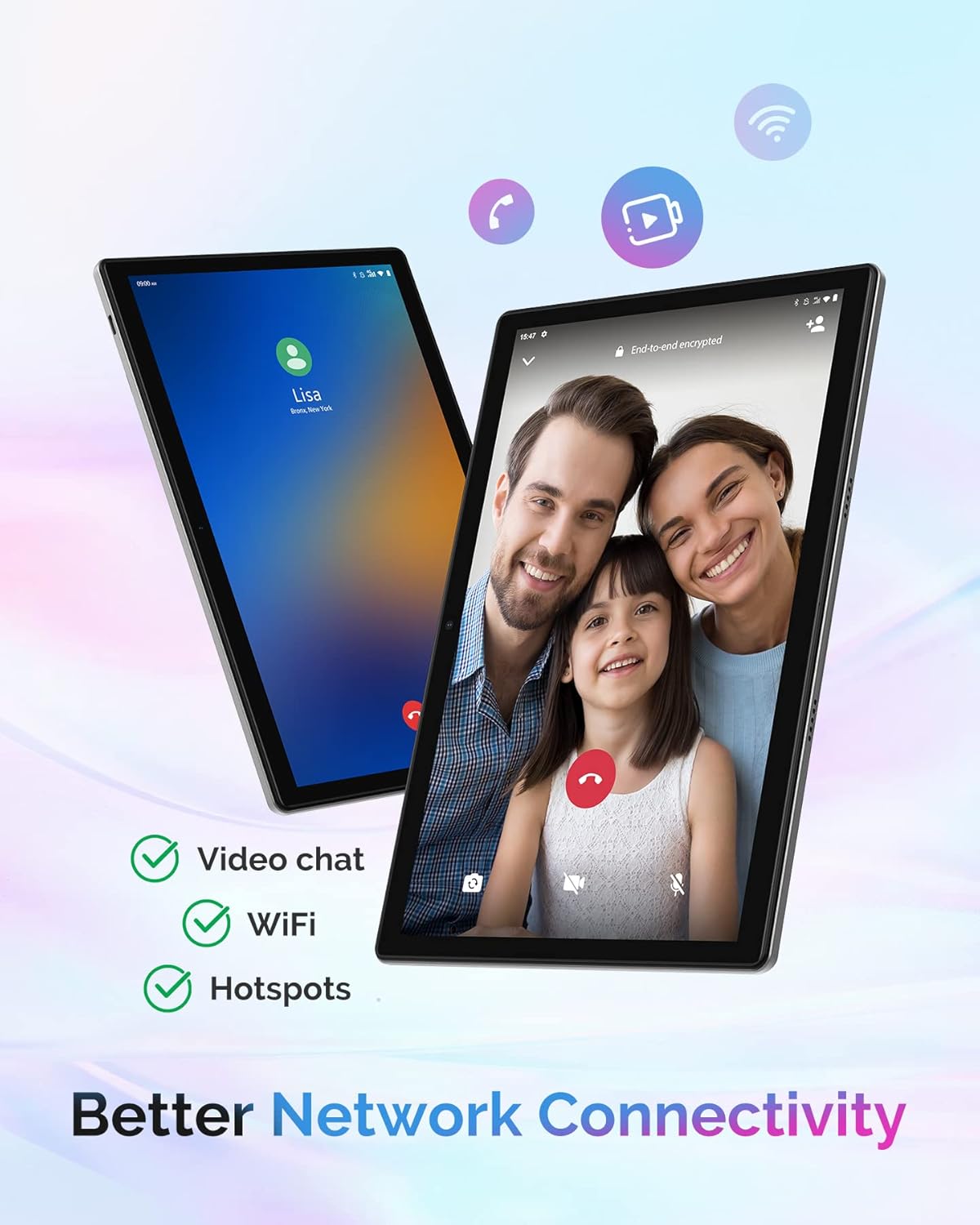
Image 2.1: The YOTOPT T28-EEA Tablet shown with its complete set of accessories.
3. Device Overview
Familiarize yourself with the tablet's physical features, ports, and buttons.

Image 3.1: Tablet display illustrating memory capabilities: 64GB ROM, 4+7GB RAM, and 1TB TF card support.

Image 3.2: Close-up of the tablet screen, emphasizing the 10.1-inch HD IPS display.

Image 3.3: The tablet connected to both a keyboard and a mouse, showcasing its versatility.
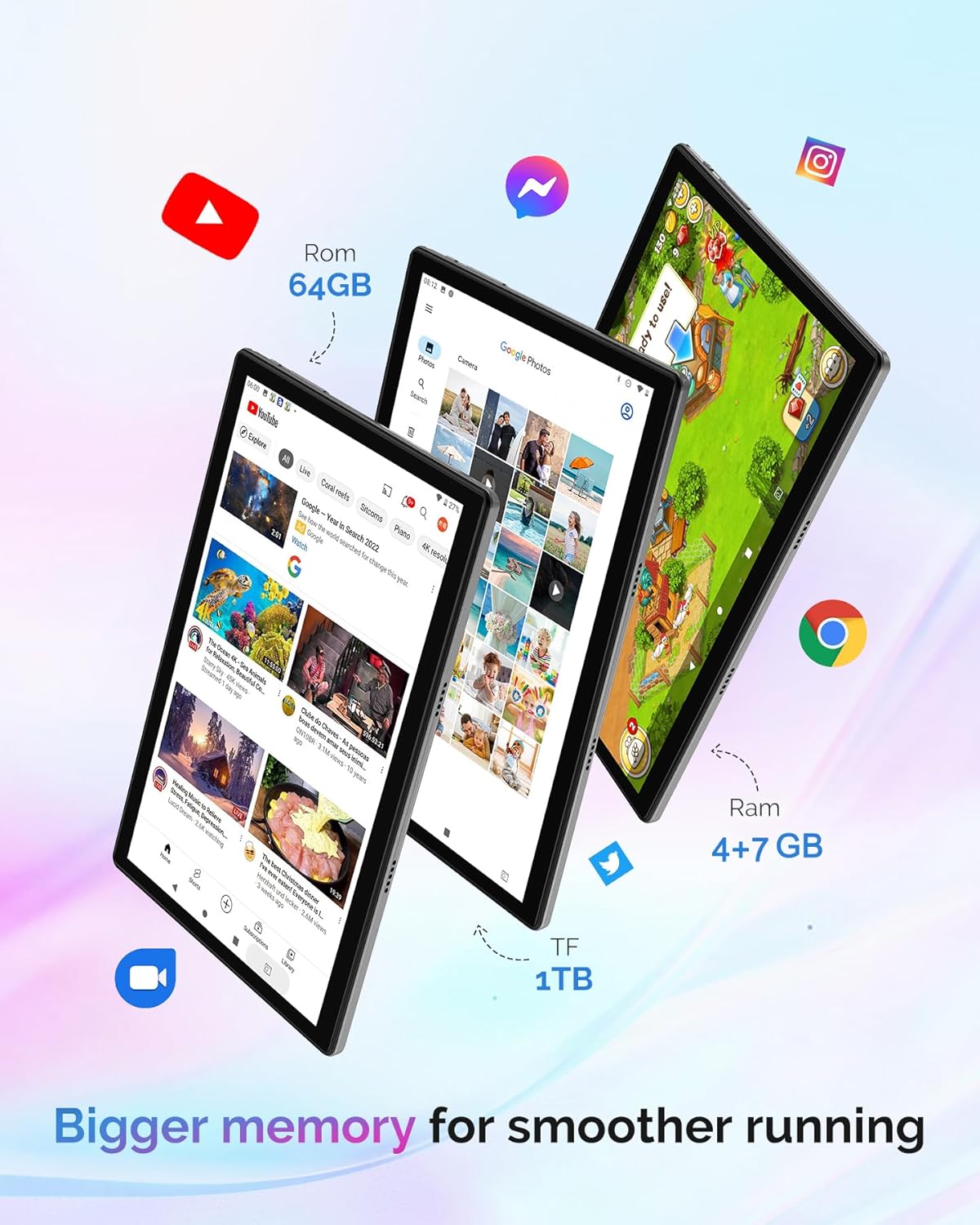
Image 3.4: The tablet's display showcasing its vibrant color reproduction.

Image 3.5: The YOTOPT T28-EEA Tablet being held, illustrating its portable design.

Image 3.6: The tablet shown with a stylus, indicating support for touch input accessories.

Image 3.7: The tablet demonstrating its versatility across work, learning, and entertainment modes.

Image 3.8: The tablet displaying its network connectivity features, including video chat, WiFi, and mobile hotspots.

Image 3.9: Detailed diagram of the YOTOPT T28-EEA Tablet's ports and buttons, including Type-C, speaker, cameras, Micro SD/TF slot, flash light, 3.5mm headphone jack, power button, and volume controls.
3.1. Ports and Buttons
- Type-C Port: For charging and data transfer.
- Speakers: Audio output.
- 5MP Front Camera: For video calls and selfies.
- Micro SD/TF Card Slot: For expandable storage up to 1TB.
- 8MP Rear Camera: For photos and videos.
- Flash Light: For illumination with the rear camera.
- 3.5mm Headphone Jack: For connecting wired headphones.
- Power ON/OFF Button: To power the device on or off, or to put it to sleep/wake it up.
- Volume +/- Buttons: To adjust the device volume.
- Reset Pinhole: For force restarting the device if unresponsive.
4. Getting Started (Setup)
4.1. Charging the Tablet
Before first use, fully charge the tablet using the provided charger and charging cable. Connect the Type-C cable to the tablet's Type-C port and the charger to a power outlet. The battery indicator on the screen will show charging status.
4.2. Powering On/Off
- To Power On: Press and hold the Power ON/OFF button until the YOTOPT logo appears.
- To Power Off: Press and hold the Power ON/OFF button, then select "Power off" from the options on the screen.
- To Sleep/Wake: Briefly press the Power ON/OFF button.
4.3. Initial Setup
Upon first power-on, follow the on-screen prompts to complete the initial setup:
- Select your preferred language.
- Connect to a Wi-Fi network.
- Sign in with your Google account or create a new one.
- Review and accept the terms and conditions.
4.4. Inserting a Micro SD Card
To expand storage, insert a Micro SD (TF) card into the designated slot. Ensure the tablet is powered off before inserting or removing the card to prevent data corruption.
5. Operating Instructions
5.1. Navigating Android 12
The tablet runs on Android 12, offering a personalized and secure user experience. Utilize gestures for navigation, customize your home screen, and manage privacy settings through the intuitive interface.
5.2. Connectivity
- Wi-Fi: Go to Settings > Network & internet > Wi-Fi to connect to available networks.
- Bluetooth: Go to Settings > Connected devices > Connection preferences > Bluetooth to pair with Bluetooth devices like the included keyboard and mouse.
- GPS: The tablet supports GPS for navigation and location-based services. Ensure location services are enabled in Settings.
5.3. Using Cameras
The tablet features a 5MP front camera and an 8MP rear camera. Open the Camera app to capture photos and videos. The rear camera includes a flash light for low-light conditions.
Image 5.1: Tablet highlighting the locations of the 5MP front camera and 8MP rear camera.
5.4. Eye Protection and Dark Mode
The tablet includes an eye protection mode and a dark mode. These features automatically adjust and optimize backlight settings to reduce eye strain, especially during prolonged use or in low-light environments. Access these modes through the display settings.
5.5. Using Accessories
The included Bluetooth keyboard and mouse can be paired via Bluetooth for a more traditional computing experience. The OTG cable allows connection of USB peripherals.
6. Battery Management
The tablet is equipped with an 8000mAh battery for extended usage. To maximize battery life:
- Adjust screen brightness.
- Close unused applications running in the background.
- Turn off Wi-Fi, Bluetooth, and GPS when not in use.
- Enable battery saver mode in Settings.
Image 6.1: Tablet design highlighting the large 8000mAh battery.
7. Maintenance
- Cleaning: Use a soft, lint-free cloth to clean the screen and body. Avoid abrasive cleaners or solvents.
- Software Updates: Regularly check for system updates in Settings > System > System update to ensure optimal performance and security.
- Storage: Avoid exposing the tablet to extreme temperatures or direct sunlight.
8. Troubleshooting
8.1. Tablet Does Not Turn On
- Ensure the battery is charged. Connect the charger and wait a few minutes before attempting to power on.
- Press and hold the Power ON/OFF button for 10-15 seconds to perform a force restart.
- If unresponsive, use a thin pin to press the Reset pinhole.
8.2. Wi-Fi Connection Issues
- Ensure Wi-Fi is enabled in Settings.
- Restart your Wi-Fi router.
- Forget the network in tablet settings and reconnect.
8.3. Slow Performance
- Close unused applications.
- Clear cache for apps in Settings > Apps.
- Ensure sufficient storage space is available.
- Restart the tablet.
9. Specifications
| Feature | Specification |
|---|---|
| Brand | YOTOPT |
| Model Number | T28-EEA |
| Series | K110W |
| Operating System | Android 12 |
| Processor Brand | Unisoc |
| Number of Cores | 8 |
| RAM | 11 GB (4GB installed + 7GB virtual) |
| Storage (ROM) | 64 GB |
| Expandable Storage | Up to 1 TB via Micro SD/TF card |
| Screen Size | 10.1 Inches |
| Screen Resolution | 1280 x 800 pixels (FHD IPS) |
| Max Display Resolution | 1080 Pixels |
| Front Camera | 5 MP |
| Rear Camera | 8 MP |
| Connectivity | Bluetooth, USB, WLAN (802.11ac, 802.11g, 802.11n) |
| Interface | 3.5mm Audio, Bluetooth, Micro SD, USB Type-C |
| Battery Capacity | 8000 mAh (Lithium-polymer) |
| Dimensions (L x W x H) | 23.01 x 16 x 0.79 cm |
| Weight | 490 Grams |
| Special Features | USB OTG Support, Eye Protection Mode, Dark Mode |
10. Warranty and Support
YOTOPT products come with a standard manufacturer's warranty. For specific warranty details, please refer to the warranty card included in your package or visit the official YOTOPT website. For technical support, troubleshooting assistance, or service inquiries, please contact YOTOPT customer support through the contact information provided on the product packaging or the official website.


