1. Introduction
The Lunzn YM05 is a Smart Digital Signage Player designed to transform standard televisions, monitors, or projectors into dynamic 4K advertising displays. This device offers a robust solution for businesses requiring stable, 24/7 operation for commercial advertising. It features a non-subscription Content Management System (CMS) for remote control and content scheduling, supporting both horizontal and vertical screen orientations.
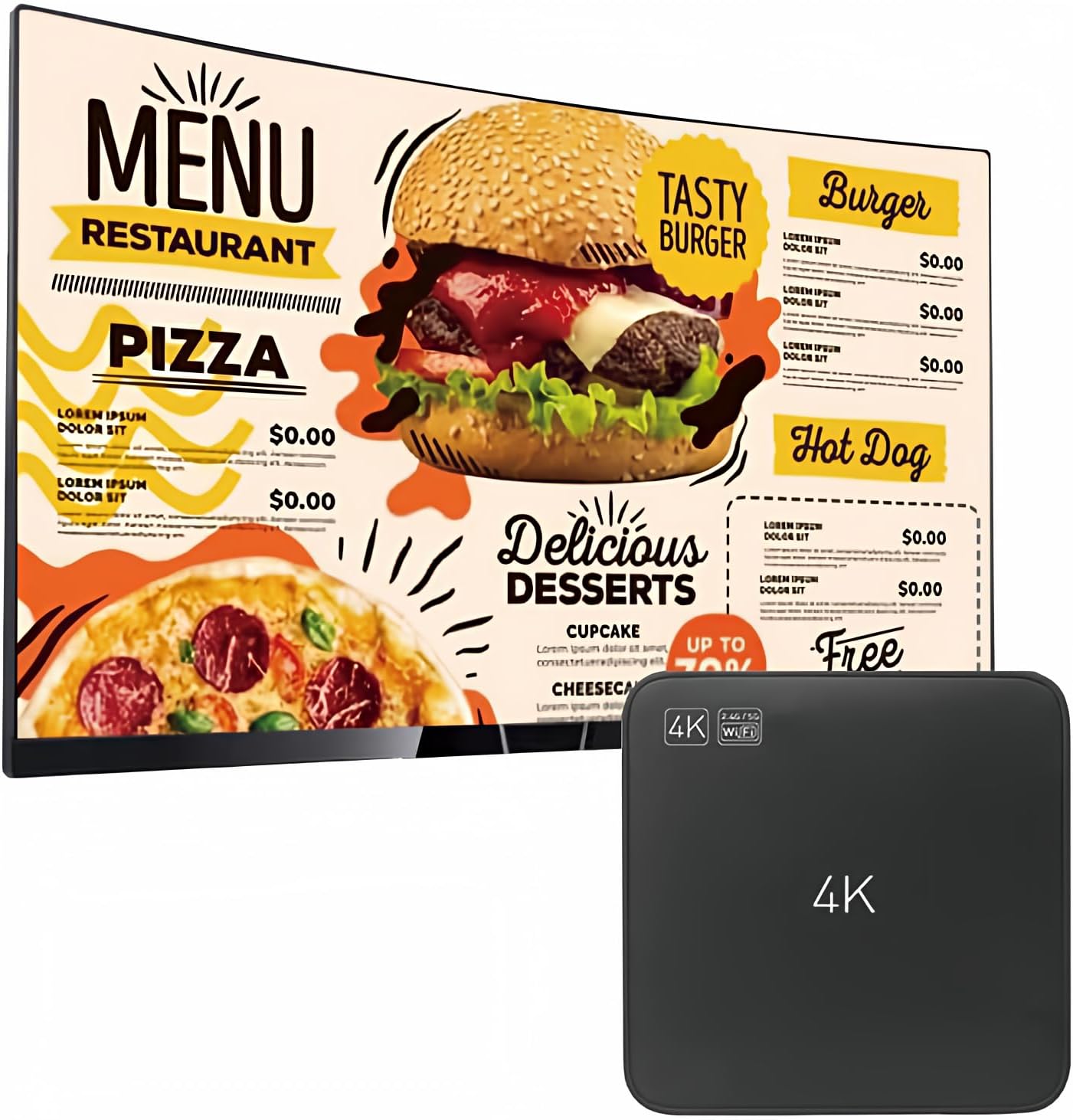
Image 1.1: The Lunzn YM05 Digital Signage Player with a display showing a restaurant menu.
2. Safety Information
- Ensure the device is placed on a stable, flat surface to prevent accidental falls.
- Do not expose the device to water, moisture, or extreme temperatures.
- Use only the provided power adapter. Using unauthorized adapters may damage the device and void the warranty.
- Avoid blocking ventilation openings to prevent overheating.
- Do not attempt to open or repair the device yourself. Refer all servicing to qualified personnel.
- Keep the device away from strong magnetic fields.
3. Package Contents
Please check the box for the following items:
- Lunzn YM05 Smart Digital Signage Player
- Power Adapter
- HDMI Cable
- Ethernet Cable
- Remote Control

Image 3.1: Lunzn YM05 Player and included accessories.
4. Product Overview
The Lunzn YM05 player is a compact device designed for easy integration into various display setups. Its dimensions are approximately 4.61 x 4.61 x 0.98 inches (117 x 117 x 25 mm) and it weighs about 8.8 ounces (0.25 kg).
4.1 Ports and Connections
The device features several ports for connectivity and power:
- Power Input: Connects to the provided power adapter.
- Ethernet Port: For wired network connection, ensuring stable data flow.
- HDMI Output: Connects to your TV, monitor, or projector for 4K video output.
- AV Output: For connecting to legacy TVs or displays.
- USB 1 & USB 2 Ports: For connecting USB storage devices for local content playback.
- Power Switch: To turn the device on or off.

Image 4.1: Rear view of the Lunzn YM05 Player showing connectivity ports.

Image 4.2: Detailed diagram of Lunzn YM05 ports.
5. Setup Instructions
Follow these steps to set up your Lunzn YM05 Digital Signage Player:
- Connect to Display: Connect the YM05 player to your TV, monitor, or projector using the HDMI cable. If using an older display, use the AV output.
- Connect Power: Plug the power adapter into the DC input port on the player, then plug the adapter into a power outlet.
- Network Connection:
- Wired: Connect an Ethernet cable from your router or network switch to the Ethernet port on the player.
- Wireless: Once powered on, navigate to the network settings on the player's interface to connect to your Wi-Fi network.
- Initial Boot-up: Turn on the player using the power switch. The device will boot up and display its interface on your connected screen.
- Content Management System (CMS) Setup:
- Access the CMS website: https://op2us.aihmong.com.
- Register an account using the player's serial number (SN). This ensures privacy and control over your device.
- Follow the on-screen instructions within the CMS to configure your content and schedules.
- Local Content Playback (Optional): Insert a USB drive containing your media files into one of the USB ports. The player can be configured to automatically play content from the USB drive.

Image 5.1: Three-step advertising deployment process.
6. Operating Instructions
6.1 Content Management System (CMS)
The Lunzn YM05 utilizes a non-subscription cloud-based CMS for managing your digital signage content. This system is hosted on a local server in the US for faster performance.
- Account Registration: Register your CMS account using the player's unique serial number.
- Content Upload: Upload your images and videos to the CMS.
- Template Usage: Utilize existing templates for quick ad creation and publishing.

Image 6.1: Overview of the CMS features and interface.

Image 6.2: CMS interface showing content templates and publishing options.
6.2 Remote Control and Central Management
The CMS allows for comprehensive remote control of all connected players, even across different locations.
- Group Management: Create different groups for players in various locations.
- Targeted Publishing: Publish advertisements to an entire group or to individual players directly.
- Remote Access: Control players remotely from any location by logging into the CMS.

Image 6.3: Centralized management of multiple players in different locations.

Image 6.4: Remote control capabilities across different cities/countries.
6.3 Content Scheduling and Display Options
- Schedule Ads: Set specific times for different advertisements to play throughout the day or week.
- Automatic On/Off: Configure the player to automatically power on and off at predetermined times (e.g., turn on at 7:00 and off at 23:00 daily).
- Horizontal & Vertical Display: Rotate ad pictures and videos freely to suit both horizontal and vertical screen orientations.

Image 6.5: Example of scheduled advertisement playback.

Image 6.6: Automatic startup and shutdown functionality.
6.4 USB Playback
The player supports automatic playback of videos and images directly from a connected USB storage device.

Image 6.7: USB port for local content playback.
7. Maintenance
- Cleaning: Use a soft, dry cloth to clean the exterior of the device. Do not use liquid cleaners or aerosols.
- Software Updates: Periodically check the CMS or manufacturer's website for any available firmware or software updates to ensure optimal performance and security.
- Storage: If storing the device for an extended period, disconnect it from power and store it in a cool, dry place.
8. Troubleshooting
- No Display Output:
- Ensure all cables (HDMI/AV, power) are securely connected.
- Verify the display is set to the correct input source.
- Try a different HDMI/AV cable or display.
- CMS Content Not Displaying:
- Check your internet connection on the player.
- Ensure the content URLs in the CMS start with
http://(nothttps://if experiencing issues, as some systems might require this specific format). - Verify that the content has been successfully published and scheduled within the CMS.
- Confirm the player's serial number is correctly registered in the CMS.
- 4K Resolution Issues (e.g., Black Frame):
- Ensure your display supports 4K resolution and is configured correctly.
- Check the display settings on the player's interface to ensure 4K output is selected and scaled appropriately for your screen.
- Some displays may require specific settings adjustments to properly fit the 4K signal.
- Remote Control Not Responding:
- Ensure the remote control has fresh batteries.
- Point the remote directly at the player's IR receiver.
9. Specifications
| Feature | Specification |
|---|---|
| Brand | Lunzn |
| Model Name | YM05 |
| Item Weight | 8.8 ounces (0.25 Kilograms) |
| Product Dimensions | 4.61 x 4.61 x 0.98 inches |
| Connectivity Technology | Ethernet, Wi-Fi |
| Resolution | 4K |
| Supported Internet Services | Netflix |
| Controller Type | Remote Control |
| Form Factor | TV Box |
| RAM Memory Installed Size | 8 GB |
10. Support
For technical assistance or further inquiries, please refer to the official CMS help page or contact Lunzn customer support.
- CMS Help Page: The CMS website (https://op2us.aihmong.com) contains demo videos and guides that can assist with setup and operation.
- Customer Service: Refer to your product packaging or purchase documentation for specific customer service contact information.


