1. Introduction
This user manual provides detailed instructions for the safe and efficient operation, maintenance, and troubleshooting of your Olimpia Splendid Peler 10 WiFi Air Cooler. Please read this manual thoroughly before using the appliance and keep it for future reference.
The Olimpia Splendid Peler 10 WiFi is an evaporative air cooler designed to provide a refreshing breeze and improve air quality in your home. It features a 10-liter water tank, remote control, timer functions, and WiFi connectivity for smart control via your smartphone.
2. Safety Instructions
Always follow basic safety precautions when using electrical appliances to reduce the risk of fire, electric shock, and injury.
- Ensure the power supply voltage matches the appliance's rating.
- Do not immerse the appliance, cord, or plug in water or other liquids.
- Unplug the appliance from the outlet when not in use, before cleaning, or before moving.
- Keep the appliance out of reach of children and pets.
- Do not operate the appliance with a damaged cord or plug, or after the appliance malfunctions or has been damaged in any manner.
- Do not block air inlets or outlets.
- Use the appliance only for its intended household use as described in this manual.
- Place the appliance on a stable, flat surface.
- Do not use the appliance outdoors.
3. Product Overview
3.1 Components
The Olimpia Splendid Peler 10 WiFi air cooler consists of the following main components:
- Main Unit with Air Outlet Grille
- Control Panel (Touch-sensitive)
- 10-Liter Water Tank (Removable)
- Air Filter and Honeycomb Evaporative Pad
- Remote Control
- Transport Wheels
- Ice Box (Included)
3.2 Control Panel and Remote Control
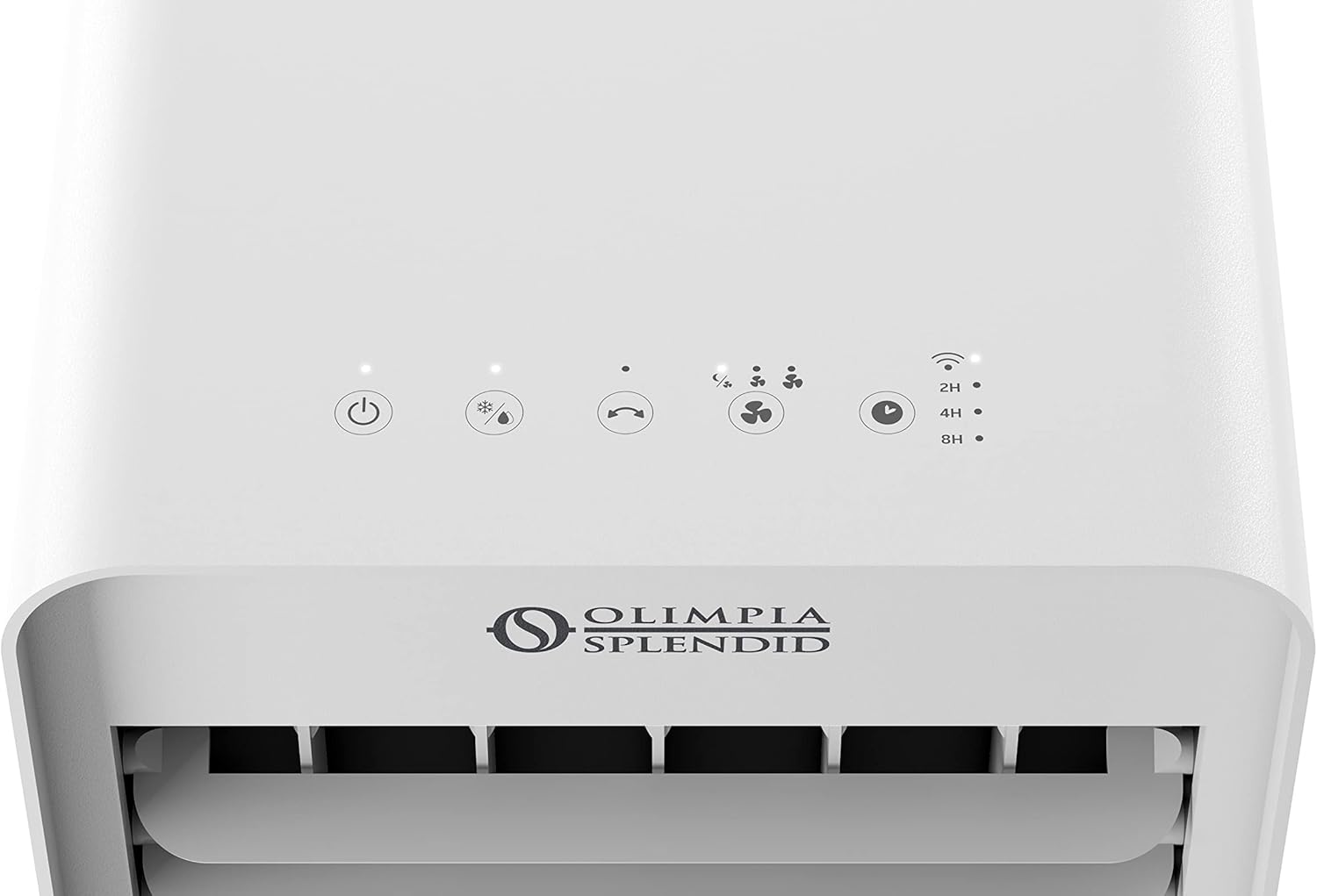
Figure 1: Top-mounted touch control panel of the Peler 10 WiFi air cooler, showing power, mode, oscillation, fan speed, and timer buttons.

Figure 2: Remote control for the Peler 10 WiFi air cooler, featuring buttons for power, mode, oscillation, fan speed, and timer settings.
The appliance can be controlled via its integrated touch-sensitive control panel or the included remote control. Both offer access to all functions, including power, operating modes, fan speed, oscillation, and timer settings.
4. Setup
4.1 Unpacking and Placement
- Carefully remove the air cooler from its packaging.
- Check for any signs of damage. If damaged, do not use the appliance and contact customer support.
- Place the air cooler on a firm, level surface. Ensure there is adequate space around the unit for proper airflow (at least 20 cm from walls or furniture).
- The integrated transport wheels allow for easy movement of the unit.
4.2 Filling the Water Tank

Figure 3: The pull-out 10-liter water tank of the Peler 10 WiFi air cooler, showing the minimum and maximum fill lines.
- Pull out the water tank from the bottom front of the unit.
- Fill the tank with clean tap water. Do not exceed the "MAX" fill line. The tank has a capacity of 10 liters.
- For enhanced cooling, you can add the included ice box (after freezing) or ice cubes directly into the water tank.
- Carefully push the water tank back into the unit until it clicks into place. Ensure it is securely closed to prevent leaks.
Note: The appliance can operate as a fan without water in the tank. For the cooling function, water is required.
5. Operating Instructions
5.1 Power On/Off
- Plug the power cord into a suitable electrical outlet.
- Press the Power button (marked with a power symbol) on the control panel or remote control to turn the unit on or off.
5.2 Fan Speed Adjustment
- Press the Fan Speed button (marked with fan blade symbols) repeatedly to cycle through the 3 available fan speeds: Low, Medium, and High.
5.3 Cooling/Humidification Mode
- Press the Cooling/Humidification button (marked with a snowflake/water drop symbol) to activate the evaporative cooling function. The water pump will start, and the honeycomb pad will become wet.
- Press the button again to deactivate the cooling function. The unit will then operate as a fan only.
5.4 Oscillation Function
- Press the Oscillation button (marked with a curved arrow symbol) to enable horizontal oscillation of the air outlet grille, distributing air across a wider area.
- Press the button again to stop oscillation at the desired position.
- Vertical airflow can be adjusted manually by tilting the vertical louvers.
5.5 Timer Function
- Press the Timer button (marked with a clock symbol) repeatedly to set the desired operating time before the unit automatically turns off. Available settings are 2, 4, and 8 hours.
- The corresponding indicator light on the control panel will illuminate.
- To cancel the timer, cycle through the settings until no timer indicator is lit.
5.6 WiFi Connectivity (OS Home App)
- Download the "OS Home" app from your smartphone's app store.
- Follow the in-app instructions to connect your Peler 10 WiFi air cooler to your home Wi-Fi network.
- Once connected, you can control all functions of the appliance remotely via your smartphone, even when you are away from home.
6. Maintenance
Regular cleaning and maintenance will ensure optimal performance and extend the lifespan of your air cooler.
6.1 Cleaning the Exterior
- Always unplug the appliance before cleaning.
- Wipe the exterior surfaces with a soft, damp cloth. Do not use abrasive cleaners or solvents.
6.2 Cleaning the Water Tank
- Regularly empty and clean the water tank to prevent mold and mildew growth.
- Pull out the water tank and rinse it with clean water. You can use a mild detergent if necessary, then rinse thoroughly.
- Allow the tank to air dry completely before reinserting it.
6.3 Cleaning/Replacing the Air Filter and Evaporative Pad
- The air filter and honeycomb evaporative pad should be cleaned periodically, depending on usage and air quality.
- Refer to the appliance's back panel for access to the filter and pad. Remove them carefully.
- Rinse the filter and pad under running water. For stubborn dirt, use a soft brush.
- Ensure they are completely dry before reinserting them into the unit.
- Replace the evaporative pad if it shows signs of significant wear or mineral buildup that cannot be cleaned.
7. Troubleshooting
| Problem | Possible Cause | Solution |
|---|---|---|
| Unit does not turn on. | No power supply; Power cord not plugged in; Power button not pressed. | Check power outlet; Ensure power cord is securely plugged in; Press the Power button. |
| No cooling effect. | Water tank is empty; Cooling function not activated; Evaporative pad is dry. | Fill water tank; Press the Cooling/Humidification button; Ensure water pump is working and pad is wet. |
| Weak airflow. | Air filter/pad is dirty; Air inlets/outlets are blocked; Fan speed is too low. | Clean air filter and evaporative pad; Remove any obstructions; Increase fan speed. |
| Unpleasant odor. | Stagnant water in tank; Dirty evaporative pad. | Empty and clean water tank thoroughly; Clean or replace evaporative pad. |
| WiFi connection issues. | Incorrect WiFi password; Router too far; App issues. | Verify WiFi password; Move unit closer to router; Restart app or unit. |
If the problem persists after trying these solutions, please contact Olimpia Splendid customer support.
8. Specifications
| Feature | Detail |
|---|---|
| Brand | Olimpia Splendid |
| Model Number | 99242 |
| Color | Off White |
| Product Dimensions | 27 x 26.4 x 77 cm |
| Item Weight | 6.8 Kilograms |
| Water Tank Capacity | 10 Liters |
| Maximum Power Consumption | 60 W |
| Airflow (Maximum) | 200 m³/h (approx. 120 CFM) |
| Air Speed (Maximum) | 5 m/s |
| Maximum Sound Power | 55 dB(A) |
| Voltage | 240 Volt |
| Number of Speed Settings | 3 |
| Control Type | Remote Control, Touch Control |
| Special Features | Digital Display, Auto Shut-Off, Timer, Portable, WiFi Integrated |
| Included Components | Air Cooler, Remote Control, Ice Box |


Figure 4: Various views of the Olimpia Splendid Peler 10 WiFi air cooler, showcasing its compact design and transport wheels.

Figure 5: The Olimpia Splendid Peler 10 WiFi air cooler positioned in a modern living room, demonstrating its aesthetic integration into a home environment.

Figure 6: Dimensional diagram of the Olimpia Splendid Peler 10 WiFi air cooler, showing its height (77cm), width (27cm), and depth (26.4cm).
9. Warranty and Support
For warranty information, technical support, or service inquiries, please contact Olimpia Splendid customer service. Keep your purchase receipt as proof of purchase for warranty claims.
You can find contact details on the official Olimpia Splendid website or through your retailer.
Website: www.olimpiasplendid.com