
1. Introduction
Welcome to the user manual for your KVAGO Bluetooth Keyboard Case. This guide provides comprehensive instructions to help you set up, operate, and maintain your new keyboard case. Please read this manual carefully before use to ensure optimal performance and longevity of your product.
2. Product Overview
The KVAGO Bluetooth Keyboard Case is designed to enhance your iPad experience, offering both protection and functionality. It features a detachable keyboard, an integrated Apple Pencil holder, and multi-angle adjustment for versatile use.
Key Features:
- Wide Compatibility: Designed for iPad 10.2-inch (9th, 8th, 7th Gen), iPad Air 3 (2019), and iPad Pro 10.5-inch (2017). The keyboard also supports Android, iOS, and Windows systems.
- Apple Pencil Storage: Features a convenient holder for your Apple Pencil, making it easy to store and carry.
- Multi-Angle Adjustment: Three anti-slip grooves allow for comfortable viewing and typing angles.
- Detachable Bluetooth Keyboard: Powerful built-in magnets ensure the keyboard is securely attached but can be easily removed for standalone use or to use the case as a protective cover only.
- Full Protection & Energy Saving: Made from flexible silicone material, providing excellent water resistance and wear resistance, protecting your iPad from impacts and scratches. The auto-sleep function helps reduce energy consumption and extends iPad battery life.
Compatibility Details:
This case is compatible with the following iPad models. Please verify the model number on the back of your iPad:
- iPad 9th Gen 10.2 (2021): A2602, A2604, A2603, A2605
- iPad 8th Gen 10.2 (2020): A2270, A2428, A2429, A2430
- iPad 7th Gen 10.2 (2019): A2197, A2200, A2198
- iPad Air 3 10.5 (2019): A2152, A2123, A2153, A2154
- iPad Pro 10.5 (2017): A1701, A1709, A1852
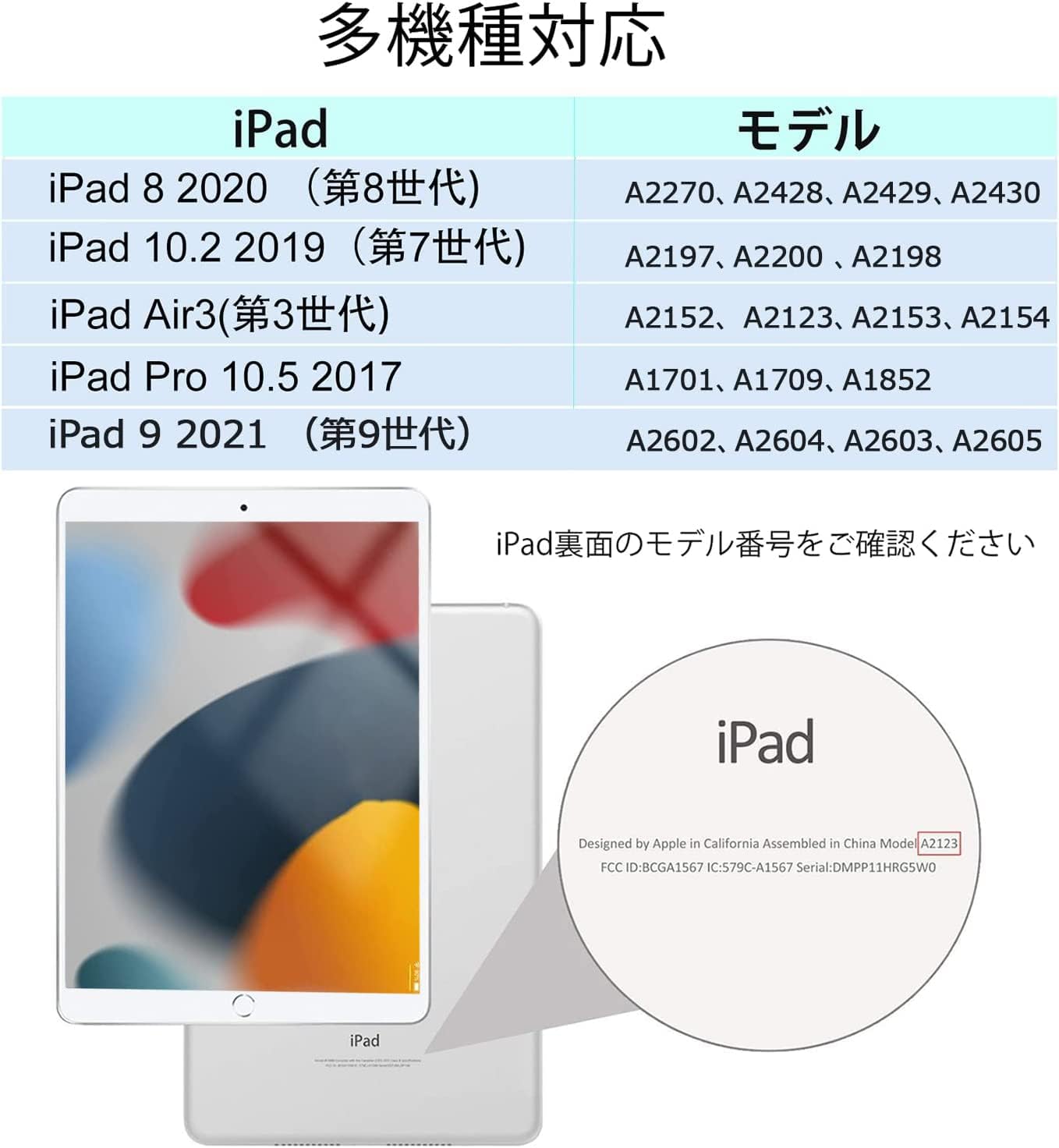
Image: Detailed table showing compatible iPad models and their corresponding model numbers.
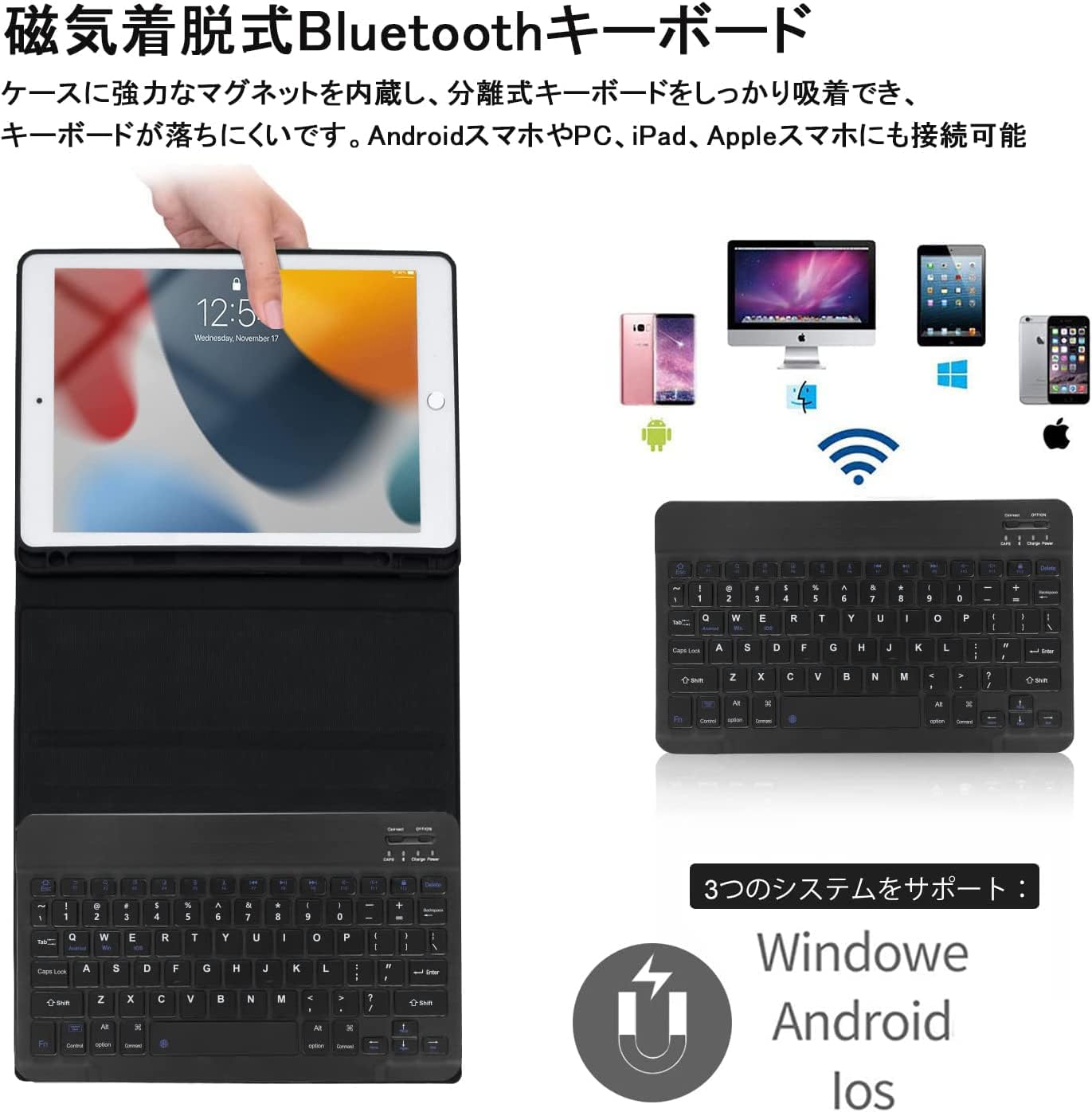
Image: The KVAGO Bluetooth Keyboard Case shown with an iPad, highlighting its sleek design and integrated keyboard.
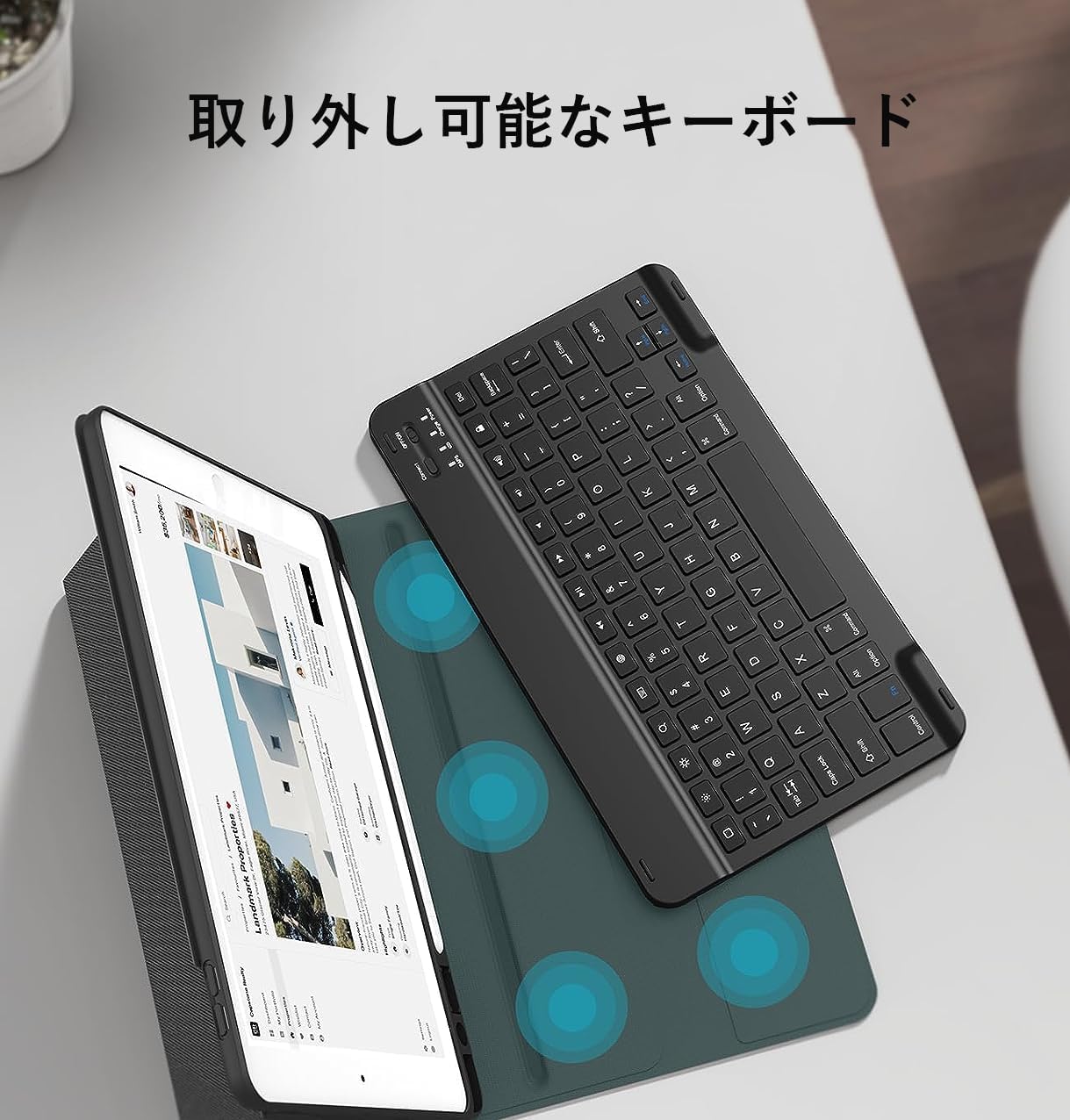
Image: The detachable Bluetooth keyboard separated from the case, demonstrating its portability and flexibility.
3. Setup
Attaching Your iPad to the Case:
- Gently align your iPad with the protective frame of the case.
- Press firmly around the edges of the iPad until it snaps securely into place. Ensure all ports and buttons are accessible.
Video: Demonstrates how to securely attach the iPad to the protective case and set it up for use with the keyboard.
Bluetooth Pairing:
- Ensure the keyboard is charged.
- Turn on the keyboard by sliding the power switch to the 'ON' position. The indicator light will flash.
- Press the 'Connect' button on the keyboard. The Bluetooth indicator light will start blinking, indicating it's in pairing mode.
- On your iPad, go to Settings > Bluetooth and turn Bluetooth 'On'.
- Your iPad will search for available devices. Select 'Bluetooth 3.0 Keyboard' (or similar name) from the list.
- Once connected, the Bluetooth indicator light on the keyboard will stop blinking.

Image: Visual guide demonstrating the steps to connect the keyboard via Bluetooth to an iPad.
Setting Up the Stand:
- Open the protective cover and fold it backward in half.
- The stand's magnetic stopper will attach to the middle fold, creating a stable viewing stand.
- For landscape orientation, ensure the camera lens cutout on the case is at the top. The magnets are in the center of the contact surface, so place the case centrally.
- For portrait orientation, the camera lens cutout must also be at the top. The magnets are in the center of the contact surface, so place the case centrally.
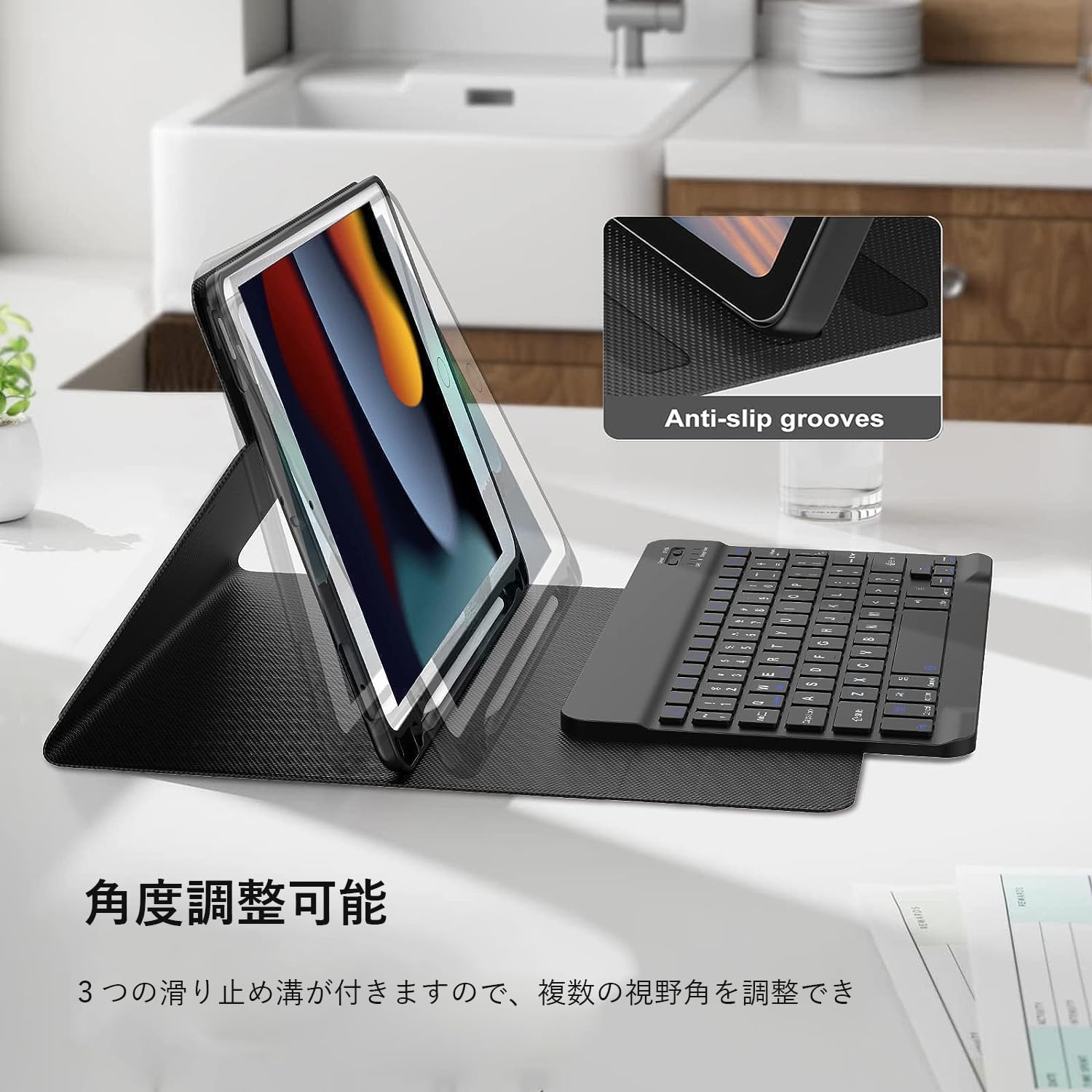
Image: The iPad positioned in the multi-angle stand mode, showcasing its versatility for different viewing preferences.
Video: Demonstrates how to set up the iPad in various stand configurations, including landscape and portrait modes, and highlights the magnetic attachment.
4. Operating Instructions
Keyboard Functions:
The keyboard features a standard QWERTY layout with 78 keys, including function keys for quick access to iPad features. It also supports backlight adjustment for comfortable typing in various lighting conditions.
- Input Method Switching: Press Control + Spacebar simultaneously to switch between input languages.
- Backlight Adjustment: Use the dedicated backlight key (often represented by a light bulb icon) to cycle through different backlight colors and brightness levels.

Image: Close-up of the keyboard, showing the key layout, function keys, and Bluetooth indicator.

Image: Illustrates the keyboard's backlight feature and various shortcut keys for enhanced productivity.
Multi-System Compatibility:
The Bluetooth keyboard is versatile and can be paired with devices running Android, iOS, and Windows operating systems, making it suitable for various smartphones, tablets, and PCs.

Image: Shows the keyboard connecting wirelessly to an iPad, a laptop, and a smartphone, demonstrating its multi-device compatibility.
Apple Pencil Holder:
The case includes a dedicated slot to securely hold your Apple Pencil, ensuring it's always within reach and protected when not in use.
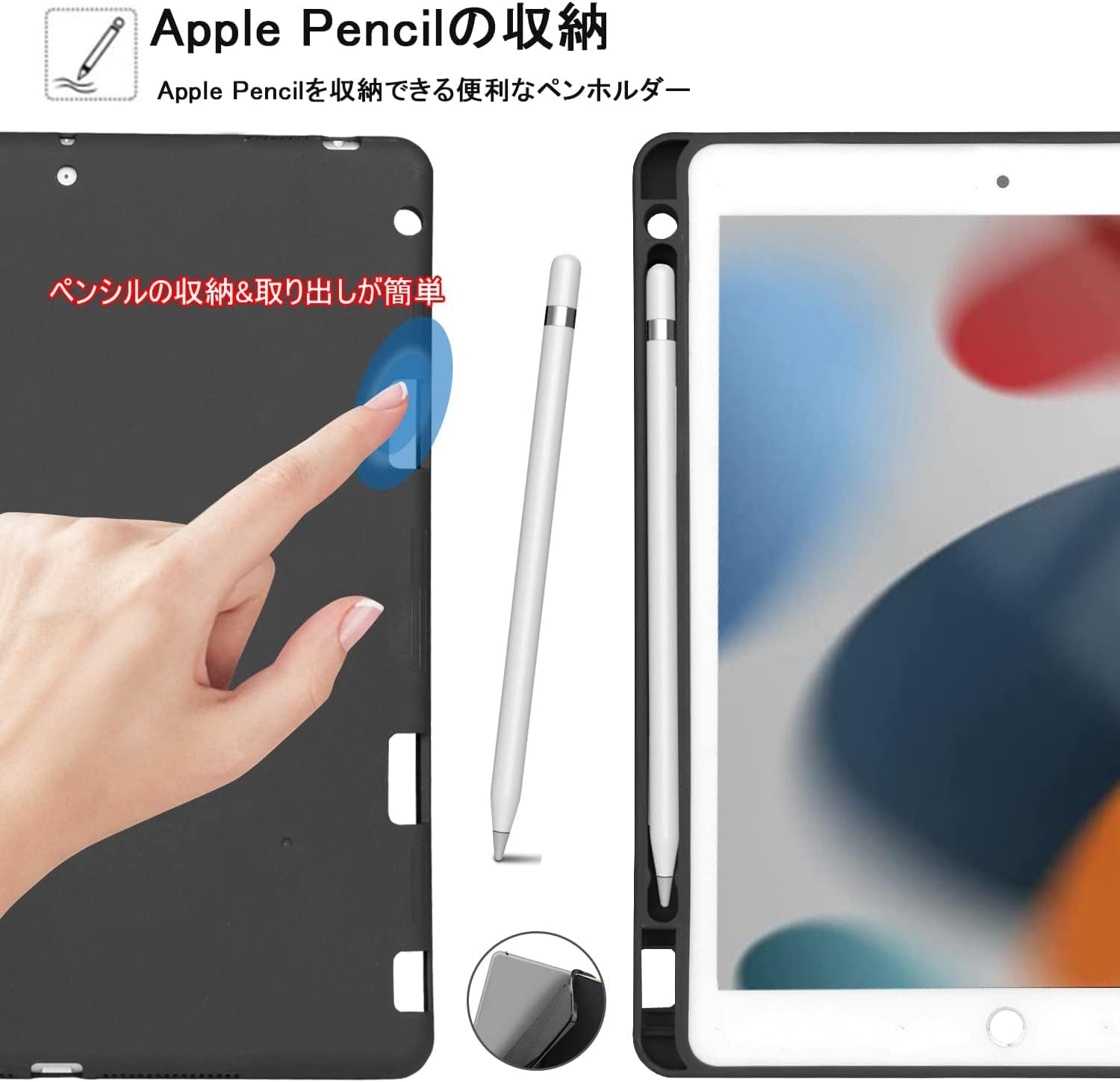
Image: A close-up of the integrated Apple Pencil holder, showing how the pencil fits snugly into the case.
Charging the Keyboard:
The keyboard is equipped with a USB-C charging port. Use the included USB cable to charge the keyboard.
- Full Charge Time: Approximately 2-3 hours.
- Standby Time: Up to 90 days.
- Continuous Use Time: Approximately 35 days (based on 2 hours of daily use).

Image: Highlights the USB-C charging port on the keyboard and provides information on charging and battery life.
5. Maintenance
Cleaning and Care:
- To clean the case, gently wipe it with a soft, damp cloth. Avoid harsh chemicals or abrasive cleaners.
- The flexible silicone material is water-resistant and wear-resistant, offering durable protection.
- For the keyboard, use a soft, dry cloth to wipe away dust and debris. Do not immerse the keyboard in water.
- Store the keyboard case in a cool, dry place when not in use.
6. Troubleshooting
Common Issues and Solutions:
- Keyboard not connecting via Bluetooth:
a. Ensure the keyboard is charged and powered on.
b. Make sure Bluetooth is enabled on your iPad.
c. Forget the device in your iPad's Bluetooth settings and try pairing again.
d. Restart both your iPad and the keyboard. - Keys not responding:
a. Check if the keyboard is properly connected via Bluetooth.
b. Ensure the keyboard is charged.
c. If specific keys are not working, try restarting the keyboard and re-pairing. - iPad not entering auto-sleep:
a. Ensure the case is properly closed and aligned with the iPad.
b. Check your iPad's display and brightness settings for auto-lock.
If you encounter any other issues or the problem persists, please refer to the warranty and support section for assistance.
7. Specifications
| Feature | Detail |
|---|---|
| Brand | KVAGO |
| Model Number | 032 |
| Compatible Devices | Smartphones, Tablets (iPad 10.2-inch, iPad Air 3, iPad Pro 10.5-inch) |
| Connectivity Technology | Bluetooth |
| Keyboard Description | Flexible, Detachable |
| Recommended Use | Everyday Use |
| Special Features | Shockproof, Multi-angle Adjustment, Apple Pencil Holder, Auto-sleep |
| Color | Black |
| Material | Silicone, Polycarbonate |
| Included Components | USB Cable |
| Keyboard Layout | QWERTY |
| Number of Keys | 78 |
8. Warranty and Support
1-Year Warranty:
This product comes with a 1-year warranty from the date of purchase. This warranty covers manufacturing defects and malfunctions under normal use.
Contact Support:
If you encounter any issues or have questions regarding your KVAGO Bluetooth Keyboard Case, please do not hesitate to contact our customer support team. You can reach us through your Amazon account:
- Go to your Order History.
- Locate your purchase of this product.
- Click on Contact Seller or Ask a Question (usually found in the upper right corner of the product page or order details).
Our team will be happy to assist you.