
YEHUA M25Y
YEHUA Wireless CarPlay Adapter User Manual
Model: M25Y | Brand: YEHUA

The YEHUA Wireless CarPlay Adapter, designed for seamless integration with your vehicle's wired CarPlay system.
1. Introduction and Overview
The YEHUA Wireless CarPlay Adapter (Model M25Y) is designed to convert your vehicle's existing factory-wired Apple CarPlay system into a wireless experience. This device offers a simple plug-and-play solution, allowing for automatic connection to your iPhone once initial setup is complete. It features advanced connectivity with dual-band 2.4GHz/5.8GHz WiFi and Bluetooth 5.0 hardware, ensuring a stable and responsive connection for navigation, music, and other CarPlay applications.
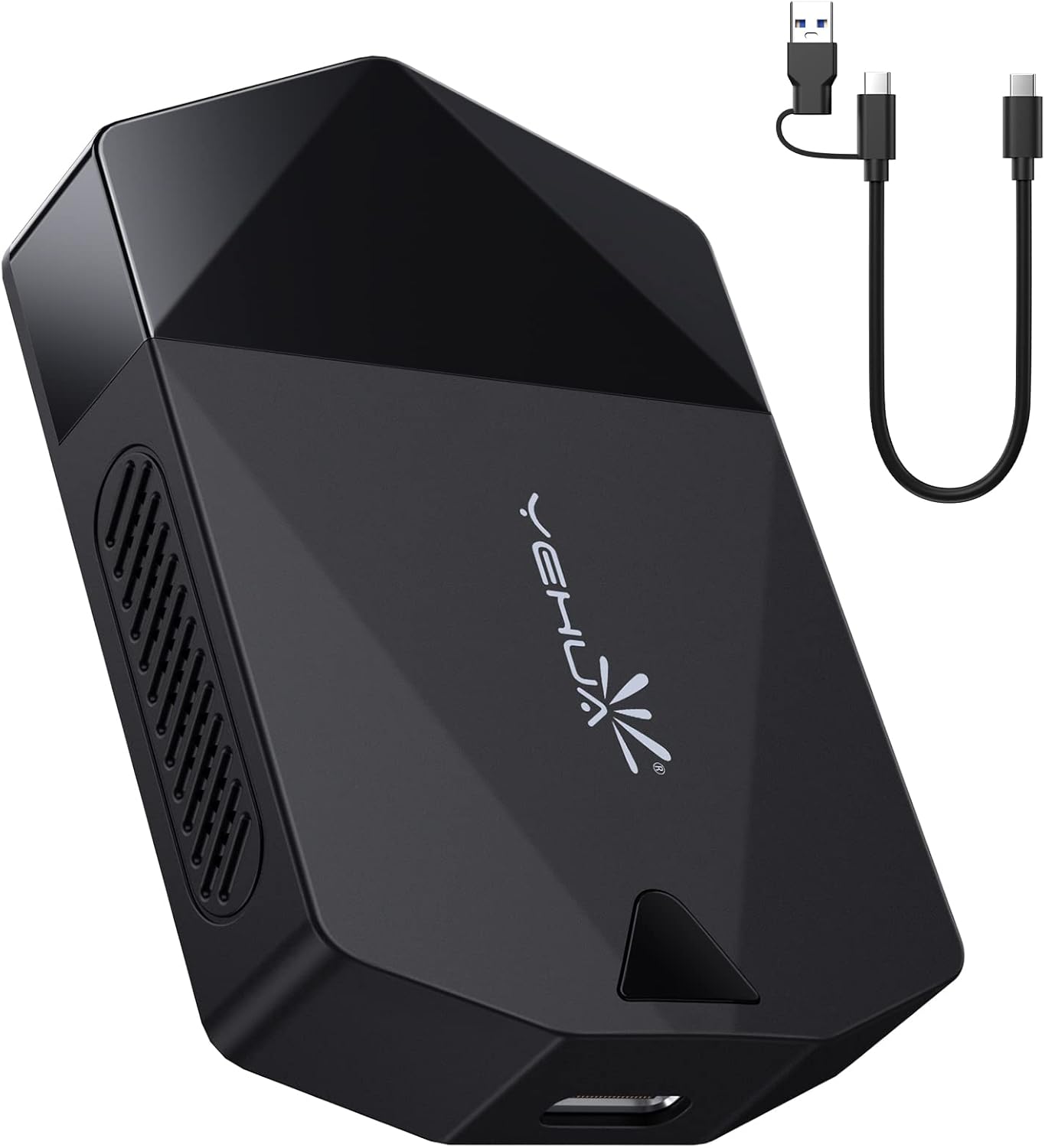
The YEHUA Wireless CarPlay Adapter and its accompanying USB cable.
2. What's in the Box
- Wireless CarPlay Adapter (M25Y)
- USB-C / USB to USB-C Cable (30 cm)
- User Manual
3. Specifications
| Feature | Description |
|---|---|
| Model Number | M25Y |
| Product Dimensions | 2.56 x 1.69 x 0.47 inches (L x W x H) |
| Item Weight | 1.28 ounces |
| Connectivity Technologies | Bluetooth 5.0, Dual-band WiFi (2.4GHz/5.8GHz) |
| Operating System | CarPlay |
| Human Interface Input | Buttons, Touchscreen |
| Special Features | Converts Factory Wired Apple CarPlay to Wireless CarPlay Use |
| Color | Black |
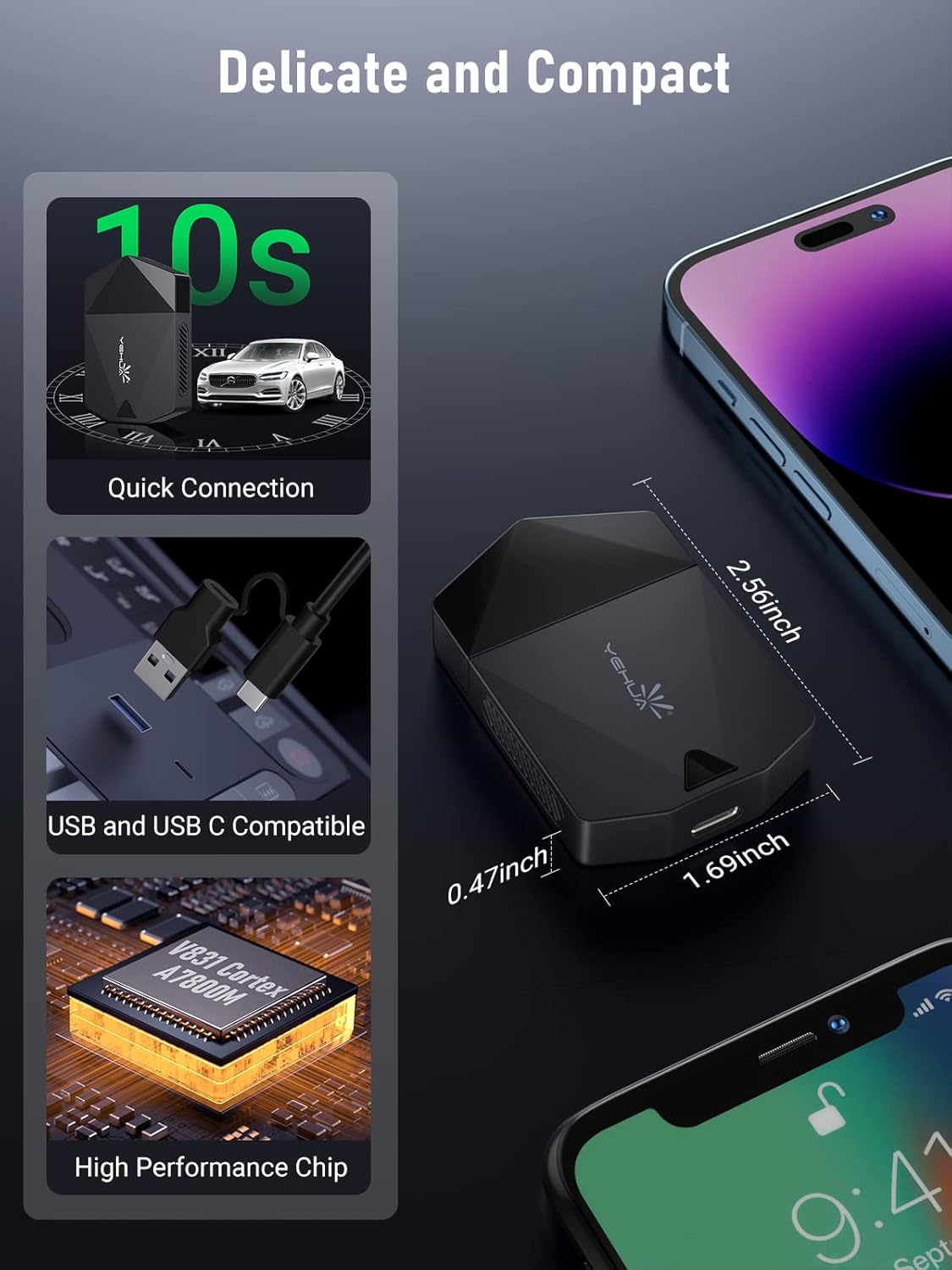
Detailed view of the YEHUA Wireless CarPlay Adapter, highlighting its compact dimensions and high-performance internal chip.
4. Setup and Installation
Follow these steps for initial setup and connection:
- Plug In: Connect the YEHUA Wireless CarPlay Adapter to your vehicle's USB port (USB-A or USB-C, depending on your car's port and the cable used). Ensure the port supports data transfer.
- Wait for Recognition: Allow a few seconds for your car's infotainment system to recognize the adapter. A prompt to enable Apple CarPlay for the device may appear. Select "Enable".
- Bluetooth Pairing: On your iPhone, go to Settings > Bluetooth. Look for a device named "SmartBox" or similar (e.g., "SmartBox-F790") and select it to pair. Confirm the pairing request on your iPhone and allow contacts and favorites sync if prompted.
- Use CarPlay: Once paired, your iPhone will prompt you to use CarPlay with the "SmartBox" device. Select "Use CarPlay". Your car's display should now show the Apple CarPlay interface.
After the first successful installation, the adapter is designed to automatically connect to your iPhone when the car engine starts, providing a quick and seamless wireless CarPlay experience.
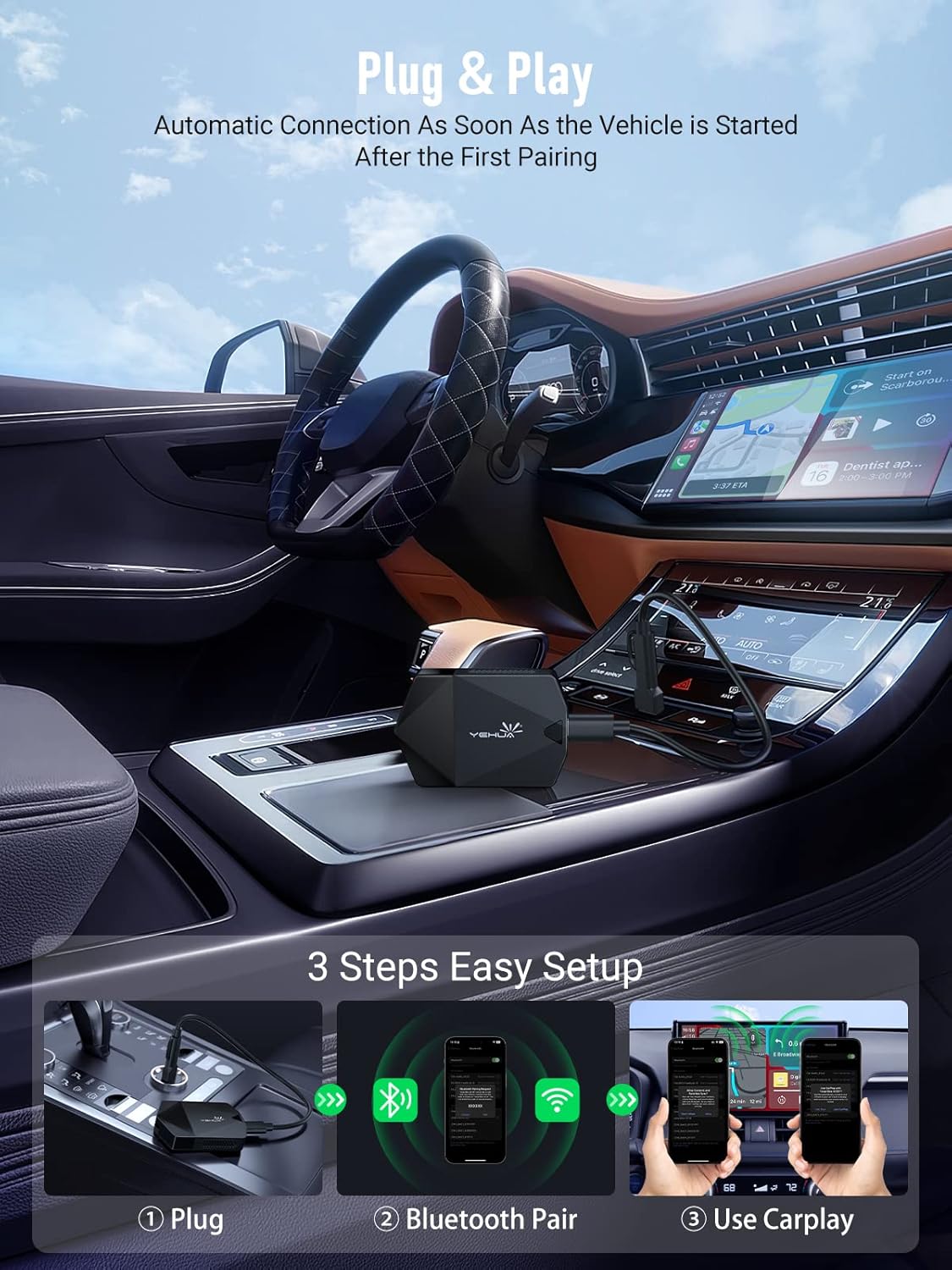
Visual representation of the three easy setup steps: Plug, Bluetooth Pair, and Use CarPlay.
5. Operating Instructions
Once connected, the YEHUA Wireless CarPlay Adapter allows you to utilize Apple CarPlay's features wirelessly, maintaining the original operation methods of your car's infotainment system.
- Voice Control: Use Siri for hands-free commands, such as navigating, making calls, sending messages, or playing music. Activate Siri via your car's voice assistant button or by saying "Hey Siri".
- Steering Wheel Control: Continue to use your vehicle's steering wheel controls to manage audio playback, answer calls, or activate Siri.
- Touch Screen Control: Interact directly with the CarPlay interface on your car's touchscreen display.
- Knob Operation: If your vehicle supports it, use the OEM knob to navigate through CarPlay menus and select options.
The adapter's new smart IC chip enhances WiFi signal for clearer images during video playback (if supported by CarPlay apps), reduces noise during music playback or phone calls, and provides less latency for real-time GPS navigation.
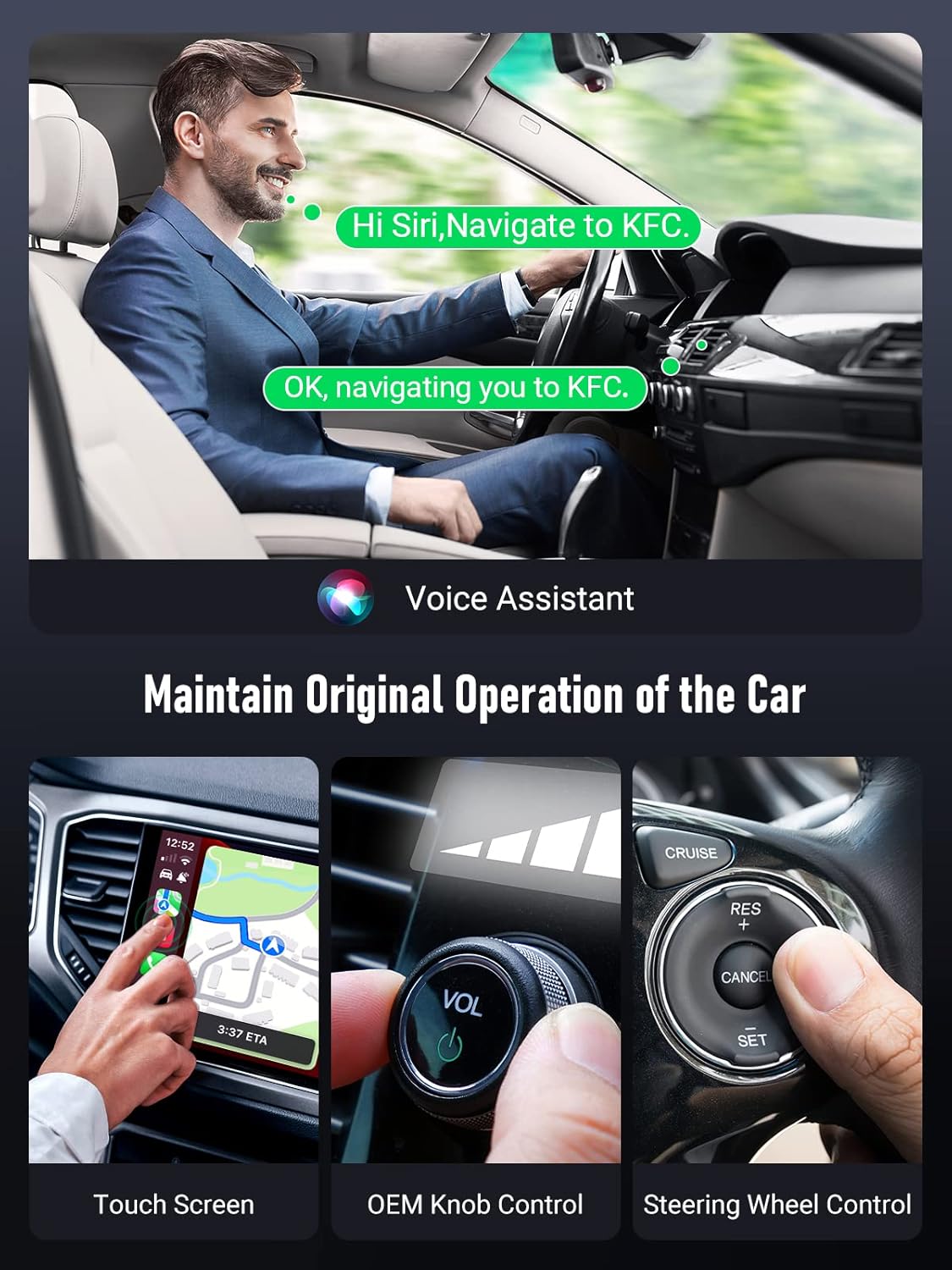
The YEHUA Wireless CarPlay Adapter supports various control methods including voice, touch, knob, and steering wheel controls.

Enjoy a wide range of CarPlay applications for navigation, music, and communication.
6. Compatibility
The YEHUA Wireless CarPlay Adapter is designed for broad compatibility:
- Vehicle Compatibility: Works with approximately 98% of vehicles equipped with factory-wired Apple CarPlay. Please consult your vehicle's manual or infotainment system settings to confirm wired CarPlay functionality.
- iPhone Compatibility: Compatible with iPhone models running iOS 10 and above. This includes iPhone 6 and newer models (e.g., iPhone 14, 13, 12, 11, X, XS, XR, SE, 8, etc.).

The adapter is widely compatible with various iPhone models and most factory-wired CarPlay vehicles.
7. Troubleshooting
If you encounter issues with your YEHUA Wireless CarPlay Adapter, consider the following:
- Connection Issues: Ensure the adapter is securely plugged into a USB port that supports data transfer. Try unplugging and re-plugging the device.
- Restart Devices: Restart your iPhone and/or your vehicle's infotainment system.
- Bluetooth Pairing: Verify that Bluetooth is enabled on your iPhone and that it is correctly paired with the "SmartBox" device.
- CarPlay Functionality: Confirm that your vehicle originally supports wired Apple CarPlay. The adapter requires an existing wired CarPlay system to function.
- Software Updates: Check the official YEHUA website or product support page for any available firmware updates for the adapter.
- USB Cable: Ensure you are using the provided USB cable or a high-quality data transfer cable. Some low-quality cables may cause connectivity issues.
For further assistance, refer to the official User Manual (PDF) provided with the product or contact technical support.
8. Maintenance
To ensure the longevity and optimal performance of your YEHUA Wireless CarPlay Adapter, follow these simple maintenance guidelines:
- Cleaning: Use a soft, dry cloth to clean the exterior of the adapter. Avoid using liquid cleaners or abrasive materials.
- Temperature: Do not expose the device to extreme temperatures (hot or cold) or direct sunlight for prolonged periods.
- Storage: When not in use for extended periods, store the adapter in a cool, dry place.
- Handling: Handle the adapter with care to avoid physical damage. Do not drop or apply excessive force.
9. Warranty and Support
YEHUA is committed to providing excellent customer service. If you have any questions or encounter any issues with your Wireless CarPlay Adapter, our professional technical support team is ready to assist you. We aim to reply to your messages within 24 hours and work with you to resolve any problems.
Please retain your proof of purchase for any warranty claims.