
1. Introduction
The SkycropHD 8K@60Hz HDMI 2.1 Switch is designed to connect up to four HDMI source devices to a single HDMI display. This switch supports high-resolution video up to 8K@60Hz and 4K@120Hz, ensuring compatibility with modern gaming consoles and display technologies. It features HDMI 2.1 specifications, including a 48Gbps transfer rate, HDCP 2.3, HDR10+, VRR, ALLM, Dolby Vision, and Dolby Atmos.
The device offers flexible control options, allowing users to switch between inputs automatically, manually via a button on the unit, or using the included IR remote control.
2. Package Contents
- SkycropHD 8K@60Hz HDMI 2.1 Switch (4 In 1 Out)
- IR Remote Control
- DC 5V Power Adapter
- User Manual
3. Product Overview
The HDMI switch features four input ports for source devices and one output port for your display. It includes LED indicators for power and active input, along with a manual switch button and an IR receiver for remote control functionality.
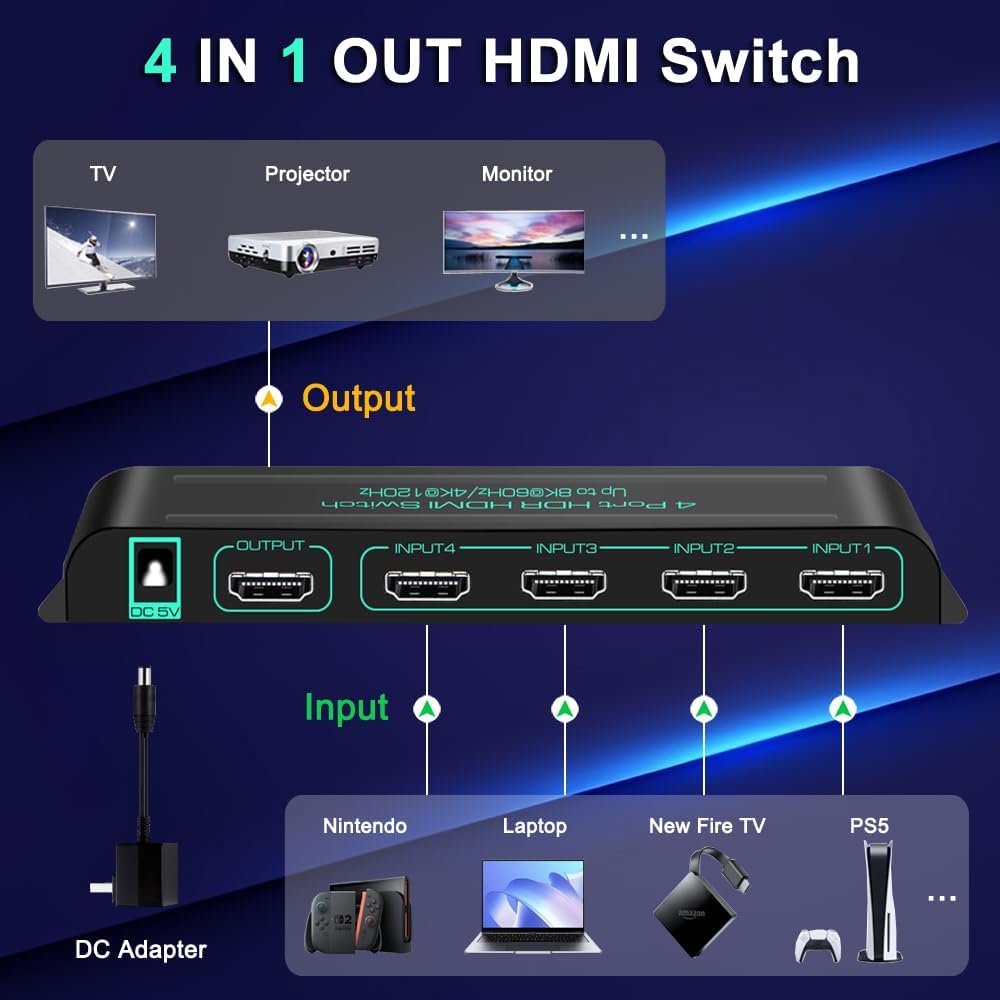
Image: Front and rear view of the SkycropHD HDMI switch, illustrating the four HDMI input ports (Input 1-4), one HDMI output port, and the DC 5V power input. The front panel shows LED indicators for each input and power, along with the manual switch button.
The device is constructed with a solid metal shell, designed for durability and efficient heat dissipation, contributing to its longevity.

Image: The SkycropHD HDMI switch, highlighting its solid metal casing and features such as anti-fingerprint, anti-creep, anti-interference, and quick heat dissipation.
4. Setup Instructions
- Connect HDMI Source Devices: Use certified HDMI 2.1 cables to connect your HDMI source devices (e.g., PS5, Xbox Series X/S, Blu-ray player) to the HDMI IN 1, 2, 3, or 4 ports on the switch.
- Connect to Display: Use a certified HDMI 2.1 cable to connect the HDMI OUT port of the switch to the HDMI input of your television, monitor, or projector.
- Connect Power: Plug the included DC 5V power adapter into the DC 5V port on the switch, then connect the adapter to a power outlet. The power LED indicator on the switch will illuminate.
Important: To ensure full functionality and optimal performance, especially for 8K@60Hz or 4K@120Hz resolutions, it is crucial to use certified HDMI 2.1 cables for all connections between your source devices, the switch, and your display.

Image: A diagram illustrating the importance of using certified HDMI 2.1 cables for high-resolution output, showing recommended cable lengths and wire gauges for various resolutions up to 8K@60Hz.
5. Operating Instructions
The SkycropHD HDMI switch offers three methods for switching between connected HDMI sources:
5.1. Automatic Switching
- By default, the switch is set to auto-switch. When a new HDMI source device is powered on, the switch will automatically detect it and switch to that input.
- If multiple devices are active, the switch may prioritize the most recently activated device or the lowest numbered input.
- To disable the auto-switch function, press and hold the "Switch" button on the unit for approximately 3 seconds. Repeat this action to re-enable auto-switching.
5.2. Manual Switching (Button)
- Press the "Switch" button on the front panel of the unit to cycle through the HDMI input sources (Input 1 → Input 2 → Input 3 → Input 4 → Input 1, etc.).
- The corresponding LED indicator for the active input will illuminate.
5.3. Remote Control Switching
- Point the IR remote control directly at the IR receiver window on the front of the HDMI switch.
- Press the corresponding input number button (1, 2, 3, or 4) on the remote to directly select the desired HDMI source.

Image: Visual representation of the three switching modes: manual switching by pressing the button on the unit, automatic switching when a device is powered on, and manual switching using the IR remote control.
6. Specifications
| Feature | Description |
|---|---|
| Model | 8K@60Hz HDMI 2.1 Switch 4 In 1 Out |
| HDMI Version | HDMI 2.1 |
| Input Ports | 4 x HDMI |
| Output Ports | 1 x HDMI |
| Max Resolution | 8K@60Hz, 4K@120Hz, 2K/1080P/720P@120Hz/60Hz/50Hz/30Hz |
| Bandwidth | 48Gbps |
| Color Depth | 10 bit (8K@60Hz), 16 bit (4K@120Hz) |
| HDR Support | HDR10, HDR10+, Dolby Vision |
| Audio Support | Dolby Atmos, DTS5.1/7.1 |
| HDCP Compliance | HDCP 2.3 |
| Gaming Features | VRR (Variable Refresh Rate), ALLM (Auto Low Latency Mode), QFT (Quick Frame Transport), QMS (Quick Media Switching) |
| Switching Modes | Auto, Manual Button, IR Remote |
| Compatible Devices | PS5, Xbox Series X/S, PS4-Pro, Roku Ultra, Fire TV, Apple TV, UHD Blu-ray player, UHD TV, Monitor, Projector |
| Power Supply | DC 5V |
| Color | Black |

Image: Illustration of gaming features supported by the switch, including VRR (Variable Refresh Rate), ALLM (Auto Low Latency Mode), QFT (Quick Frame Transport), and QMS (Quick Media Switching), ensuring smooth gameplay.
7. Troubleshooting
- No Signal or Flickering Screen:
- Ensure all HDMI cables are securely connected.
- Verify that certified HDMI 2.1 cables are used, especially for 8K or 4K@120Hz resolutions. Lower quality cables may not support the required bandwidth.
- Check if the power adapter is correctly connected and the power indicator on the switch is lit.
- Try connecting the source device directly to the display to rule out cable or source issues.
- Auto-Switching Not Working as Expected:
- The auto-switch function relies on detecting a new active signal. Some devices, even in standby, may maintain an active HDMI signal, preventing the switch from changing inputs automatically.
- If auto-switching is problematic, disable it by long-pressing the "Switch" button on the unit (approx. 3 seconds) and use manual switching via the button or remote.
- Consider disabling CEC/eARC features on connected devices if they interfere with auto-switching or cause unintended device power-ons.
- Remote Control Not Responding:
- Ensure there is a clear line of sight between the remote control and the IR receiver window on the switch. Obstructions can block the signal.
- Check the battery in the remote control and replace if necessary.
- No Power:
- Confirm the power adapter is fully plugged into both the switch and a working power outlet.
- Try a different power outlet.
8. Maintenance
To ensure the longevity and optimal performance of your SkycropHD HDMI switch, follow these maintenance guidelines:
- Keep the device in a dry, well-ventilated area, away from direct sunlight, high temperatures, and humidity.
- Avoid exposing the unit to water or other liquids.
- Clean the device with a soft, dry cloth. Do not use harsh chemicals or abrasive cleaners.
- Do not attempt to open or repair the unit yourself. Refer to the warranty and support section for assistance.
9. Warranty and Support
9.1. Warranty Information
This SkycropHD product comes with a 1-year limited warranty from the date of purchase. The warranty covers defects in materials and workmanship under normal use. It does not cover damage caused by misuse, accident, unauthorized modification, or external causes.
9.2. Customer Support
For technical assistance, troubleshooting, or warranty claims, please contact SkycropHD customer support directly. You can typically find contact information on the product packaging or through the seller's platform where the product was purchased. When contacting support, please provide your product model number and a detailed description of the issue.
SkycropHD is committed to providing quality products and effective customer support.