
1. Product Overview
The ENSTER 2K Dual-Lens WiFi PTZ Outdoor Security Camera is designed for comprehensive outdoor surveillance. It features a dual-lens system, 8X hybrid zoom, automatic tracking, human detection, and color night vision to provide detailed monitoring of your property. The camera supports two-way audio and customizable alerts, ensuring effective communication and timely notifications.

Figure 1: ENSTER 2K Dual-Lens WiFi PTZ Outdoor Security Camera
Key Features:
- Dual-Lens System: Equipped with a 12mm telephoto lens for close-up details and a 2.8mm wide-angle lens for panoramic views.
- 2K 4MP Resolution: Delivers clear and sharp video footage.
- 8X Hybrid Zoom: Combines 4X optical zoom and 4X digital zoom for enhanced detail.
- 355° Pan & 95° Tilt: Provides extensive coverage with remote control.
- Automatic Tracking: Automatically follows detected human activity.
- Human Detection: Intelligent detection to minimize false alarms.
- Color Night Vision: Features 4 infrared LEDs and 4 white lights for clear night vision up to 40 meters, with three available modes.
- Two-Way Audio: Allows for real-time communication through the camera.
- Customizable Voice Alerts: Record personalized messages to deter intruders.
- IP66 Weatherproof: Designed for outdoor use in various weather conditions.
- Storage Options: Supports Micro SD card (up to 128GB, not included) and cloud storage.
- Connectivity: 2.4GHz Wi-Fi and Ethernet cable support.
2. Package Contents
Before installation, please verify that all items listed below are included in your package. If any items are missing or damaged, please contact customer support.
Video 1: Unboxing and Package Contents
Included Items:
- ENSTER 2K Dual-Lens WiFi PTZ Outdoor Security Camera
- Power Adapter
- Mounting Screws and Anchors
- User Manual
- Waterproof Kit for Cable Connections
- Warning Sticker
3. Setup Guide
3.1. Inserting Micro SD Card
- Locate the Micro SD card slot on the camera. This is typically covered by a rubber plug for waterproofing.
- Carefully open the rubber plug.
- Insert a Micro SD card (up to 128GB, not included) into the slot with the contacts facing down until it clicks into place.
- Close the rubber plug securely to maintain waterproofing.
3.2. Powering On the Camera
- Connect the power adapter to the camera's power input port.
- Plug the power adapter into a suitable power outlet.
- The camera will perform a self-check, indicated by movement and a voice prompt stating "System starting up."
3.3. App Installation and Initial Configuration
- Download the recommended mobile application (e.g., iCSee) from your device's app store (App Store for iOS, Google Play Store for Android).
- Open the app and create an account or log in.
- Tap the "+" icon to add a new device.
- Select the appropriate connection method (WiFi Camera or 4G Camera, depending on your model).
- Follow the on-screen instructions to connect the camera to your network.
Video 2: SD Card Insertion, Power On, and WiFi Setup
3.4. WiFi Connection (Wireless Setup)
- Ensure your mobile device's WiFi and Bluetooth are enabled.
- In the app, select "WiFi Camera" and confirm the camera is powered on and ready for configuration.
- Enter your 2.4GHz WiFi network name and password.
- The app will display a QR code. Position your phone approximately 10-20 cm (4-8 inches) in front of the camera lens.
- The camera will scan the QR code and announce "Connecting." Once connected, it will confirm "Connect to router successfully."
- Set a password for your camera and name the device (e.g., "Living Room", "Balcony").
3.5. Network Cable Connection (Wired Setup)
- Connect an Ethernet cable from your router to the camera's Ethernet port.
- Ensure the camera is powered on.
- In the app, select "Add Device" and choose the option to scan a QR code.
- Scan the QR code located on the camera's label.
- The camera will automatically connect to the network via the Ethernet cable.
- Set a password for your camera and name the device.
Video 3: Network Cable Setup
4. Operating Instructions
4.1. Live View and Dual Screen Mode
Access the live feed from your camera through the mobile application. The dual-lens system allows for a unique dual-screen mode, displaying both a panoramic view and a zoomed-in close-up simultaneously on one screen.
Figure 2: Dual Screen Mode displaying panoramic and close-up views.
Video 4: PTZ Control and Dual Screen Mode
4.2. PTZ Control and Zoom
Use the directional controls within the app to pan (355°) and tilt (95°) the camera. The 8X hybrid zoom allows you to digitally zoom in on specific areas for more detail. The dual-lens design provides both a wide overview and a magnified view.

Figure 3: Camera's pan and tilt capabilities with 8X hybrid zoom.

Figure 4: Demonstrating the 8X hybrid zoom capability.
4.3. Automatic Tracking and Human Detection
When human activity is detected, the camera can automatically track the subject. Once the subject leaves the area, the camera returns to its original monitoring position. This feature helps focus on relevant events and reduces unnecessary recordings.

Figure 5: Auto tracking and human detection in action.

Figure 6: Automatic tracking of moving subjects.
4.4. Night Vision Modes
The camera offers three night vision modes: full color, infrared, and dual-light alert. You can switch between these modes in the app to suit your surveillance needs, providing clear visibility even in low-light conditions.

Figure 7: Different night vision modes: Full Color, Infrared, and Dual-Light Alert.
4.5. Two-Way Audio and Customizable Alerts
Engage in two-way conversations through the camera using the app. You can also set up customized voice alerts to play specific messages when motion is detected, such as "You have entered the 24-hour video surveillance area" or "Please leave now."
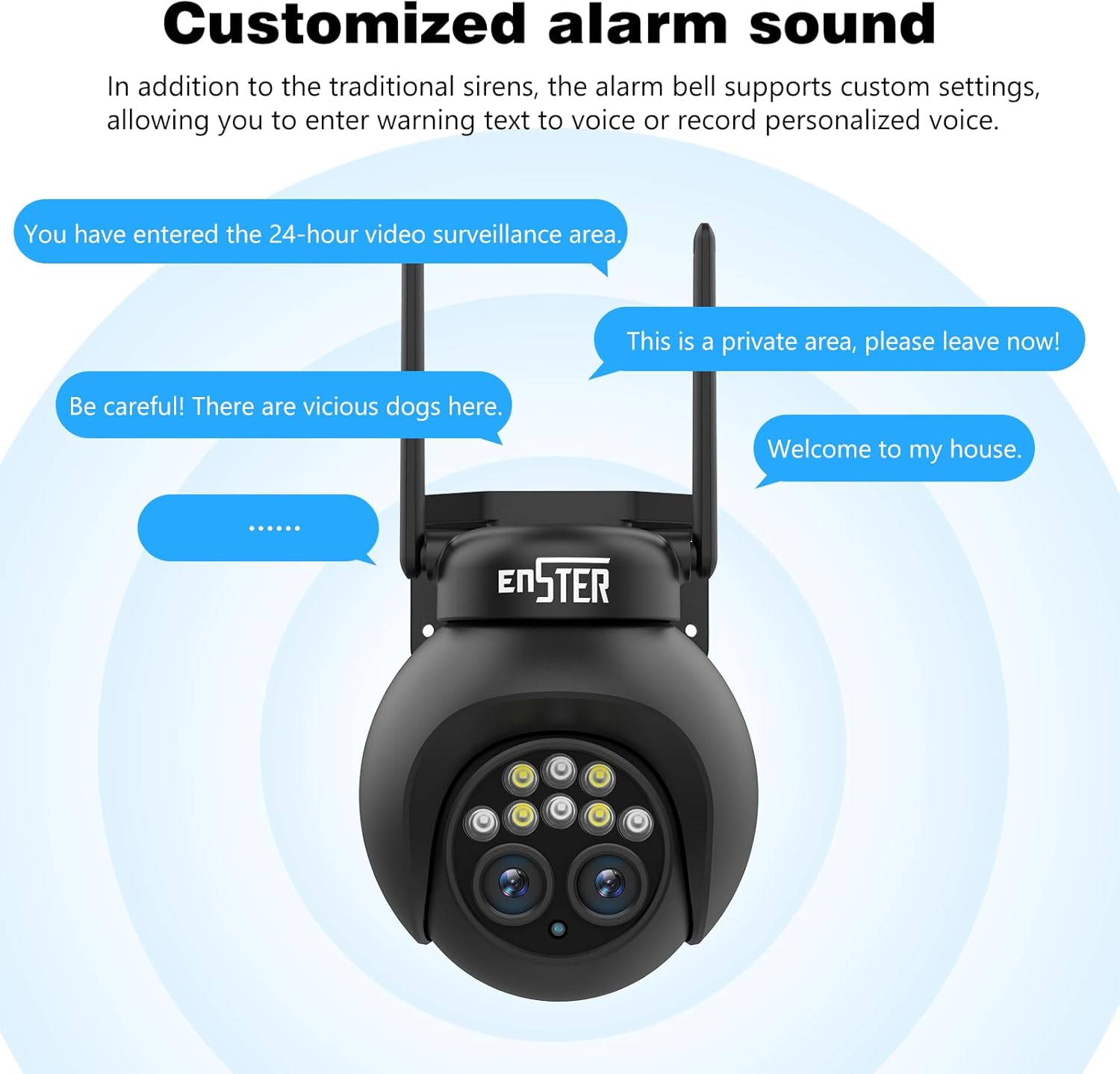
Figure 8: Customizable alarm sound feature.

Figure 9: Humanoid detection triggering real-time alarms and notifications.
4.6. Recording and Storage
The camera supports 24/7 continuous recording or event-triggered recording to a Micro SD card (up to 128GB) or cloud storage. Review recorded footage directly from the mobile application.

Figure 10: 24/7 recording capability with app interface.

Figure 11: Continuous recording and app interface for playback.

Figure 12: Micro SD card slot and cloud storage options.
4.7. Multi-User Viewing
Share live streams and recorded footage with family members or trusted individuals through the mobile application, allowing multiple users to monitor the camera simultaneously.

Figure 13: Multiple users viewing camera feeds on their devices.
5. Maintenance
5.1. Cleaning the Camera
- Regularly clean the camera lens and housing with a soft, damp cloth to remove dust and dirt.
- Avoid using harsh chemicals or abrasive materials that could scratch the lens or damage the camera's finish.
- Ensure the rubber plugs covering ports are securely closed after any maintenance to maintain waterproofing.
5.2. Firmware Updates
- Check the mobile application periodically for available firmware updates.
- Updating the firmware ensures optimal performance, security, and access to new features.
- Follow the in-app instructions carefully during the update process and ensure the camera remains powered on.
5.3. Storage Management
- Micro SD Card: Regularly back up important footage from the Micro SD card to another storage device. Format the SD card periodically to maintain performance.
- Cloud Storage: Manage your cloud storage subscription and review stored footage through the app.
6. Troubleshooting
Common Issues and Solutions:
- Camera not connecting to WiFi:
- Ensure your WiFi network is 2.4GHz. This camera does not support 5GHz WiFi.
- Verify the WiFi password is correct.
- Place the camera closer to the WiFi router.
- Reset the camera to factory settings and try connecting again.
- Poor image quality:
- Clean the camera lens.
- Ensure there are no obstructions in the camera's field of view.
- Check your internet connection speed.
- False alarms or no alerts:
- Adjust the motion detection sensitivity settings in the app.
- Configure detection zones to focus on specific areas.
- Ensure human detection is enabled if you only want alerts for people.
- Camera offline:
- Check the power connection to the camera.
- Verify your WiFi or Ethernet connection is stable.
- Restart the camera and your router.
6.1. Resetting the Camera
To reset the camera to factory settings, locate the reset button (often a small pinhole button) on the camera's cable or body. Press and hold this button for approximately 5-10 seconds until you hear a voice prompt indicating a reset. The camera will then restart and be ready for re-configuration.
7. Specifications
| Feature | Specification |
|---|---|
| Recording Resolution | 2K (4MP effective video resolution) |
| Color | Dual Objectif (Dual Lens) |
| Number of Items | 1 |
| Wireless Communication Technology | Wi-Fi (2.4GHz) |
| Form Factor | Bullet, Box |
| Viewing Angle | 352 Degrees (Pan), 95 Degrees (Tilt) |
| Installation Type | Screw-in (wall_mount/ceiling_mount) |
| Night Vision Range | 40 Meters |
| Frame Rate | 25fps |
| Material | Acrylonitrile Butadiene Styrene (ABS) |
| Voltage | 12 Volts |
| Special Features | Two-Way Audio |
| Recommended Product Use | Surveillance |
| Connectivity Technology | Wireless |
| Indoor/Outdoor Use | Outdoor |
| Compatible Devices | Smartphone |
| Power Source | Electric Cable |
| Connectivity Protocol | Wi-Fi |
| Controller Type | Android |
8. Warranty and Support
8.1. Product Warranty
The manufacturer provides a one-year warranty for this product from the date of purchase. This warranty covers defects in materials and workmanship under normal use. Please retain your proof of purchase for warranty claims.
8.2. Customer Support
For any questions, technical assistance, or warranty claims, please contact our customer support team. We are committed to providing satisfactory solutions.
- Email Support: euro@enster.net
- Online Support: Available 7x24 hours. You can also reach out through your Amazon buyer account by finding your order and clicking on "Get help."


