1. Introduction
Thank you for choosing the SILNOVO® CF-EW74 WiFi Range Extender. This device is designed to provide robust and extended wireless coverage, especially in outdoor environments. With its dual-band capabilities and high transmit power, it effectively eliminates Wi-Fi dead zones and enhances network performance.
Key features include:
- High Power Outdoor Access Point with 500mW transmit power, offering up to 300 feet radius coverage.
- Dual Band High Transmission Speed: 2.4GHz at 300Mbps and 5.8GHz at 867Mbps.
- Flexible Power over Ethernet (PoE) support (24V Passive PoE).
- Multiple operating modes: AP, Router, Bridge, and Repeater.
- Supports up to 64 simultaneous device connections.
- Designed for outdoor use with weather-resistant features.
2. Safety Information
Please read and follow these safety guidelines to prevent damage to the device or injury to yourself:
- Power Supply: Only use the provided 24V Passive PoE adapter. Connecting a 48V PoE supply will damage the device.
- Installation Location: Install the device in a location with minimal obstacles for optimal signal performance. Ensure it is securely mounted.
- Environmental Conditions: While designed for outdoor use, avoid exposing the device to extreme temperatures or direct water immersion.
- Maintenance: Do not attempt to disassemble or repair the device yourself. Refer all servicing to qualified personnel.
- Cabling: Ensure all network cables are properly connected and secured to prevent accidental disconnections or damage.
3. Package Contents
Verify that all items are present in your package:
- 1 x Wi-Fi Access Point (CF-EW74)
- 2 x 5dBi Antennas
- 1 x POE Power Adapter (24V)
- 1 x Networking Cable
- 1 x Main Body Holder
- 1 x Metal Cable Ties
- 2 x Screw Fittings
4. Product Overview
Familiarize yourself with the components and indicators of the CF-EW74.
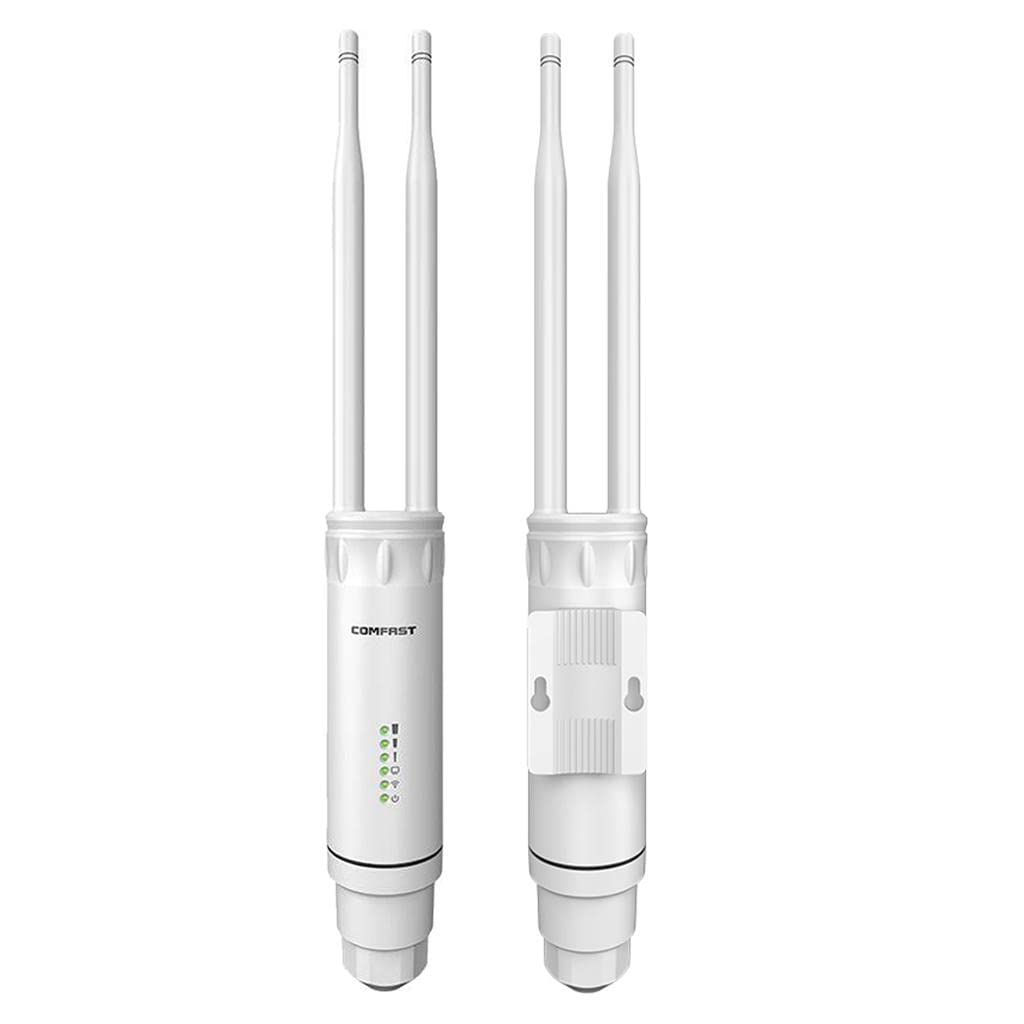
Figure 4.1: Front and back view of the SILNOVO CF-EW74 WiFi Range Extender, showing the main unit with two detachable antennas, LED indicators on the front, and mounting points on the back.

Figure 4.2: Rear view of the SILNOVO CF-EW74, highlighting the integrated mounting brackets for pole or wall installation.

Figure 4.3: Detailed view emphasizing the robust outdoor design of the CF-EW74, built to withstand severe weather conditions with features such as thunderproof, waterproof, dustproof, freezeproof, heatproof, and anti-oxidation properties.
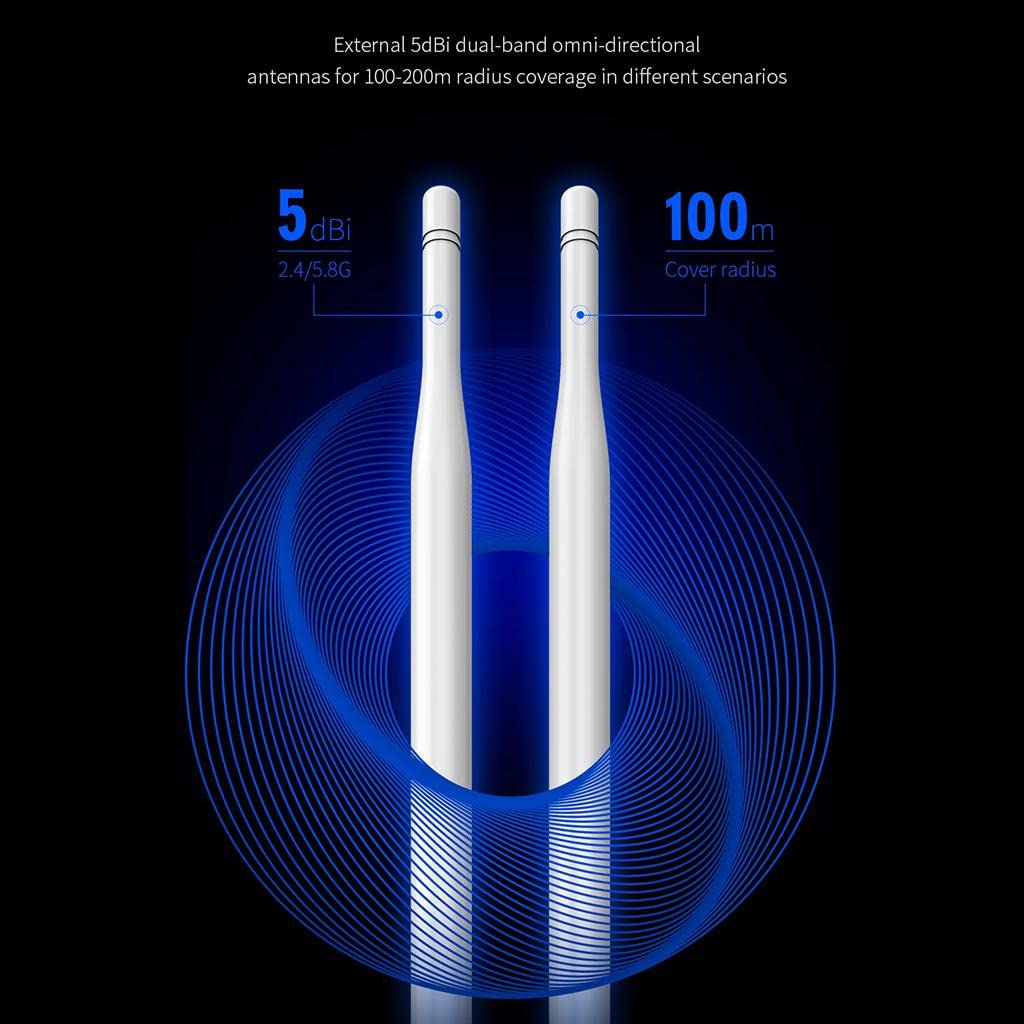
Figure 4.4: Illustration of the two external 5dBi dual-band omni-directional antennas, designed to provide a 100-200 meter radius coverage in various scenarios.

Figure 4.5: Internal view highlighting the Power Amplifier (PA) chips used on both 2.4GHz and 5.8GHz bands, which improve transmit and receive capabilities for large outdoor area Wi-Fi coverage.
LED Indicators:
- Power LED: Indicates power status.
- WiFi LED: Indicates wireless activity.
- WAN/LAN LED: Indicates network port activity.
- Signal LEDs (3x): Indicate wireless signal strength.
Ports:
- WAN/LAN Port: Used for network connection and PoE power input.
- Reset Port: Used to restore factory default settings.
5. Setup and Installation
5.1 Physical Installation
The CF-EW74 can be mounted on a pole or wall. Choose a location that provides the best line of sight to the areas requiring Wi-Fi coverage, minimizing physical obstructions.
- Attach the main body holder to the back of the Wi-Fi Access Point.
- For pole mounting, use the metal cable ties to secure the device to a pole. For wall mounting, use the provided screw fittings to attach the device to a suitable surface.
- Ensure the device is securely fastened and stable.
5.2 Powering the Device
The CF-EW74 is powered via Passive PoE (Power over Ethernet).
- Connect one end of the networking cable to the WAN/LAN port on the CF-EW74.
- Connect the other end of the networking cable to the POE port on the provided POE Power Adapter.
- Connect your router or network switch to the LAN port on the POE Power Adapter.
- Plug the POE Power Adapter into a power outlet. The device will power on.
IMPORTANT: The outdoor access point only supports 24V Passive PoE. Using a 48V PoE supply will cause permanent damage to the device.
5.3 Initial Configuration Access
To access the web-based management interface for initial setup:
- Ensure your computer is connected to the same network as the CF-EW74 (e.g., via the LAN port of the PoE adapter).
- Open a web browser (e.g., Chrome, Firefox).
- Enter the default IP address of the device in the address bar (refer to the device's label or quick start guide for the specific IP, commonly 192.168.1.1 or 192.168.0.1).
- Enter the default username and password when prompted (commonly 'admin' for both).
- Follow the on-screen wizard to configure your desired operating mode and wireless settings.
6. Operating Modes
The CF-EW74 supports four main operating modes to meet various network requirements:
6.1 AP (Access Point) Mode
In AP mode, the device acts as a central hub for wireless clients, converting a wired network connection into a wireless one. It's ideal for extending an existing wired network wirelessly.
6.2 Router Mode
In Router mode, the device functions as a standard router, providing network address translation (NAT) and managing IP addresses for connected devices. It's suitable for creating a new private network.
6.3 Bridge Mode
Bridge mode allows the device to connect two separate networks, making them appear as a single network. This is useful for connecting two wired networks wirelessly.
6.4 Repeater Mode
In Repeater mode, the device extends the range of an existing wireless network by receiving the signal and re-transmitting it. This is ideal for eliminating Wi-Fi dead zones within an existing Wi-Fi coverage area.
You can switch between these modes via the device's web-based management interface. Refer to the online user guide or the interface's help section for detailed steps on configuring each mode.
7. Network Configuration
7.1 Wireless Settings
The CF-EW74 operates on dual bands:
- 2.4GHz: Offers wider coverage and better penetration through obstacles. Max speed: 300Mbps.
- 5.8GHz (5GHz): Offers higher speeds and less interference, ideal for high-bandwidth applications. Max speed: 867Mbps.
You can configure separate SSIDs (Wi-Fi network names) for each band or use a single SSID for both (band steering). It is recommended to use strong, unique passwords for your Wi-Fi networks.
7.2 Wireless Security
To protect your wireless network, the CF-EW74 supports various security protocols:
- WEP
- WPA/WPA2
- WPA-PSK / WPA2-PSK
- AES
- TKIP
- MAC Address Filtering
For optimal security, it is highly recommended to use WPA2-PSK (AES) encryption.
8. Maintenance
To ensure the longevity and optimal performance of your CF-EW74:
- Cleaning: Periodically wipe the device with a soft, dry cloth. Do not use liquid cleaners or aerosols.
- Firmware Updates: Check the manufacturer's website periodically for firmware updates. Keeping the firmware updated can improve performance, add new features, and fix bugs.
- Environmental Check: Regularly inspect the installation site to ensure the device is free from obstructions and protected from extreme weather conditions beyond its rated capabilities.
- Cable Integrity: Ensure all connected cables are in good condition and securely plugged in.
9. Troubleshooting
If you encounter issues with your CF-EW74, try the following troubleshooting steps:
9.1 No Power
- Ensure the PoE adapter is properly plugged into a working power outlet.
- Verify the Ethernet cable from the PoE adapter to the device is securely connected.
- Confirm you are using the correct 24V Passive PoE adapter.
9.2 No Wi-Fi Signal or Weak Signal
- Check the Wi-Fi LED indicator on the device. If it's off, ensure Wi-Fi is enabled in the settings.
- Relocate the device to a more central position or higher elevation to reduce obstacles.
- Ensure the antennas are securely attached and oriented correctly.
- Check for interference from other electronic devices (e.g., microwaves, cordless phones).
- Verify the operating mode is correctly configured (e.g., AP or Repeater mode).
9.3 Cannot Access Web Management Interface
- Ensure your computer is connected to the network via Ethernet to the PoE adapter's LAN port.
- Verify your computer's IP address is in the same subnet as the device (e.g., if device is 192.168.1.1, your computer should be 192.168.1.x).
- Try clearing your browser's cache or using a different browser.
- If you forgot the login credentials, perform a factory reset by pressing and holding the Reset button for 5-10 seconds while the device is powered on.
9.4 Slow Wi-Fi Speed
- Check the signal strength (Signal LEDs) at your client device's location.
- Ensure you are connected to the 5GHz band if your device supports it, for higher speeds.
- Reduce the number of connected devices or bandwidth-intensive activities.
- Check for network congestion or interference.
10. Specifications
| Feature | Specification |
|---|---|
| Brand | Generic |
| Model | GC77021649 (CF-EW74) |
| Chipset | MT7628DAN + MT7612E |
| Ports | 1 x WAN/LAN Port, 1 x Reset Port |
| LED Indicators | Power, WiFi, WAN/LAN, 3 x Signal |
| Power Supply | DC24V / 0.5A Passive PoE (max 300 feet) |
| Wireless Standards | IEEE 802.11ac/a/b/g/n |
| Transmit Power | 2.4G Max 27dBm, 5G Max 25dBm |
| Wireless Security | WEP, WPA, WPA2, WPA-PSK, WPA2-PSK, AES, TKIP, MAC |
| Wireless Rate | 2.4GHz 300Mbps, 5.8GHz 867Mbps |
| Operating Modes | AP, Router, Bridge, Repeater |
| Max Connected Devices | 64 |
| Product Dimensions | 8 x 5 x 3 cm |
| Mounting | Pole or Wall Mounted |
11. Warranty and Support
For warranty information and technical support, please contact your retailer or the manufacturer directly. Keep your purchase receipt as proof of purchase.
Manufacturer Contact: Gaur traders, Silnovo0702@gmail.com (8445706770)
Packer Contact: silnovo0702@gmail.com (7300875624)