
Introduction
This manual provides essential information for the proper setup, operation, and maintenance of your YOTUO IDD029-2 External CD/DVD Drive. Please read these instructions carefully before using the device to ensure optimal performance and longevity.
Product Features
- Plug and Play: Simple connection via USB or Type-C port, with automatic driver installation.
- Portable Design: Slim, sleek, and minimalist with a recessed cable design for easy organization and transport. Weighs approximately 0.4 kg and is 1.8 cm thick.
- High-Speed Performance: Features dual USB 3.0 and Type-C ports. Offers a maximum DVD reading speed of 8x and a maximum CD reading speed of 24x, supporting data transfer speeds up to 5Gbps.
- Wide Compatibility: Supports Windows XP/2003/Vista/7/8/10/11, Linux, and all versions of Mac OS systems.
- Durable Construction: Made from high-quality flame-retardant PC material, providing shock resistance and durability. Incorporates a high-performance original magnetic core for stable, high-speed reading with anti-interference and low impedance.
Package Contents
- YOTUO IDD029-2 External CD/DVD Drive
- Integrated USB 3.0 & USB-C Cable
- User Manual (this document)
Setup Instructions
- Connect the Drive: Plug the integrated USB 3.0 or USB-C cable into an available port on your computer (laptop or desktop). For desktop computers, connect to a USB port on the back of the tower to ensure sufficient power.
- Automatic Driver Installation: Wait for your operating system to automatically detect and install the necessary drivers. This process usually takes a few moments.
- Insert a Disc: Press the eject button on the front of the drive to open the disc tray. Place your CD or DVD onto the spindle, ensuring it is seated correctly. Gently push the tray back into the drive until it clicks into place.
- Access the Drive: Once the disc is inserted, your computer should recognize the drive and its contents. You can typically access it through 'This PC' or 'Finder' (on Mac).

Image: The YOTUO External CD/DVD Drive connected to a laptop, illustrating its plug-and-play capability for various media types.
Video: A demonstration of the YOTUO External DVD Drive (model SY-IDD029) being connected and used with a computer, highlighting its ease of setup and operation.
Operating Instructions
Reading Discs
After inserting a disc and your computer recognizing it, you can open the disc's contents through your operating system's file explorer. For playing media (music, movies), you may need compatible software (e.g., VLC Media Player) installed on your computer.
Writing/Burning Discs
To burn data to a blank CD-R/RW or DVD-R/RW, ensure you have appropriate burning software installed on your computer. Follow the software's instructions to select files and initiate the burning process. The drive supports CD writing at up to 24x and DVD writing at up to 8x.
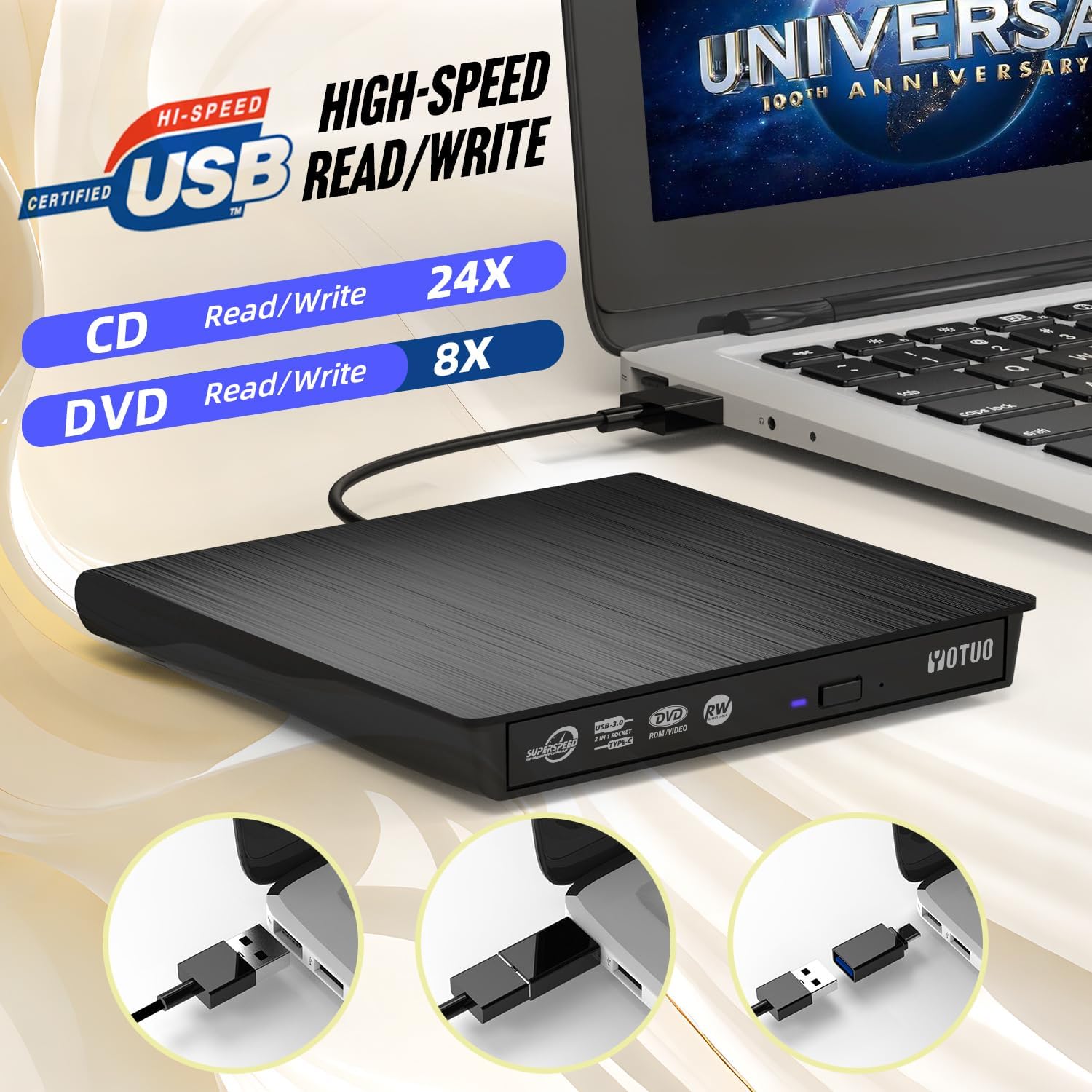
Image: The YOTUO External CD/DVD Drive showcasing its high-speed read/write specifications for both CDs and DVDs.
Compatibility Notes
The drive is compatible with a wide range of operating systems including Windows (XP/2003/Vista/7/8/10/11), Linux, and all versions of Mac OS. However, it is not supported by TVs, car players, Chromebooks, Surface Pro, Ubuntu, tablets, or mobile phones.

Image: Visual representation of the YOTUO External CD/DVD Drive's broad compatibility with different computer types and operating systems.
Maintenance
- Cleaning: Use a soft, dry cloth to clean the exterior of the drive. Do not use liquid cleaners or abrasive materials.
- Disc Care: Always handle discs by their edges to avoid fingerprints and scratches. Store discs in their cases when not in use.
- Storage: When not in use, store the drive in a cool, dry place away from direct sunlight and extreme temperatures. The recessed cable design helps keep the cable organized and protected.
Troubleshooting
- Drive Not Recognized: Ensure the USB cable is securely connected to both the drive and your computer. Try a different USB port or a different computer to rule out port or computer issues. For desktops, use a rear USB port.
- Disc Not Reading/Writing: Check if the disc is clean and free from scratches or damage. Ensure the disc is correctly placed in the tray. Verify that you have the necessary software installed for playing or burning discs.
- Power Issues: If the drive is not receiving enough power (especially with older USB 2.0 ports or some front USB ports on desktops), try connecting it to a different USB 3.0 or USB-C port, or a powered USB hub if available.
- Slow Performance: Ensure you are using a USB 3.0 or USB-C port for optimal data transfer speeds. Close any unnecessary applications running in the background.
Specifications
| Feature | Specification |
|---|---|
| Brand | YOTUO |
| Model Number | IDD029-2 |
| Optical Storage Read Speed | 24x (CD), 8x (DVD) |
| Optical Storage Write Speed | 24x (CD), 8x (DVD) |
| Hardware Interface | USB 3.0 Type C |
| Operating System Compatibility | Windows XP/2003/Vista/7/8/10/11, Linux, Mac OS |
| Item Weight | 1.06 ounces (approx. 0.03 kg) |
| Product Dimensions (LxWxH) | 5.9 x 5.48 x 0.63 inches (approx. 15 x 13.9 x 1.6 cm) |
| Special Feature | Portable |
Warranty Information
YOTUO products are designed for reliability and performance. For specific warranty details, please refer to the product packaging or contact YOTUO customer support. Keep your purchase receipt as proof of purchase for any warranty claims.
Support
If you encounter any issues or have questions regarding your YOTUO External CD/DVD Drive that are not covered in this manual, please visit the official YOTUO website or contact their customer service for assistance. You can often find FAQs, driver downloads, and contact information on the manufacturer's support pages.