
YEHOBU iPad Air 5th generation keyboard
YEHOBU Keyboard Case User Manual
For iPad Air 11 inch (M3 2025 / M2 2024) & iPad Pro 11 (4th/3rd/2nd/1st Gen)
Product Overview
The YEHOBU Keyboard Case is designed to enhance the functionality and protection of your iPad. It features a slim, sturdy design with a detachable backlit Bluetooth keyboard, a built-in pencil holder, and multiple viewing angles for versatile use.
This case supports three primary use modes: Typing, Viewing, and Reading, transforming your iPad into a laptop-like experience for various tasks.
Compatibility
This keyboard case is compatible with the following iPad models:
- iPad Air 11-inch (M2 2024 / M3 2025) Models: A2902/A2903/A2904
- iPad Pro 11-inch (4th Generation) 2022 Models: A2435/A2761/A2762
- iPad Pro 11-inch (3rd Generation) 2021 Models: A2301/A2459/A2460
- iPad Pro 11-inch (2nd Generation) 2020 Models: A2228/A2068/A2230/A2231
- iPad Pro 11-inch (1st Generation) 2018 Models: A1980/A2013/A1934
- iPad Air (5th Generation) 2022 Models: A2588/A2589/A2591
- iPad Air (4th Generation) 2020 Models: A2072/A2316/A2324/A2325
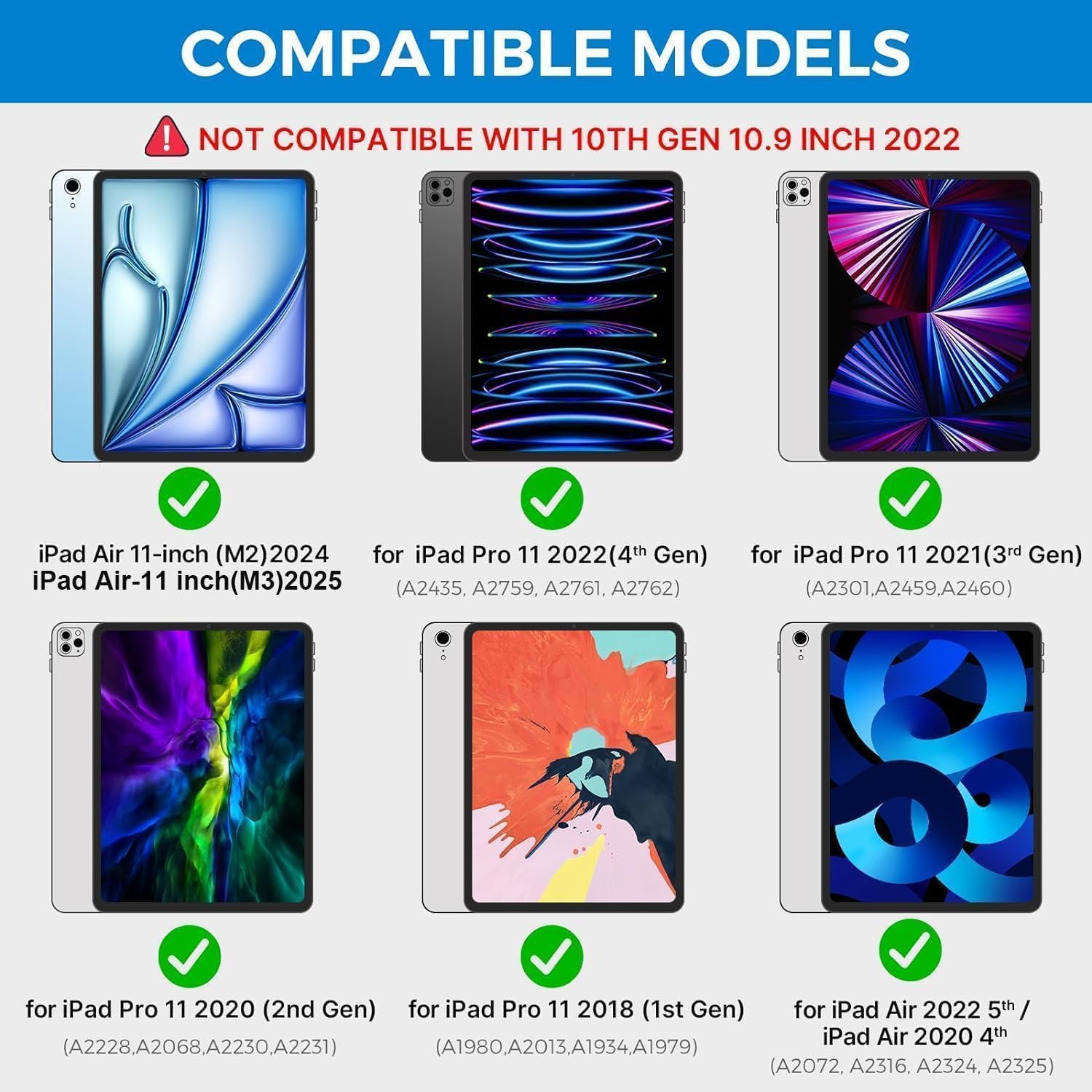
Figure 1: Visual guide to compatible iPad models. Please verify your iPad model number before use.
Setup Guide
Charging the Keyboard
Before initial use, fully charge the keyboard. Connect the provided USB charge cable to the keyboard's Type-C port and a power source. A full charge typically takes 2-3 hours, providing up to 70 hours of continuous use or 100 days of standby time.
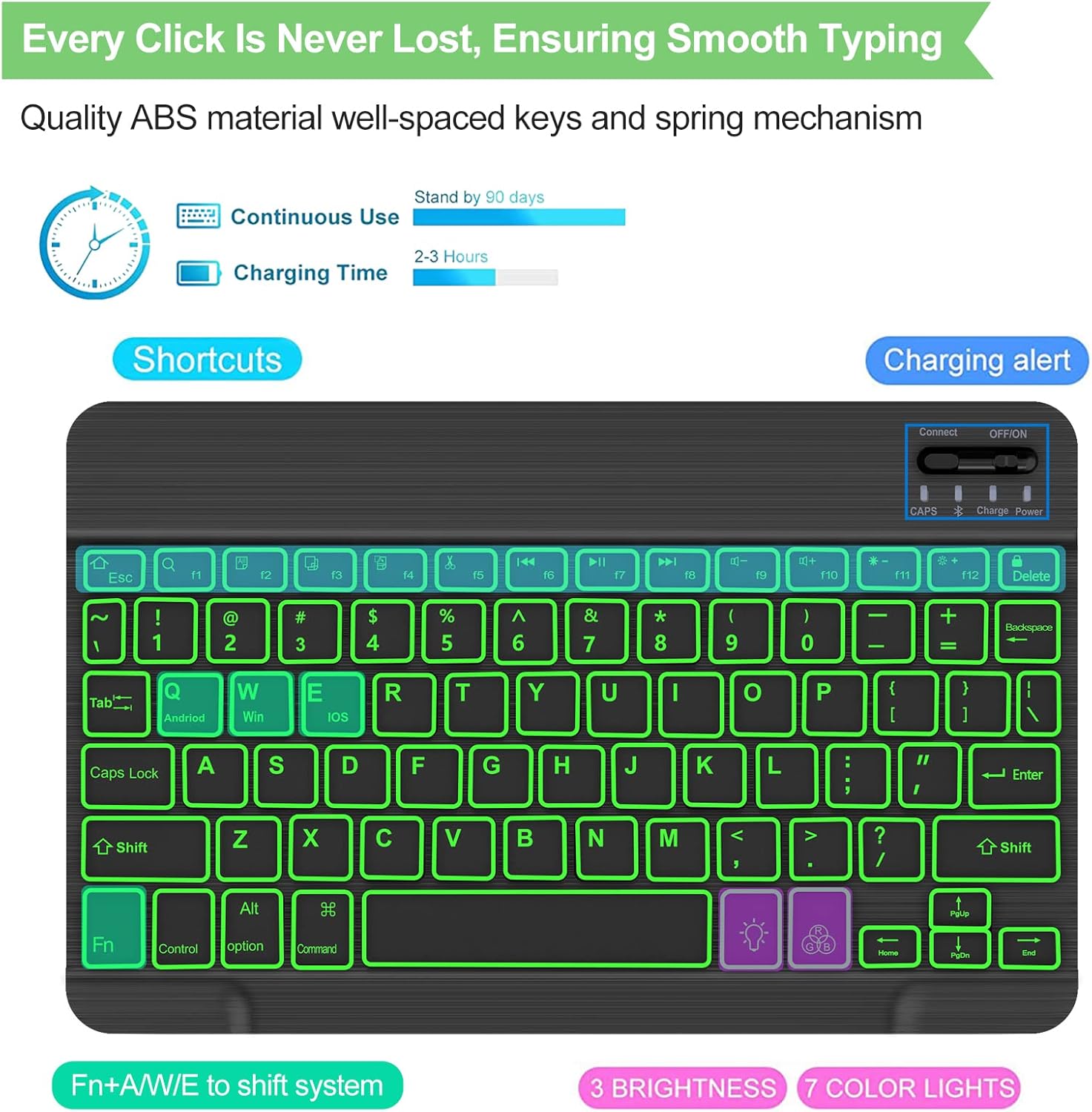
Figure 2: Keyboard charging alert and battery life indicators.
Connecting the Bluetooth Keyboard to your iPad
- Power On: Turn on the keyboard power switch. The POWER indicator light will flash for approximately 2 seconds and then turn off. This is normal operation.
- Enter Pairing Mode: Press the "Connect" button on the keyboard. The Bluetooth indicator light will begin to flash, indicating the keyboard is in pairing mode.
- Pair with iPad:
- On your iPad, go to Settings.
- Tap on Bluetooth and ensure Bluetooth is turned On.
- Your iPad will search for available devices. Look for "Bluetooth Keyboard" in the list of devices and select it to connect.
- Once connected, the Bluetooth indicator light on the keyboard will turn off, and the keyboard will be ready for use.

Figure 3: The keyboard supports stable Bluetooth connection across Android, iOS, and Windows systems.
Operating Instructions
Keyboard Backlight Control
The keyboard features 7 vibrant backlight colors and 3 adjustable brightness modes to enhance your typing experience, especially in low-light conditions.
- To change the backlight mode (e.g., solid, breathing), press the light bulb icon key.
- To switch between the 7 backlight colors, press the RGB icon key.
- Adjust brightness using the dedicated brightness control keys.

Figure 4: Control panel for 7-color backlight and brightness adjustment.
Detachable Magnetic Keyboard
The keyboard is magnetically attached to the case, allowing you to easily switch between laptop mode (keyboard attached) and tablet mode (keyboard detached) at any time. This provides flexibility for various tasks and portability.

Figure 5: The keyboard can be easily detached from the case for flexible use.
Built-in Apple Pencil Holder
The case includes a dedicated slot for your Apple Pencil, ensuring secure storage and quick access. This design prevents the pencil from getting lost or being in the way during transport or use.

Figure 6: Secure storage for your Apple Pencil within the case.
Multi-View Angles
The case features 3 anti-slip grooves, allowing you to adjust your iPad to multiple optimal viewing angles for typing, watching videos, or reading. This versatility enhances comfort and productivity.

Figure 7: The case offers multiple viewing angles and is designed for portability.
Maintenance
To ensure the longevity and optimal performance of your YEHOBU Keyboard Case, please follow these maintenance guidelines:
- Cleaning: Use a soft, dry, lint-free cloth to clean the exterior of the case and keyboard. For stubborn spots, slightly dampen the cloth with water. Avoid using harsh chemicals, solvents, or abrasive cleaners.
- Storage: When not in use for extended periods, store the keyboard case in a cool, dry place away from direct sunlight and extreme temperatures.
- Handling: Avoid dropping the case or exposing it to excessive force, which could damage the internal components or the case material.
- Liquid Exposure: Keep the keyboard and case away from liquids. In case of accidental spills, immediately power off the keyboard and allow it to dry completely before reuse.
Troubleshooting
If you encounter issues with your YEHOBU Keyboard Case, please refer to the following common troubleshooting steps:
- Keyboard Not Connecting:
- Ensure the keyboard is powered on and fully charged.
- Make sure Bluetooth is enabled on your iPad.
- Press the "Connect" button on the keyboard to enter pairing mode.
- Forget the "Bluetooth Keyboard" device in your iPad's Bluetooth settings and attempt to re-pair.
- Restart both your iPad and the keyboard.
- Keys Not Responding:
- Check if the keyboard battery is low and recharge it.
- Ensure the keyboard is properly connected via Bluetooth.
- Clean any debris that might be under the keys.
- Backlight Not Working:
- Ensure the keyboard is powered on.
- Press the backlight control keys (light bulb and RGB icons) to cycle through modes and colors.
- Check battery level; low battery might disable backlight to conserve power.
If these steps do not resolve the issue, please contact customer support for further assistance.
Specifications
| Brand | YEHOBU |
| Model Number | iPad Air 5th generation keyboard |
| Product Dimensions | 11.18 x 1.34 x 8.35 inches |
| Item Weight | 1.74 pounds |
| Connectivity Technology | Bluetooth |
| Number of Keys | 78 |
| Keyboard Backlighting Color Support | RGB (7 Colors) |
| Special Features | Backlit, Ergonomic, Foldable, Lightweight, Portable |
| Color | Green |
| Battery Life (Continuous Use) | Up to 70 hours |
| Standby Time | Up to 100 days |
| Charging Time | 2-3 hours |
| Package Includes | 1 x Bluetooth Keyboard, 1 x iPad Air 5th Case, 1 x User Manual, 1 x USB Charge Cable |
Warranty and Support
YEHOBU is committed to providing high-quality products and excellent customer service. Your Keyboard Case comes with the following support:
- 12-Month Worry-Free Return: Enjoy a 12-month warranty period for any manufacturing defects or quality issues.
- 30-Day Money-Back Guarantee: If you are not satisfied with your purchase, you may return it within 30 days for a full refund.
- 24-Hour Service Support: For any inquiries, technical assistance, or quality concerns, please contact our customer support team. We aim to resolve your issues within 24 hours.
Please retain your proof of purchase for warranty claims.
Ask a question about this manual
Ask about setup, troubleshooting, compatibility, parts, safety, or missing instructions. Manuals+ will review the question and use this page’s manual context to help answer it.