
1. Introduction
The ASUS RT-AX88U Pro is a high-performance 4x4 dual-band WiFi 6 router designed to deliver ultrafast and reliable wireless connections. It supports 160MHz bandwidth and 1024-QAM for significantly improved speeds. With a combined networking speed of approximately 6000Mbps (1148Mbps on the 2.4GHz band and 4804Mbps on the 5GHz band), it offers a substantial speed increase compared to previous generation routers. This manual provides essential information for setting up, operating, maintaining, and troubleshooting your RT-AX88U Pro router.

Figure 1: ASUS RT-AX88U PRO WiFi 6 Router
The image above shows the ASUS RT-AX88U PRO WiFi 6 Router from a front-top perspective, highlighting its four external antennas and sleek black design.
2. What's in the Box
Ensure all items are present in your product package:
- RT-AX88U PRO Networking router
- RJ-45 cable
- Power adapter
- Warranty card
- Quick start guide
3. Setup Instructions
Follow these steps to set up your ASUS RT-AX88U PRO router:
- Connect the Antennas: Carefully screw the four external antennas onto their respective connectors on the router. Ensure they are securely tightened.
- Connect to Power: Plug the power adapter into the router's DC-in port and then into a power outlet.
- Connect to Internet (WAN): Connect one end of the provided RJ-45 Ethernet cable to your modem's LAN port and the other end to the router's 2.5G WAN port (blue port).
- Connect Your Device: Connect your computer or mobile device to the router. You can do this via Wi-Fi (using the default SSID and password found on the router's label) or via Ethernet cable (connecting to any of the Gigabit LAN ports).
- Initial Setup: Open a web browser on your connected device and navigate to http://router.asus.com. Follow the on-screen instructions to complete the initial setup, including setting up your Wi-Fi network name (SSID) and password. Alternatively, you can use the ASUS Router app for mobile setup.

Video 1: Product Overview and Antenna Connection
This video provides a brief overview of the product and demonstrates how to connect the antennas to the router.

Figure 2: ASUS RT-AX88U PRO Router Rear Ports
The image displays the rear panel of the router, showing the various ports including the power input, USB 3.0, 2.5G WAN/LAN ports, and Gigabit LAN ports.

Video 2: How to register your ASUS router via ASUS Router app
This video guides users through the process of registering their ASUS router using the dedicated ASUS Router mobile application.
4. Operating Instructions
Key Features:
- New-generation WiFi 6: Enjoy ultrafast speeds up to 6000 Mbps with the latest WiFi 6 (802.11ax) and 160MHz channels.
- Dual 2.5G ports: Traffic via 2.5G ports has top priority; flexible WAN/LAN network port configurations.
- Extreme Quad-Core CPU Power: High-performance 2.0 GHz quad-core 64-bit CPU takes computational capabilities to the next level.
- Expanded coverage: The exclusive ASUS RangeBoost Plus improves signal range and overall coverage.
- Commercial-grade Security Anywhere: Protect your home network with AiProtection Pro, powered by Trend Micro. And when away from home, ASUS Instant Guard gives you a one-click sharable secure VPN.
Advanced Networking Capabilities:
The RT-AX88U PRO leverages WiFi 6 technology to provide significant improvements in speed, efficiency, and network capacity. It is ideal for homes with multiple connected devices, high-bandwidth applications like 4K streaming, and online gaming.

Figure 3: WiFi 6 Standard Benefits
This image illustrates the benefits of WiFi 6 (802.11ax) including 4X for multi-devices, 2X WiFi speed, 7X battery life, and 80% increased WiFi range, with the RT-AX88U Pro achieving up to 6000 Mbps.
The router features dual 2.5G WAN/LAN ports, allowing for flexible network configurations and prioritizing high-speed traffic. This is particularly beneficial for power users and network-attached storage (NAS) systems.

Figure 4: Dual 2.5G Port Connectivity Diagram
The diagram shows how the dual 2.5G ports can be used for WAN aggregation or as a high-speed LAN port, connecting various devices like mobile phones, PCIe cards, workstations, and NAS devices.
AiMesh Support:
The RT-AX88U PRO supports ASUS AiMesh, allowing you to create a whole-home mesh Wi-Fi system by connecting multiple AiMesh-compatible ASUS routers. This expands your network coverage and eliminates Wi-Fi dead zones.

Figure 5: AiMesh Extended Network Setup
This image illustrates how the AiMesh system extends Wi-Fi coverage throughout a multi-story home by connecting multiple AiMesh-compatible routers.
Security and Parental Controls:
The router comes with AiProtection Pro, a commercial-grade network security suite powered by Trend Micro. This provides robust protection against online threats, including malicious websites and intrusions. It also offers advanced parental controls to manage internet access for family members.
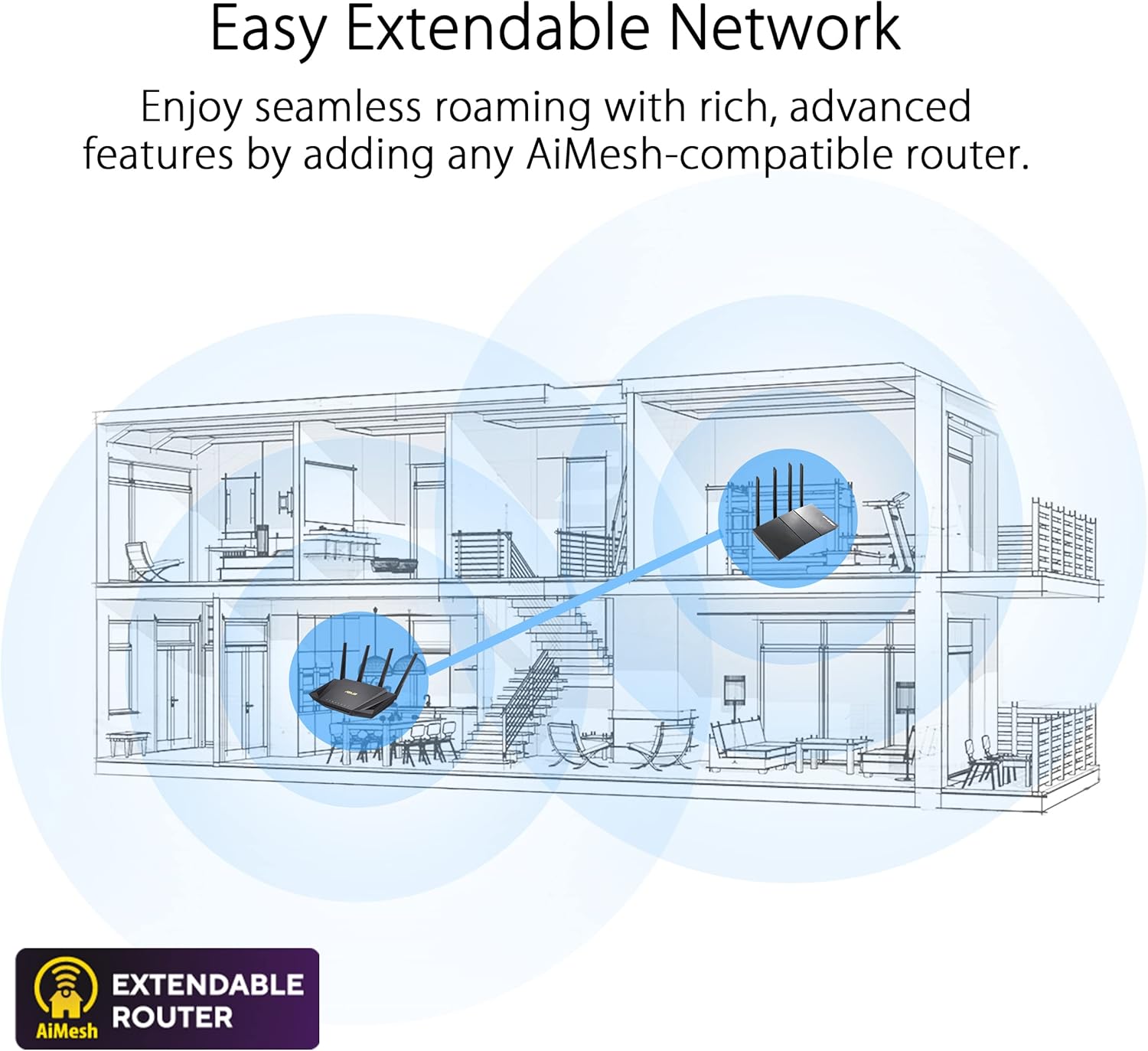
Figure 6: AiProtection Pro and Parental Controls
This image highlights the enhanced network security provided by AiProtection Pro and the advanced parental controls available, allowing for flexible screen time scheduling.
ASUS Instant Guard provides a secure VPN connection to your home network when you are away, ensuring your data remains private and secure on public Wi-Fi networks.
5. Maintenance
- Firmware Updates: Regularly check for and install firmware updates via the ASUS Router app or web interface to ensure optimal performance, security, and access to new features.
- Rebooting: Periodically reboot your router (e.g., once a month) to clear its memory and refresh network connections, which can resolve minor performance issues.
- Placement: Place your router in a central location, away from obstructions and interference sources (like microwaves or cordless phones), to maximize Wi-Fi coverage and signal strength.
- Cleaning: Keep the router clean and free of dust to prevent overheating. Use a soft, dry cloth for cleaning.
6. Troubleshooting
- No Internet Connection:
- Check if your modem is working correctly.
- Ensure all cables are securely connected to the router and modem.
- Reboot both the modem and the router.
- Slow Wi-Fi Speed:
- Ensure your devices are connected to the 5GHz band for higher speeds, if supported.
- Check for interference from other electronic devices.
- Update router firmware and device drivers.
- Consider using AiMesh to expand coverage if you have dead zones.
- Cannot Access Router Settings:
- Ensure your device is connected to the router's network.
- Try clearing your browser's cache or using a different browser.
- Verify you are using the correct router login address (http://router.asus.com).
7. Specifications
| Feature | Value |
|---|---|
| Brand | ASUS |
| Model Name | RT-AX88U PRO |
| Wireless Type | 802.11ax, 802.11a, 802.11g, 802.11ac |
| Frequency Band Class | Dual-Band |
| Total Networking Speed | Up to 6000 Mbps |
| CPU | 2.0 GHz Quad-Core 64-bit |
| Ports | Dual 2.5G WAN/LAN, 4x Gigabit LAN, USB 3.0 |
| Security Features | AiProtection Pro (powered by Trend Micro), Instant Guard VPN |
| Special Features | QoS, Alexa Compatible, Access Point Mode, Parental Control, AiMesh support |
| Item Weight | 2.23 pounds |
| Product Dimensions | 11.81 x 7.4 x 2.38 inches |
8. Warranty and Support
The ASUS RT-AX88U PRO router typically comes with a manufacturer's warranty. Please refer to the warranty card included in your product package for specific terms, conditions, and duration. For technical support, driver downloads, and further assistance, visit the official ASUS support website or contact their customer service.
You can find additional resources and support at the ASUS Store on Amazon.


