
Introduction
Thank you for purchasing the Toshiba 55" Class C350 Series LED 4K UHD Smart Fire TV. This television combines stunning 4K Ultra HD resolution with the convenience of Fire TV built-in, offering access to a vast library of streaming content, live TV, and smart home control with Alexa. This manual provides essential information for setting up, operating, maintaining, and troubleshooting your new television to ensure optimal performance and longevity.

The Toshiba 55" Class C350 Series 4K UHD Smart Fire TV, featuring a sleek design and a vibrant display.
Safety Information
Please read all safety instructions carefully before using your television. Keep this manual for future reference.
- Power Source: Ensure the TV is connected to an AC 120V, 60Hz power supply.
- Ventilation: Do not block ventilation openings. Allow adequate space around the TV for proper airflow.
- Water and Moisture: Do not expose the TV to rain or moisture. Do not place objects filled with liquids on the TV.
- Cleaning: Unplug the TV before cleaning. Use a soft, dry cloth. Do not use liquid cleaners or aerosol cleaners.
- Mounting: If wall-mounting, ensure proper installation by qualified personnel and use compatible mounting hardware.
- Children: Supervise children to prevent them from climbing on or playing with the TV.
What's in the Box
Verify that all components are present before proceeding with setup.
- Toshiba 55" Class C350 Series 4K UHD Smart Fire TV
The main television unit with a 55-inch LED 4K UHD display.
 Voice Remote with Alexa
Enables voice commands and navigation of the Fire TV interface.
- ⏏TV Stand Legs
Two stand legs for tabletop placement.
- ⚙Screws for Stand Attachment
Hardware required to secure the stand legs to the television.
- ⚡Power Cord
For connecting the TV to an electrical outlet.
- 📖Quick Setup Guide
A brief guide to get your TV up and running quickly.
Setup
1. Attaching the Stand
- Carefully place the TV face-down on a soft, clean surface to prevent screen damage.
- Align each stand leg with the corresponding screw holes on the bottom of the TV.
- Secure each leg with the provided screws using a Phillips head screwdriver.
2. Connecting Peripherals
The back of your TV features various ports for connecting external devices.

Rear view of the TV, highlighting the various input and output ports.
- HDMI Ports: Connect Blu-ray players, game consoles, cable/satellite boxes.
- USB Port: For connecting USB storage devices.
- Antenna/Cable In: Connect an antenna for over-the-air broadcasts or a cable TV connection.
- Ethernet Port: For a wired internet connection (optional, Wi-Fi is also available).
- Optical Digital Audio Out: For connecting to a soundbar or audio receiver.
3. Initial Power On and Fire TV Setup
- Plug the power cord into the TV and then into a wall outlet.
- Press the power button on the remote control or on the TV.
- Follow the on-screen instructions to complete the Fire TV setup, including connecting to your Wi-Fi network, signing in to your Amazon account, and setting up Alexa.
Operating the TV
Using the Voice Remote with Alexa
The Voice Remote with Alexa, featuring dedicated buttons for popular streaming services and voice control.
The included Voice Remote allows for easy navigation and voice commands.
- Power Button: Turns the TV on or off.
- Voice Button (Alexa): Press and hold to activate Alexa and speak your commands.
- Navigation Ring: Use to move through menus and select items.
- Home Button: Returns to the Fire TV home screen.
- Volume Buttons: Adjust the TV volume.
- App Buttons: Quick access to popular streaming services like Netflix, Prime Video, etc.
Navigating the Fire TV Interface
The Fire TV home screen provides access to your apps, live TV, and recommended content.
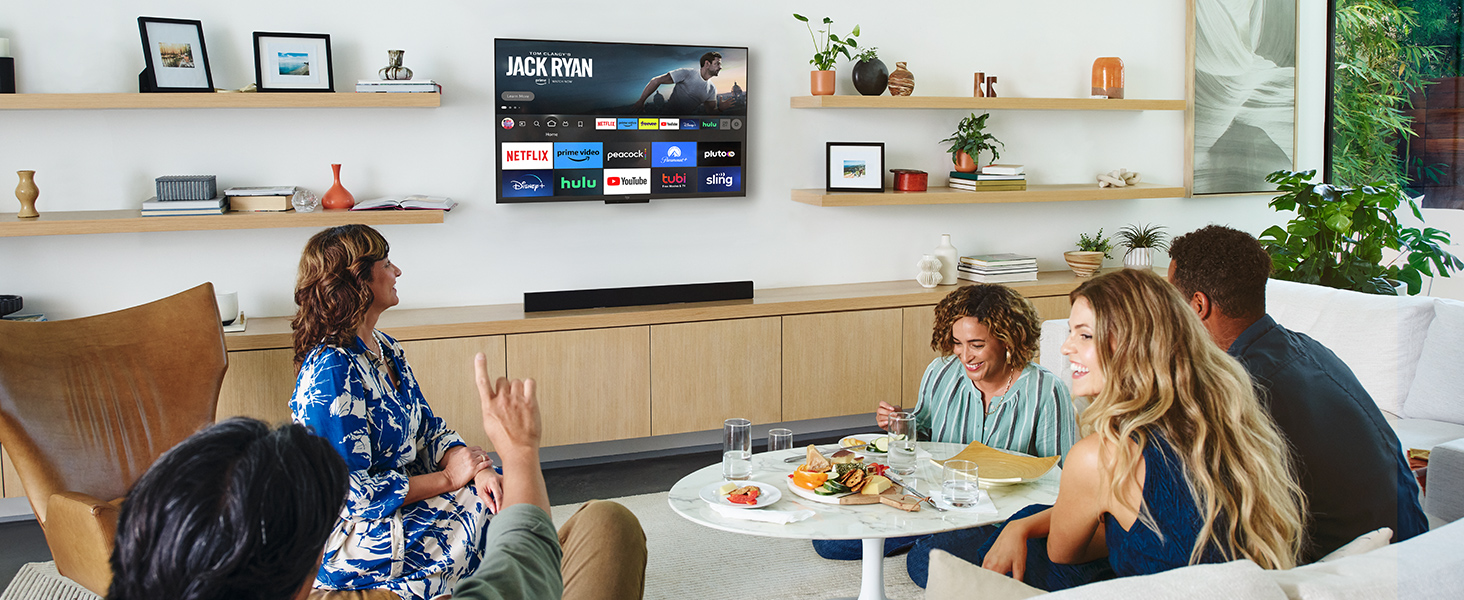
The Fire TV interface offers a wide range of content and applications for entertainment.
- Scroll through rows of content, including movies, TV shows, and apps.
- Use the search function to find specific titles or genres.
- Customize your home screen by adding or rearranging apps.
Voice Control with Alexa
Your Fire TV comes with Alexa built-in, allowing you to control your TV and smart home devices using your voice.
- Press and hold the Voice button on your remote.
- Speak commands such as "Alexa, open Netflix," "Alexa, play The Office," or "Alexa, turn off the lights."
- Alexa can also provide weather updates, news, and answer general questions.
Maintenance
Cleaning Your TV
- Always unplug the TV before cleaning.
- Use a soft, dry, lint-free cloth to gently wipe the screen and cabinet.
- For stubborn marks on the screen, lightly dampen the cloth with water or a specialized screen cleaner (do not spray directly on the screen).
- Avoid using abrasive cleaners, waxes, or solvents.
Remote Control Care
- Replace batteries when the remote's performance degrades. Use AAA batteries.
- Keep the remote dry and away from direct sunlight or heat sources.
Troubleshooting
If you encounter issues with your TV, refer to the following common problems and solutions.
| Problem | Possible Cause | Solution |
|---|---|---|
| No Power | Power cord not securely connected; outlet not working. | Check power cord connection at both ends. Test outlet with another device. |
| No Picture, but Sound is Present | Incorrect input source selected; display settings issue. | Press the Input button on the remote to cycle through sources. Check picture settings. |
| Remote Control Not Working | Batteries are dead or inserted incorrectly; remote not paired. | Replace batteries. Re-pair the remote by holding the Home button for 10 seconds. |
| No Internet Connection | Wi-Fi signal weak; router issue; incorrect Wi-Fi password. | Check Wi-Fi settings on TV. Restart router. Ensure correct password. Move TV closer to router if possible. |
| Poor Picture Quality | Source resolution low; picture settings incorrect. | Ensure content is 4K where available. Adjust picture mode (e.g., Standard, Movie, Dynamic). |
Specifications
| Feature | Detail |
|---|---|
| Brand | TOSHIBA |
| Model | C350 Series |
| Screen Size | 55 Inches |
| Display Technology | LED |
| Resolution | 4K UHD (3840 x 2160) |
| Refresh Rate | 60 Hz |
| Aspect Ratio | 16:9 |
| Connectivity Technology | Wi-Fi, Ethernet |
| Supported Internet Services | Browser, Netflix, Prime Video, YouTube, Hulu, Paramount+, Apple TV, ESPN, Peacock (via Fire TV) |
| Special Feature | Flat Screen, Voice Remote with Alexa, Fire TV Built-in |
| Included Components | TV, Stand, Remote, Power Cord |
Warranty Information
Your Toshiba 55" Class C350 Series 4K UHD Smart Fire TV is covered by a limited warranty. Please refer to the warranty card included with your product or visit the official Toshiba website for detailed terms and conditions. Keep your purchase receipt as proof of purchase for warranty claims.
Customer Support
For technical assistance, troubleshooting beyond this manual, or service inquiries, please contact Toshiba customer support. You can find contact information on the official Toshiba website or in the Quick Setup Guide provided with your TV.
For more information and updates, visit: www.toshiba.com


