
YEHOBU 12.9 inch ipad pro case with keyboard
User Manual: YEHOBU Swivel Wireless Keyboard Case
Model: 12.9 inch ipad pro case with keyboard | Brand: YEHOBU
1. Introduction
This manual provides detailed instructions for the setup, operation, and maintenance of your YEHOBU Swivel Wireless Keyboard Case for iPad Pro 12.9 inch. Please read this manual thoroughly before using the product to ensure optimal performance and longevity.
1.1 Compatibility
This keyboard case is designed for the following iPad Pro 12.9 inch models:
- iPad Pro 12.9-inch 6th Generation (2022)
- iPad Pro 12.9-inch 5th Generation (2021) (Models: A2379/A2461/A2462)
- iPad Pro 12.9-inch 4th Generation (2020) (Models: A2229/A2069/A2232/A2233)
- iPad Pro 12.9-inch 3rd Generation (2018) (Models: A1876/A2014/A1895/A1983)
Note: This keyboard case is not compatible with iPad Pro 11 inch or iPad Pro 12.9 inch 1st/2nd Generation.

Figure 1.1: Compatible iPad Pro 12.9 inch models.
2. Package Contents
Please verify that all items are present in the package:
- 1 x iPad Pro 12.9 inch Keyboard Case with Trackpad (iPad and Apple Pencil not included)
- 1 x USB-C Charging Cable
- 1 x Product Manual (this document)
- 1 x Multi-gesture Control Guide

Figure 2.1: Items included in the package.
3. Key Features
- 7-Color RGB Backlit Keyboard: Adjustable LED backlight with 7 colors and 3 brightness modes for various environments.
- Multi-Touch Trackpad: Navigate your iPad with precision, supporting multi-touch gestures (requires iPadOS 13.4 or above).
- 360° Rotation & 180° Flip: Unique design allows for versatile viewing angles and transforms your iPad into a laptop or tablet mode.
- Comprehensive Protection: Sturdy case protects all sides and corners from accidental knocks, drops, and scratches.
- Auto Sleep/Wake Function: Automatically puts your iPad to sleep when closed and wakes it upon opening, conserving battery life.
- Integrated Apple Pencil Holder: Conveniently store and charge your Apple Pencil.
- Shortcut Keys: Dedicated row of operation shortcut keys for improved efficiency.

Figure 3.1: Overview of the keyboard case's design and features.
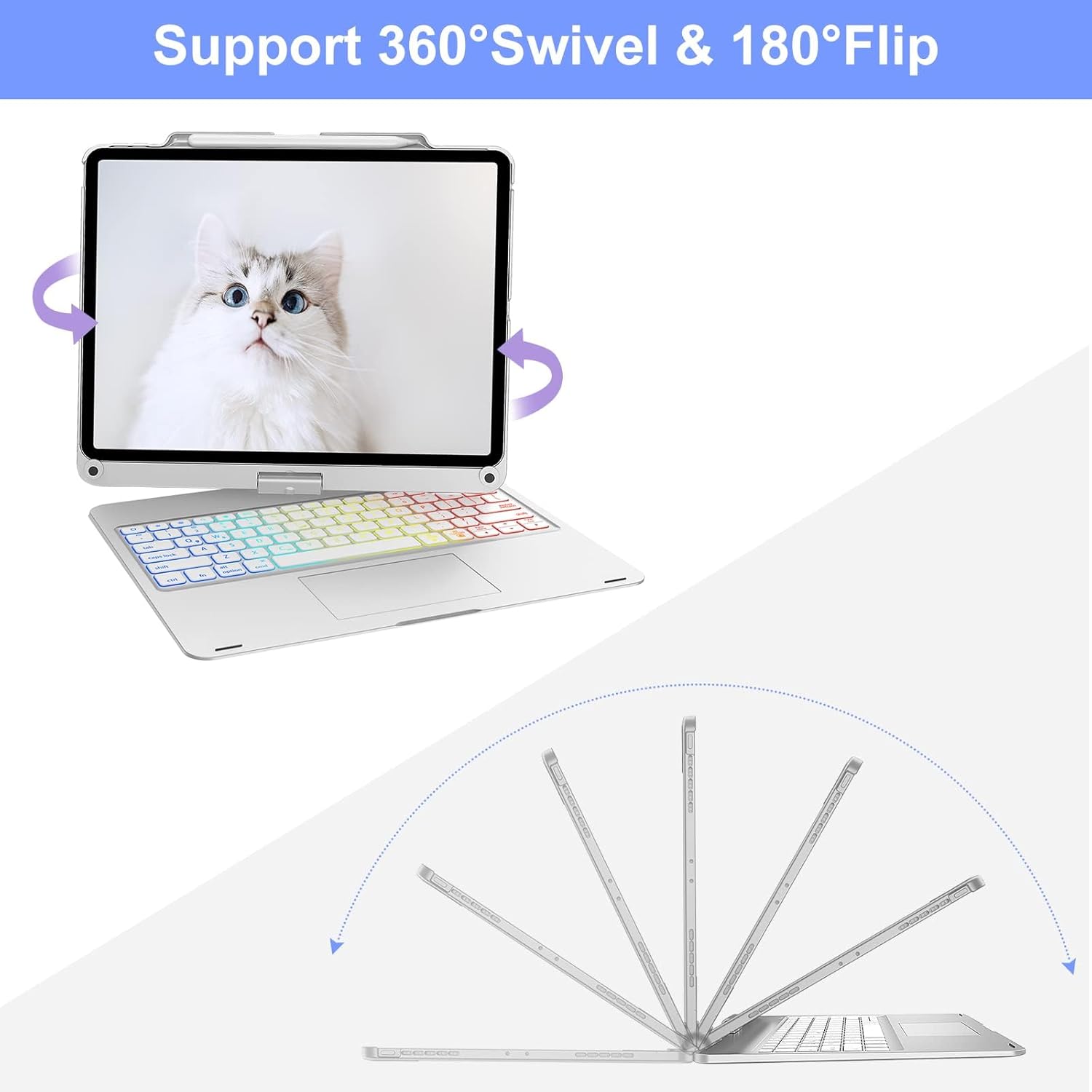
Figure 3.2: Demonstrating the 360° Swivel and 180° Flip capabilities.

Figure 3.3: Auto Sleep/Wake Mode and Infinite Viewing Angles.
4. Setup Instructions
4.1 Charging the Keyboard
Before first use, fully charge the keyboard. Connect the provided USB-C charging cable to the keyboard's charging port and a USB power adapter (not included). The charging indicator light will show charging status.
- Charging Time: Approximately 2.5 hours.
- Working Time (Backlight Off): Up to 70 hours.
- Working Time (Backlight On): Up to 3 hours.
- Standby Time: Up to 180 days.

Figure 4.1: Charging the keyboard.
4.2 Inserting Your iPad
- Gently align your iPad with the protective case.
- Press the iPad firmly into the case until it clicks securely into place. Ensure all corners are properly seated.
- The two gear-like clips below the screen help secure your iPad and prevent scratches between the keyboard and screen.
4.3 Bluetooth Pairing
- Turn on the keyboard by sliding the power switch to the "ON" position. The Bluetooth indicator light will flash.
- On your iPad, go to Settings > Bluetooth.
- Ensure Bluetooth is turned "On".
- On the keyboard, press and hold the Fn + C keys simultaneously for 3 seconds to enter pairing mode. The Bluetooth indicator light will blink rapidly.
- On your iPad, select "Bluetooth Keyboard" (or similar name) from the "Other Devices" list.
- Once paired, the Bluetooth indicator light on the keyboard will turn off.
5. Operating Instructions
5.1 Keyboard Functions
The keyboard features a standard layout with a dedicated row of shortcut keys for iPadOS functions.

Figure 5.1: Keyboard layout with iPadOS shortcuts.
5.2 Backlight Control
The keyboard offers 7 colors and 3 brightness levels for its RGB backlight.
- Press Fn + ⌥ (light bulb icon) to turn on/off the backlight or adjust brightness.
- Press Fn + W to adjust the rate of the breathing backlight.
- Press Fn + Q to turn on/off the breathing backlight function.
- Press Fn + → (right arrow) to switch the backlight color.

Figure 5.2: Backlight control options.

Figure 5.3: Typing accurately even at night with 7 colors backlight.
5.3 Trackpad Gestures
The multi-touch trackpad allows for intuitive navigation. Ensure your iPad's operating system is updated to iPadOS 13.4 or above for full gesture support.
- To use the trackpad, please upgrade your iPad system to iOS 13.4 or above.
- Press Fn + T to lock or unlock the trackpad function.
Refer to the included "Multi-gesture Control Guide" for a comprehensive list of supported gestures.

Figure 5.4: Trackpad gesture support.
6. Maintenance
6.1 Cleaning
- Use a soft, lint-free cloth to wipe the keyboard and case.
- For stubborn marks, slightly dampen the cloth with water or a mild, non-abrasive cleaner.
- Avoid getting moisture into the keyboard keys or charging port.
- Do not use harsh chemicals, solvents, or abrasive cleaners.
6.2 Storage
- When not in use for extended periods, turn off the keyboard to conserve battery.
- Store the keyboard case in a cool, dry place away from direct sunlight and extreme temperatures.
7. Troubleshooting
| Problem | Possible Cause | Solution |
|---|---|---|
| Keyboard not connecting via Bluetooth. | Keyboard is off, low battery, not in pairing mode, or iPad Bluetooth is off. |
|
| Keys not responding. | Low battery, connection issue, or keyboard is off. |
|
| Trackpad not working. | Trackpad locked, iPadOS version too old, or connection issue. |
|
| Backlight not working or changing. | Low battery or incorrect key combination. |
|
If you encounter problems not listed here, or if the solutions provided do not resolve the issue, please contact customer support.
8. Specifications
| Model Number | 12.9 inch ipad pro case with keyboard |
| Connectivity | Bluetooth |
| Keyboard Layout | 84 keys, QWERTY |
| Backlight | 7-Color RGB, 3 Brightness Modes |
| Trackpad | Multi-Touch (requires iPadOS 13.4+) |
| Rotation Angle | 360° Swivel, 180° Flip |
| Battery Life (Backlight Off) | Up to 70 hours |
| Battery Life (Backlight On) | Up to 3 hours |
| Standby Time | Up to 180 days |
| Charging Time | Approx. 2.5 hours |
| Item Weight | 2.72 pounds |
| Dimensions | 12.68 x 9.96 x 1.38 inches |
| Manufacturer | YEHOBU |
9. Warranty and Support
9.1 Warranty Information
This product comes with a 12-month worry-free warranty from the date of purchase. Additionally, we offer a 30-day money-back guarantee for returns or exchanges without reason.
The warranty covers manufacturing defects and issues such as battery not charging, keys not working, touchpad not working, or Bluetooth connectivity problems.
9.2 Customer Support
For any questions, concerns, or technical assistance, please contact our customer support team. We aim to reply and resolve your issue within 12 hours.
Email: [Please refer to product packaging or purchase platform for specific contact email]
We are committed to providing high-quality products and excellent customer service.
Ask a question about this manual
Ask about setup, troubleshooting, compatibility, parts, safety, or missing instructions. Manuals+ will review the question and use this page’s manual context to help answer it.