
Introduction
This manual provides detailed instructions for the installation, operation, and maintenance of your ZBARK Android Touch Screen GPS Navigation Head Unit. Please read this manual thoroughly before using the device to ensure proper functionality and to maximize your user experience. This unit is designed for KIA Forte and Cerato models manufactured between 2008 and 2014, supporting both manual and automatic transmission panels.
Safety Information
- Always operate the device responsibly and in accordance with local traffic laws.
- Do not attempt to install or service the unit if you are not qualified. Improper installation can lead to damage or injury.
- Avoid prolonged exposure to direct sunlight or extreme temperatures, which can affect performance and lifespan.
- Keep the screen clean using a soft, dry cloth. Do not use abrasive cleaners.
Product Overview
The ZBARK Android Head Unit is an advanced car stereo receiver featuring a 9-inch multi-touch display, Android operating system, and a powerful OCTA-Core CPU with 4GB RAM and 32GB ROM for efficient and responsive performance. It integrates GPS navigation, wireless CarPlay, Android Auto, and Bluetooth connectivity to enhance your driving experience.
Key Features:
- Operating System: Updated Android OS
- Processor: OCTA-Core CPU
- Memory: 4GB RAM, 32GB ROM
- Display: 9-inch Backlit Digital Multi-Touch Display (1080p resolution)
- Connectivity: Bluetooth, Wi-Fi, RCA
- Navigation: Built-in offline North America maps, supports online maps via Wi-Fi
- Smartphone Integration: Wireless CarPlay and Android Auto
- Compatibility: KIA Forte Cerato (2008-2014) with manual or automatic AC panels
Setup and Installation
The ZBARK head unit is designed for plug-and-play installation using the original car cable, eliminating the need for cutting or modifying existing wiring. The package includes the 9-inch touchscreen and all necessary cables.
Installation Steps:
- Prepare Your Vehicle: Ensure the vehicle's ignition is off and the battery is disconnected before beginning installation.
- Remove Existing Head Unit: Carefully remove the original car stereo and its surrounding trim panel. Refer to your vehicle's service manual for specific instructions on removing the dashboard components.
- Identify AC Panel Type: Determine if your vehicle has a manual or automatic AC control panel. This unit supports both types, and the appropriate panel will be used for installation.
- Connect Wiring: Connect the provided wiring harness from the new head unit to the vehicle's existing wiring. Ensure all connections are secure.
- Install Mounting Bracket: Attach the provided mounting bracket to the new head unit.

Image: Front and back views of the 9-inch screen unit for Manual AC and Auto AC panels, showing how the unit integrates with different car configurations.

Image: Close-up of the mounting bracket, indicating key dimensions for proper fitment during installation.
- Secure Head Unit: Mount the new head unit into the dashboard opening, ensuring it is firmly secured.
- Reassemble Dashboard: Reattach any trim panels removed earlier.
- Reconnect Battery: Reconnect the vehicle's battery and test the unit.
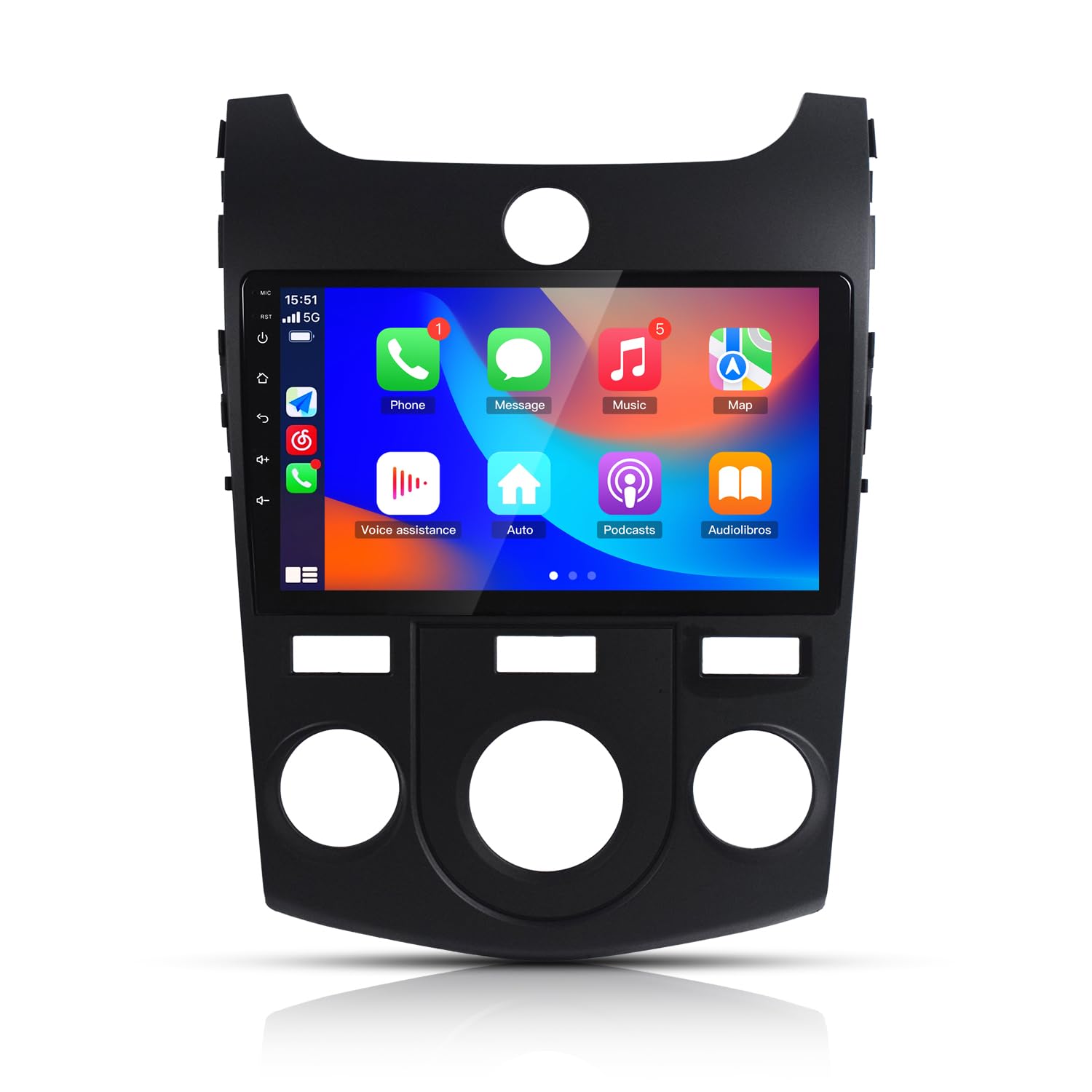
Image: Visual comparison showing the original car dashboard (Before) and the dashboard with the ZBARK head unit installed (After) for both manual and automatic AC configurations.

Image: A detailed view of the dashboard before and after the ZBARK head unit installation in a vehicle equipped with manual air conditioning.

Image: A detailed view of the dashboard before and after the ZBARK head unit installation in a vehicle equipped with automatic air conditioning.
Operating Instructions
Basic Operation:
- Power On/Off: Press and hold the power button (usually located on the front panel) to turn the unit on or off.
- Touch Screen: Navigate through menus and applications by tapping, swiping, and pinching on the 9-inch multi-touch display.
- Volume Control: Adjust audio volume using the physical buttons or on-screen controls.
- Home Screen: The home screen provides access to frequently used applications and widgets. Customize it by adding or removing icons.
Connectivity
Bluetooth Pairing:
The unit supports Bluetooth wireless technology for hands-free calling and audio streaming.
- Enable Bluetooth on your smartphone or device.
- On the head unit, go to the Bluetooth settings menu.
- Search for available devices and select the ZBARK unit (usually named 'CarBT' or similar).
- Confirm the pairing code on both devices if prompted.
Wireless CarPlay / Android Auto:
Connect your compatible smartphone for seamless integration of navigation, music, messages, and more.
- Ensure Wi-Fi and Bluetooth are enabled on your smartphone.
- On the head unit, open the CarPlay or Android Auto application.
- Follow the on-screen instructions to connect your phone wirelessly via Bluetooth and Wi-Fi, or via a USB cable for wired connection.

Image: Displays the user interfaces for Wireless CarPlay and Android Auto, illustrating how to connect and access various applications like navigation, music, and communication tools.

Image: Shows the head unit displaying the Wireless CarPlay and Android Auto interfaces, highlighting app icons and voice assistance features.
GPS Navigation
The head unit comes with built-in offline North American maps. For real-time traffic updates and additional map features, you can connect the unit to Wi-Fi and use online navigation applications available through the App Store, similar to a smartphone.
Using GPS:
- Tap the 'Navigation' or 'Map' icon on the home screen.
- Enter your destination using the on-screen keyboard.
- Select your preferred route and start navigation.
- Ensure a clear view of the sky for optimal GPS signal reception.

Image: The GPS navigation screen displaying a map with a highlighted route, distance, and turn-by-turn directions.
Maintenance
- Screen Cleaning: Use a soft, lint-free cloth to gently wipe the touchscreen. For stubborn smudges, slightly dampen the cloth with water or a screen-safe cleaner. Avoid harsh chemicals or abrasive materials.
- Software Updates: Periodically check for software updates through the unit's settings menu to ensure optimal performance and access to new features.
- Environmental Care: Protect the unit from extreme temperatures, direct sunlight, and excessive moisture.
Troubleshooting
| Problem | Possible Cause | Solution |
|---|---|---|
| Unit does not power on | Loose power connection, blown fuse, vehicle battery issue | Check all wiring connections. Inspect vehicle fuses. Ensure vehicle battery is charged. |
| No audio output | Volume too low, incorrect audio source, speaker wiring issue | Increase volume. Select correct audio source. Check speaker connections. |
| Bluetooth not connecting | Bluetooth off on phone/unit, device not in pairing mode, interference | Ensure Bluetooth is enabled on both devices. Put unit in pairing mode. Move closer to the unit. |
| GPS signal lost or inaccurate | Poor satellite reception, outdated maps | Move to an open area. Ensure GPS antenna is properly installed. Update maps if necessary. |
| Touchscreen unresponsive or slow | Software glitch, too many apps running, system overload | Restart the unit. Close unnecessary applications. Perform a factory reset if issues persist (backup data first). |
If you encounter issues not listed here or require further assistance, please contact ZBARK customer support.
Specifications
| Feature | Detail |
|---|---|
| Brand | ZBARK |
| Model Name | Forte 2008 BL |
| Vehicle Service Type | Car (KIA Forte Cerato 2008-2014) |
| Screen Size | 9 Inches |
| Special Feature | Touchscreen |
| Connectivity Technology | Bluetooth, RCA, Wi-Fi |
| Map Type | North America (offline) |
| Operating System | Android |
| Memory Storage Capacity | 32 GB |
| Resolution | 1080p |
| Display Type | LCD |
| Human-Interface Input | Touchscreen |
| Supported Satellite Navigation System | GPS |
| Item Dimensions L x W x H | 9"L x 9"W x 9"H |
| UPC | 755467221801 |
Warranty and Support
This ZBARK product comes with a 1-year warranty from the date of purchase. This warranty covers manufacturing defects and malfunctions under normal use. It does not cover damage caused by improper installation, misuse, accidents, or unauthorized modifications.
For technical support, warranty claims, or any questions regarding your ZBARK Android Touch Screen GPS Navigation Head Unit, please contact ZBARK customer service. Refer to your purchase documentation for contact details.