1. Introduction
The imKey Pro is a secure hardware wallet designed for managing and protecting your cryptocurrency assets. It features a CC EAL 6+ secure element chip, ensuring a high level of security for your private keys. This device operates offline, reducing exposure to online threats, and supports a wide range of cryptocurrencies, NFTs, and Layer2 solutions.

Figure 1.1: Front and back view of the imKey Pro Hardware Wallet. The front displays the screen and control buttons, while the back shows regulatory information and the serial number.
2. What's in the Box
Upon opening your imKey Pro package, verify that all components are present:
- imKey Pro Hardware Wallet
- USB-C Cable
- 2 x Seed Cards (for recording your recovery phrase)
- Instruction Manual (this document)

Figure 2.1: The imKey Pro package contents, including the imKey Pro device, USB-C cable, seed cards, and instruction manual.
3. Setup Guide
Follow these steps to set up your imKey Pro Hardware Wallet:
3.1 Initial Device Activation
- Download the imToken App: Install the official imToken application on your smartphone. This app is required to activate and manage your imKey Pro.
- Pairing and Setup: Power on your imKey Pro. Follow the on-screen instructions on the device and within the imToken app to pair your device via Bluetooth or connect via USB-C.
- Complete Setup: The app will guide you through creating a new wallet or importing an existing one, setting up a PIN, and backing up your recovery phrase.

Figure 3.1: Visual representation of the three-step setup process: Download imToken, Pair and Set Up, and Completion.
3.2 Security Seal Verification
Before opening the package, inspect the security seal. Ensure it is intact and shows no signs of tampering. This is a critical step to prevent supply chain attacks. If the seal appears compromised, do not use the device and contact imKey support immediately.

Figure 3.2: An example of the security seal on the product packaging. Verify its integrity before opening.
3.3 Recovery Phrase Backup
During setup, the device will generate a unique recovery phrase (seed phrase). This phrase is the only way to restore your wallet if your imKey Pro is lost or damaged. Write it down accurately on the provided seed cards and store them in a secure, offline location. Never store your recovery phrase digitally or share it with anyone.
4. Operating Instructions
4.1 General Operation
The imKey Pro features a visible screen and physical buttons for navigation and transaction confirmation. All critical operations, such as sending assets, require physical confirmation on the device, adding an extra layer of security.
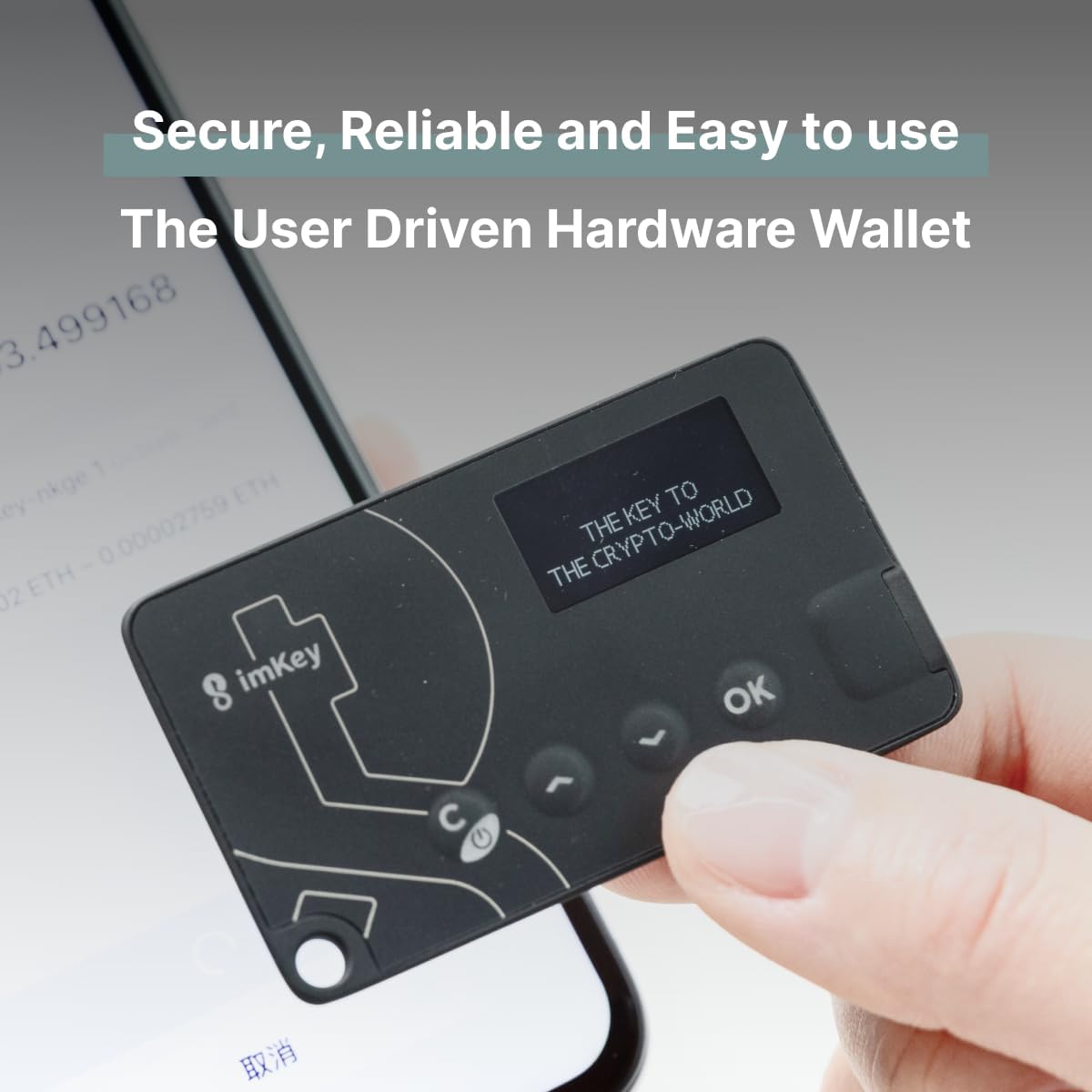
Figure 4.1: The imKey Pro device being held, illustrating its compact size and screen display during operation.
4.2 Supported Assets
The imKey Pro supports a wide array of digital assets across various public chains. This includes major cryptocurrencies, EVM-compatible chains, Layer2 solutions, and NFTs.
- Cryptocurrencies: Bitcoin (BTC), Ethereum (ETH), Litecoin (LTC), EOS, ATOM, Filecoin (FIL), TRON (TRX), Polkadot (DOT), Kusama (KSM), Bitcoin Cash (BCH), Nervos Network (CKB), and more.
- EVM Chains: Access various EVM chains (e.g., BSC, Polygon, Avalanche, Fantom, Harmony) by customizing RPCs within the imToken app.
- Layer2 Solutions: Supports ZK Rollup and Optimism Rollup, enabling access to zkSync and Arbitrum ecosystems.
- NFTs: Securely store and manage your Non-Fungible Tokens.
- ETH2 Staking: Participate in Ethereum 2.0 staking.

Figure 4.2: A visual representation of some of the major cryptocurrencies and tokens supported by the imKey Pro.
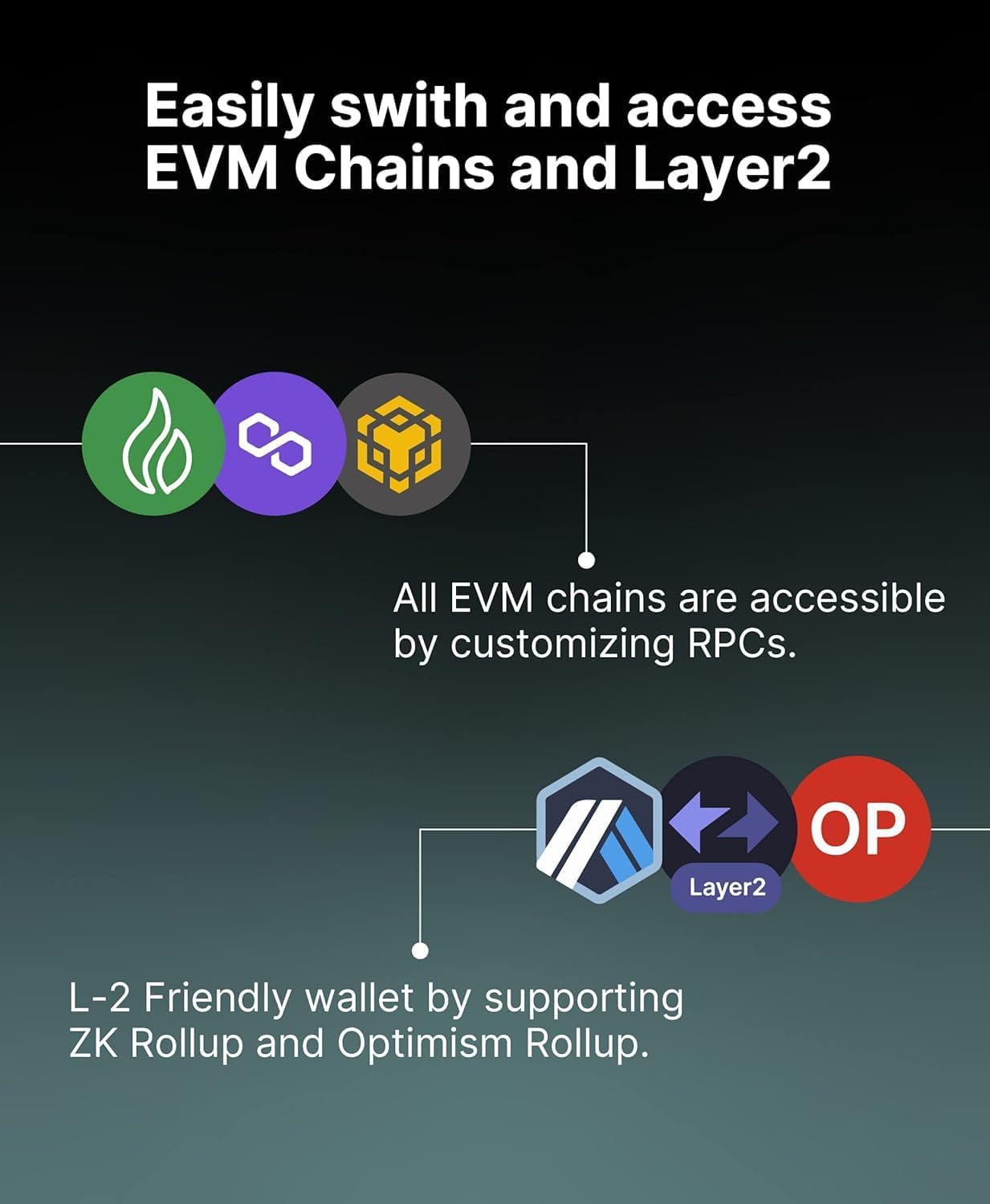
Figure 4.3: Illustration of the imKey Pro's compatibility with various EVM chains and Layer2 scaling solutions.
4.3 Sending and Receiving Assets
To send or receive assets, initiate the transaction within the imToken app. The imKey Pro device will display the transaction details for your review. You must physically confirm the transaction on the device using its buttons before it is broadcast to the blockchain. This offline confirmation mechanism ensures that your private keys never leave the secure element.
4.4 Firmware Updates
imKey regularly releases firmware updates to enhance security, add new features, and support additional cryptocurrencies. It is recommended to keep your device's firmware updated to the latest version. Firmware updates are performed through the imToken app. Always ensure your device is sufficiently charged before initiating an update.
5. Maintenance
5.1 Battery Management
The imKey Pro is equipped with a rechargeable Lithium Ion battery. Charge the device using the provided USB-C cable. To prolong battery life, avoid extreme temperatures and store the device with a partial charge if not used for extended periods.
5.2 Cleaning and Storage
Clean the imKey Pro with a soft, dry cloth. Avoid using abrasive materials or harsh chemicals. Store the device in a cool, dry place, away from direct sunlight and strong magnetic fields. Keep it secure and out of reach of unauthorized individuals.
6. Troubleshooting
6.1 Connectivity Issues
- Bluetooth Pairing: Ensure Bluetooth is enabled on your smartphone and the imKey Pro is in pairing mode. If issues persist, try restarting both devices.
- USB-C Connection: When connecting to a computer, ensure the USB-C cable is securely plugged into both the imKey Pro and your computer. If the device is not recognized, try a different USB port or cable. Some users have reported initial difficulties with USB connection on Windows PCs; ensure all necessary drivers are installed and the imToken desktop application is running.
6.2 Device Not Responding
If the imKey Pro becomes unresponsive, try holding down the power button for several seconds to perform a hard reset. Ensure the device is charged.
6.3 Security Concerns
The imKey Pro is designed with robust security features, including a CC EAL 6+ secure chip and offline private key generation. However, user vigilance is paramount:
- Recovery Phrase: Never disclose your recovery phrase to anyone. imKey support will never ask for it.
- PIN Code: Keep your PIN confidential.
- Physical Security: Protect your imKey Pro from physical theft or damage.
- Software Verification: Always download the imToken app from official sources.
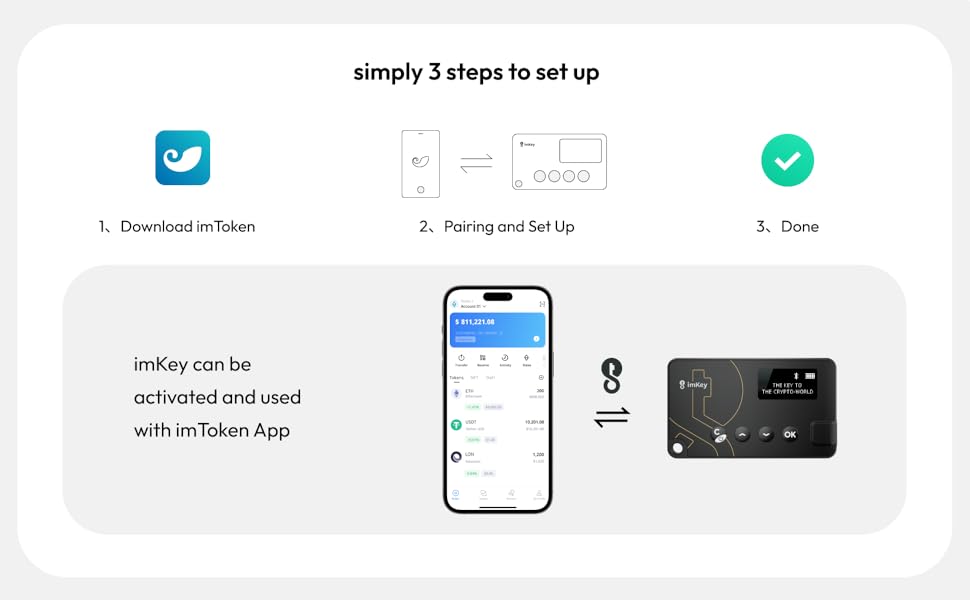
Figure 6.1: Overview of the imKey Pro's security mechanisms, including the military-grade CC EAL6+ security chip, offline private key generation, and physical transaction confirmation.
7. Specifications
| Feature | Detail |
|---|---|
| Brand | imKey |
| Model | imKey Pro |
| Security Chip | CC EAL 6+ Infineon Chip |
| Connectivity | Bluetooth, USB-C |
| Dimensions (LxWxH) | 1.5 x 0.09 x 2.52 inches |
| Item Weight | 4.2 ounces |
| Battery | 1 Lithium Ion battery (included) |
| Material | PC face-plate |
| Color | Black |
8. Warranty and Support
8.1 Warranty Information
Specific warranty details are typically provided with your purchase documentation or on the official imKey website. Please refer to these resources for comprehensive warranty terms and conditions.
8.2 Customer Support
For technical assistance, troubleshooting, or any product-related inquiries, please contact imKey customer support. Support is available to assist users with their product concerns.
- Online Support: Visit the official imKey website for FAQs, support articles, and contact options.
- Email Support: Refer to your product packaging or the imKey website for the official support email address.


