
1. Introduction
Thank you for choosing the BIGtec WiFi Extender Booster Repeater. This device is designed to expand your existing wireless network coverage, eliminate Wi-Fi dead zones, and provide a stable, high-speed internet connection throughout your home or outdoor areas. Please read this manual carefully before use to ensure proper installation and operation.

Image: Front view of the BIGtec WiFi Extender Booster Repeater, showing its compact black design with two external antennas and indicator lights for Extender, Power, 2.4G, 5G, and WPS.
2. Product Features
- Extended Coverage: Expands WiFi coverage up to 8000 sq.ft, eliminating dead zones.
- High-Speed Dual Band: Supports 1200Mbps (300Mbps for 2.4GHz, 867Mbps for 5GHz) for smooth HD video streaming and online gaming.
- Wide Device Compatibility: Connects up to 45 devices including smartphones, laptops, tablets, speakers, and IP cameras.
- Multiple Operating Modes: Supports Repeater Mode (extend existing WiFi) and AP Mode (convert wired to wireless).
- Easy Installation: One-button WPS setup or browser-based configuration.
- Universal Compatibility: Works with 99% of routers and gateways on the market.
- Fast Ethernet Port: Provides a stable wired connection for devices.
- Enhanced Security: Supports WEP, WPA, and WPA2 wireless security protocols.
- Efficient Heat Dissipation: Designed with vent holes for stable operation.

Image: Illustration highlighting the 1200Mbps dual-band performance (300Mbps for 2.4GHz and 867Mbps for 5GHz) of the WiFi extender, with a family enjoying connectivity.

Image: The WiFi extender shown alongside various compatible devices such as smartphones, smart TVs, gaming consoles, desktop PCs, and printers, illustrating its wide compatibility.
3. Package Contents
The product package should contain the following items:
- BIGtec WiFi Extender Booster Repeater
- Instruction Manual (this document)
4. Product Components
Familiarize yourself with the different parts of your WiFi Extender:

Image: Detailed diagram of the WiFi Extender highlighting its components: High Gain Antenna, Extender LED (green for strong signal, orange for weak), Power LED, 2.4G LED, 5G LED, WPS LED, WPS Button, Reset button, and RJ45 Ethernet port. Also shows Safe Heat Dissipation Design.
- High Gain Antennas: For extending wireless signal range.
- Extender LED: Indicates signal strength (Green: Strong, Orange: Weak).
- Power LED: Indicates device power status.
- 2.4G LED: Indicates 2.4GHz band activity.
- 5G LED: Indicates 5GHz band activity.
- WPS LED: Indicates WPS function status.
- WPS Button: For quick and easy setup with WPS-enabled routers.
- Reset Button: Used to restore factory default settings (press and hold for 5-8 seconds).
- RJ45 Port: Ethernet port for wired connections (WAN/LAN).
- Vent Holes: For heat dissipation to ensure stable operation.
5. Setup Guide
There are two primary methods to set up your BIGtec WiFi Extender:
5.1. WPS Button Setup (Recommended for quick setup)
This method is the fastest way to extend your WiFi network if your router supports WPS.
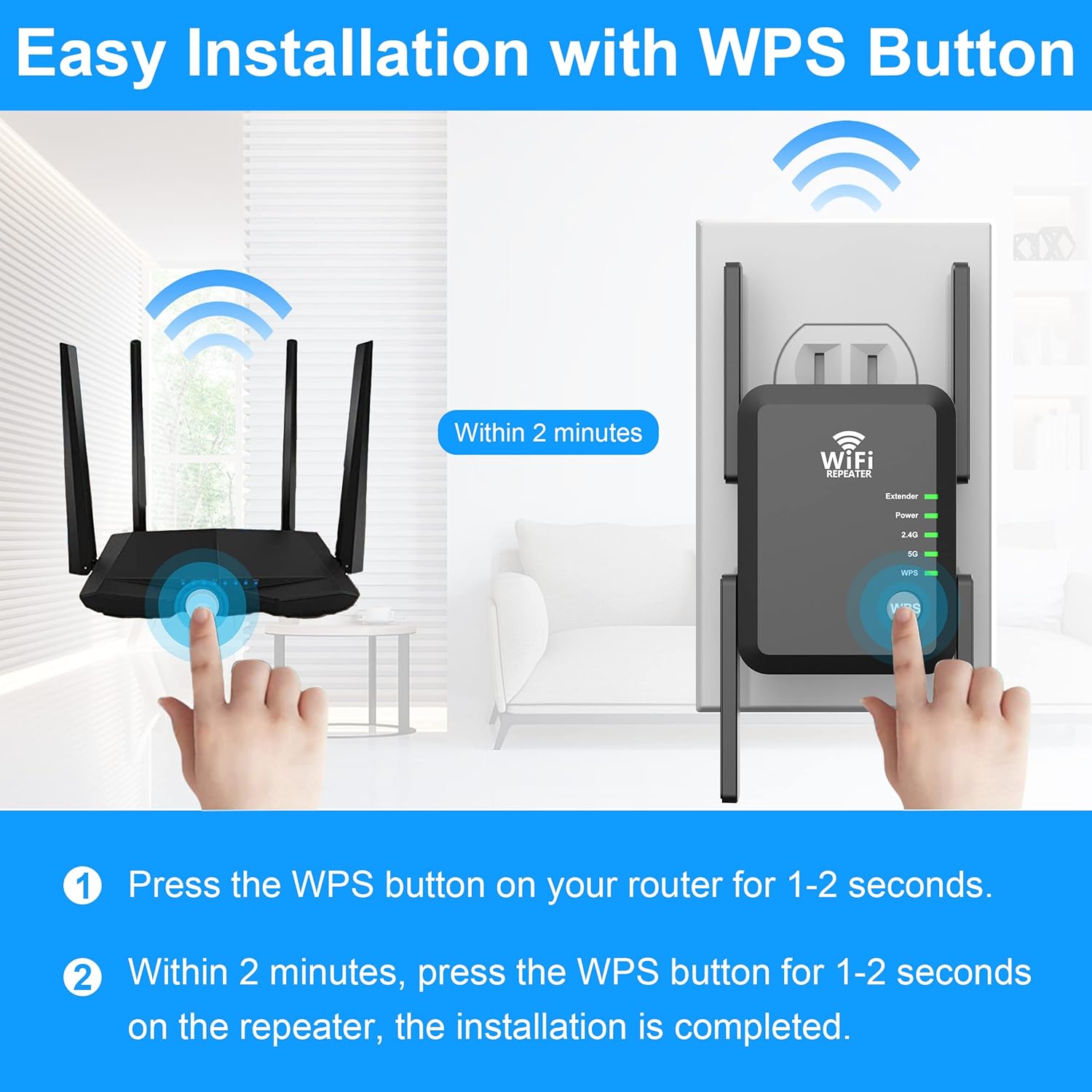
Image: Visual guide for WPS setup, showing a hand pressing the WPS button on a router and another hand pressing the WPS button on the extender plugged into a wall outlet.
- Plug the WiFi Extender into an electrical outlet near your router. Wait for the Power LED to turn solid.
- Press the WPS button on your main router for 1-2 seconds.
- Within 2 minutes, press the WPS button on the WiFi Extender for 1-2 seconds.
- The Extender LED will blink and then turn solid, indicating a successful connection. Your WiFi network is now extended.
5.2. Browser-based Setup (For detailed configuration)
Use this method if your router does not have a WPS button or for more advanced settings.

Image: A step-by-step visual guide for browser-based setup, showing screenshots of a mobile phone interface connecting to the extender's default SSID, accessing the web interface, selecting the target network, entering the password, and confirming the extended network.
- Plug the WiFi Extender into an electrical outlet near your router. Wait for the Power LED to turn solid.
- On your computer or mobile device, connect to the WiFi network named "WiFi_5G_XXXX" or "WiFi_2.4G_XXXX" (XXXX are the last four digits of the extender's MAC address). No password is required for the initial connection.
- Open a web browser (e.g., Chrome, Firefox, Safari) and type
192.168.188.1oritotolink.netinto the address bar. - Log in using the default username and password (usually
adminfor both, or refer to the label on the device). - Select "Repeater Mode" or "AP Mode" based on your needs (see Section 6 for details).
- The extender will scan for available WiFi networks. Select your home WiFi network (SSID) from the list.
- Enter the password for your home WiFi network.
- You can choose to keep the same SSID for the extended network or create a new one. Click "Apply" or "Finish".
- The extender will restart. Once the Extender LED is solid, your extended network is ready. Reconnect your devices to the new or extended WiFi network.
6. Operating Modes
The BIGtec WiFi Extender supports two main operating modes:
6.1. Repeater Mode (Wireless to Wireless)
In Repeater Mode, the extender wirelessly connects to your existing router's WiFi network and re-broadcasts it, extending the coverage area. This is ideal for eliminating WiFi dead zones.

Image: Diagram illustrating both Repeater Mode (wireless router to repeater, then wireless to WLAN client or wired connection) and AP Mode (wired router to repeater, then wireless to WLAN client).

Image: A visual representation of Repeater Mode, showing a wireless router wirelessly connecting to the extender, which then wirelessly extends the signal to a laptop and smartphone.
6.2. AP Mode (Wired to Wireless)
In AP (Access Point) Mode, the extender connects to your router via an Ethernet cable and then broadcasts a new wireless network. This is useful for adding wireless capability to a wired network or creating a new WiFi hotspot.

Image: A visual representation of AP Mode, showing a wired connection from a wall outlet to the extender, which then broadcasts a wireless signal to a computer.
7. Placement for Optimal Coverage
To achieve the best signal extension, place the extender in a location that is:
- Midway between your router and the area with poor WiFi signal.
- Away from large metal objects, concrete walls, and other sources of interference (e.g., microwaves, cordless phones).
- Within the range of your existing WiFi network, where the Extender LED shows a strong (green) signal.

Image: A multi-story house diagram showing the WiFi extender placed centrally to provide up to 8000 sq.ft network coverage across different rooms like bedrooms, living room, corridor, and balcony.

Image: A diagram illustrating how the WiFi extender expands the coverage area from an existing WiFi network, showing the extended signal reaching further into a home environment.
8. Maintenance
To ensure the longevity and optimal performance of your WiFi Extender:
- Keep the device in a dry, well-ventilated area.
- Avoid exposing the device to extreme temperatures or direct sunlight.
- Do not block the ventilation holes.
- Clean the device with a soft, dry cloth. Do not use liquid cleaners or aerosols.
- Periodically check for firmware updates on the manufacturer's website to ensure the best performance and security.

Image: Close-up view of the side of the WiFi extender, showing the vent holes designed for efficient heat dissipation.
9. Troubleshooting
If you encounter issues with your WiFi Extender, try the following solutions:
- No Power: Ensure the extender is properly plugged into a working electrical outlet. Try a different outlet.
- Cannot Connect to Extender's WiFi: Ensure the extender is powered on. Try restarting the extender.
- No Internet After Connecting: Check if your main router has internet access. Re-run the setup process to ensure the extender is correctly connected to your router's network.
- Weak Signal from Extender: Relocate the extender closer to your main router. Ensure there are no major obstructions between the extender and your devices. Check the Extender LED for signal strength (green is strong, orange is weak).
- WPS Setup Fails: Ensure your router supports WPS and that you are pressing the WPS buttons within the 2-minute window. If it continues to fail, try the browser-based setup.
- Forgot Login Password for Web Interface: Perform a factory reset by pressing and holding the Reset button for 5-8 seconds. This will revert all settings to default, and you can then use the default login credentials.
- Slow Speed: Ensure the extender is placed in an optimal location. Reduce the number of connected devices if possible. Consider using the 5GHz band for higher speeds if your devices support it.
10. Technical Specifications
| Feature | Specification |
|---|---|
| Model Number | AC15-BK |
| Brand | BIGtec |
| Data Transfer Rate | 1200 Megabits Per Second (300Mbps 2.4GHz, 867Mbps 5GHz) |
| Frequency Band Class | Dual-Band (2.4GHz & 5GHz) |
| Connector Type | RJ45 Ethernet Port |
| Wireless Security | WEP, WPA/WPA2 |
| Coverage Area | Up to 8000 sq.ft |
| Item Weight | 6.2 ounces |
| Package Dimensions | 4.33 x 3.74 x 2.99 inches |
11. Warranty and Support
For warranty information, technical support, or further assistance, please refer to the product packaging or visit the official BIGtec website. Keep your purchase receipt for warranty claims.