
Product Overview
The Yaheetech 22-inch Laptop Computer Table is a versatile and compact workstation designed for small spaces. It features a built-in power outlet with AC and USB ports, lockable casters for mobility, and multiple storage options including a drawer and shelves. This desk is suitable for various uses, from a laptop stand to a writing table or a mobile workstation.

Figure 1: Yaheetech 22-inch Laptop Computer Table, showcasing its compact design and integrated power outlet.
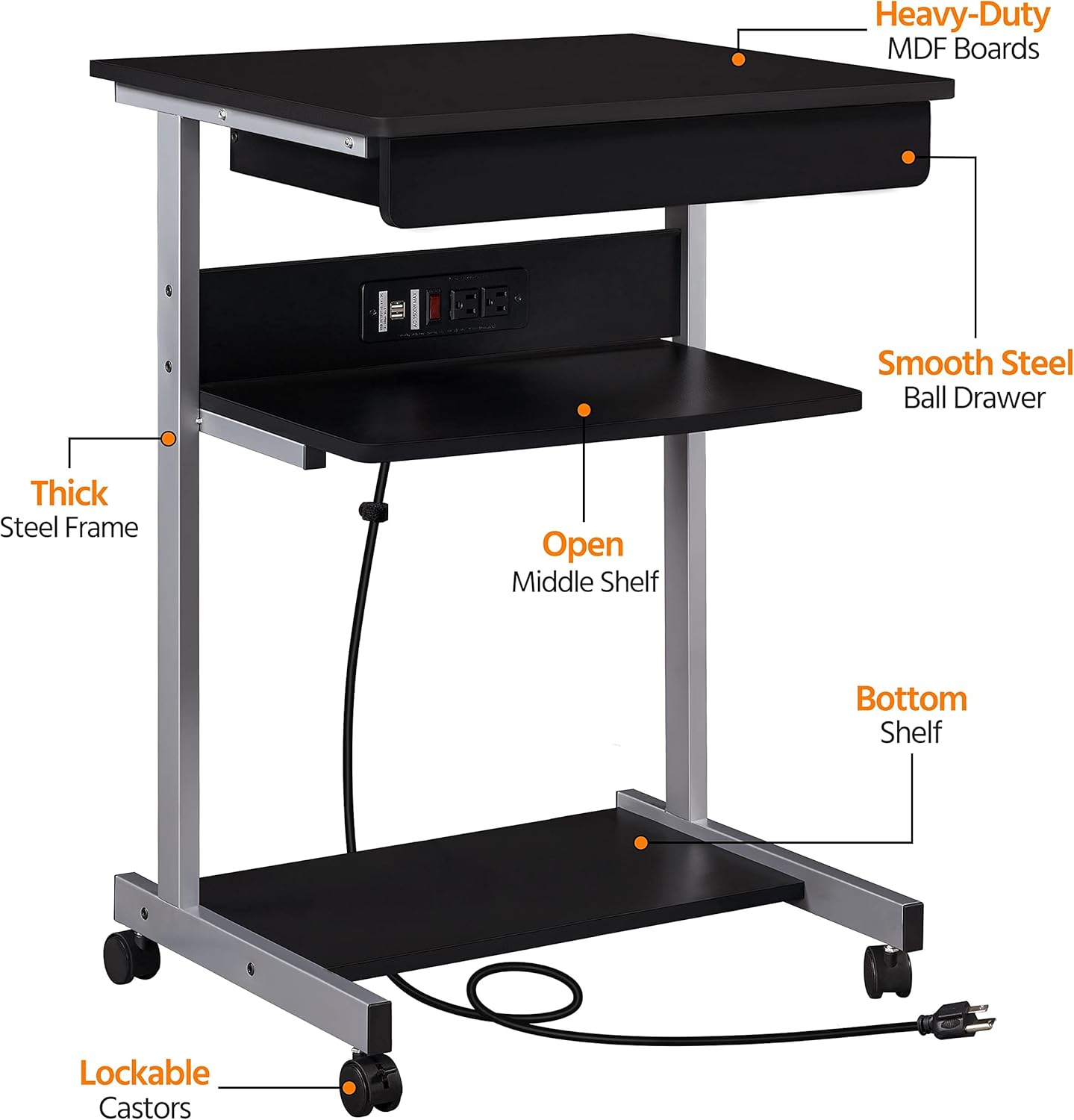
Figure 2: Labeled diagram highlighting key components such as Heavy-Duty MDF Boards, Smooth Steel Ball Drawer, Open Middle Shelf, Bottom Shelf, Thick Steel Frame, and Lockable Casters.
Setup and Assembly
This computer table requires assembly. It is recommended for one person to assemble. Please ensure all parts are present before beginning assembly. You will need your own Phillips head screwdriver in addition to the included Allen key. For safe assembly, use, and maintenance, always follow these instructions carefully, do not exceed the maximum weight capacities, and ensure stability.
Package Contents:
- Desk components (MDF boards, steel frame)
- Built-in power outlet unit
- 1 drawer
- 2 shelves
- Assembly hardware (screws, bolts, casters)
- Allen key
Assembly Steps:
- Unpack and Identify Parts: Carefully unpack all components and compare them with the parts list in your physical instruction manual to ensure nothing is missing or damaged.
- Attach Casters: Secure the four rolling casters to the base of the desk frame. Ensure the two front casters with locks are correctly positioned for easy access.
- Assemble Frame: Connect the steel frame components using the provided screws and Allen key. Ensure all connections are secure but do not overtighten until the desk is fully assembled.
- Install Shelves and Drawer: Attach the bottom shelf, middle shelf, and the drawer unit according to the detailed instructions in your physical manual. The drawer features smooth slides for easy operation.
- Integrate Power Outlet: Mount the built-in power outlet unit onto the designated area of the desk. Ensure the power cord is routed safely and secured with the included hook & loop strap for cable management.
- Final Tightening: Once all components are in place, carefully tighten all screws to ensure the desk is stable and secure.

Figure 3: Illustration showing the larger and sturdier wheels after installation, designed for improved loading stability.

Figure 4: Detail of the smooth drawer with high load capacity and quality drawer slides, ensuring long-term use.

Figure 5: Safe and convenient power outlet comprising 2 AC and 2 USB ports for charging various electronic devices, with a convenient switch.
Operating Instructions
The Yaheetech Laptop Computer Table is designed for ease of use and versatility in various settings.
Mobility and Stability:
- To move the desk, unlock the two front casters by flipping their levers.
- Once the desk is in the desired position, lock the front casters to keep it firmly in place.
- The 360° swivel casters allow for easy movement across different floor surfaces.
Using the Power Outlet:
- Plug the desk's main power cord into a standard wall outlet.
- Use the two AC outlets for devices requiring standard power.
- Use the two USB ports to charge compatible electronic devices such as smartphones and tablets.
- The integrated switch allows you to easily turn off power to the outlets when not in use, enhancing safety and saving energy.
- Utilize the hook & loop strap to manage and organize the power cord and any device cables, keeping your workspace tidy.

Figure 6: The laptop table in a living room, demonstrating its use with a laptop and charging devices, highlighting its versatility.
Storage and Ergonomics:
- The top surface is ideal for laptops, notebooks, or writing.
- The middle shelf provides convenient access to charging devices or small accessories.
- The bottom shelf offers additional storage for items like printers, books, or document organizers.
- The desk's height is designed to support your wrist comfortably during extended use, reducing fatigue.

Figure 7: The laptop table in a home office, showing a laptop, organized files, and charging cables, illustrating its functional design.
Maintenance
To ensure the longevity and appearance of your Yaheetech Laptop Computer Table, follow these simple maintenance guidelines:
- Cleaning: Wipe the surfaces of the desk with a dry cloth. Avoid using harsh chemicals or abrasive cleaners, as they may damage the laminated finish.
- Spills: In case of spills, wipe them immediately with a dry or slightly damp cloth to prevent staining or damage to the wood.
- Hardware: Periodically check all screws and connections to ensure they remain tight. Retighten if necessary to maintain stability.
- Power Outlet: Ensure the power outlet unit is kept dry and free from dust. Do not attempt to disassemble or repair the electrical components yourself.
Troubleshooting
If you encounter any issues with your Yaheetech Laptop Computer Table, please refer to the following common troubleshooting tips:
Stability Issues:
- Wobbling Desk: Ensure all assembly screws are fully tightened. Check that the desk is placed on a flat, even surface. Adjust the casters if necessary.
- Casters Not Locking: Verify that the locking levers on the front casters are fully engaged. Clean any debris that might be obstructing the locking mechanism.
Assembly Difficulties:
- Screws Not Fitting: Double-check that you are using the correct screws for each part as indicated in the assembly manual. Ensure holes are aligned properly. Do not force screws; if a part seems misaligned or defective, contact customer support.
- Missing Parts: If any parts are missing from the package, refer to the parts list in your physical manual and contact Yaheetech customer support for assistance.
Power Outlet Issues:
- No Power: Ensure the desk's power cord is securely plugged into a working wall outlet. Check the switch on the power outlet unit to ensure it is in the "ON" position. Test the wall outlet with another device to confirm it has power.
- USB Ports Not Charging: Verify that the main power is on. Ensure your device's charging cable is functioning correctly.
Specifications
| Feature | Detail |
|---|---|
| Brand | Yaheetech |
| Model Number | BY213-C021K |
| Model Name | Yaheetech Computer Desk with Printer Shelf/Keyboard Tray |
| Product Dimensions (D x W x H) | 20"D x 22"W x 31.5"H |
| Item Weight | 24.4 Pounds |
| Color | Black |
| Base Material | Engineered Wood |
| Finish Type | Laminated |
| Special Feature | Compact, Built-in Power Outlet, Mobile with Casters |
| Recommended Uses | Writing, Working, Laptop Stand, Printer Stand |
| Maximum Weight Recommendation (Top Surface) | 66 Pounds |
| Maximum Weight Recommendation (Middle Shelf) | 44.1 Pounds |
| Maximum Weight Recommendation (Bottom Shelf) | 22 Pounds |
| Number of Drawers | 1 |
| Number of Shelves | 2 |
| Required Assembly | Yes |
| Recommended Number of People for Assembly | 1 |

Figure 8: Detailed dimensions and weight capacities for the top surface, middle shelf, and bottom shelf.
Warranty and Support
For any questions regarding product assembly, missing parts, or operational issues not covered in this manual, please contact Yaheetech customer support.
While extended protection plans are available for purchase, any standard manufacturer's warranty information should be obtained directly from Yaheetech or your point of purchase.
Please visit the official Yaheetech website or refer to your purchase documentation for contact details and the most up-to-date warranty policy.