
1. Product Overview
The Thermalright TL-B14 is a 140mm static-pressure performance fan designed for CPU coolers and computer cases. It features PWM control for automatic speed adjustment based on motherboard temperature and utilizes a high-precision S-FDB V2 bearing for durability and quiet operation.
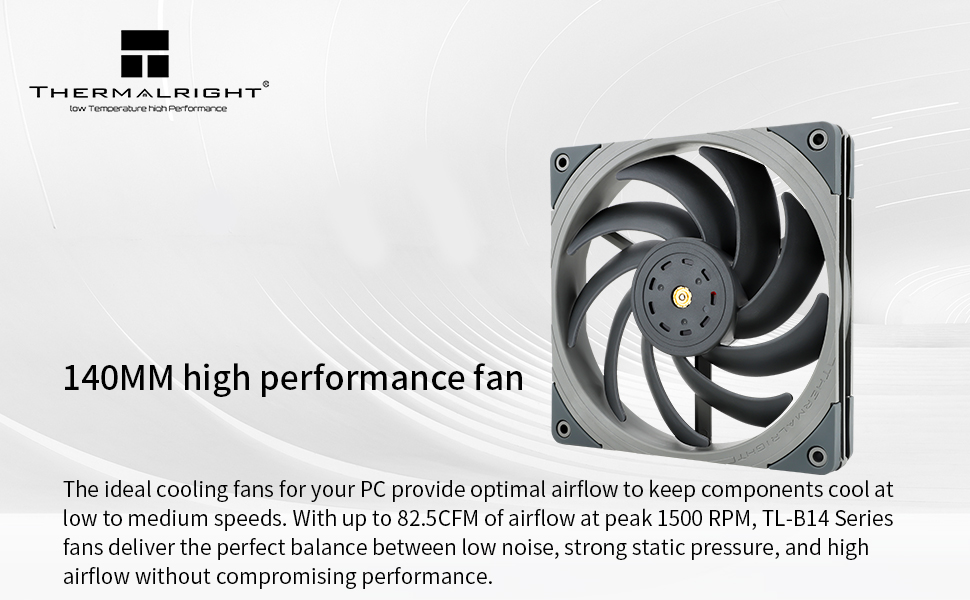
Image: Thermalright TL-B14 140mm high performance fan. This image highlights the fan's design and its capability to deliver optimal airflow and static pressure.
Key Features:
- 140mm Size: Ideal for various cooling applications, including CPU coolers and case ventilation.
- PWM Control: Automatically adjusts fan speed (up to 1500 RPM) based on system temperature for efficient cooling and noise management.
- S-FDB V2 Bearing: High-precision Fluid Dynamic Bearing ensures long durability, low noise, and extended service life.
- Static Pressure Performance: Optimized blade design and triangular symmetrical back frame enhance static pressure, making it suitable for radiators.
- Quality Construction: Fan blades and frame are made from industrial-grade PBT polymers.
- Vibration Damping: Each corner features pre-installed silicone rubber pads to reduce noise and vibration.
2. Package Contents
Verify that all components are present in the package:
- Thermalright TL-B14 140mm Fan
- Mounting Screws (for case installation)
- PWM Y-splitter cable (may be included for connecting multiple fans)
- ARGB extension cable (for models with ARGB lighting, not applicable to TL-B14)
Note: The TL-B14 model does not feature ARGB lighting. The provided video may show ARGB connections for other Thermalright fan models.
3. Installation Guide
Follow these steps to properly install your Thermalright TL-B14 fan. Ensure your computer is powered off and unplugged before beginning installation.
3.1. Fan Orientation and Airflow
Correct fan orientation is crucial for effective cooling. The fan blades draw air from one side (intake) and exhaust it from the other (frame side). Typically, the side with the fan blades visible is the intake, and the side with the motor support structure (and often a label) is the exhaust.

Image: Thermalright TL-B14 fan. The side with the visible fan blades is typically the intake side.

Image: Thermalright TL-B14 fan installed in a PC case. This illustrates how the fan can be mounted to optimize case airflow.
3.2. Physical Installation
- Identify Mounting Location: Determine where you want to install the fan (e.g., front, rear, top of case, or on a CPU cooler/radiator).
- Orient the Fan: Position the fan according to your desired airflow direction (intake or exhaust).
- Secure the Fan: Use the provided mounting screws to attach the fan to the case or cooler. Tighten screws evenly to prevent warping.

Image: Thermalright TL-B14 fan shown in two common installation scenarios: as a case fan for airflow and mounted on a water cooling radiator.
3.3. Electrical Connection (PWM)
The TL-B14 fan uses a 4-pin PWM connector for power and speed control.
- Locate Motherboard Fan Header: Find an available 4-pin fan header on your motherboard (often labeled "CPU_FAN", "CHA_FAN", or "SYS_FAN").
- Connect Fan Cable: Plug the fan's 4-pin connector into the motherboard header. Ensure proper alignment.
- Multiple Fans (Optional): If installing multiple fans, use a PWM splitter cable (if provided or purchased separately) to connect them to a single motherboard header. Ensure the total power draw does not exceed the header's rating.
Video: Thermalright Fan Installation Guide. This video demonstrates connecting the 4-pin PWM power cable to the motherboard fan socket and connecting additional fans using a PWM connector. It also shows the fan orientation for intake/exhaust and how to install the fan on a case. Note: This video features a white fan (TL-C12C series), but the connection and installation principles apply to the TL-B14.
4. Operating Instructions
Once installed and connected, the Thermalright TL-B14 fan operates automatically via PWM control from your motherboard.
- Automatic Speed Control: The fan's speed will adjust dynamically based on the temperature readings from your motherboard or CPU, ensuring optimal cooling performance while minimizing noise when temperatures are low.
- BIOS/UEFI Settings: You can typically fine-tune fan curves and speed settings within your motherboard's BIOS/UEFI interface or through motherboard-specific software. Refer to your motherboard manual for detailed instructions.
5. Maintenance
Regular maintenance helps ensure optimal performance and longevity of your fan.
- Dust Cleaning: Periodically clean dust from the fan blades and frame using compressed air or a soft brush. Ensure the fan is powered off and unplugged before cleaning.
- Bearing Maintenance: The S-FDB V2 bearing is designed for long-term, maintenance-free operation. Do not attempt to disassemble the fan for lubrication.
6. Troubleshooting
If you encounter issues with your Thermalright TL-B14 fan, consider the following:
- Fan Not Spinning:
- Check if the 4-pin PWM connector is securely plugged into the motherboard fan header.
- Verify that the fan header is enabled in your motherboard's BIOS/UEFI settings.
- Ensure the system is powered on and receiving sufficient power.
- Excessive Noise:
- Check for any cables or obstructions touching the fan blades.
- Ensure the fan is securely mounted and screws are tightened evenly.
- Clean any dust buildup on the fan blades.
- Adjust fan speed settings in BIOS/UEFI to a lower RPM if noise is a concern and temperatures allow.
- Poor Cooling Performance:
- Verify the fan is oriented correctly for optimal airflow (intake vs. exhaust).
- Ensure there are no obstructions blocking airflow to or from the fan.
- Check fan speed settings in BIOS/UEFI to ensure they are not set too low.
7. Specifications
| Feature | Specification |
|---|---|
| Model | TL-B14 |
| Dimensions | 140 x 140 x 25 mm (0.98"L x 5.51"W x 5.51"H) |
| Speed | 1500 RPM ±10% (MAX) |
| Noise Level | ≤27.6 dBA |
| Air Flow | 82.5 CFM (MAX) |
| Air Pressure | 2.35 mm H2O (MAX) |
| Connector | 4-Pin PWM |
| Current | 0.15 A |
| Voltage | 12 V |
| Wattage | 1.8 W |
| Bearing Type | S-FDB V2 (Fluid Dynamic Bearing) |
| Material | PBT Polymer (Fan blades and frame), Alloy Steel |
| Compatible Devices | Desktop Computers (Cases, Radiators, CPU Coolers) |

Image: Close-up of the Thermalright S-FDB Bearing V2. This bearing type is designed for low-friction, low-noise operation and extended lifespan.
8. Warranty and Support
For warranty information, technical support, or further inquiries, please refer to the official Thermalright website or contact their customer service directly. Keep your purchase receipt as proof of purchase for warranty claims.