
1. Introduction
This manual provides detailed instructions for the installation, configuration, and operation of your Generic ZTE ZXHN H188A VDSL Router. Please read this manual carefully before using the device to ensure proper setup and optimal performance. This router is designed to provide high-speed internet access and wireless connectivity for your home or office network.
2. Product Overview
The ZTE ZXHN H188A is a VDSL2/ADSL2+ router with integrated Wi-Fi capabilities, supporting both 2.4 GHz and 5 GHz bands. It features multiple Gigabit Ethernet ports for wired connections and a USB 2.0 port for additional functionality.
2.1 Front Panel Indicators
The front panel of the router features several LED indicators that display the device's status.

Figure 1: Front view of the ZTE ZXHN H188A VDSL Router. Visible LEDs include Power, DSL, Internet, 2.4GHz Wi-Fi, 5GHz Wi-Fi, WPS, and USB, indicating the operational status of various functions.
- Power: Indicates the power status of the device.
- DSL: Indicates the status of the VDSL/ADSL connection.
- Internet: Indicates internet connectivity status.
- 2.4GHz: Indicates the status of the 2.4 GHz Wi-Fi network.
- 5GHz: Indicates the status of the 5 GHz Wi-Fi network.
- WPS: Indicates the status of the Wi-Fi Protected Setup function.
- USB: Indicates the status of the USB port.
2.2 Rear Panel Ports and Buttons
The rear panel provides all necessary connection ports and control buttons.

Figure 2: Rear view of the ZTE ZXHN H188A VDSL Router. From left to right, it shows the On/Off switch, Power port, WPS button, Reset button, WLAN button, LAN1, LAN2, LAN3, WAN/LAN (Gigabit) ports, DSL port, and a label with product information.
- On/Off Button: Powers the device on or off.
- Power Port: Connects to the power adapter.
- WPS Button: Initiates Wi-Fi Protected Setup for easy wireless connection.
- Reset Button: Restores the router to factory default settings (requires a pin press).
- WLAN Button: Toggles the Wi-Fi radio on or off.
- LAN1, LAN2, LAN3 Ports: Gigabit Ethernet ports for connecting wired devices.
- WAN/LAN Port: A configurable Gigabit Ethernet port that can function as either a WAN (for fiber/cable modem connection) or an additional LAN port.
- DSL Port: Connects to the VDSL/ADSL line from your internet service provider.
- USB 2.0 Port: Located on the side, for connecting USB devices (e.g., external storage).
2.3 Package Contents
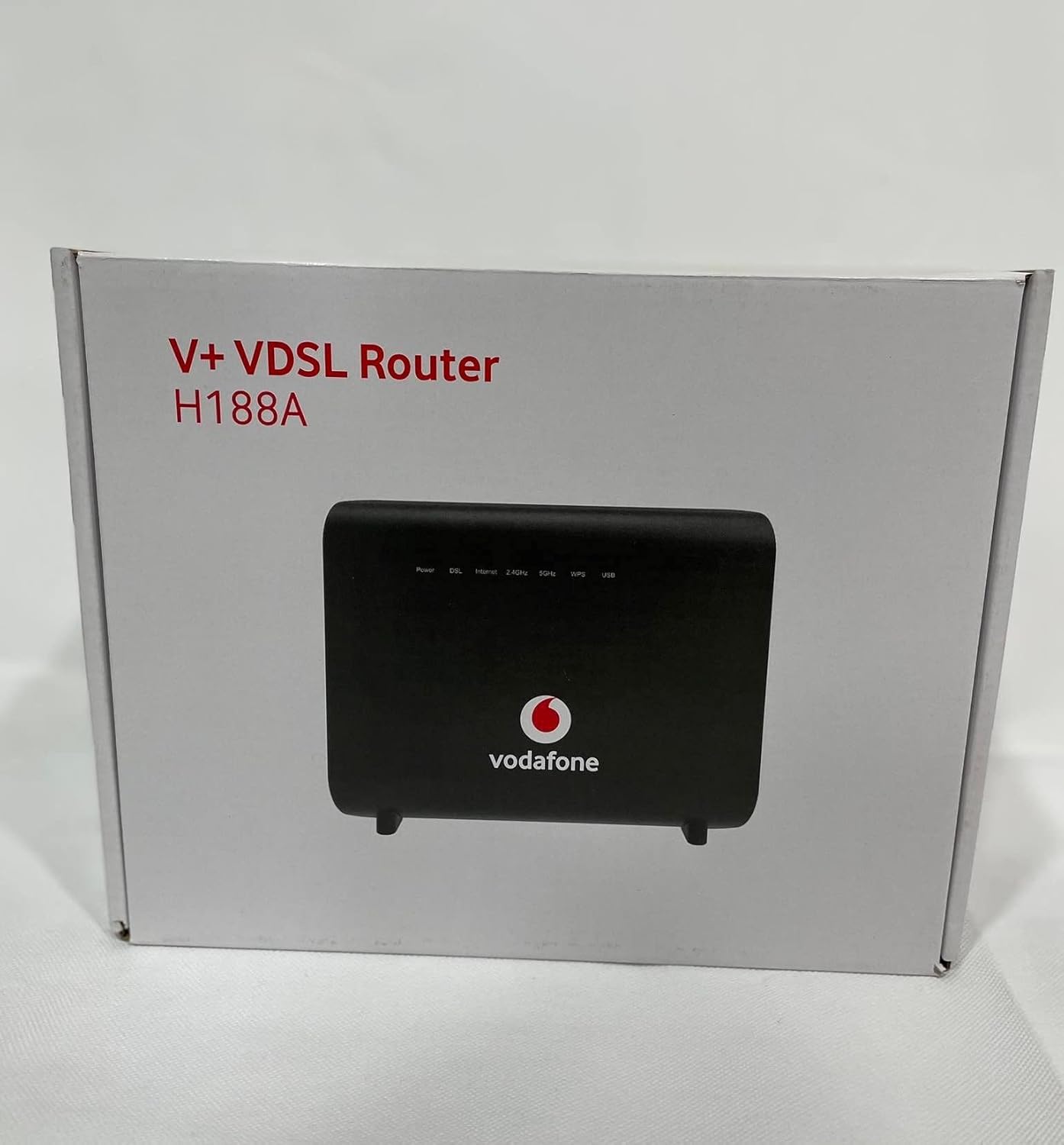
Figure 3: Retail packaging for the ZTE ZXHN H188A VDSL Router, indicating the model and VDSL capabilities.
Ensure your package contains the following items:
- ZTE ZXHN H188A VDSL Router
- Power Adapter
- Ethernet Cable
- DSL Cable
- Quick Start Guide (if included)
3. Setup Guide
Follow these steps to set up your router for the first time.
- Connect the DSL Line: Connect one end of the DSL cable to the DSL port on the router and the other end to your wall's DSL socket or splitter.
- Connect to Power: Connect the power adapter to the router's power port and plug the other end into an electrical outlet. Press the On/Off button if the router does not power on automatically.
- Observe LED Indicators: Wait for the Power, DSL, and Internet LEDs to become stable (usually solid green). This indicates a successful connection to your internet service provider.
- Connect a Device (Optional, Wired): For initial configuration or a stable wired connection, connect one end of an Ethernet cable to a LAN port (LAN1, LAN2, or LAN3) on the router and the other end to your computer's Ethernet port.
- Connect a Device (Wireless):
- Locate the Wi-Fi network name (SSID) and password (WLAN Key) printed on the label at the bottom or rear of the router.
- On your wireless device (laptop, smartphone), search for available Wi-Fi networks and select the SSID corresponding to your router.
- Enter the WLAN Key when prompted.
- Access Router Management Interface:
- Open a web browser on a connected device.
- Enter the default IP address (e.g., 192.168.1.1) into the address bar and press Enter. This IP address is typically found on the router's label.
- Enter the default username and password (also found on the router's label) to log in.
- Follow the on-screen wizard for initial internet setup if prompted by your service provider.
4. Operating Instructions
4.1 Basic Wi-Fi Connection
To connect devices wirelessly, use the SSID and WLAN Key provided on the router's label. For quick connections, you can use the WPS function.
- Using WPS: Press the WPS button on the rear of the router. Within two minutes, press the WPS button on your wireless device. The devices will automatically connect.
- Manual Connection: Select the router's SSID from your device's Wi-Fi list and enter the WLAN Key.
4.2 Router Management Interface
The web-based management interface allows you to configure advanced settings, such as:
- Changing Wi-Fi SSID and password.
- Setting up guest networks.
- Configuring port forwarding.
- Updating firmware.
- Monitoring network status.
Always save changes after modifying settings in the interface.
5. Maintenance
5.1 Regular Reboot
Periodically rebooting your router (once a month, for example) can help clear temporary issues and improve performance. To reboot, simply unplug the power adapter, wait 10-15 seconds, and then plug it back in.
5.2 Firmware Updates
Check the manufacturer's website or your internet service provider's support page for available firmware updates. Firmware updates can improve performance, add new features, and fix security vulnerabilities. Follow the instructions provided with the firmware update carefully.
5.3 Cleaning
Use a soft, dry cloth to clean the exterior of the router. Do not use liquid cleaners or aerosols. Ensure the ventilation holes are free from dust to prevent overheating.
6. Troubleshooting
This section addresses common issues you might encounter.
- No Internet Access:
- Check if the DSL and Internet LEDs are solid green. If not, verify cable connections and contact your ISP.
- Reboot the router and your connected device.
- Ensure your account with the ISP is active.
- Wi-Fi Not Working:
- Check if the 2.4GHz and 5GHz LEDs are lit. If not, press the WLAN button on the rear panel.
- Verify your Wi-Fi password.
- Ensure your device is within range of the router.
- Slow Internet Speed:
- Try connecting a device directly via Ethernet to rule out Wi-Fi interference.
- Reboot the router.
- Ensure no other applications or devices are consuming excessive bandwidth.
- Cannot Access Router Management Page:
- Ensure your device is connected to the router (wired or wireless).
- Verify the IP address entered in the browser.
- Try a different web browser.
- Factory Reset: If you encounter persistent issues or forget your login credentials, you can perform a factory reset. With the router powered on, use a paperclip or similar pointed object to press and hold the Reset button on the rear panel for about 5-10 seconds until the LEDs flash. The router will then reboot with factory default settings. Warning: This will erase all custom configurations.
7. Specifications
Below are the technical specifications for the ZTE ZXHN H188A VDSL Router.
| Feature | Description |
|---|---|
| Model | ZXHN H188A |
| Interface | 1x RJ-11 VDSL2 / ADSL2+ Port, 1x RJ-45 WAN/LAN 10/100/1000 Mbps, 3x RJ-45 LAN 10/100/1000Mbps, 1x USB 2.0 Port |
| Buttons | On/Off, WPS, Reset, Wi-Fi Radio (WLAN) |
| Data Transfer Rate | Up to 1200 Mbps (Wireless) |
| Wireless Standards | IEEE 802.11n, IEEE 802.11b (also 802.11ac implied by 1200Mbps and dual-band) |
| Wireless Security | WEP/WPA/WPA2, WPS |
| Frequency | 2.4 GHz, 5 GHz (Dual-Band) |
| Dimensions (W x D x H) | 220 x 80 mm (Note: Height not specified in original data, assuming 220x80 are width and depth) |
| Operating System | RouterOS |
| Compatible Devices | Laptop, Personal Computer, Smart Television, Tablet |
8. Warranty and Support
For warranty information and technical support, please refer to the documentation provided with your purchase or contact the retailer/manufacturer directly. Keep your proof of purchase for warranty claims.
Manufacturer: Generic (ZTE Corporation)
