
Jepssen Onlyone PC Ultra AWIDE i12700
Jepssen Onlyone PC Ultra AWIDE i12700 User Manual
Model: JEO1PCUW126246NW
1. Introduction
The Jepssen Onlyone PC Ultra AWIDE is an all-in-one computer designed for various computing needs, combining powerful performance with a sleek design. This manual provides essential information for setting up, operating, and maintaining your device, ensuring optimal performance and longevity.
2. Product Overview
The Jepssen Onlyone PC Ultra AWIDE is a high-performance all-in-one system featuring a 30-inch UltraWide Frameless LED Display. It is powered by an Intel i7-12700 processor, 16GB of DDR4 RAM, and a 2TB NVMe SSD, running on Windows 11 Pro. The design allows for flexible display adjustments, including rotation and tilt, and integrates a pop-up webcam for convenience.
2.1 Key Features
- Display: 30-inch UltraWide Frameless LED Display (21:9 aspect ratio) with 2560x1080 resolution.
- Processor: Intel i7-12700.
- Memory: 16GB DDR4 SO-DIMM RAM (expandable up to 64GB).
- Storage: 2TB NVMe SSD, with additional S-ATA slot for up to 2TB SSD/HDD.
- Operating System: Windows 11 Pro.
- Graphics: Integrated Intel Graphics with Ultra HD 4K HEVC support.
- Connectivity: Integrated WiFi 6 (802.11ax), Bluetooth 5.2, 1 Gigabit LAN.
- Webcam: Pop-Up 2K 1080p Webcam with microphone.
- Display Adjustments: 90° horizontal/vertical rotation, 45° height/tilt adjustment.
- Ports: USB 3.2, HDMI 2.0, Mini DisplayPort, SD card slot.
- Multimedia: H.265 4K Multimedia Player.
- Design: Ultra-thin (4.9 cm), VESA mount compatible.
2.2 Included Components
Please ensure all the following items are present in the packaging:
- Jepssen Onlyone PC Ultra AWIDE Computer
- Wireless Keyboard
- Wireless Mouse
- External Power Supply
- Power Cable
- User Manual (this document)
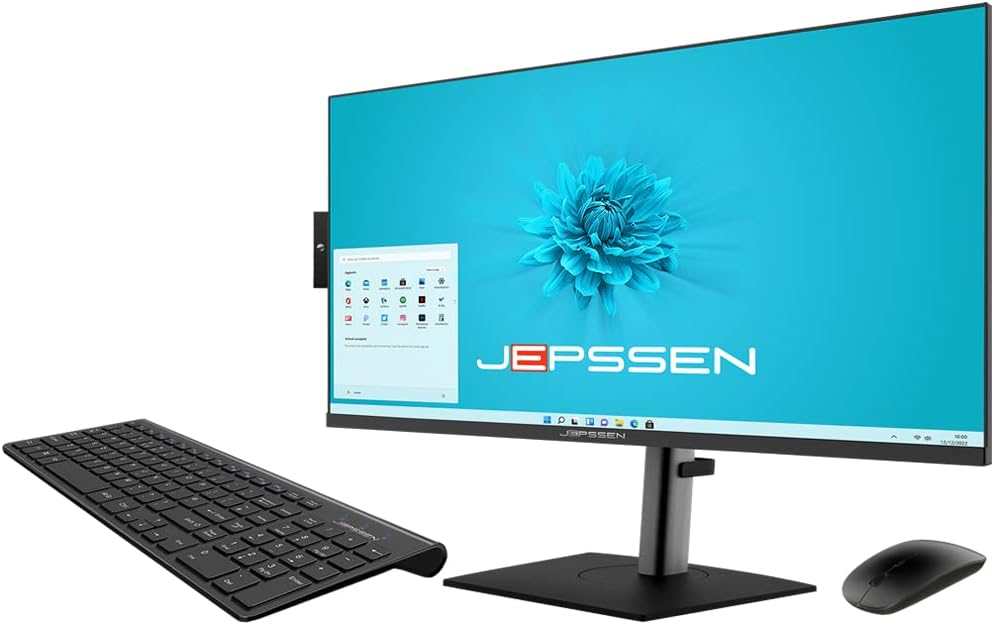
Image: The Jepssen Onlyone PC Ultra AWIDE, shown with its included wireless keyboard and mouse.

Image: Front view of the Jepssen Onlyone PC Ultra AWIDE monitor, showcasing its frameless design.

Image: Rear view of the Jepssen Onlyone PC Ultra AWIDE, highlighting the various connectivity ports.
3. Setup
Follow these steps to set up your Jepssen Onlyone PC Ultra AWIDE:
- Unpacking: Carefully remove all components from the packaging. Retain the packaging for future transport or service needs.
- Stand Assembly: Attach the stand to the monitor base. Ensure all screws are securely fastened according to the quick start guide (if provided separately).
- Power Connection: Connect the external power supply to the PC's power input port, then plug the power cable into the power supply and a functional electrical outlet.
- Peripheral Connection:
- Wireless Keyboard and Mouse: Locate the USB receiver (often found in the mouse or keyboard battery compartment). Insert this receiver into an available USB port on the PC. Ensure batteries are correctly installed in both the keyboard and mouse.
- Other Peripherals: Connect any external devices such as printers, external hard drives, or additional monitors to the appropriate ports (e.g., USB, HDMI, Mini DisplayPort).
- Display Adjustment: The display offers versatile positioning:
- Adjust the screen height and tilt up to 45 degrees for ergonomic viewing.
- Rotate the display up to 90 degrees to switch between horizontal (landscape), oblique, or vertical (portrait) orientations.

Image: The display can be rotated to an oblique angle for flexible viewing.

Image: The display can be rotated 90 degrees to a vertical (portrait) orientation.
- Initial Boot: Press the power button (usually located on the side or bottom of the monitor). The system will guide you through the initial setup process for Windows 11 Pro. Follow the on-screen instructions to configure your operating system, user accounts, and network settings.
4. Operating Instructions
This section provides guidance on using your Jepssen Onlyone PC Ultra AWIDE.
4.1 Power On/Off
- To Power On: Press the power button.
- To Shut Down: Click the Start button in Windows 11, then select the Power icon and choose 'Shut down'. Avoid simply unplugging the device to prevent data loss.
4.2 Windows 11 Pro
Your PC comes pre-installed with Windows 11 Pro. Familiarize yourself with its interface, including the Start menu, taskbar, and settings. Windows 11 offers a wide range of applications and features for productivity and entertainment.
4.3 Network Connectivity
- Wi-Fi 6 (802.11ax): To connect to a wireless network, click the Wi-Fi icon in the system tray, select your desired network, and enter the password.
- Bluetooth 5.2: To pair Bluetooth devices (e.g., headphones, speakers), go to Windows Settings > Bluetooth & devices, and follow the pairing instructions for your device.
- Gigabit LAN: For a stable wired internet connection, connect an Ethernet cable from your router or modem to the LAN port on the back of the PC.
4.4 Pop-Up WebCam
The integrated 2K 1080p webcam is designed for privacy and convenience.
- To Extend: Gently press the camera module located on the left side of the panel until it pops up.
- To Retract: Gently push the camera module back down until it clicks securely into its housing.

Image: Side view of the PC, highlighting the pop-up webcam mechanism in its extended position.
4.5 Multimedia Playback
The PC supports Ultra HD 4K HEVC and H.265 multimedia formats. Use compatible media player software to enjoy high-definition video and audio content. The internal scaler can enhance lower-definition video and photos up to 4096x2160 resolution.
4.6 Storage Expansion
The system includes one M.2 NVMe slot (supporting up to 4TB) and one S-ATA slot (supporting up to 2TB SSD/HDD) for additional storage. Installation of additional drives should be performed by a qualified technician.
5. Maintenance
Proper maintenance ensures the longevity and optimal performance of your PC.
- Cleaning: Use a soft, lint-free, dry cloth to clean the screen and exterior surfaces. For stubborn marks, slightly dampen the cloth with water. Avoid using harsh chemicals, abrasive cleaners, or solvents, as these can damage the display and finish.
- Software Updates: Regularly check for and install updates for Windows 11 and device drivers. These updates often include security patches, performance improvements, and new features.
- Ventilation: Ensure that the ventilation slots on the PC are not obstructed. The PC features special ventilation and an external power supply designed for silent operation, but proper airflow is crucial to prevent overheating.
- Data Backup: Periodically back up your important files and data to an external storage device or cloud service to prevent data loss in case of system failure.
6. Troubleshooting
If you encounter issues with your Jepssen Onlyone PC Ultra AWIDE, refer to the following common troubleshooting steps:
- No Power:
- Verify that the power cable is securely connected to both the PC and a functional electrical outlet.
- Ensure the external power supply is correctly connected and its indicator light (if any) is on.
- Try plugging the power cable into a different outlet.
- No Display:
- Ensure the PC is powered on.
- If an external monitor is connected, check its power and cable connections.
- Try adjusting the display settings in Windows if you can access them (e.g., by connecting to another display temporarily).
- No Internet Connection:
- Wi-Fi: Check Wi-Fi settings in Windows, ensure your router is working, and that you have entered the correct network password.
- LAN: Verify the Ethernet cable is properly connected to both the PC and your router/modem. Check the network adapter status in Windows Device Manager.
- Keyboard/Mouse Not Responding:
- Check the battery levels in the wireless keyboard and mouse and replace them if necessary.
- Ensure the USB receiver is securely plugged into a USB port on the PC. Try plugging it into a different USB port.
- Restart the PC.
- Webcam Not Working:
- Ensure the Pop-Up WebCam is fully extended.
- Check privacy settings in Windows (Settings > Privacy & security > Camera) to ensure applications have permission to access the camera.
- Verify camera drivers are up to date in Device Manager.
If these steps do not resolve the issue, please contact Jepssen customer support for further assistance.
7. Specifications
| Feature | Specification |
|---|---|
| Brand | Jepssen |
| Manufacturer | JEPSSEN |
| Series | ONLYONE PC ULTRAWIDE |
| Product Dimensions | 70.8 x 46.3 x 4.9 cm |
| Product Model Number | JEO1PCUW126246NW |
| Screen Size | 30 Inches |
| Maximum Resolution | 2560x1080 Pixels |
| Processor Manufacturer | Intel |
| Processor Socket | LGA 1700 |
| RAM Capacity | 16 GB |
| Memory Technology | DDR4 |
| Maximum Supported Memory | 64 GB |
| Hard Drive Capacity | 2 TB |
| Hard Drive Description | SSD |
| Hard Drive Interface | PCIE x 4 |
| Graphics Card Brand | Intel |
| Graphics Card Description | Integrated |
| Graphics Memory Type | SODIMM |
| Graphics RAM Capacity | 4 GB |
| Graphics Card Interface | Integrated |
| Wireless Connectivity Type | 802.11ax, Bluetooth |
| Number of USB 2.0 Ports | 2 |
| Number of HDMI Ports | 1 |
| Optical Drive Type | None |
| Operating System | Windows 11 Pro |
| Product Weight | 12 kg |
| Software Updates Guaranteed Until | Unknown |
| First Available Date | 30 January 2023 |
| Specific Product Uses | Multimedia, Personal, Professional |
| Installed RAM Size | 16 GB |
| Model Name | ONLYONE PC ULTRAWIDE |
| Included Components | Computer, Keyboard, Mouse, Power Supply, Cable, Manual |
| Optical Storage Device | None |
8. Warranty and Support
For detailed warranty information, please refer to the warranty card or documentation included with your Jepssen Onlyone PC Ultra AWIDE. Keep your purchase receipt as proof of purchase for any warranty claims.
For technical support, driver downloads, or further assistance, please visit the official Jepssen website or contact their customer service department. Contact information can typically be found on the manufacturer's website or in the product packaging.
Ask a question about this manual
Ask about setup, troubleshooting, compatibility, parts, safety, or missing instructions. Manuals+ will review the question and use this page’s manual context to help answer it.