
1. Introduction
This manual provides essential instructions for the safe and efficient operation of your PHILIPS B7207 2.1-Channel Soundbar with Wireless Subwoofer. Please read this manual thoroughly before using the product and retain it for future reference.
2. Safety Information
Observe the following safety precautions to prevent electric shock, fire, or damage to the unit:
- Do not expose the unit to rain or moisture.
- Do not block any ventilation openings.
- Ensure proper grounding for the power supply.
- Only use attachments/accessories specified by the manufacturer.
- Refer all servicing to qualified service personnel.
- Keep the unit away from direct sunlight, heat sources, and strong magnetic fields.
3. Package Contents
Verify that all items are present in your package:
- PHILIPS B7207 Soundbar
- Wireless Subwoofer
- Remote control (with battery)
- Power cord (for soundbar)
- Power cord (for subwoofer)
- Wall mount bracket
- Quick Start Guide
- World Wide Warranty leaflet

Figure 3.1: Philips B7207 Soundbar and Wireless Subwoofer components.
4. Product Overview
The PHILIPS B7207 is a 2.1-channel soundbar system designed to enhance your audio experience. It features a soundbar and a wireless 8-inch subwoofer, delivering a total of 520W maximum output. Key technologies include Dolby Digital Plus for virtual surround sound and angled tweeters to widen the soundstage. Connectivity options include HDMI ARC, Optical In, Bluetooth, and USB.

Figure 4.1: Overview of the Philips B7207 Soundbar system and its main features.
4.1 Key Features
- 2.1-Channel Audio: Provides a balanced sound experience with dedicated left, right, and subwoofer channels.
- Wireless Subwoofer: An 8-inch subwoofer delivers deep bass without the need for a physical audio cable connection to the soundbar.
- Dolby Digital Plus: Virtualizes additional sound channels for an immersive surround sound experience.
- Angled Tweeters: Designed to broaden the soundstage, providing clear instrument separation.
- Stadium EQ Mode: Optimizes audio for sports content, enhancing crowd intensity and commentary clarity.
- Roku TV Ready: Ensures seamless setup and control with compatible Roku TVs.
- Multiple Connectivity Options: Includes HDMI ARC, Optical In, Bluetooth, and USB for versatile audio sources.
- Philips Easylink (HDMI-CEC): Allows control of the soundbar using your TV remote when connected via HDMI ARC.

Figure 4.2: The soundbar's angled tweeters are designed to expand the audio soundstage.
5. Setup
5.1 Placement
Place the soundbar centrally below your television. The wireless subwoofer can be placed anywhere in the room, ideally on the floor, to achieve optimal bass response. Ensure there is adequate ventilation around both units.

Figure 5.1: Example placement of the soundbar and wireless subwoofer in a living room.
5.2 Connections
Connect the soundbar to your audio source using one of the following methods:
- HDMI ARC: For the best audio quality and control via your TV remote (Philips Easylink). Connect an HDMI cable from the HDMI ARC port on the soundbar to the HDMI ARC port on your TV.
- Optical In: Connect an optical cable from the OPTICAL IN port on the soundbar to the optical audio output on your TV or other audio device.
- Bluetooth: For wireless audio streaming from mobile devices.
- USB: Insert a USB drive for direct music playback.

Figure 5.2: Rear panel connections of the soundbar, including HDMI ARC, Optical In, and USB ports.
5.3 Power Connection
- Connect the power cord to the AC IN socket on the soundbar.
- Connect the other end of the power cord to a wall outlet.
- Connect the power cord to the AC IN socket on the wireless subwoofer.
- Connect the other end of the subwoofer power cord to a wall outlet.
The soundbar and subwoofer will automatically pair when powered on. If pairing fails, refer to the troubleshooting section.
5.4 Wall Mounting
The included wall mount bracket allows for mounting the soundbar on a wall. Refer to the Quick Start Guide for detailed wall mounting instructions and ensure proper installation to prevent damage or injury.
6. Operating Instructions
6.1 Power On/Off
Press the Power button on the remote control or on the soundbar to turn the unit on or off.

Figure 6.1: The remote control for the Philips B7207 Soundbar.
6.2 Input Selection
Press the corresponding input button on the remote control (e.g., HDMI ARC, Optical, BT, USB) to switch between audio sources.
6.3 Volume Control
Use the Vol+ and Vol- buttons on the remote control to adjust the main volume. You can also adjust Treble and Bass levels using their dedicated buttons on the remote.
6.4 Sound Modes
Press the EQ button on the remote to cycle through available sound modes, including:
- Stadium EQ Mode: Enhances audio for sports broadcasts.
- Dolby Digital Plus: Activates virtual surround sound processing.

Figure 6.2: The soundbar supports Stadium EQ Mode and Philips Easylink for enhanced control.
6.5 Bluetooth Operation
- Press the BT button on the remote control to select Bluetooth input. The soundbar will enter pairing mode.
- On your mobile device, enable Bluetooth and search for available devices.
- Select "PHILIPS B7207" from the list to pair.
- Once connected, you can stream audio from your device to the soundbar.
6.6 USB Playback
Insert a USB drive containing audio files into the USB port on the soundbar. The soundbar will automatically switch to USB input and begin playing compatible audio files.
6.7 Philips Easylink (HDMI-CEC)
When connected via HDMI ARC, Philips Easylink allows you to control basic functions of the soundbar (e.g., power, volume) using your TV's remote control. Ensure HDMI-CEC is enabled on your television.
6.8 Roku TV Ready
The soundbar is compatible with Roku TV systems, offering simplified setup and integrated sound settings accessible through your Roku TV interface.
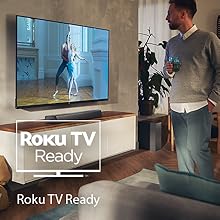
Figure 6.3: The soundbar is Roku TV Ready for seamless integration.
7. Maintenance
7.1 Cleaning
Wipe the surfaces of the soundbar and subwoofer with a soft, dry cloth. Do not use abrasive cleaners, waxes, or solvents as they may damage the finish. Ensure the unit is unplugged before cleaning.
7.2 Storage
If storing the unit for an extended period, disconnect it from the power supply and store it in a cool, dry place, away from direct sunlight and extreme temperatures.
8. Troubleshooting
If you encounter issues with your soundbar, refer to the following table for common problems and solutions:
| Problem | Possible Cause | Solution |
|---|---|---|
| No power | Power cord not connected; Wall outlet not active | Ensure power cords are securely connected to both the soundbar/subwoofer and a working wall outlet. |
| No sound | Incorrect input selected; Volume too low; Mute activated; Cables not connected | Select the correct input source. Increase volume. Deactivate mute. Check all audio cable connections. |
| Subwoofer not producing sound | Subwoofer not paired; Subwoofer power off | Ensure the subwoofer is powered on. If not paired, refer to the Quick Start Guide for manual pairing instructions. |
| Bluetooth connection issues | Device too far; Interference; Soundbar not in pairing mode | Move device closer to soundbar. Avoid obstacles. Ensure soundbar is in Bluetooth pairing mode. Disconnect and re-pair. |
| Remote control not working | Battery depleted; Obstruction; Incorrect aiming | Replace remote battery. Remove any obstructions between remote and soundbar. Aim remote directly at the soundbar's sensor. |
9. Specifications
The following table details the technical specifications of the PHILIPS B7207 Soundbar system:
| Feature | Specification |
|---|---|
| Model Number | TAB7207/37 |
| Speaker Type | Soundbar |
| Surround Sound Channel Configuration | 2.1 |
| Subwoofer Diameter | 8 Inches |
| Connectivity Technology | Bluetooth, HDMI, USB |
| Wireless Communication Technology | Bluetooth |
| Audio Output Mode | Surround |
| Product Dimensions (Soundbar) | 31.5"D x 4.17"W x 2.55"H |
| Item Weight | 17 Pounds (total) |
| Control Method | Remote |
| Power Source | Battery Powered (remote), AC Powered (units) |
| UPC | 840063202610 |
10. Warranty and Support
Your PHILIPS B7207 Soundbar comes with a World Wide Warranty. Please refer to the included 'World Wide Warranty leaflet' for detailed terms and conditions, including warranty period and coverage.
For technical support, service, or further assistance, please visit the official PHILIPS support website or contact their customer service department. Contact information can typically be found on the PHILIPS website or in the warranty leaflet.