
1. Introduction
This manual provides essential information for the safe and efficient operation of your NEC NP-M271X Projector. Please read this manual thoroughly before using the projector and retain it for future reference. The NEC NP-M271X projector is designed to provide bright, detailed image projection with native XGA resolution, 3200 lumens brightness, and HDMI connectivity, suitable for various presentation and viewing environments.
2. Safety Information
To ensure safe operation and prevent damage, observe the following precautions:
- Power Supply: Use only the specified power supply voltage. Ensure the power cord is securely connected and not damaged.
- Ventilation: Do not block ventilation openings. Ensure adequate space around the projector for proper airflow to prevent overheating.
- Placement: Place the projector on a stable, level surface. Avoid locations with high humidity, dust, or extreme temperatures.
- Lens: Do not look directly into the projector lens when the lamp is on, as this can cause eye damage.
- Cleaning: Disconnect the power cord before cleaning. Use a soft, dry cloth. Avoid liquid or aerosol cleaners.
- Servicing: Do not attempt to service the projector yourself. Refer all servicing to qualified service personnel.
3. Product Overview
The NEC NP-M271X projector features a robust design with various input/output ports and user-friendly controls.
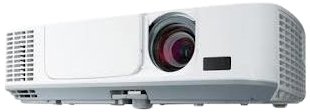
Figure 3.1: Front view of the NEC NP-M271X Projector, showing the lens and ventilation grilles.
3.1 Front Panel
- Projection Lens: Projects the image onto the screen.
- Focus Ring: Adjusts image sharpness.
- Zoom Ring: Adjusts image size.
- IR Receiver: Receives signals from the remote control.
3.2 Rear Panel (Connectivity)
The rear panel provides various ports for connecting external devices.
- HDMI Input: For connecting digital video/audio sources.
- VGA Input (Computer IN): For connecting computers via VGA cable.
- USB Port: For connecting USB devices or for firmware updates.
- Audio In/Out: For connecting external audio sources or outputting audio.
- LAN Port: For network connectivity and control.
- Power Inlet: For connecting the AC power cord.
3.3 Top Panel (Controls)
- Power Button: Turns the projector on or off.
- Input Buttons: Selects the input source.
- Menu Button: Accesses the on-screen display (OSD) menu.
- Navigation Buttons: Used to navigate through menus and adjust settings.
- Keystone Correction: Adjusts image distortion.
4. Setup
4.1 Projector Placement
Position the projector on a stable surface or mount it securely. Ensure the projector is perpendicular to the screen for optimal image geometry. Adjust the projector's height using the adjustable feet if necessary.
4.2 Connecting Power
- Connect the supplied AC power cord to the projector's power inlet.
- Plug the other end of the power cord into a grounded electrical outlet.
- The power indicator light will illuminate, typically in amber or red, indicating standby mode.
4.3 Connecting Input Sources
Connect your video source (e.g., laptop, Blu-ray player) to the projector using the appropriate cable.
- HDMI: Connect an HDMI cable from your source device to the projector's HDMI input.
- VGA: Connect a VGA cable from your computer to the projector's Computer IN port. If audio is required, connect a separate audio cable from your computer's audio output to the projector's Audio IN port.
- USB: For certain media playback or control functions, connect a USB device to the USB port.
5. Operating the Projector
5.1 Power On/Off
- Power On: Press the Power button on the projector's control panel or remote control. The power indicator will turn green, and the lamp will illuminate.
- Power Off: Press the Power button again. A confirmation message may appear. Press Power again to confirm shutdown. The projector will enter cooling mode, and the power indicator will return to amber/red. Do not unplug the projector during cooling.
5.2 Basic Image Adjustment
- Focus: Rotate the focus ring on the lens until the image is sharp.
- Zoom: Rotate the zoom ring on the lens to adjust the image size.
- Keystone Correction: If the image appears trapezoidal, use the Keystone buttons on the control panel or remote to correct the distortion.
5.3 Input Source Selection
Press the "Input" or specific input source buttons (e.g., "HDMI", "Computer") on the control panel or remote control to switch between connected devices.
5.4 Menu Navigation
Press the "Menu" button to access the On-Screen Display (OSD) menu. Use the navigation arrows to browse options and the "Enter" button to select. Press "Menu" or "Exit" to close the OSD.
6. Maintenance
Regular maintenance ensures optimal performance and extends the life of your projector.
6.1 Cleaning the Projector Lens
Gently wipe the lens with a soft, lint-free cloth specifically designed for optical lenses. Do not use abrasive cleaners or excessive force.
6.2 Cleaning the Air Filter
The air filter prevents dust from entering the projector. Clean the filter regularly (e.g., every 100-200 hours of use) by removing it and using a vacuum cleaner or compressed air to remove accumulated dust. Refer to the projector's specific filter access instructions.
6.3 Lamp Replacement
The projector lamp has a finite lifespan. When the lamp indicator illuminates or the image brightness significantly decreases, the lamp may need replacement. Always use genuine NEC replacement lamps. Consult a qualified technician for lamp replacement if you are unsure.
7. Troubleshooting
If you encounter issues with your projector, refer to the following common problems and solutions:
| Problem | Possible Cause | Solution |
|---|---|---|
| No image displayed | Incorrect input source selected, loose cable connection, source device not outputting signal. | Verify input source, check cable connections, ensure source device is on and configured to output. |
| Image is blurry | Lens out of focus. | Adjust the focus ring on the projector lens. |
| Image is trapezoidal | Projector not perpendicular to the screen. | Use keystone correction or reposition the projector. |
| Projector overheats and shuts down | Blocked ventilation, dirty air filter. | Ensure clear ventilation paths, clean the air filter. |
8. Specifications
Key technical specifications for the NEC NP-M271X Projector:
| Feature | Detail |
|---|---|
| Brand | NEC |
| Model Name | NP M271X |
| Product Type | LCD Projector |
| Native Resolution | 1024 x 768 (XGA) |
| Display Resolution Maximum | 1600 x 1200 |
| Brightness | 2700 Lumens (Standard Mode) |
| Contrast Ratio | 3000:1 |
| Connectivity Technology | HDMI, USB, VGA |
| Maximum Image Size | 300 Inches |
| Item Weight | 4 Kilograms |
| Controller Type | Button Control |
| Wattage | 248 watts |
| Mounting Type | Tabletop Mount |
| UPC / GTIN | 657768275883 |
9. Warranty and Support
9.1 Warranty Information
This NEC NP-M271X Projector (Renewed) comes with a 90 days limited warranty. Please retain your proof of purchase for warranty claims. The warranty covers defects in materials and workmanship under normal use.
9.2 Customer Support
For technical assistance, troubleshooting beyond this manual, or warranty service, please contact the seller or refer to the official NEC support channels. You may find additional resources and contact information on the NEC website.


