
1. Introduction
Welcome to the instruction manual for the Supermicro X13SEM-TF motherboard. This document provides essential information for the proper installation, configuration, and maintenance of your motherboard. Please read this manual thoroughly before proceeding with any installation or operation.
The Supermicro X13SEM-TF is designed to support Intel Xeon SPR-SP CPUs with up to 56 cores and 350W TDP, featuring EBGPCH and 8-channel DDR5 memory support.
2. Product Overview
Below is an image of the Supermicro X13SEM-TF motherboard, highlighting its key components.
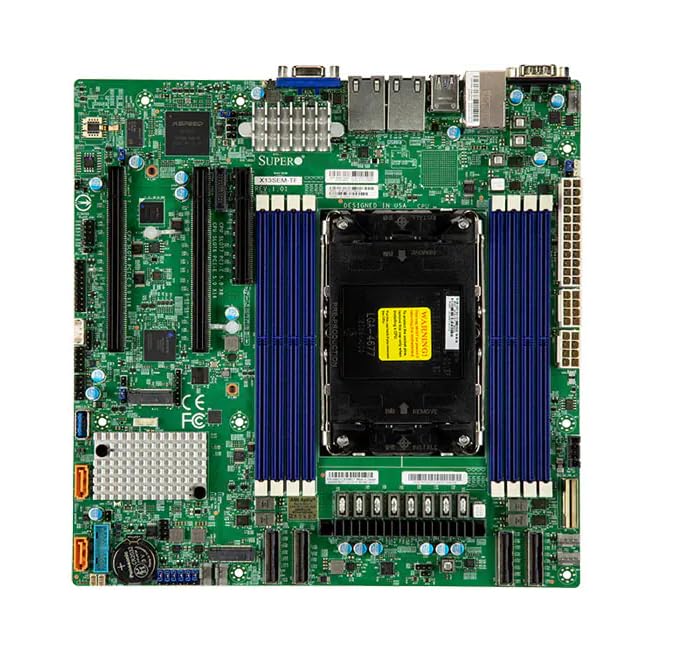
Image Description: This image displays the Supermicro X13SEM-TF motherboard. Key visible components include the large LGA 4677 CPU socket at the center, surrounded by eight DDR5 DIMM slots (blue). Various PCIe slots, SATA ports, USB headers, and power connectors are distributed across the green PCB. The rear I/O panel features USB ports, Ethernet ports, and a VGA port. Heatsinks are visible over the VRM and chipset areas.
3. Safety Information
Always observe standard electrostatic discharge (ESD) precautions when handling the motherboard.
- Disconnect all power sources before installation or maintenance.
- Wear an anti-static wrist strap.
- Avoid touching components directly unless necessary.
- Ensure proper ventilation within the system chassis.
- Refer to professional assistance if unsure about any procedure.
4. Setup and Installation
4.1. Package Contents
Verify that all components are present in the package:
- Supermicro X13SEM-TF Motherboard
- I/O Shield (if not integrated)
- SATA Cables
- User Manual (this document)
- Driver CD/USB (or download instructions)
4.2. Motherboard Installation
- Prepare the Chassis: Ensure the computer chassis is ready for motherboard installation. Install standoffs in the appropriate locations.
- Install I/O Shield: If provided separately, install the I/O shield into the chassis opening.
- Mount Motherboard: Carefully place the motherboard into the chassis, aligning it with the standoffs and I/O shield. Secure it with screws.
- Install CPU:
- Open the CPU socket lever.
- Align the CPU (Intel Xeon SPR-SP) with the socket, matching the triangular markers.
- Gently place the CPU into the socket. Do not force it.
- Close the socket lever to secure the CPU.
- Install CPU Cooler: Attach the compatible CPU cooler according to its manufacturer's instructions. Ensure proper thermal paste application.
- Install Memory (RAM):
- Open the clips on the DDR5 DIMM slots.
- Align the memory modules with the slots, ensuring the notch matches.
- Press down firmly on both ends until the clips snap into place. Refer to the motherboard layout for optimal memory population.
- Connect Power:
- Connect the 24-pin ATX main power connector.
- Connect the 8-pin (or 4+4-pin) CPU power connector(s).
- Connect Storage Devices: Connect SATA data and power cables to your storage drives (HDDs/SSDs) and the motherboard's SATA ports.
- Connect Front Panel Headers: Connect the power switch, reset switch, HDD LED, power LED, and front panel USB/audio headers to their respective pins on the motherboard. Refer to the motherboard diagram for correct pin assignments.
- Install Expansion Cards: Insert any necessary PCIe expansion cards (e.g., graphics cards, network cards) into the appropriate PCIe slots and secure them.
5. Operating Instructions
5.1. Initial Power On
After completing all connections, connect the power supply to an electrical outlet and power on the system.
The system should boot to the BIOS/UEFI interface or an installed operating system.
5.2. BIOS/UEFI Configuration
To enter the BIOS/UEFI setup, press the designated key (usually DEL or F2) during startup.
Configure boot order, system time, and other necessary settings. Save changes before exiting.
5.3. Driver Installation
Install all necessary drivers for the motherboard chipset, network, audio, and any other integrated components. Drivers can be found on the Supermicro website or the provided driver media.
6. Maintenance
Regular maintenance ensures optimal performance and longevity of your motherboard.
- Dust Removal: Periodically clean dust from the motherboard and components using compressed air. Ensure the system is powered off and unplugged.
- BIOS/UEFI Updates: Check the Supermicro website for BIOS/UEFI updates. Update only if necessary and follow the provided instructions carefully.
- Driver Updates: Keep drivers updated for optimal compatibility and performance.
- Physical Inspection: Periodically inspect the motherboard for any signs of damage, loose connections, or bulging capacitors.
7. Troubleshooting
7.1. No Power
- Check all power connections (24-pin ATX, 8-pin CPU).
- Ensure the power supply is switched on.
- Test the power supply with another system or a power supply tester.
- Verify front panel power switch connection.
7.2. No Display
- Ensure the monitor is connected and powered on.
- Check if the graphics card (if dedicated) is properly seated and powered.
- Try reseating RAM modules.
- If using integrated graphics, ensure the CPU supports it and the display cable is connected to the motherboard's video output.
7.3. System Instability / Crashes
- Check CPU and GPU temperatures.
- Verify RAM is correctly installed and compatible.
- Run memory diagnostic tools.
- Ensure all drivers are installed and up to date.
- Check for loose cables or components.
8. Specifications
| Feature | Detail |
|---|---|
| Model | Supermicro X13SEM-TF (MBD-X13SEM-TF-B) |
| CPU Support | Intel Xeon SPR-SP, up to 56 cores, 350W TDP |
| CPU Socket | LGA 4677 |
| Chipset | EBGPCH |
| Memory | 8-channel DDR5 DIMM slots |
| Dimensions (LxWxH) | 16 x 12 x 5 inches |
| Weight | 2.86 pounds |
| Manufacturer | SuperMicro |
| Date First Available | January 20, 2023 |
9. Warranty and Support
9.1. Warranty Information
For detailed warranty information, please refer to the official Supermicro website or the warranty card included with your product.
9.2. Technical Support
If you encounter issues that cannot be resolved using this manual, please contact Supermicro technical support.
Visit the official Supermicro website for support resources, driver downloads, and contact information: www.supermicro.com/support

