
1. Product Overview
The Samsung Galaxy Book4 360 is a versatile 2-in-1 laptop designed for flexibility and performance. It features a 15.6-inch FHD AMOLED touchscreen, an Intel Core 5 120U processor, 16GB DDR5 RAM, and a 1TB PCIe NVMe M.2 SSD. This device supports multiple modes of use, including laptop, tent, stand, and tablet, adapting to various tasks and environments. It comes with Windows 11 Pro and integrated AI capabilities.

Image 1.1: The Samsung Galaxy Book4 360 laptop with an external USB-C hub. The laptop is shown in a partially folded position, highlighting its 2-in-1 design and vibrant display.
2. Setup
2.1 Initial Power-On
- Unpack the laptop and all accessories from the box.
- Connect the 65W AC adapter to the laptop's USB-C charging port and then to a power outlet.
- Open the laptop lid. The device may power on automatically. If not, press the power button located on the side or keyboard deck.
- Follow the on-screen instructions to complete the Windows 11 Pro initial setup, including language selection, network connection, and user account creation.
2.2 Connecting Peripherals
Utilize the available ports to connect external devices such as a mouse, keyboard, or external display. The included USB-C hub expands connectivity options.
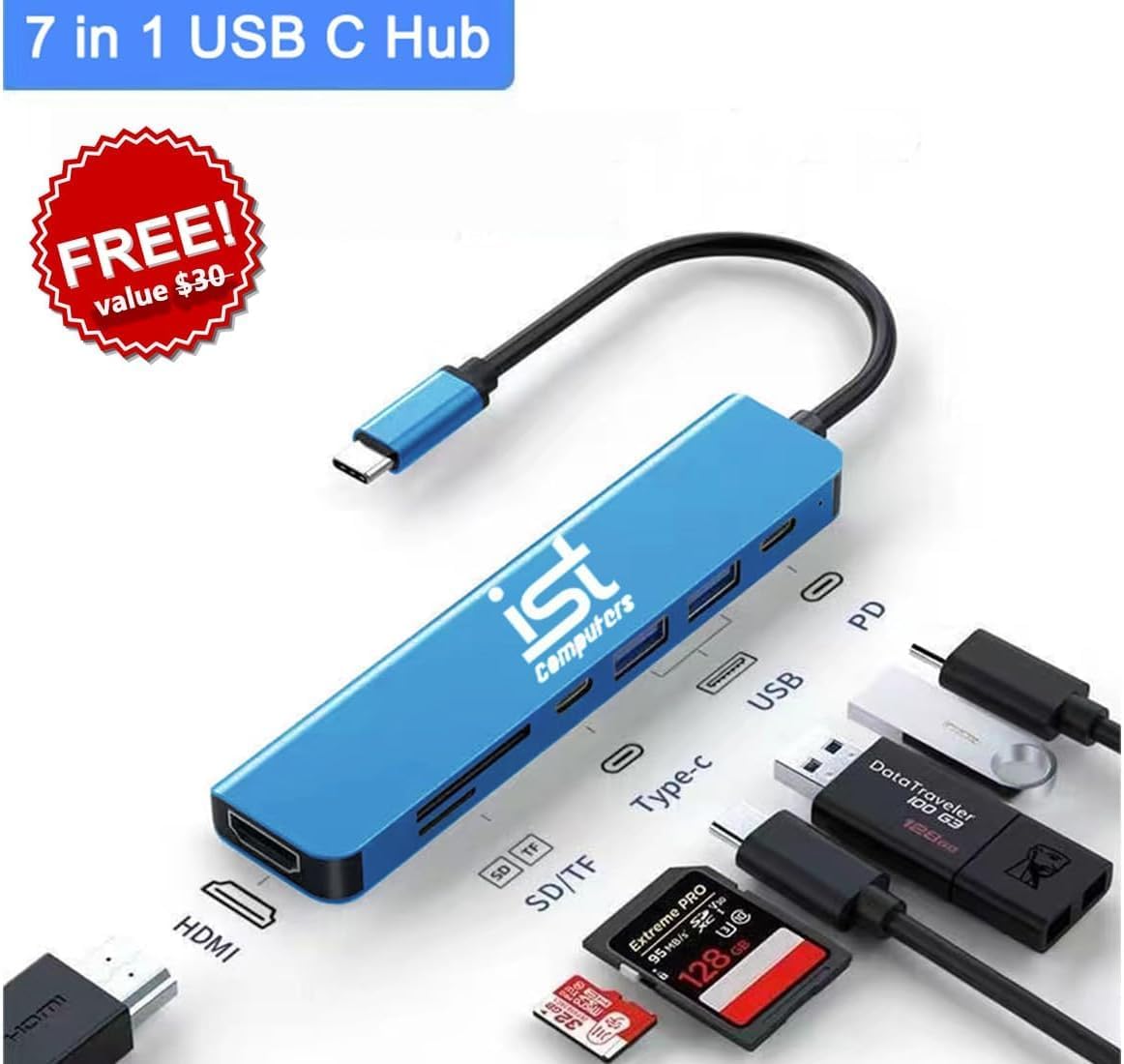
Image 2.1: The 7-in-1 USB-C Hub provides additional connectivity options for the laptop, including HDMI, USB, and memory card slots.
3. Operating the Galaxy Book4 360
3.1 Convertible Modes
The Galaxy Book4 360 offers four primary modes:
- Laptop Mode: Standard configuration for typing and productivity.
- Tent Mode: Ideal for sharing content or presentations.
- Stand Mode: Best for media consumption and entertainment.
- Tablet Mode: Fully folded for interactive, portable use with the touchscreen.
3.2 Touchscreen and Input
The 15.6-inch FHD AMOLED display is a multi-touch screen. You can interact with the device using touch gestures or a compatible stylus (sold separately). The integrated keyboard features backlighting for comfortable typing in various lighting conditions, and the touchpad supports multi-finger gestures.
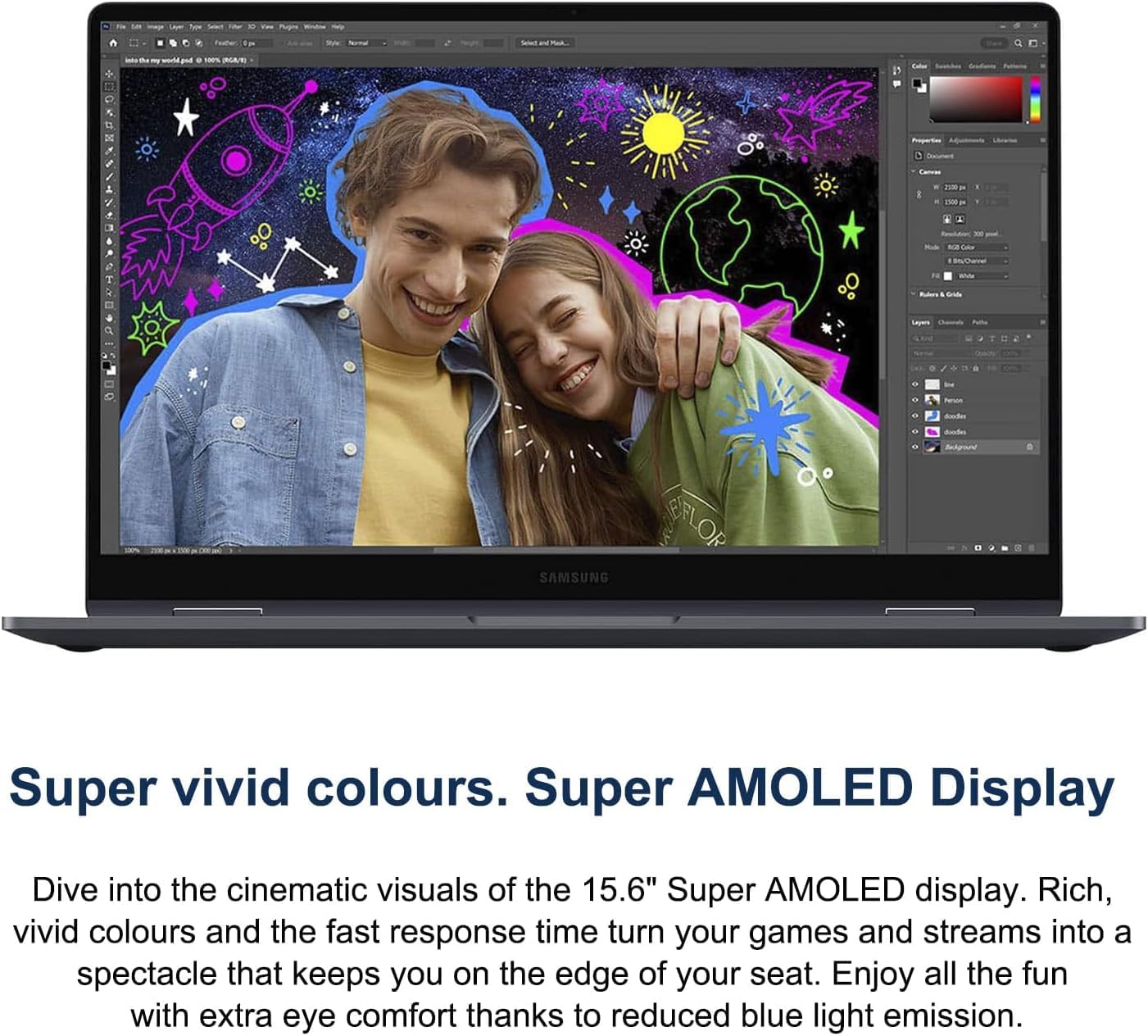
Image 3.1: The Super AMOLED display offers rich, vivid colors and a micro-edge bezel for an immersive visual experience.
3.3 Fingerprint Reader
The built-in fingerprint reader provides enhanced security and quick login. To set up, navigate to Windows Settings > Accounts > Sign-in options and follow the instructions to register your fingerprint.
3.4 Webcam and Audio
The laptop features a 1080p FHD webcam with AI noise canceling for clear video calls. Dolby Atmos technology enhances the audio experience.
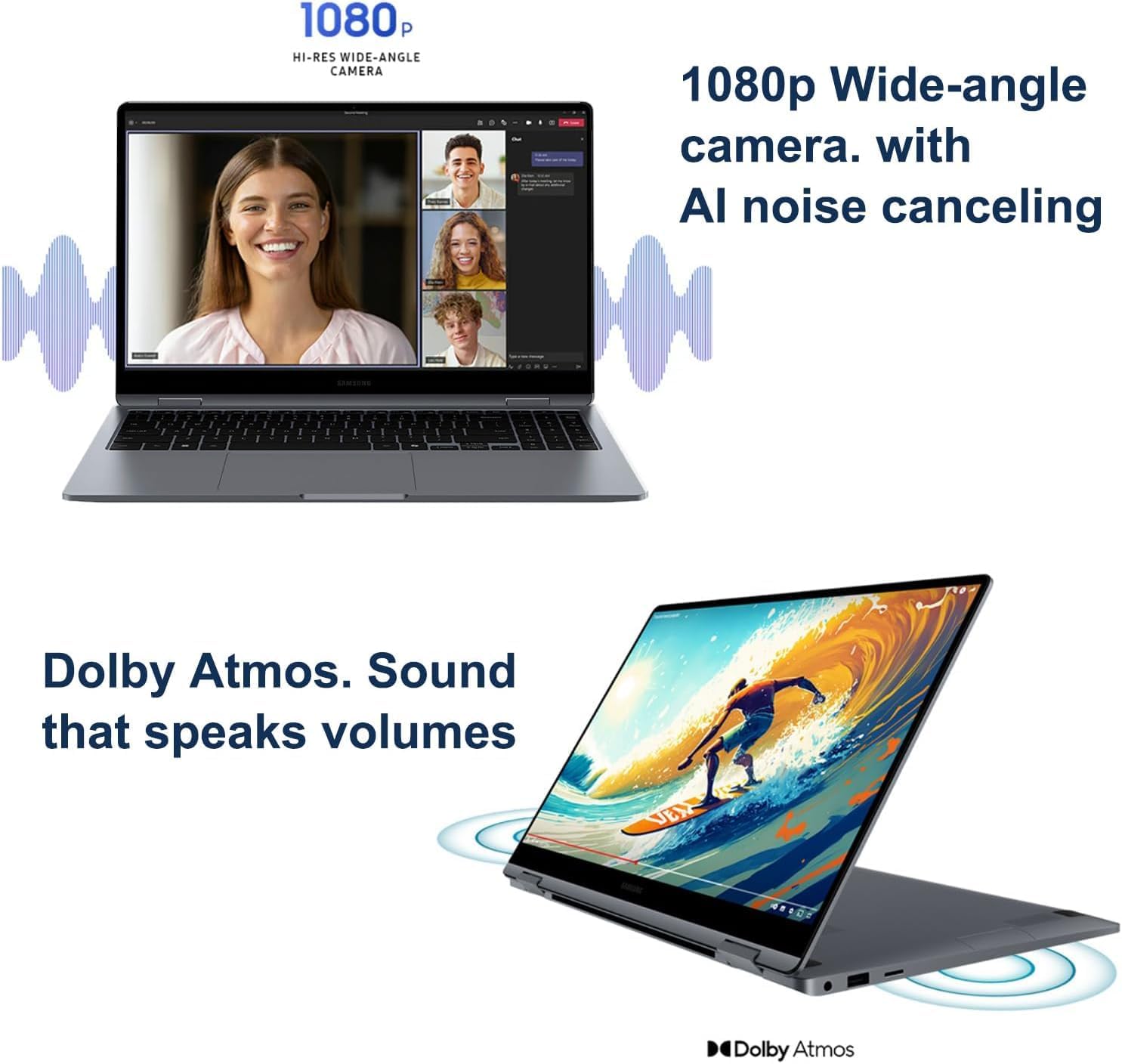
Image 3.2: The 1080p wide-angle camera with AI noise canceling ensures clear communication, complemented by Dolby Atmos sound.
3.5 AI-Powered Copilot
Leverage the AI-powered Copilot in Windows 11 Pro for assistance with tasks, content creation, and system optimization.
4. Connectivity
4.1 Ports and Interfaces
The Galaxy Book4 360 provides a range of ports for various connections:
- 2x Thunderbolt 4 ports
- 1x HDMI v1.4b port
- 1x USB 3.2 Type-A port
- 1x microSD card slot
- 1x 3.5mm Headphone/Microphone combo jack
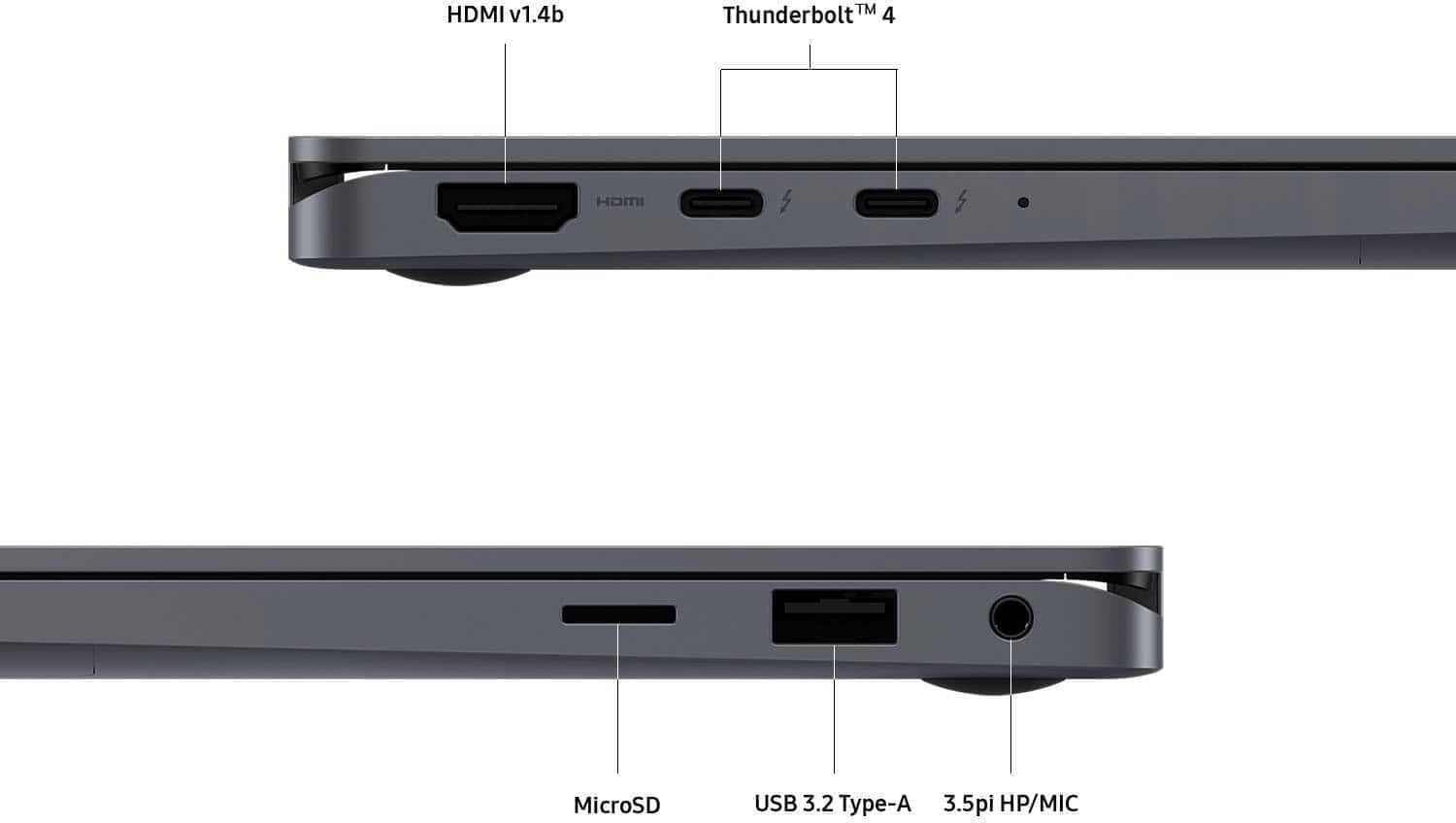
Image 4.1: Overview of the laptop's connectivity ports, including HDMI, Thunderbolt 4, MicroSD, USB 3.2 Type-A, and 3.5pi HP/MIC.
4.2 Wireless Connectivity
- Wi-Fi 6E: For high-speed wireless internet access.
- Bluetooth 5.3: For connecting wireless peripherals and accessories.
4.3 External Display Support
The laptop supports connecting up to three external monitors via HDMI and Thunderbolt 4, with a maximum resolution of 4K@60Hz.
4.4 Samsung Ecosystem Integration
The Galaxy Book4 360 integrates with other Samsung devices for enhanced functionality:
- Buds Auto Switch: Seamlessly switch audio output between your Galaxy Buds and the laptop.
- Connected Camera: Use your Samsung Galaxy smartphone as a high-quality connected camera for video calls.
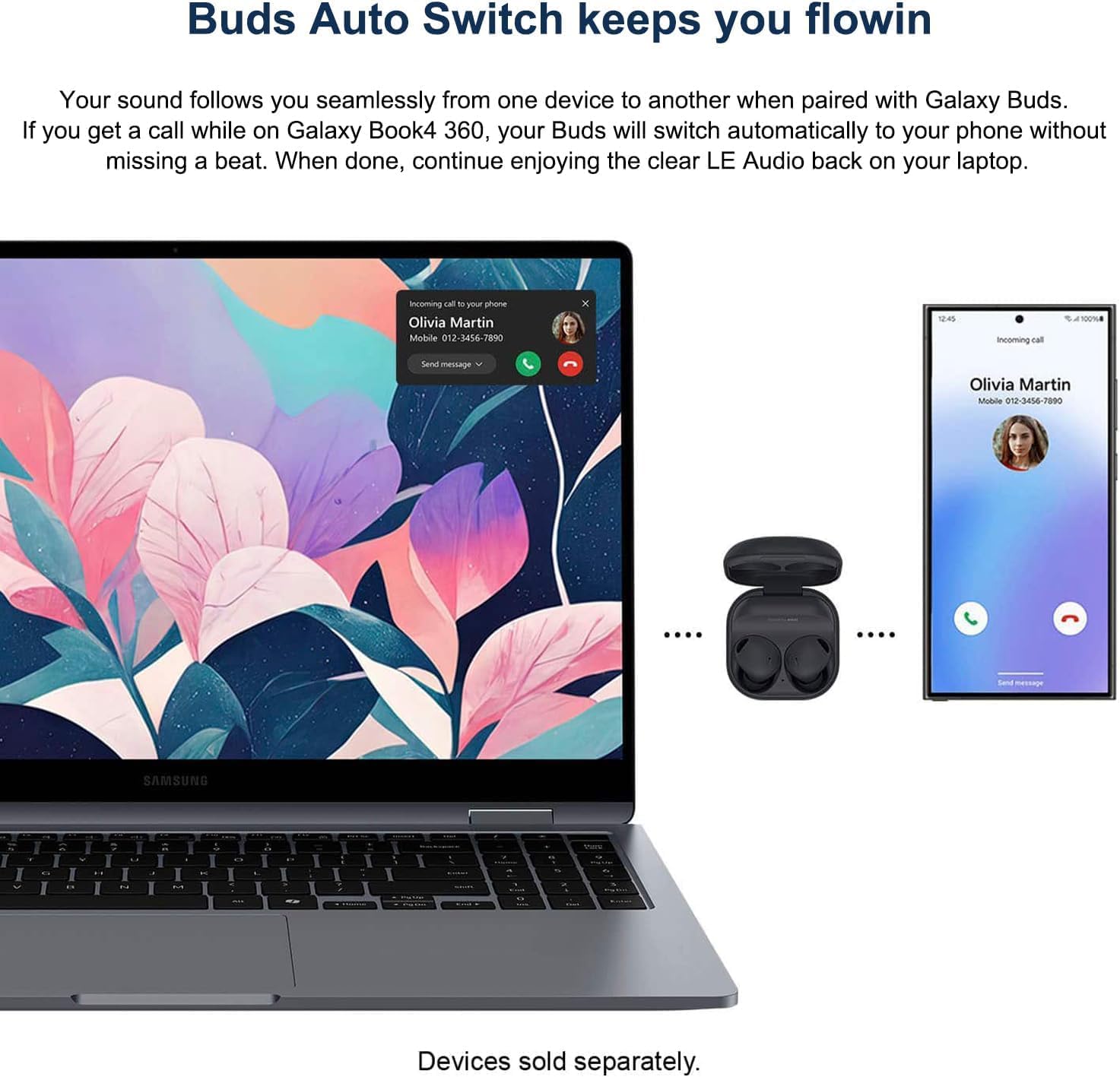
Image 4.2: The Buds Auto Switch feature allows for seamless audio transitions between paired Galaxy Buds and the laptop.
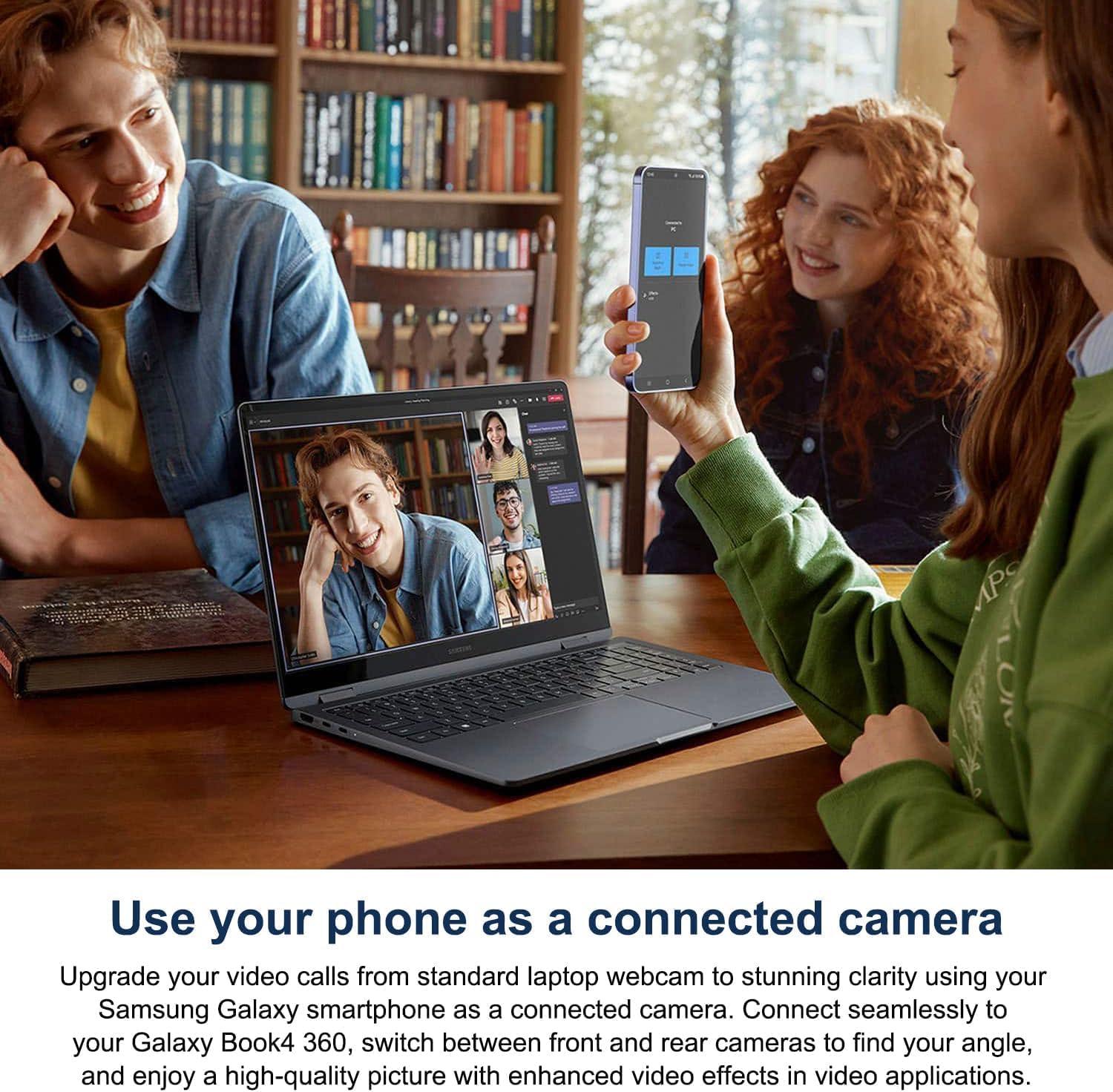
Image 4.3: Utilize a Samsung Galaxy smartphone as a connected camera for improved video call quality on the laptop.
5. Battery and Charging
The Galaxy Book4 360 is equipped with a 68Wh (typical) battery, providing up to 22 hours of usage on a single charge. It supports fast charging with the included 65W AC adapter, capable of charging up to 39% in approximately 30 minutes.
5.1 Charging Procedure
- Connect the USB-C end of the charging cable to one of the Thunderbolt 4 ports on the laptop.
- Connect the other end of the charger to a power outlet.
- The charging indicator light will illuminate, and the battery icon on the screen will show charging status.
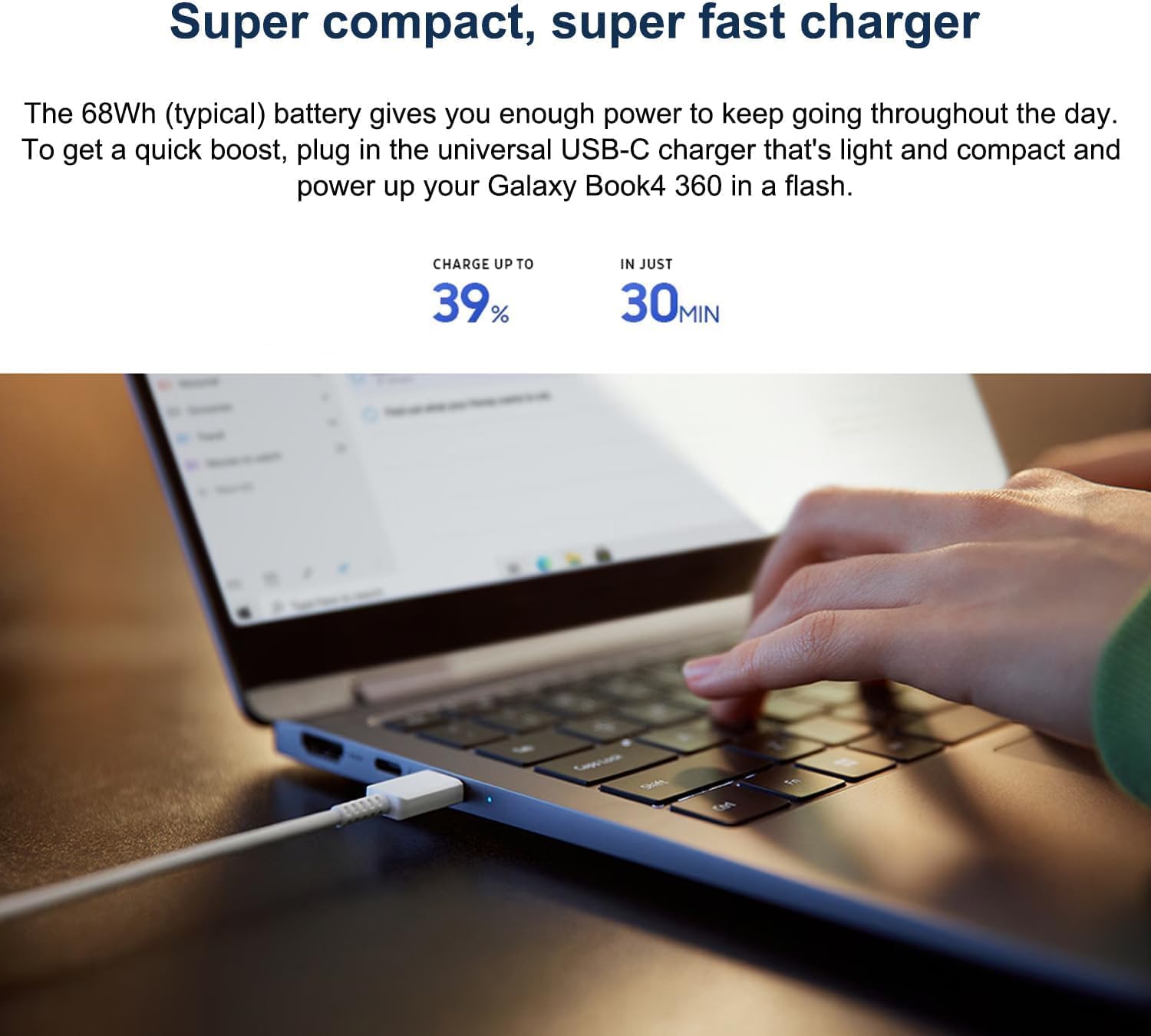
Image 5.1: The laptop supports fast charging, allowing for significant battery replenishment in a short period.
6. Maintenance
6.1 Cleaning
- Use a soft, lint-free cloth to clean the screen and exterior surfaces.
- For stubborn smudges, lightly dampen the cloth with water or a screen-safe cleaner. Avoid harsh chemicals.
- Ensure the laptop is powered off and unplugged before cleaning.
6.2 Software Updates
Regularly check for and install Windows updates and Samsung driver updates to ensure optimal performance and security. Access Windows updates via Settings > Windows Update.
6.3 Storage and Handling
Store the laptop in a cool, dry place. Avoid exposing it to extreme temperatures, direct sunlight, or excessive moisture. When transporting, use a protective sleeve or bag.
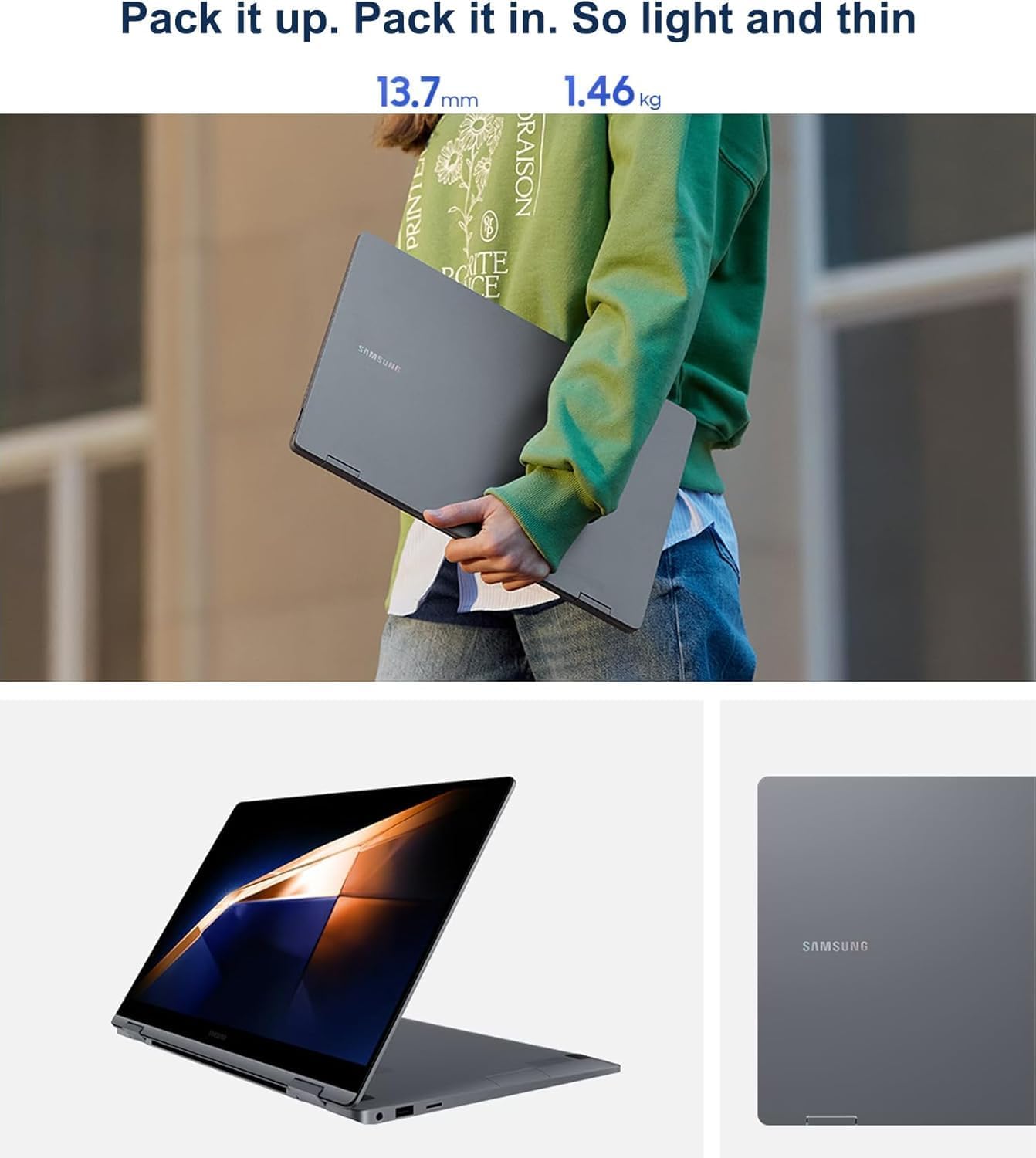
Image 6.1: The Galaxy Book4 360 is designed to be light and thin, making it highly portable.
7. Troubleshooting
This section addresses common issues you might encounter.
- Laptop does not power on: Ensure the AC adapter is securely connected and the power outlet is functional. Try holding the power button for 10-15 seconds to perform a hard reset.
- Screen is blank: Check if the laptop is in sleep mode. Press any key or the power button to wake it. If connected to an external monitor, ensure the display output settings are correct (Fn + F7 or similar key combination).
- Wi-Fi connection issues: Verify that Wi-Fi is enabled in Windows settings. Restart your router and the laptop. Check for updated wireless drivers.
- Slow performance: Close unnecessary applications. Check for background processes consuming high resources (Task Manager). Ensure sufficient free storage space on the SSD. Run a system scan for malware.
- Touchscreen not responding: Restart the laptop. Check for updated touchscreen drivers in Device Manager.
For persistent issues, refer to the Samsung support website or contact customer service.
8. Specifications
| Feature | Specification |
|---|---|
| Model Name | Galaxy Book4 360 NP750QGK |
| Processor | Intel Core 5 120U (10-Core, 12 Threads, up to 5 GHz) |
| Graphics | Intel Graphics (Integrated) |
| RAM | 16GB LPDDR5 Memory |
| Storage | 1TB PCIe NVMe M.2 SSD |
| Display | 15.6" FHD (1920x1080) AMOLED Touchscreen, 370 nits Brightness |
| Operating System | Windows 11 Pro 64-bit |
| Wireless | Intel Wi-Fi 6E, Bluetooth 5.3 |
| Ports | 2x Thunderbolt 4, 1x HDMI v1.4b, 1x USB 3.2 Type-A, 1x microSD, 1x 3.5mm HP/MIC |
| Battery Life | Up to 22 hours (68Wh typical) |
| Dimensions (LxWxH) | 13.99 x 8.98 x 0.54 inches |
| Weight | 2.29 pounds (approximately 1.04 kg) |
| Special Features | Backlit Keyboard, Fingerprint Reader, HD Audio, Touch Screen, AI-powered Copilot |
9. Warranty and Support
9.1 Warranty Information
This product includes a three-year warranty from Issaquah Highlands Tech on the upgraded SSD component. A one-year manufacturer's warranty covers the remaining components of the laptop.
9.2 Customer Support
For technical assistance, warranty claims, or further inquiries, please refer to the official Samsung support website or contact your retailer. Ensure you have your product model number (NP750QGK) and serial number available when seeking support.


