
RexingUSA V1-4K
RexingUSA V1-4K Ultra HD GPS Dash Cam User Manual
Model: V1-4K
Introduction
Thank you for choosing the RexingUSA V1-4K Ultra HD GPS Dash Cam. This manual provides detailed instructions for the setup, operation, and maintenance of your device. Please read this manual thoroughly before using the dash cam to ensure proper functionality and to maximize your user experience.

Image: The RexingUSA V1-4K Dash Cam, showcasing its compact design and connectivity with a smartphone app displaying GPS tracking.
What's in the Box
Verify that all components are present in your package:
- Rexing V1-4K with GPS Logger Dash Cam
- CPL Filter
- Car Charger
- Car Mount
- Quick Guide
- Warranty Card
- Cable Clip

Image: Visual representation of the Rexing V1-4K Dash Cam package contents, including the camera, CPL filter, car charger, car mount, quick guide, and warranty card.
Key Features
4K Video Resolution
The V1 Dash camera records in stunning 4K resolution, providing exquisite and clear images with rich color and high-contrast performance. This allows for clear capture of license plates even at high speeds or in low light conditions.
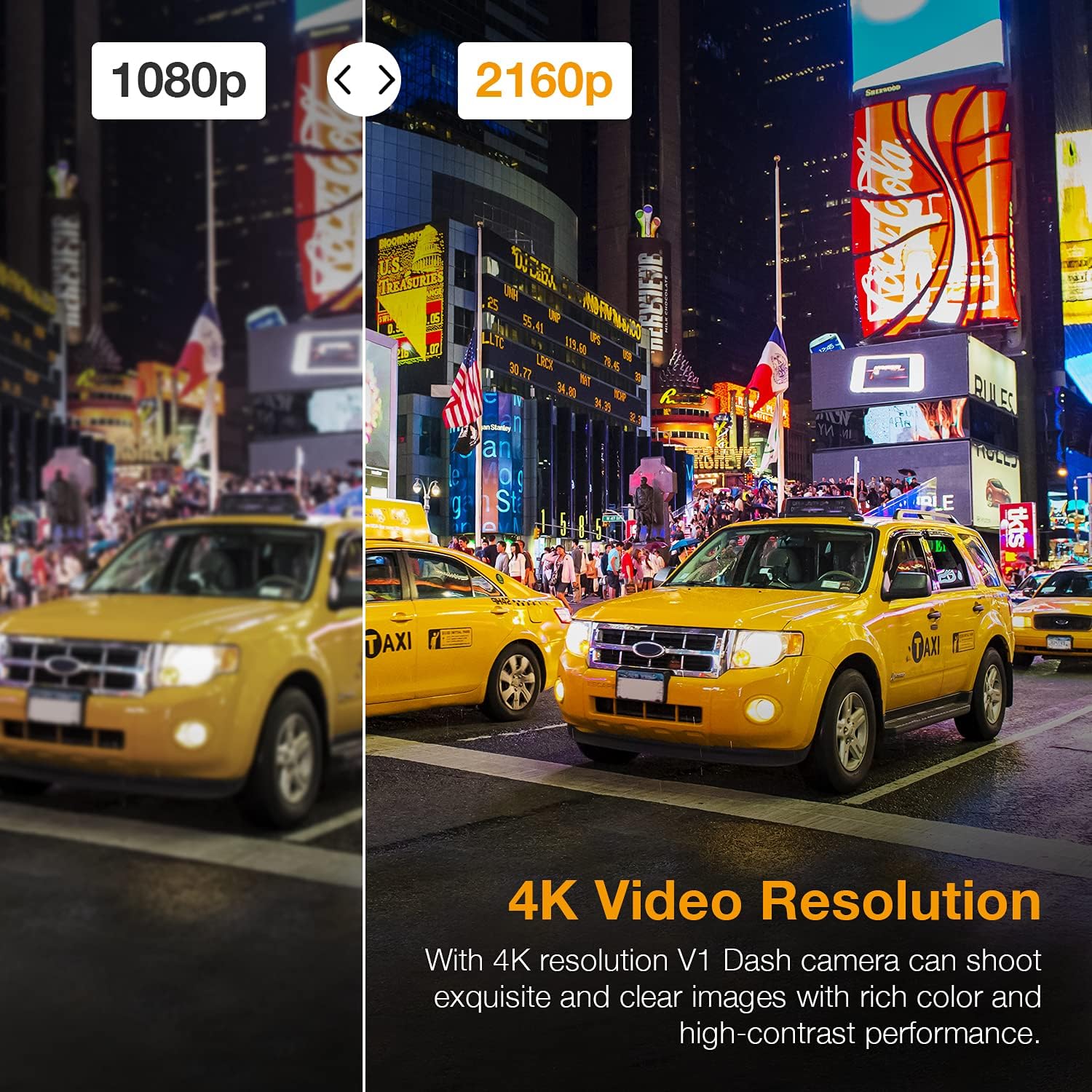
Image: A visual comparison demonstrating the superior clarity of 4K video resolution (2160p) compared to 1080p, highlighting the detail captured by the V1-4K Dash Cam.
Built-in GPS Logger
Playback your video using the comprehensive GPS Logger software interface to see real-time information about your speed, location, and more. Location data is displayed within the application using Google Maps, allowing you to track your vehicle's route and improve driving efficiency.

Image: The RexingUSA V1-4K Dash Cam screen alongside a smartphone displaying the Rexing Connect App with integrated GPS tracking on a map.
Wi-Fi Connectivity
View, save, and share dash cam recordings wirelessly on your mobile device using the Rexing Connect app interface. This feature provides convenient access to your footage without needing to remove the memory card.
Supercapacitor & Parking Monitor
The dash cam utilizes a supercapacitor, enabling it to withstand extreme temperatures from -20°F to 176°F. This design prevents overheating and extends the lifespan and reliability of the camera. With the parking monitor feature, the dash camera automatically turns on and records when it detects vibration, or it can capture frames for a time-lapse video 24/7. A smart hardwire kit (sold separately) is required to activate the parking mode.

Image: An illustration depicting the RexingUSA V1-4K Dash Cam's built-in supercapacitor, highlighting its high temperature resistance from -20°F to 176°F, ensuring safety and durability.

Image: Visuals illustrating the Gravity Sensor, which locks video upon collision; the Parking Monitor, which records upon vibration; and Loop Recording, which overwrites old footage.
170-Degree Ultra Wide Angle Lens & Wide Dynamic Range (WDR)
The 170-degree ultra-wide-angle lens captures the entirety of the road, allowing flexible mounting options. The WDR technology automatically fine-tunes the camera's exposure to create balanced images and footage, ensuring clear and detailed recordings in high-contrast scenes by balancing light and shadow.

Image: A visual demonstrating the superior night vision and WDR capabilities of the dash cam, showing clear 2160p recording in low-light conditions.
Loop Recording and G-Sensor
Video can be recorded in 1 or 3-minute intervals. When the memory card's storage limit is reached, new recordings automatically overwrite the oldest ones. The built-in gravity sensor (G-Sensor) detects collisions and locks the current video, protecting important footage from being overwritten.
CPL Filter Included
Enhance image clarity by reducing glare and reflections, especially from the windshield or road surfaces, with the included Circular Polarizing Lens (CPL) filter.

Image: A side-by-side comparison showing the improved image clarity when using the included CPL filter, which reduces glare and reflections, versus without it.
Setup Guide
1. Insert Micro SD Card
Before first use, insert a high-endurance micro SD memory card (up to 256GB, not included) into the dash cam. Ensure the card is formatted within the camera for optimal performance.
2. Mount the Dash Cam
Effortlessly mount the dash cam on your windshield using the provided car mount. Position it securely to ensure a clear view of the road without obstructing your driving visibility.

Image: A diagram illustrating the simple installation process of the RexingUSA V1-4K Dash Cam on a car's windshield, showing cable routing for power.
3. Connect Power
Connect the included car charger to the dash cam and your vehicle's 12V power outlet. The dash cam will automatically power on and begin recording when your vehicle starts.
Operating Instructions
Basic Operation
- Automatic Recording: The dash cam automatically powers on and begins loop recording when connected to power and the vehicle starts.
- Manual Recording: Press the REC button to manually start or stop recording.
- File Protection: In case of a collision, the G-Sensor will automatically lock the current video file to prevent it from being overwritten. You can also manually lock files by pressing the appropriate button (refer to Quick Guide for specific button layout).
Using the Mobile App (Wi-Fi Connect)
Download the Rexing Connect app from your smartphone's app store. Follow the in-app instructions to connect your dash cam via Wi-Fi. This allows you to:
- View live footage from the dash cam.
- Access and download recorded videos to your phone.
- Adjust dash cam settings.
- View GPS data overlay on maps (if GPS is enabled).
Playback on Device or Computer
- On Device: Use the dash cam's LCD screen and navigation buttons to review recorded footage directly.
- On Computer: Remove the micro SD card and insert it into a card reader connected to your computer. Use compatible media player software or the dedicated GPS Logger software to view videos and GPS data.

Image: The RexingUSA V1-4K Dash Cam shown next to a laptop displaying its interface, illustrating easy playback of recorded footage via the device or a computer.
Maintenance
- SD Card Formatting: Regularly format your micro SD card (at least once a month) to prevent data corruption and ensure smooth recording. This can be done through the dash cam's menu settings.
- Lens Cleaning: Keep the lens clean from dust and smudges using a soft, lint-free cloth. Avoid abrasive materials that could scratch the lens.
- Firmware Updates: Check the RexingUSA website periodically for firmware updates to ensure your dash cam has the latest features and bug fixes.
- Temperature: While the supercapacitor provides excellent temperature resistance, avoid prolonged exposure to extreme direct sunlight when the vehicle is parked, if possible, to prolong the life of the device.
Troubleshooting
| Problem | Possible Cause / Solution |
|---|---|
| Dash cam not powering on. | Check car charger connection. Ensure vehicle's 12V outlet is functioning. Try a different power source if available. |
| Recording stops unexpectedly. | Micro SD card may be full or corrupted. Format the SD card. Ensure you are using a high-endurance card. |
| Video footage is blurry or unclear. | Clean the camera lens. Ensure the protective film has been removed. Check if the CPL filter is properly installed and adjusted. |
| Wi-Fi connection issues. | Ensure Wi-Fi is enabled on the dash cam. Restart both the dash cam and your mobile device. Reinstall the Rexing Connect app. |
| GPS not recording location/speed. | Ensure the dash cam has a clear view of the sky for GPS signal acquisition. Verify GPS settings are enabled in the camera menu. |
Specifications
- Model Name: RexingUSA V1-4K
- Video Capture Resolution: 4K Ultra HD
- Lens Angle: 170-degree Ultra Wide Angle
- Display: 2.4-inch LCD
- Storage: Supports up to 256GB high-endurance Micro SD card
- Power Source: Supercapacitor
- Connectivity: Wi-Fi, Built-in GPS
- Special Features: G-Sensor, WDR, Loop Recording, Parking Monitor, Mobile App, CPL Filter
- Product Dimensions: 3.5 x 1.5 x 2.25 inches
- Item Weight: 1.08 pounds
Warranty and Support
RexingUSA stands behind its products with an 18 Month Warranty. For any questions, concerns, or technical assistance, please contact our personal LIVE CUSTOMER SUPPORT. Refer to the Warranty Card included in your package for detailed terms and conditions, or visit the official RexingUSA website for contact information.
We are committed to providing the best experience possible and are ready to assist you with any issues.