
JADEMALL JADEMALL Keyboard Case
JADEMALL Keyboard Case for iPad Pro 11 / iPad Air 5/4 10.9"
User Manual
1. Introduction and Product Overview
Thank you for choosing the JADEMALL Keyboard Case. This product is designed to enhance your iPad experience by transforming it into a versatile laptop-like device, offering both protection and functionality with a detachable keyboard and multi-touch trackpad. This manual provides detailed instructions for setup, operation, maintenance, and troubleshooting to ensure optimal use of your new keyboard case.
Key Features:
- Integrated multi-touch trackpad for precise navigation.
- Magnetically detachable Bluetooth keyboard for flexible use.
- Adjustable viewing angles for comfortable typing and media consumption.
- Durable protective case with precise cutouts for full access to iPad features.
- Built-in stylus holder for convenience.
2. Compatibility
This keyboard case with trackpad is compatible with the following iPad models:
- iPad Air 5 10.9" (Models: A2588, A2589, A2591)
- iPad Air 4 10.9" (Models: A2072, A2316, A2324, A2325)
- iPad Pro 11" 4th Generation 2022 (Models: A2435, A2761, A2762, A2759)
- iPad Pro 11" 3rd Generation 2021 (Models: A2377, A2301, A2459, A2460)
- iPad Pro 11" 2nd Generation 2020 (Models: A2068, A2228, A2230, A2231)
- iPad Pro 11" 1st Generation 2018 (Models: A1934, A1979, A1980, A2013)
Please verify the model number (Axxxx) on the back of your iPad before purchase to ensure compatibility.

Image: Illustration showing various iPad models and their corresponding model numbers, highlighting compatibility.
3. Setup
3.1 Installing Your iPad into the Case
- Gently align your iPad with the soft TPU shell of the case.
- Press firmly around the edges of the iPad until it is securely seated within the case. Ensure all ports and buttons align with the precise cutouts.
3.2 Charging the Keyboard
Before first use, fully charge the keyboard. Connect the provided USB cable to the keyboard's charging port and to a USB power source. The charging indicator light will show the charging status.
3.3 Bluetooth Pairing
- Ensure the keyboard is charged and turned on. The power switch is typically located on the side or back of the keyboard.
- On your iPad, go to Settings > Bluetooth and turn Bluetooth on.
- Press the Connect button on the keyboard (often labeled with a Bluetooth icon or 'Fn+C'). The Bluetooth indicator light will start blinking, indicating it's in pairing mode.
- On your iPad's Bluetooth device list, select the keyboard (e.g., "Bluetooth Keyboard" or similar).
- If prompted, enter the pairing code displayed on your iPad screen using the keyboard, then press Enter.
- Once paired, the Bluetooth indicator light on the keyboard will stop blinking and remain solid or turn off, and your iPad will show the keyboard as "Connected."
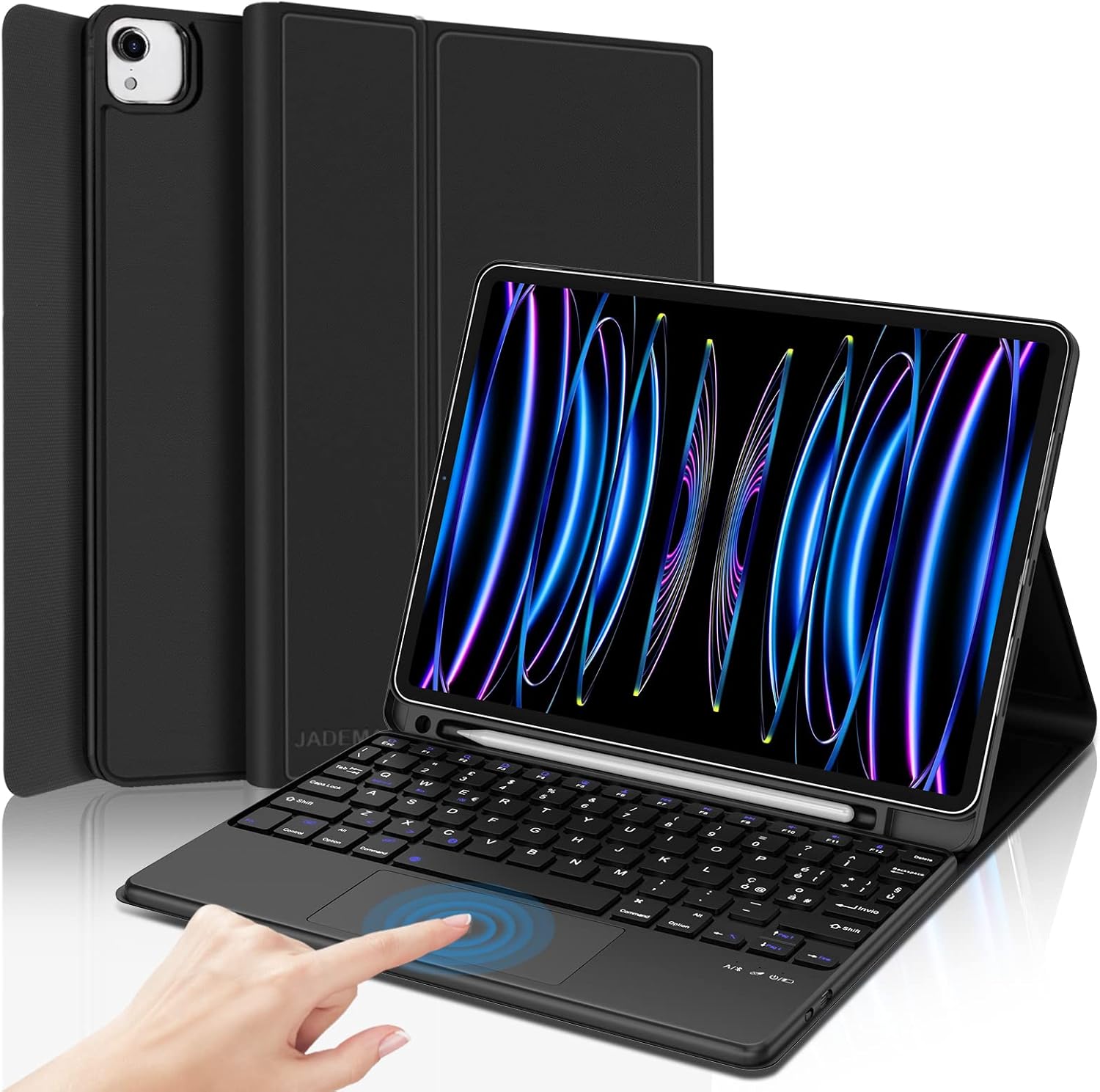
Image: The JADEMALL Keyboard Case with an iPad inserted, showcasing the keyboard and trackpad layout.
4. Operating Instructions
4.1 Using the Detachable Keyboard
The keyboard is magnetically attached to the case. You can easily detach it for flexible use or reattach it when needed. This allows you to use your iPad as a tablet or as a laptop with the keyboard.

Image: A close-up view of the keyboard being detached from the case, illustrating its magnetic design.
4.2 Multi-Touch Trackpad Functionality
The integrated trackpad supports various multi-touch gestures for intuitive navigation, similar to a laptop. Ensure your iPad's AssistiveTouch feature is enabled for full trackpad functionality.
Common Trackpad Gestures:
- Single Finger Tap: Left-click.
- Two Finger Tap: Right-click (context menu).
- Two Finger Scroll: Scroll up/down or left/right.
- Pinch to Zoom: Use two fingers to zoom in or out.
- Three Finger Swipe Up: Open App Switcher.
- Three Finger Swipe Down: Return to Home Screen.
- Three Finger Swipe Left/Right: Switch between open apps.
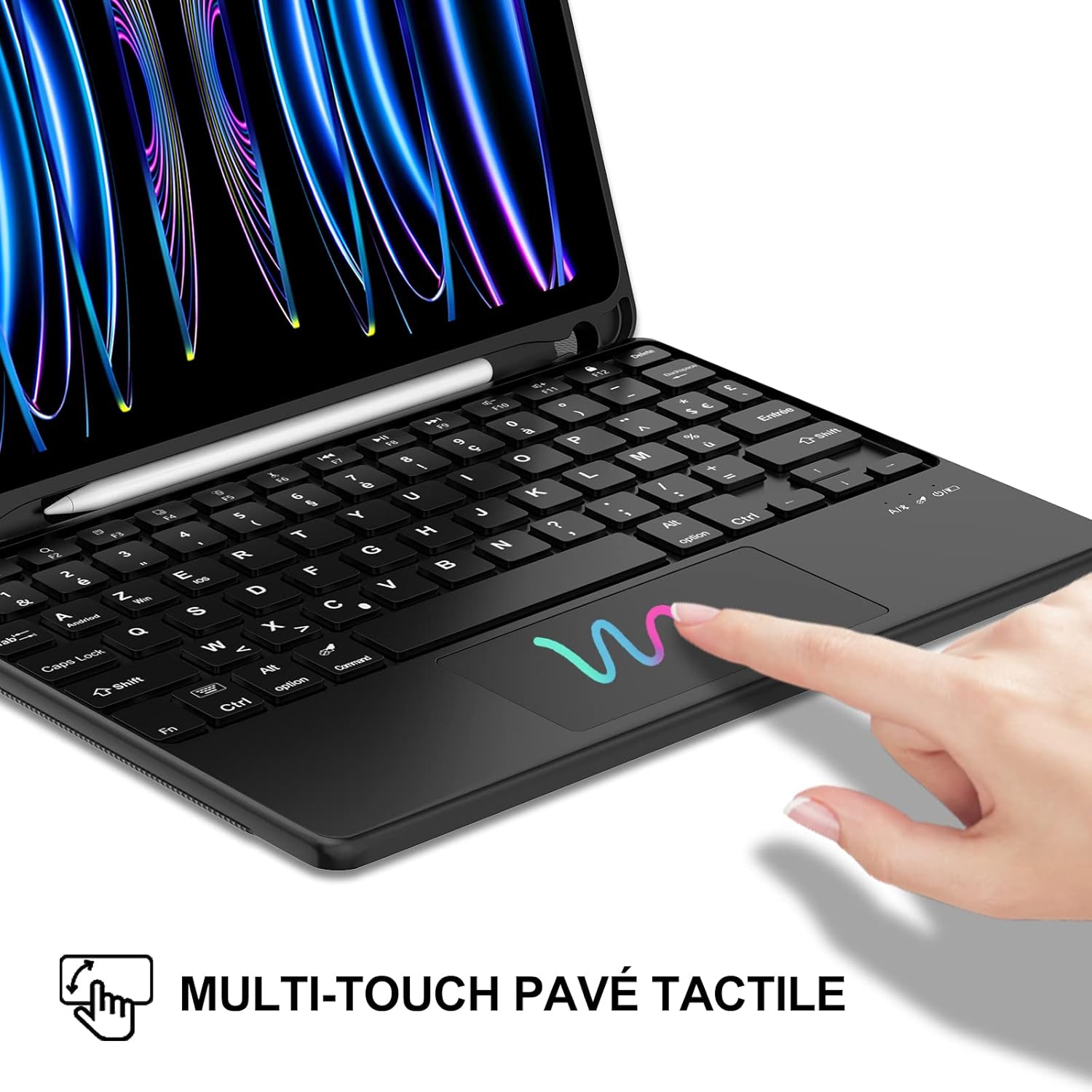
Image: A hand demonstrating the use of the multi-touch trackpad on the keyboard, with a visual representation of touch gestures.
4.3 Adjusting Viewing Angles
The case features integrated grooves that allow you to adjust your iPad to 3 different horizontal viewing angles. Simply slide the iPad into the desired groove to find the most comfortable angle for typing, viewing, or drawing.

Image: Side view of the keyboard case demonstrating the three adjustable viewing angles for the iPad.
4.4 Using Shortcut Keys
The keyboard includes a full row of shortcut keys for quick access to common iPad functions, such as volume control, brightness adjustment, media playback, and more. Refer to the keyboard layout for specific key functions.

Image: Overhead view of a user typing on the JADEMALL keyboard case with an iPad, demonstrating typical usage.
5. Maintenance
5.1 Cleaning
- To clean the case, wipe it with a soft, damp cloth. Avoid using harsh chemicals or abrasive cleaners.
- For the keyboard, use a soft, dry cloth. For stubborn dirt, a slightly damp cloth can be used, but ensure no moisture enters the keys or ports.
- Keep the trackpad clean to ensure smooth operation.
5.2 Battery Care
- The keyboard is powered by a Lithium-ion battery.
- Charge the keyboard regularly, even if not in frequent use, to maintain battery health.
- Avoid exposing the keyboard to extreme temperatures (hot or cold) as this can affect battery life.
6. Troubleshooting
6.1 Keyboard Not Connecting via Bluetooth
- Ensure the keyboard is turned on and fully charged.
- Make sure Bluetooth is enabled on your iPad.
- Forget the device in your iPad's Bluetooth settings and attempt to re-pair the keyboard.
- Restart both your iPad and the keyboard.
6.2 Trackpad Not Responding
- Ensure the keyboard is connected via Bluetooth.
- Check if the trackpad is enabled (some keyboards have a function key to toggle the trackpad).
- Clean the trackpad surface to remove any dirt or debris.
- Restart your iPad and the keyboard.
6.3 Keys Not Responding
- Ensure the keyboard is fully charged and connected.
- If only specific keys are not working, check for any physical obstructions.
- Try connecting the keyboard to another device to determine if the issue is with the keyboard or the iPad.
If you encounter persistent issues not resolved by these steps, please refer to the Warranty and Support section for assistance.
7. Specifications
| Feature | Description |
|---|---|
| Brand | JADEMALL |
| Model Name | JADEMALL Keyboard Case |
| Color | Black/Keyboard with trackpad |
| Connectivity Technology | Bluetooth |
| Compatible Devices | Tablet (iPad Air 5/4 10.9", iPad Pro 11" 2018-2022) |
| Special Features | Trackpad, Detachable Bluetooth Keyboard, Adjustable Viewing Angles |
| Keyboard Description | Wireless |
| Number of Keys | 105 |
| Battery Composition | Lithium-ion |
| Included Components | USB Cable |
| Recommended Uses | Typing and navigation on iPad Pro and iPad Air for productivity, note-taking, and document editing |
8. Warranty and Support
JADEMALL is committed to providing high-quality products and satisfactory customer service. If you have any questions about the product during use, or if you encounter any issues, please do not hesitate to contact our customer support team.
Our goal is the continuous improvement of product quality and service, and we are here to provide you with satisfactory after-sales service and assistance.
Please refer to your purchase documentation or the retailer's website for specific warranty details and contact information.
Ask a question about this manual
Ask about setup, troubleshooting, compatibility, parts, safety, or missing instructions. Manuals+ will review the question and use this page’s manual context to help answer it.