
1. Introduction
Thank you for purchasing the Westinghouse 32-Inch 720p LED HD TV, model WD32HX1201. This manual provides essential information for the safe and efficient operation of your television. Please read it thoroughly before using the product and retain it for future reference.
This television features a 32-inch 720p LED display, offering clear picture quality. It includes multiple connectivity options such as HDMI, USB, and VGA, making it suitable for various entertainment and computing needs. The built-in V-chip allows for parental control over content.

Figure 1.1: Front view of the Westinghouse 32-Inch 720p LED HD TV.
2. Safety Information
Please observe the following safety precautions to prevent damage to the TV and ensure your safety:
- Power Source: Connect the TV only to an AC 120V, 60Hz power supply.
- Ventilation: Ensure proper ventilation. Do not block ventilation openings. Maintain a minimum distance of 4 inches (10 cm) around the TV for air circulation.
- Water and Moisture: Do not expose the TV to rain or moisture. Do not place objects filled with liquids, such as vases, on the TV.
- Heat Sources: Keep the TV away from heat sources such as radiators, heat registers, stoves, or other apparatus (including amplifiers) that produce heat.
- Cleaning: Unplug the TV from the wall outlet before cleaning. Use a soft, dry cloth. Do not use liquid cleaners or aerosol cleaners.
- Lightning: Unplug the TV during lightning storms or when unused for long periods.
- Servicing: Do not attempt to service this product yourself. Refer all servicing to qualified service personnel.
- Mounting: When mounting the TV on a wall, ensure the wall mount is VESA compliant (100 x 100 mm) and installed by qualified personnel.
3. Package Contents
Carefully unpack your new television and ensure all items are present:
- Westinghouse 32-Inch 720p LED HD TV
- TV Stand (2 pieces)
- Remote Control (with batteries)
- Power Cord
- User Manual (this document)
- Screws for Stand Assembly
4. Setup
4.1 Attaching the Stand
If you are not wall-mounting the TV, you will need to attach the included stand. Place the TV face down on a soft, clean surface to prevent screen damage.
- Align each stand piece with the corresponding slots on the bottom of the TV.
- Secure each stand piece with the provided screws. Ensure they are tightened firmly.
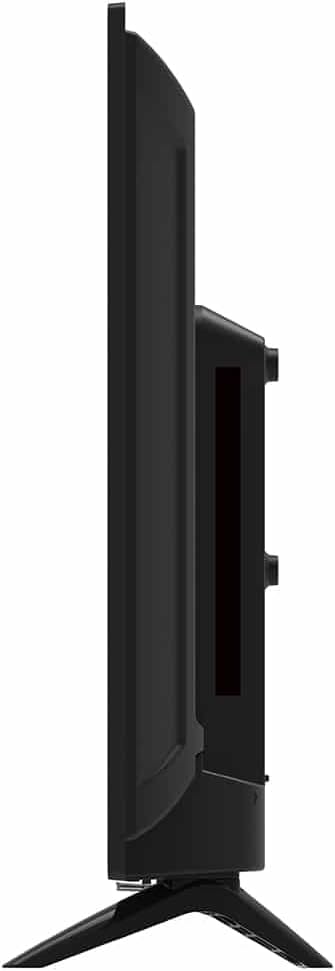
Figure 4.1: Side view of the TV, illustrating the slim profile and stand attachment points.
4.2 Connecting Power
After assembling the stand or mounting the TV, connect the power cord to the TV's power input and then to a standard AC 120V, 60Hz wall outlet.
4.3 Connecting External Devices
Your Westinghouse TV offers various ports for connecting external devices. Refer to the images below for port locations.

Figure 4.2: Rear view of the TV, displaying all available input and output ports.
HDMI Connections
Connect devices such as Blu-ray players, gaming consoles, or streaming devices using HDMI cables. The TV has multiple HDMI inputs.
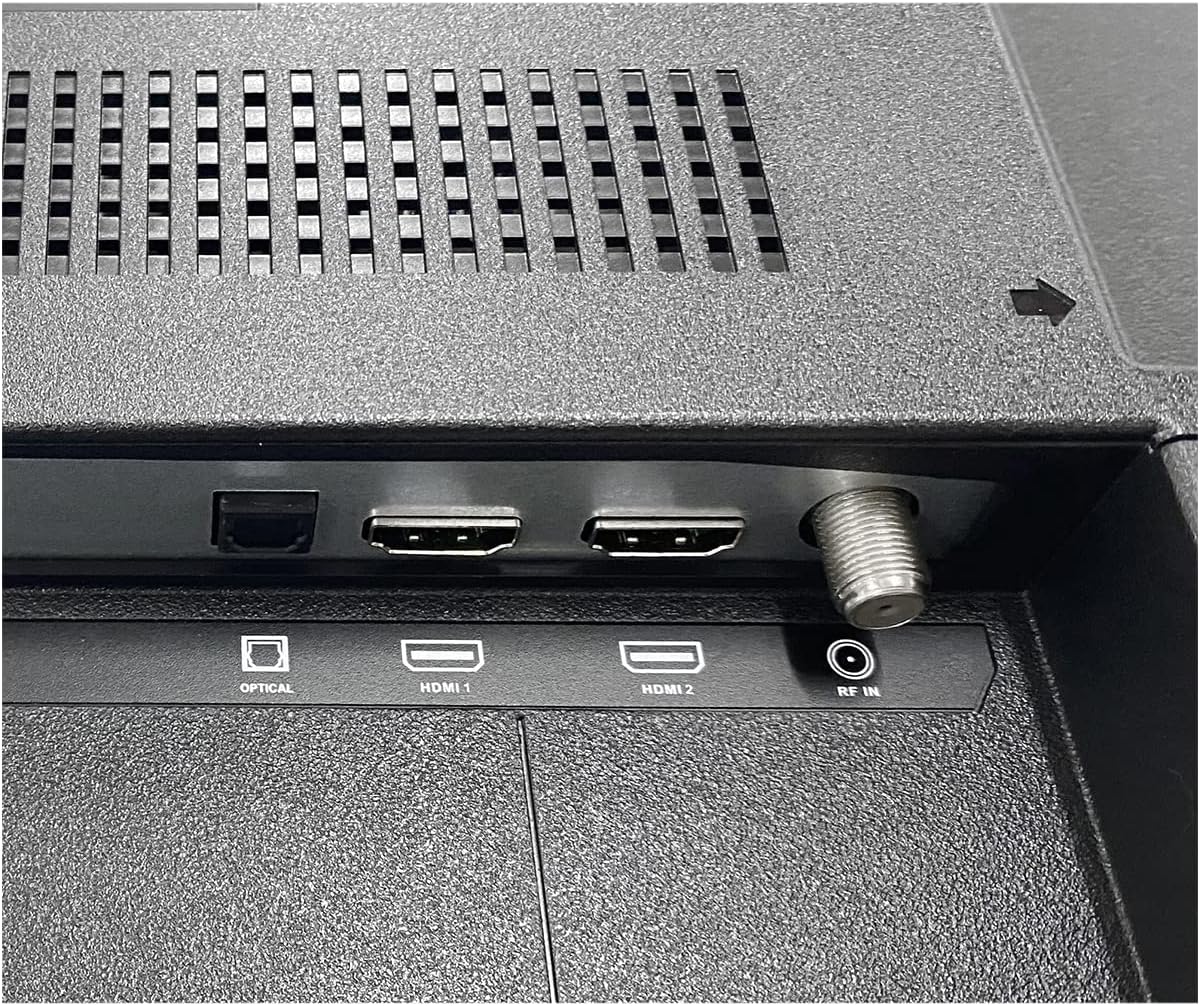
Figure 4.3: Close-up of HDMI 1, HDMI 2, Optical Audio Out, and RF (Antenna) input ports.
USB Connection
Connect a USB drive to view photos, play music, or watch videos. This port can also power compatible streaming sticks.
VGA and Composite Video Connections
Use the VGA port to connect a computer. The Composite Video (AV) inputs (yellow for video, red/white for audio) are for older devices like VCRs or DVD players.
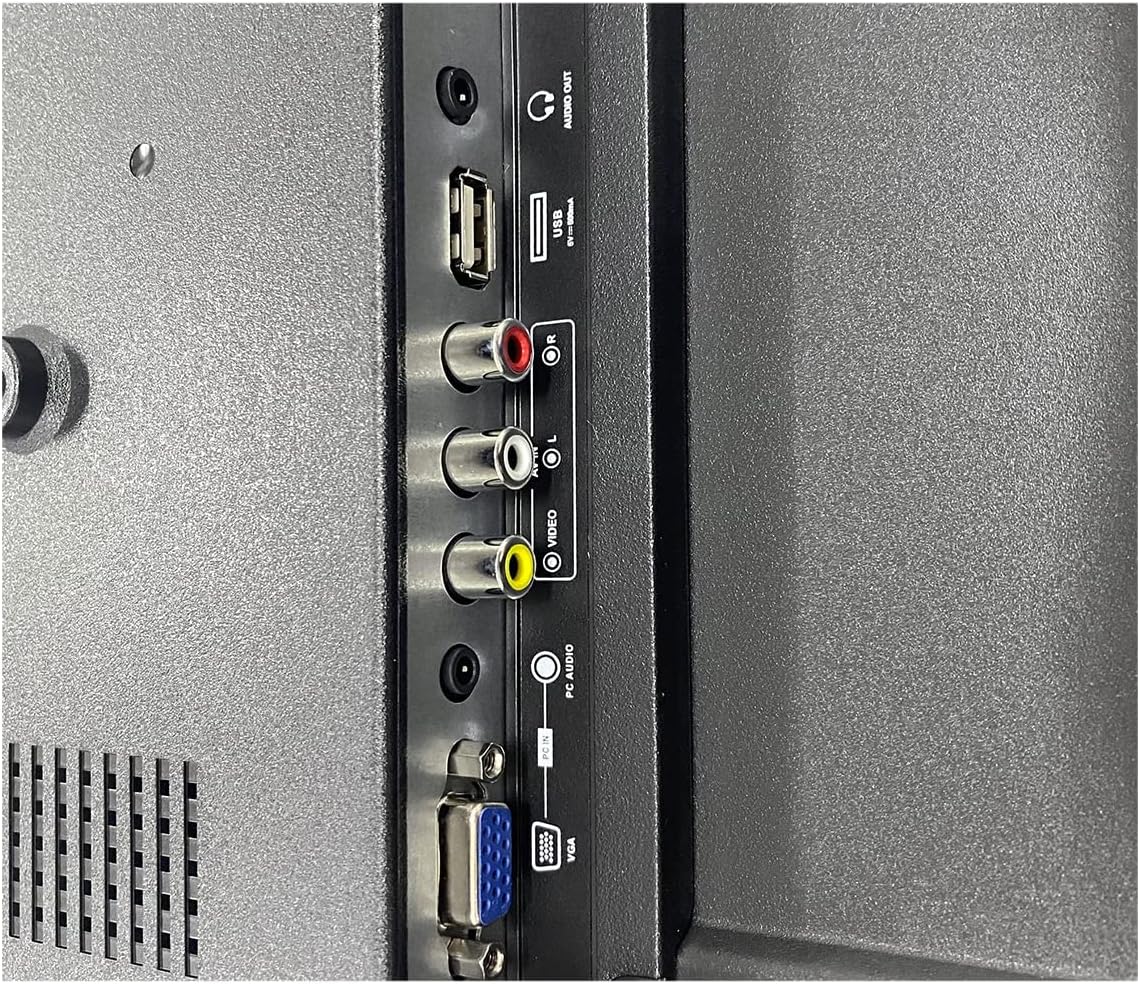
Figure 4.4: Close-up of USB, Composite Video (Video, L Audio, R Audio), and VGA input ports.
Antenna/Cable (RF) Connection
Connect an outdoor antenna or cable TV feed to the RF input for over-the-air or basic cable channels.
4.4 Initial Setup
After connecting power and any desired devices, turn on the TV. The first-time setup wizard will guide you through language selection, channel scanning, and basic picture/sound settings.
5. Operating Instructions
5.1 Remote Control Overview
The included remote control allows you to access all TV functions. Familiarize yourself with the buttons:
- Power: Turns the TV on or off.
- Input/Source: Selects the input source (HDMI 1, HDMI 2, VGA, AV, TV).
- Volume +/-: Adjusts the volume level.
- Channel +/-: Changes TV channels.
- Menu: Opens the main menu for settings.
- Navigation (Arrows/OK): Navigates through menus and confirms selections.
- Exit: Closes the current menu or screen.
- Mute: Mutes or unmutes the sound.
5.2 Turning On/Off
Press the Power button on the remote control or on the TV itself to turn the TV on or off.
5.3 Selecting Input Source
Press the Input or Source button on the remote control to cycle through available input sources (HDMI 1, HDMI 2, VGA, AV, TV Tuner). Select the source corresponding to your connected device.
5.4 Menu Navigation
Press the Menu button to access the TV's settings. Use the arrow buttons to navigate through options and the OK button to select. Common menu categories include Picture, Sound, Channel, Time, and Setup.
5.5 Parental Control (V-Chip)
The built-in V-chip allows you to block content based on program ratings. Access the Parental Control settings through the main menu to configure these options. A password may be required to access and modify these settings.
6. Maintenance
6.1 Cleaning the Screen
To clean the TV screen, first unplug the power cord. Gently wipe the screen with a soft, lint-free cloth. For stubborn marks, lightly dampen the cloth with water or a specialized screen cleaner (ensure it's safe for LED screens) and wipe carefully. Do not spray liquid directly onto the screen.
6.2 Cleaning the Cabinet
Wipe the TV cabinet with a soft, dry cloth. Avoid using abrasive cleaners, waxes, or solvents as they can damage the finish.
6.3 General Care
- Avoid placing heavy objects on top of the TV.
- Do not expose the TV to direct sunlight or extreme temperatures.
- If moving the TV, ensure it is properly supported and handled to prevent damage.
7. Troubleshooting
Before contacting customer support, try the following solutions for common issues:
No Power
- Ensure the power cord is securely plugged into both the TV and the wall outlet.
- Check if the wall outlet is working by plugging in another device.
- Press the power button on the TV itself, not just the remote.
No Picture, But Sound is Present
- Verify the correct input source is selected (e.g., HDMI 1, AV).
- Check the cable connections between the TV and the external device.
- Try connecting a different device to the same input or the same device to a different input.
No Sound, But Picture is Present
- Ensure the TV is not muted and the volume is turned up.
- Check audio cable connections for external devices.
- If using external audio equipment, ensure it is powered on and correctly configured.
Remote Control Not Working
- Replace the batteries in the remote control.
- Ensure there are no obstructions between the remote and the TV's IR sensor.
- Point the remote directly at the TV.
Poor Picture Quality
- For antenna connections, adjust the antenna position or rescan for channels.
- Check cable connections for external devices; ensure they are secure.
- Adjust picture settings (brightness, contrast, sharpness) in the TV menu.
- Ensure the source device is outputting a compatible resolution.
8. Specifications
| Feature | Description |
|---|---|
| Brand | Westinghouse |
| Model | WD32HX1201 |
| Screen Size | 32 inches |
| Display Technology | LED |
| Resolution | 720p |
| Refresh Rate | 60 Hz |
| Connectivity Technology | HDMI, VGA, USB, Composite Video, RF (Antenna) |
| HDMI Inputs | 2 |
| Audio Output Mode | Digital (Optical) |
| Parental Control | V-Chip |
| Mounting Type | Table Mount, VESA Wall Mount (100 x 100 mm) |
| UPC | 657768265464 |
9. Warranty and Support
9.1 Warranty Information
This Westinghouse TV comes with a 90-day limited warranty. This warranty covers defects in materials and workmanship under normal use. For specific terms and conditions, please refer to the warranty documentation included with your product or contact Westinghouse customer support.
9.2 Customer Support
If you encounter issues that cannot be resolved using the troubleshooting guide, or if you require further assistance, please contact Westinghouse customer support. Have your TV model number (WD32HX1201) and purchase information ready when you call.
For the most up-to-date contact information, please visit the official Westinghouse website.


