1. Introduction
The Acer SB242Y EBI is a 23.8-inch Full HD (1920 x 1080) IPS monitor designed for both gaming and office use. It features an ultra-thin, zero-frame design, providing an expansive viewing experience. Equipped with AMD FreeSync technology, it synchronizes the monitor's refresh rate with your graphics card for tear-free visuals. A rapid 1ms Visual Response Boost (VRB) and 100Hz refresh rate ensure smooth motion clarity. The monitor also incorporates Acer VisionCare technology for reduced eye strain and offers versatile connectivity with HDMI and VGA ports.
2. What's in the Box
Upon unboxing your Acer SB242Y EBI monitor, please ensure all the following components are present:
- Acer SB242Y EBI Monitor
- Monitor Stand (Base and Neck)
- Power Cord
- HDMI Cable
Video: Product Overview. This video demonstrates the unboxing and initial setup of the Acer monitor, showing the components included in the box and how to assemble the stand.
3. Setup
3.1 Stand Assembly
- Carefully remove the monitor and stand components from the packaging.
- Attach the stand neck to the monitor panel by aligning the clips and pushing until it clicks into place.
- Secure the stand base to the stand neck by aligning the screw and tightening it from the bottom of the base.
- Place the assembled monitor on a stable, flat surface.
3.2 Connecting to a Device
The monitor supports both HDMI and VGA connections. Use the provided HDMI cable for optimal performance.
- HDMI Connection: Connect one end of the HDMI cable to the HDMI port on the monitor and the other end to the HDMI output port on your computer or device.
- VGA Connection: Connect one end of the VGA cable (not included) to the VGA port on the monitor and the other end to the VGA output port on your computer or device.
- Power Connection: Connect the power adapter to the monitor's DC input port, then plug the power cord into an electrical outlet.

Image: Rear view of the Acer monitor highlighting the HDMI, VGA, and power input ports for easy connectivity.
4. Operating the Monitor
4.1 Power On/Off
Press the power button located on the bottom right side of the monitor to turn it on or off.
4.2 On-Screen Display (OSD) Menu
The OSD menu allows you to adjust various monitor settings. Use the buttons located on the bottom right of the monitor to navigate the menu:
- Menu Button: Press to open the OSD menu.
- Navigation Buttons: Use the arrow buttons to move through menu options.
- Select Button: Press to confirm a selection or enter a sub-menu.
- Exit Button: Press to exit the current menu or OSD.
4.3 Display Modes
The monitor offers several preset display modes optimized for different content types:
- Standard: General use.
- Graphics: Enhanced color and clarity for graphic design.
- Eco: Energy-saving mode.
- Reading: Optimized for text, reducing eye strain.
- Dark Room: Adjusts for low-light environments.
- Movie: Enhanced contrast and color for video content.
- User: Customizable settings.
5. Features
5.1 Full HD (1920x1080) Resolution
Experience sharp details and accurate colors with Full HD resolution, bringing your favorite shows and games to life.

Image: A visual comparison demonstrating the clarity of 1080p Full HD resolution versus 720p.
5.2 AMD FreeSync Technology
AMD FreeSync technology eliminates screen tearing and stuttering by synchronizing the monitor's refresh rate with your graphics card's frame rate, providing a smooth and fluid visual experience, especially in fast-paced games.

Image: A visual representation showing the difference between a display with screen tearing (FreeSync off) and a smooth display (FreeSync on).
5.3 1ms Visual Response Boost (VRB)
With a rapid 1ms VRB response time, motion blur is significantly reduced, keeping fast-moving images sharp and clear. This is particularly beneficial for gaming and action-packed video content.

Image: A visual comparison illustrating reduced motion blur with 1ms VRB technology.
5.4 100Hz Refresh Rate
A 100Hz refresh rate provides smoother imagery and reduces flicker, contributing to a more comfortable viewing experience and lowering eye strain during prolonged use.

Image: A visual comparison showing the difference in smoothness between 100Hz and 60Hz refresh rates.
5.5 IPS Panel & Wide Viewing Angle
The In-Plane Switching (IPS) panel technology ensures consistent and accurate colors from angles up to 178 degrees, allowing for clear viewing from almost any position.
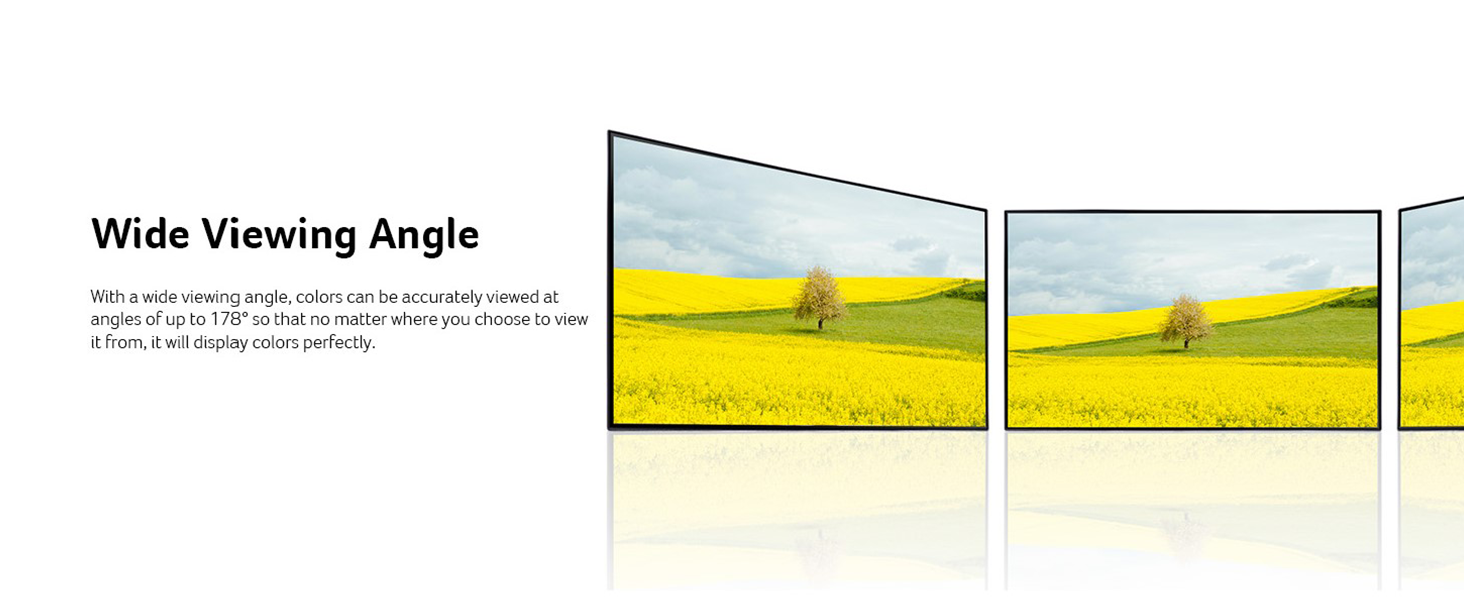
Image: A visual showing how an IPS panel maintains color accuracy and clarity across wide viewing angles.
5.6 Ultra-Thin Zero-Frame Design
The monitor features an ultra-thin profile (only 7.2mm) and a zero-frame bezel, maximizing screen space and making it ideal for multi-monitor setups. This sleek design also saves desk space.

Image: A close-up side view illustrating the ultra-thin design of the Acer monitor.
5.7 Acer VisionCare Technology
Acer VisionCare incorporates several features, including Blue Light Shield and Flicker-less technology, to reduce eye strain during prolonged usage. This is beneficial for users such as programmers, writers, and graphic designers.

Image: A user demonstrating the comfortable viewing experience provided by Acer VisionCare technology.
Video: Acer 24-inch PC Monitor 100Hz with AMD FreeSync and Blue Light Filter. This video highlights the monitor's features, including its refresh rate, FreeSync, and eye-care technologies.
6. Maintenance
To ensure the longevity and optimal performance of your Acer monitor, follow these maintenance guidelines:
- Cleaning the Screen: Gently wipe the screen with a soft, lint-free cloth. For stubborn smudges, lightly dampen the cloth with water or a screen-specific cleaning solution. Avoid using harsh chemicals or abrasive materials.
- Cleaning the Casing: Use a soft, dry cloth to clean the monitor's casing.
- Ventilation: Ensure the monitor's ventilation openings are not blocked to prevent overheating.
- Power Off: Always turn off the monitor and unplug it from the power outlet before cleaning or if it will not be used for an extended period.
7. Troubleshooting
If you encounter issues with your monitor, refer to the following common troubleshooting steps:
- No Power: Ensure the power cord is securely connected to both the monitor and the electrical outlet. Check if the power adapter is functioning correctly.
- No Signal: Verify that the video cable (HDMI or VGA) is correctly connected to both the monitor and your computer/device. Ensure the correct input source is selected in the OSD menu.
- Flickering Screen: Check the video cable for damage. Ensure your graphics card drivers are up to date. Adjust the refresh rate settings on your computer.
- Poor Picture Quality: Adjust brightness, contrast, and color settings in the OSD menu. Ensure the display resolution on your computer matches the monitor's native resolution (1920x1080).
- Buttons Not Responding: Unplug the monitor's power cord, wait for a few seconds, and then plug it back in to reset the monitor.
If the issue persists after trying these steps, please contact Acer customer support.
8. Specifications
| Feature | Specification |
|---|---|
| Standing screen display size | 23.8 Inches |
| Screen Resolution | 1920x1080 (Full HD) |
| Max Screen Resolution | 1920 x 1080 Pixels |
| Brand | Acer |
| Series | SB242Y Ebi |
| Item model number | SB242Y Ebi |
| Item Weight | 5.72 pounds |
| Product Dimensions | 7.44 x 21.22 x 15.67 inches |
| Color | Black |
| Voltage | 220 Volts |
| Screen Size | 23.8 Inches |
| Aspect Ratio | 16:9 |
| Screen Surface Description | Glossy |
| Response Time | 1ms VRB |
| Refresh Rate | 100Hz (Using HDMI Port) |
| Brightness | 250 nits |
| Pixel Pitch | 0.274mm |
| Ergonomic Tilt | -5° to 15° |
| VESA Mounting | Compliant (75 x 75mm) |
| Ports | 1 x HDMI 1.4 Port & 1 x VGA Port |
9. Warranty and Support
For warranty information and technical support, please refer to the documentation included with your product or visit the official Acer support website. Keep your purchase receipt as proof of purchase for warranty claims.


