1. Introduction
The Jabra Evolve2 50 Mono Wired Headset is designed for professional use, offering clear communication and comfort in various work environments. It features AirComfort Technology, noise-cancelling microphones, and Active Noise Cancellation (ANC) to enhance focus and call quality. This headset is certified for Microsoft Teams and compatible with other leading communication platforms.
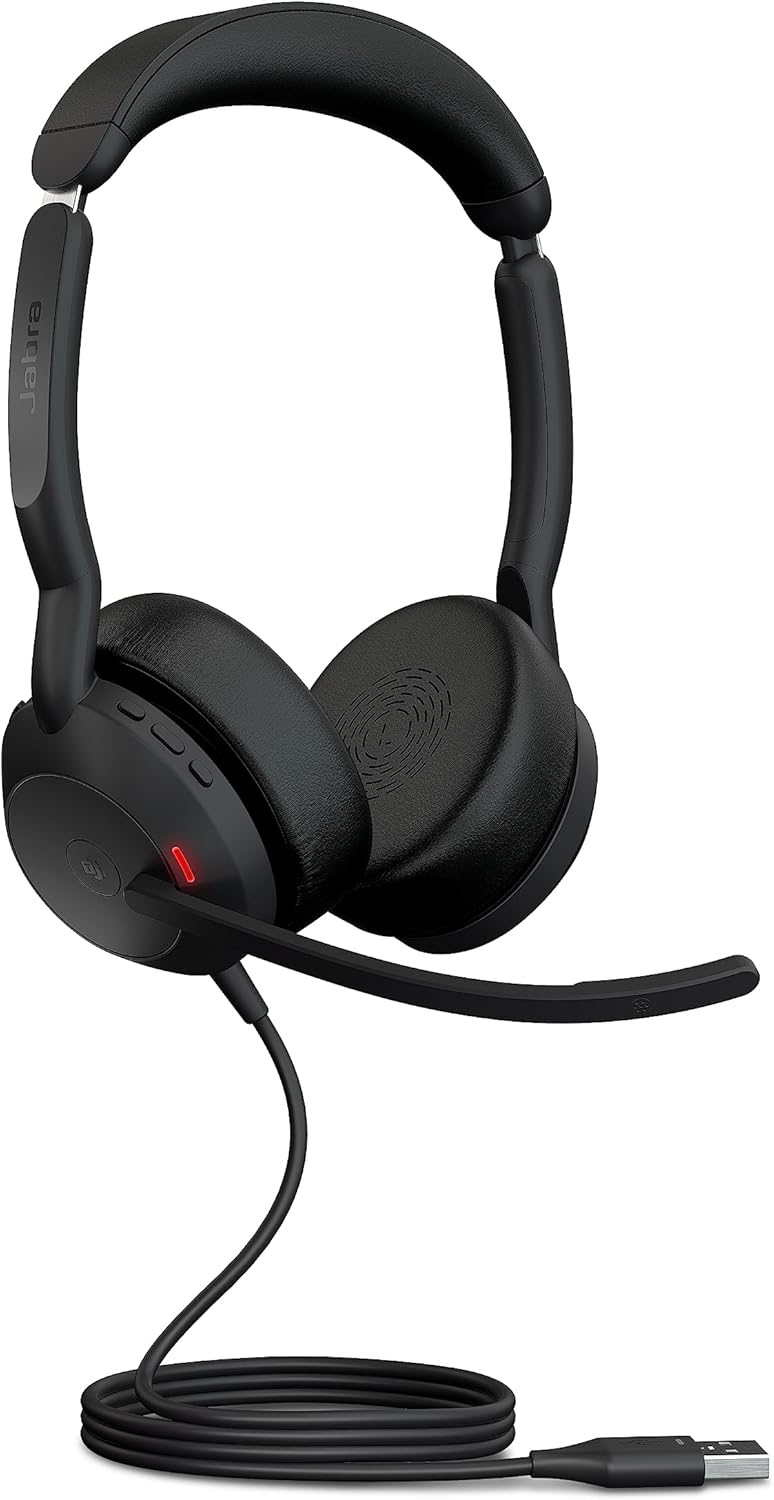
Image: The Jabra Evolve2 50 Mono Wired Headset, black, with its USB-C cable.
2. Package Contents
Verify that all items are present in your package:
- Jabra Evolve2 50 Headset
- Carry Pouch
- User Documents
3. Setup
3.1 Connecting the Headset
The Evolve2 50 headset offers plug-and-play USB connectivity for your computer and Bluetooth connectivity for a second device, such as a mobile phone.
- USB Connection: Connect the USB-C cable from the headset directly to an available USB-C port on your laptop or computer. If your computer uses USB-A, ensure you have the correct adapter or a USB-A version of the headset.
- Bluetooth Connection: To connect to a second device (e.g., your phone), activate Bluetooth on your device and select the Jabra Evolve2 50 from the list of available devices.

Image: The Jabra Evolve2 50 headset connected to a laptop, illustrating plug-and-play USB connectivity.
3.2 Software Installation
For optimal performance and to keep your headset up-to-date, install Jabra Direct or Jabra Xpress software. These applications provide device management, firmware updates, and personalized settings.
- Jabra Direct: For individual device management on your computer.
- Jabra Xpress: For IT managers to manage multiple Jabra devices across an organization.
Visit the official Jabra support website to download the latest software versions.
4. Operating Instructions
4.1 Basic Controls
The headset features intuitive touch and media controls located on the earcups for easy management of calls and audio.
- Volume Control: Adjust audio levels using the dedicated buttons.
- Mute/Unmute: Lift the microphone boom arm to mute your microphone during calls. Lower it to unmute.
- Answer/End Call: Use the call control button to manage incoming and ongoing calls.
- Microsoft Teams Button: For MS Teams certified versions, a dedicated button allows quick access to Teams functions, such as joining meetings.
- Active Noise Cancellation (ANC): Toggle ANC on or off using the dedicated button on the earcup.
4.2 Busylight Functionality
The integrated 360° Busylight automatically activates when you are on a call, signaling to colleagues that you are occupied and should not be disturbed. This feature helps maintain focus and reduce interruptions in busy environments.
5. Key Features
5.1 AirComfort Technology
The Evolve2 50 incorporates Jabra's AirComfort Technology, featuring perforated layers of ultra-soft foam in the headband and rotating, flexible earcups. This design minimizes pressure buildup and ensures comfort during extended wear.
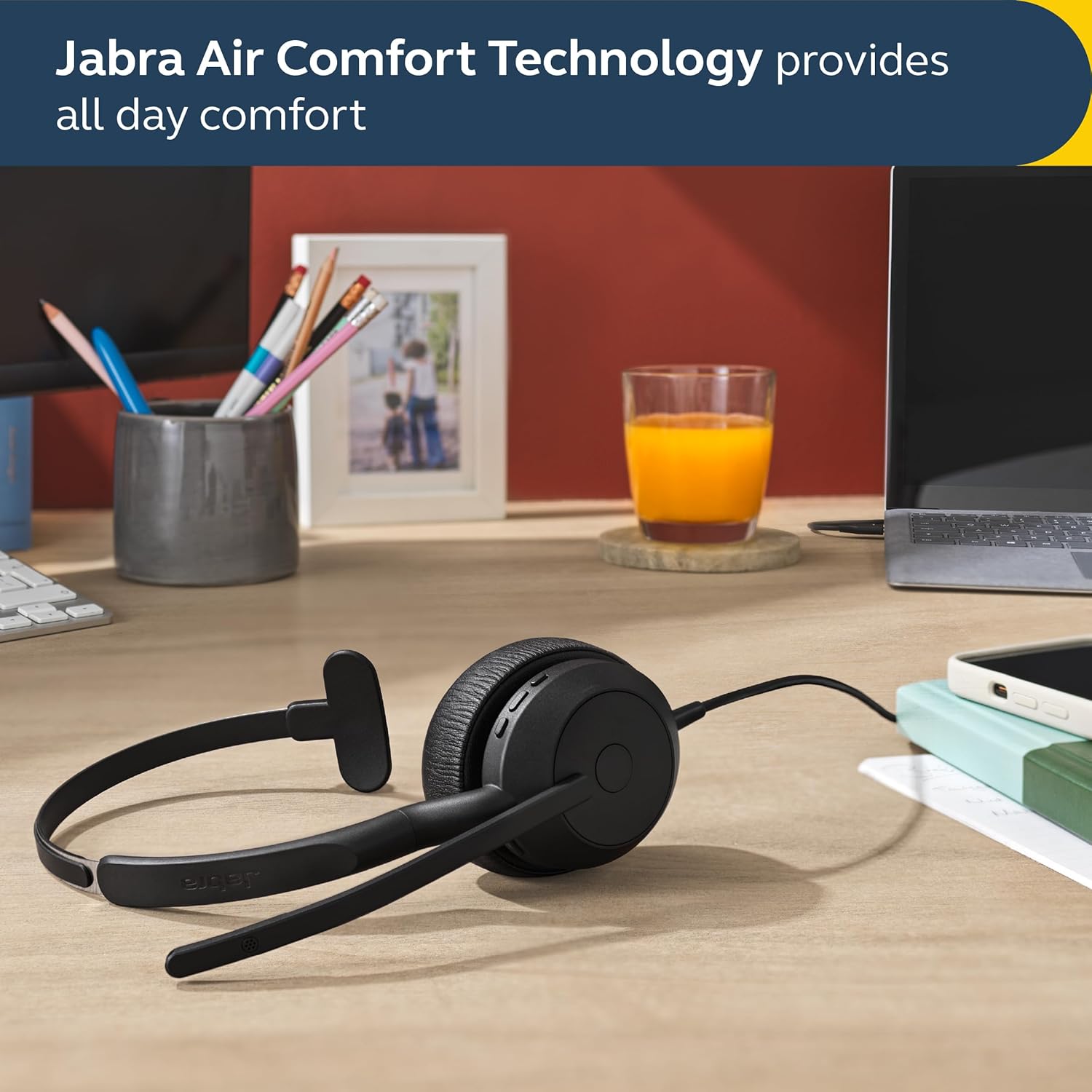
Image: The Jabra Evolve2 50 headset on a desk, illustrating the design for all-day comfort with AirComfort Technology.
5.2 Noise-Cancelling Microphones
Equipped with two noise-cancelling microphones, the headset effectively filters out background noise, ensuring your voice is transmitted clearly during calls and meetings, regardless of your surroundings.

Image: A man using the Jabra Evolve2 50 headset during a video call, highlighting the noise-cancelling microphone technology for clear communication.
5.3 Active Noise Cancellation (ANC)
The integrated Active Noise Cancellation feature actively suppresses ambient noises, allowing you to concentrate on your calls or work without distractions from your environment.

Image: A man wearing the Jabra Evolve2 50 headset in an office, demonstrating the effectiveness of Active Noise Cancellation.
5.4 Optimized Audio Performance
With 28mm custom-sized speakers, the headset delivers optimized sound quality, ensuring every word in online meetings is clear and providing a rich audio experience for music listening.

Image: A man listening to music with the Jabra Evolve2 50 headset, emphasizing the optimized sound quality for both calls and music.
5.5 Platform Certifications
The Jabra Evolve2 50 is certified for Microsoft Teams and works seamlessly with other leading online meeting platforms, including Google Meet and Zoom, ensuring a reliable and integrated communication experience.

Image: The Jabra Evolve2 50 headset on a desk, with logos indicating certification for Zoom and compatibility with Google Meet.
6. Maintenance
6.1 Cleaning
Regular cleaning helps maintain the headset's hygiene and performance.
- Wipe the earcups and headband with a soft, damp cloth.
- Avoid using harsh chemicals or abrasive materials.
- Ensure the headset is dry before storage or next use.
6.2 Storage
When not in use, store the headset in its provided carry pouch to protect it from dust and physical damage.
7. Troubleshooting
This section addresses common issues you might encounter with your Jabra Evolve2 50 headset.
| Issue | Solution |
|---|---|
| No audio or poor audio quality |
|
| Microphone not working |
|
| Active Noise Cancellation (ANC) not effective |
|
| Headset not recognized by computer/platform |
|
8. Specifications
| Feature | Detail |
|---|---|
| Model Name | Evolve2 50 |
| Item Model Number | 25089-899-999 |
| Connectivity Technology | Wired (USB-C), Wireless (Bluetooth) |
| Wireless Communication Technology | Bluetooth |
| Special Feature | Noise Cancellation (Active Noise Cancellation) |
| Microphone Type | Noise-Cancelling Mics |
| Ear Placement | Over Ear |
| Form Factor | On Ear |
| Control Type | Media Control, Touch |
| Material | Leatherette, PC & PC/ABS plastic, stainless steel |
| Color | Black |
| Item Weight | 0.19 Kilograms (6.7 ounces) |
| UPC | 706487023685 |
9. Warranty and Support
9.1 Warranty Information
The Jabra Evolve2 50 headset comes with a 2-year warranty. Product registration may be required to activate or validate your warranty. Please refer to the user documents included in your package for specific terms and conditions.
9.2 Technical Support
For technical assistance, troubleshooting beyond this manual, or to download the latest software and firmware, please visit the official Jabra support website:
Jabra Direct and Jabra Xpress software are essential tools for managing your device and ensuring it operates with the latest features and improvements.


