
1. Introduction
Welcome to the Motsfit Smartwatch 9 user manual. This guide provides detailed instructions on how to set up, operate, and maintain your new smartwatch. The Motsfit Smartwatch 9 is designed to enhance your daily life with features such as Bluetooth calling, comprehensive health monitoring, and multiple sports modes.

Image: Motsfit Smartwatch 9, showcasing its round display and black silicone strap.
2. What's in the Box
Upon unboxing your Motsfit Smartwatch 9, please ensure all the following components are present:
- Motsfit Smartwatch 9
- Magnetic Charging Cable
- Silicone Strap
- User Manual (this document)
3. Setup Guide
3.1 Initial Charging
Before first use, fully charge your Motsfit Smartwatch 9. Connect the magnetic charging cable to the charging points on the back of the watch and plug the USB end into a standard USB power adapter (not included). A full charge typically takes approximately 3 hours.
3.2 App Installation and Bluetooth Connection (for data sync)
To unlock the full potential of your smartwatch, download and install the FitCloudPro application on your smartphone.
- Scan QR Code or Search: Use your phone's camera to scan the QR code provided in the watch's packaging or search for "FitCloudPro" in your phone's app store (Apple App Store for iOS, Google Play Store for Android).
- Download and Install: Download and install the FitCloudPro app.
- Open App and Pair: Open the app, register or log in, and follow the on-screen instructions to pair your smartwatch. Ensure your phone's Bluetooth is enabled. The app will guide you to find and connect to the "NX9" device.
3.3 Bluetooth Connection for Calls (NX9 HT)
For call functionality, a separate Bluetooth connection is required:
- Enable Call Function: On your smartwatch, swipe down from the top of the screen to access the quick settings panel. Locate and tap the call function switch (often represented by a phone icon) to enable it.
- Open Phone Bluetooth Settings: On your smartphone, go to your Bluetooth settings.
- Search and Connect: Search for a new device named "NX9 HT" in the list of available Bluetooth devices. Tap on it to connect.
- Confirm Connection: Once connected, your smartwatch will be able to make and receive calls directly.

Image: Visual guide for connecting the smartwatch via Bluetooth for both data sync (FitCloudPro) and call functions (NX9 HT).
Note: The FitCloudPro app can be downloaded by scanning the QR code at http://fitcloud.hetangsmart.com/qrcode/.
4. Operating Instructions
4.1 Basic Navigation
- Touch Screen: Swipe left/right, up/down to navigate through menus and features. Tap to select.
- Physical Buttons: The watch features 'UP' and 'DOWN' buttons on the side for quick access to certain functions or for navigating menus.
4.2 Calling Features
The Motsfit Smartwatch 9 allows you to make and receive calls directly from your wrist.
- Make Calls: Use the Bluetooth dialing feature to dial numbers directly or access your synced contacts.
- Receive Calls: Answer or reject incoming calls with a tap on the screen.
- Voice Assistant: Utilize the integrated voice assistant for hands-free control.
- Call Logs: View your call history directly on the watch.

Image: Illustration of the smartwatch's Bluetooth calling capability, showing built-in microphone, answer, make calls, and reject functions.
4.3 Notifications
Receive synchronized notifications from your smartphone directly on your watch. This includes messages from platforms like Facebook, WhatsApp, Twitter, Instagram, and Skype.

Image: Smartwatch displaying message notifications and options for Bluetooth dialing.
4.4 Health Tracking
The Motsfit Smartwatch 9 provides comprehensive health monitoring features:
- Heart Rate Monitoring: Continuously track your heart rate throughout the day.
- Blood Oxygen (SpO2) Monitoring: Measure your blood oxygen saturation levels.
- Blood Pressure Monitoring: Monitor your blood pressure readings.
- Sleep Monitoring: Analyze your sleep patterns, including deep sleep, light sleep, and awake times.
- Sedentary Reminder: Receive alerts when you've been inactive for too long.
For continuous 24-hour monitoring and enhanced measurements, configure settings within the FitCloudPro app.
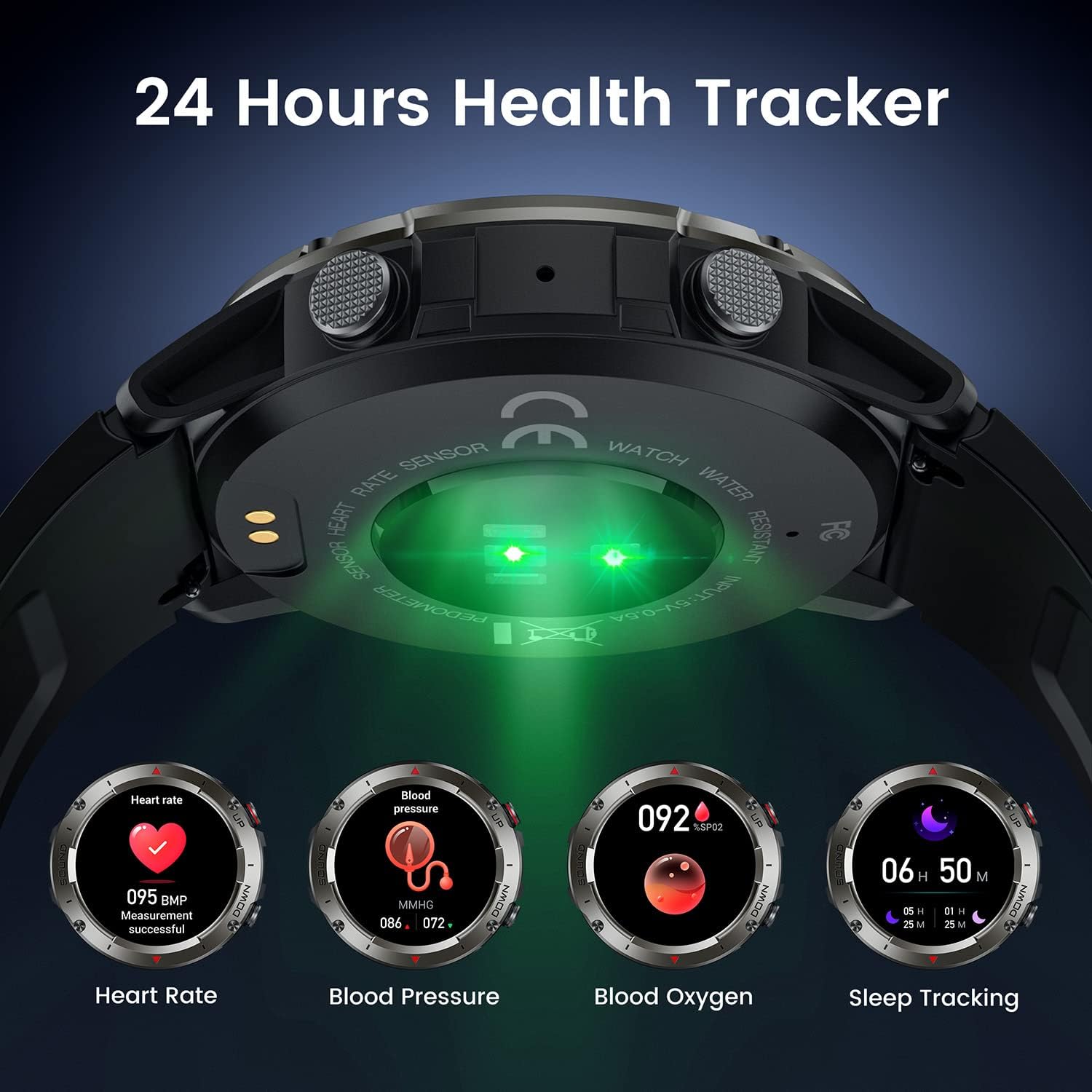
Image: Underside of the smartwatch showing the health sensors, with icons for Heart Rate, Blood Pressure, Blood Oxygen, and Sleep Tracking.

Image: Smartwatch displaying a sedentary reminder, prompting the user to move.
4.5 Sports Modes and Activity Tracking
The smartwatch supports 20 different sports modes to track your workouts effectively:
- Modes: Walking, Running, Football, Badminton, Basketball, Hiking, Cycling, Swimming, and more.
- Tracking: Calculates steps taken, calories burned, and distance covered.
- Tools: Includes a stopwatch and timer for precise workout timing.
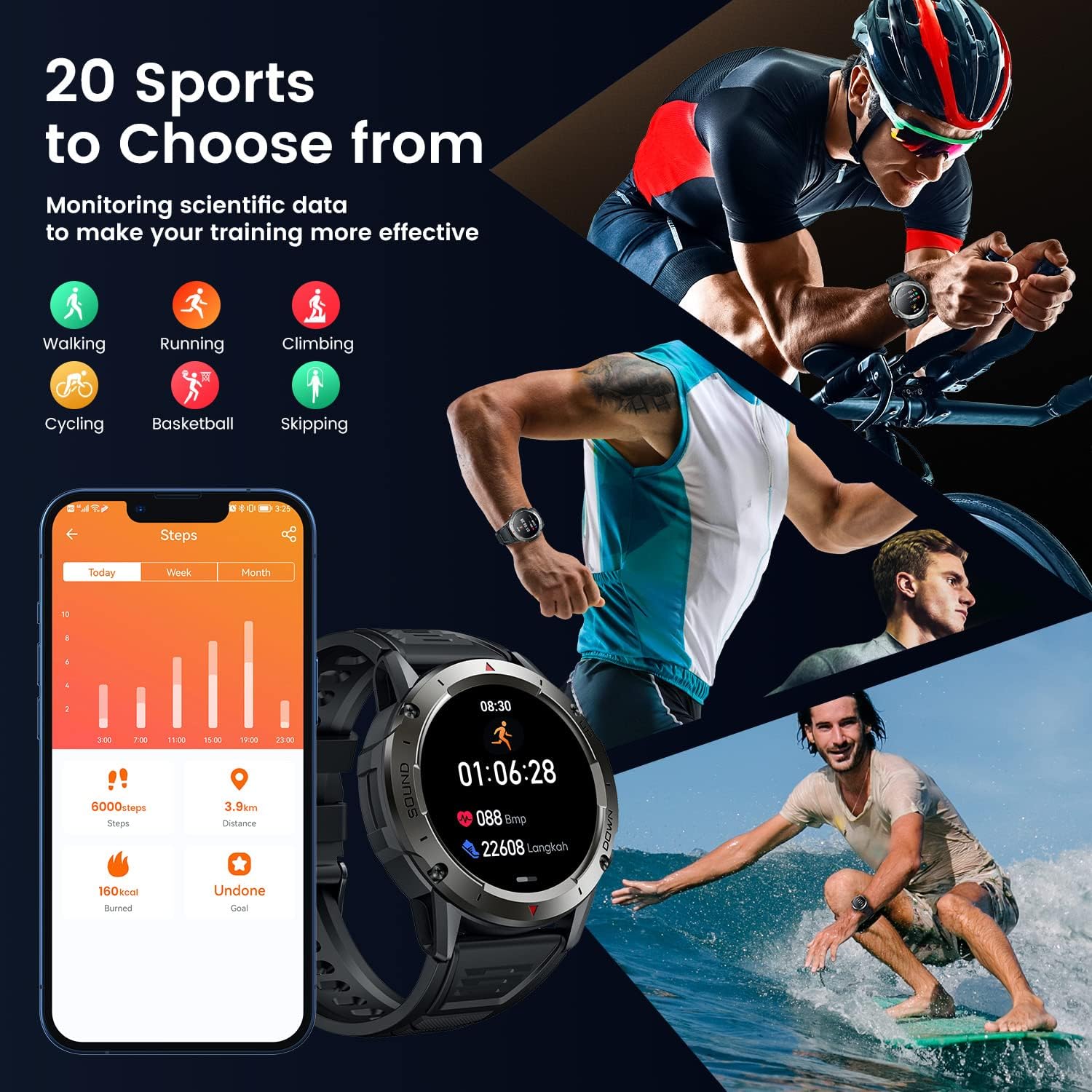
Image: Smartwatch displaying various sports modes, with a phone showing activity data like steps and distance.
4.6 Additional Features
- Music Playback: Control music playback from your phone or play music directly through the watch's speaker during exercise.
- Camera Control: Use your smartwatch as a remote shutter for your phone's camera.
- Weather Display: Get real-time weather updates directly on your watch face.
- Customizable Watch Faces: Choose from a wide selection of watch faces in the FitCloudPro app to personalize your device.

Image: Smartwatch displaying music playback controls.

Image: Smartwatch screen showing a camera icon, indicating remote camera control.

Image: Smartwatch displaying current weather information.
5. Maintenance
5.1 Water Resistance
The Motsfit Smartwatch 9 is IP68 waterproof, meaning it is resistant to dust and can withstand immersion in water up to 1.5 meters for 30 minutes. It is suitable for daily use, hand washing, and swimming. However, it is not recommended for hot showers, saunas, or diving, as steam and hot water can compromise the seals.

Image: Smartwatch with water splashes, indicating its IP68 waterproof rating.
5.2 Cleaning and Care
- Wipe the watch and strap regularly with a soft, damp cloth to remove sweat, dirt, and debris.
- Avoid using harsh chemicals, abrasive cleaners, or solvents, as these can damage the watch's finish and components.
- Ensure the charging contacts are clean and dry before charging to prevent corrosion.
5.3 Battery Care
To prolong battery life:
- Charge the watch fully before its first use.
- Avoid completely draining the battery frequently.
- Store the watch in a cool, dry place when not in use for extended periods.
- Avoid exposing the watch to extreme temperatures (hot or cold).

Image: Diagram showing the smartwatch dimensions and battery life indicators (30 days standby, 7-14 days battery life, 3 hours charging).
6. Troubleshooting
If you encounter issues with your Motsfit Smartwatch 9, try the following steps:
- Watch Not Turning On: Ensure the watch is fully charged. Connect it to the charger and wait a few minutes before attempting to turn it on.
- Connection Issues:
- Ensure Bluetooth is enabled on both your phone and watch.
- Restart both your phone and the smartwatch.
- Forget the device in your phone's Bluetooth settings and re-pair it following the setup instructions.
- Ensure the FitCloudPro app is running in the background and has necessary permissions.
- Inaccurate Health Data:
- Ensure the watch is worn snugly on your wrist, not too tight or too loose.
- Clean the sensor on the back of the watch.
- Avoid excessive movement during measurements.
- Short Battery Life:
- Reduce screen brightness.
- Disable continuous heart rate monitoring if not needed.
- Limit the number of notifications received.
- Close unused background apps on the watch.
- Screen Unresponsive: Try restarting the watch by pressing and holding the power button (if available) or by connecting it to the charger.
If problems persist, please refer to the support section or contact customer service.
7. Specifications
| Model Name | Motsfit Smartwatch 9 |
| Display | 1.42-inch LCD, 360x360 HD Resolution, Full Touch Screen |
| Battery Capacity | 400mAh |
| Battery Life | 7-14 days (typical use), up to 30 days (standby) |
| Charging Time | Approx. 3 hours |
| Connectivity | Bluetooth 5.1 |
| Compatibility | Android 5.0 and above, iOS 10.0 and above |
| Water Resistance | IP68 |
| Dimensions | 15.5 x 11.3 x 2.6 cm (Package); 40.25 g (Weight) |
| Included Components | Smartwatch, Charging Cable, Silicone Strap, User Manual |
| Key Features | Bluetooth Calling, Heart Rate Monitor, Blood Oxygen Monitor, Blood Pressure Monitor, Sleep Monitor, Pedometer, Activity Tracker, Calorie Tracker, Distance Tracker, Multi-Sport Modes (20+), Sedentary Reminder, Alarm Clock, Music Player, Camera Control, Weather Display |
8. Warranty and Support
Warranty information for your Motsfit Smartwatch 9 is typically provided with your purchase documentation or can be found on the official Motsfit website. Please retain your proof of purchase for warranty claims.
For technical support, troubleshooting assistance, or further inquiries, please refer to the FitCloudPro app's help section or visit the Motsfit official support channels. Regular software updates for the smartwatch are managed through the FitCloudPro application.