
Introduction
Thank you for purchasing the DAGROD DV56MP 4K Digital Video Camera. This manual provides essential information for the safe and effective operation of your new device. Please read it thoroughly before use and retain it for future reference.
The DAGROD DV56MP is a high-performance 4K camcorder featuring 56MP photo resolution, 18X digital zoom, a 3.0-inch IPS touchscreen, Wi-Fi connectivity, IR night vision, and anti-vibration technology. It is designed to capture high-quality videos and photos in various environments.

Figure 1: The DAGROD DV56MP 4K Digital Video Camera demonstrating its 4K Ultra High Definition capability, offering superior clarity compared to 1080p resolution.
Package Contents
Please check the package contents upon unboxing to ensure all items are present:
- DAGROD DV56MP 4K Digital Video Camera
- Rechargeable Batteries (x2)
- Remote Control
- USB Cable
- HDMI Cable
- Carrying Bag
- User Manual (this document)
Product Overview
Familiarize yourself with the camera's components and controls.

Figure 2: DAGROD DV56MP 4K Digital Video Camera with an overview of its main features including 4K 56MP resolution, 18X Digital Zoom, Face Detection, Night Vision, Dual Outputs, Digital Anti-shake, IPS Touchscreen, WiFi Connection, and Built-in Microphone.
Camera Components:
- Lens: Captures video and photo.
- 3.0-inch IPS Touchscreen: For viewing, menu navigation, and playback. Rotates 270 degrees.
- Power Button: Turns the camera on/off.
- Record/Photo Button: Starts/stops video recording or takes a photo.
- Zoom Lever: Controls the 18X digital zoom.
- Mode Button: Switches between video, photo, and playback modes.
- Menu Button: Accesses camera settings.
- IR Light: For night vision functionality.
- Hot Shoe Mount: For attaching external accessories like microphones or LED lights.
- Battery Compartment: Holds the rechargeable battery.
- SD Card Slot: For inserting a memory card (not included).
- USB Port: For charging and data transfer.
- HDMI Port: For connecting to a TV or monitor.

Figure 3: The DAGROD DV56MP camera featuring a hot shoe mount, designed for easy installation of external accessories such as microphones or LED fill lights.
Setup
1. Charging the Battery
- Open the battery compartment cover.
- Insert a fully charged battery, ensuring correct polarity.
- Close the battery compartment cover securely.
- To charge, connect the camera to a power adapter or computer using the provided USB cable. The charging indicator light will illuminate.
2. Installing a Memory Card
The camera supports SD cards (not included). A Class 10 or higher SD card is recommended for 4K video recording.
- Locate the SD card slot on the side of the camera.
- Insert the SD card with the metal contacts facing the front of the camera until it clicks into place.
- To remove, gently press the card until it pops out.
3. Initial Power On
- Open the LCD screen. The camera may power on automatically.
- If not, press and hold the Power button for a few seconds.
- Follow the on-screen prompts to set the language, date, and time.
Operating Instructions
1. Basic Video Recording and Photo Capture
- Video Mode: Ensure the camera is in video mode (indicated by an icon on the screen). Press the Record/Photo button to start recording. Press again to stop.
- Photo Mode: Press the Mode button to switch to photo mode. Press the Record/Photo button to take a picture.
2. Using the 3.0-inch IPS Touchscreen
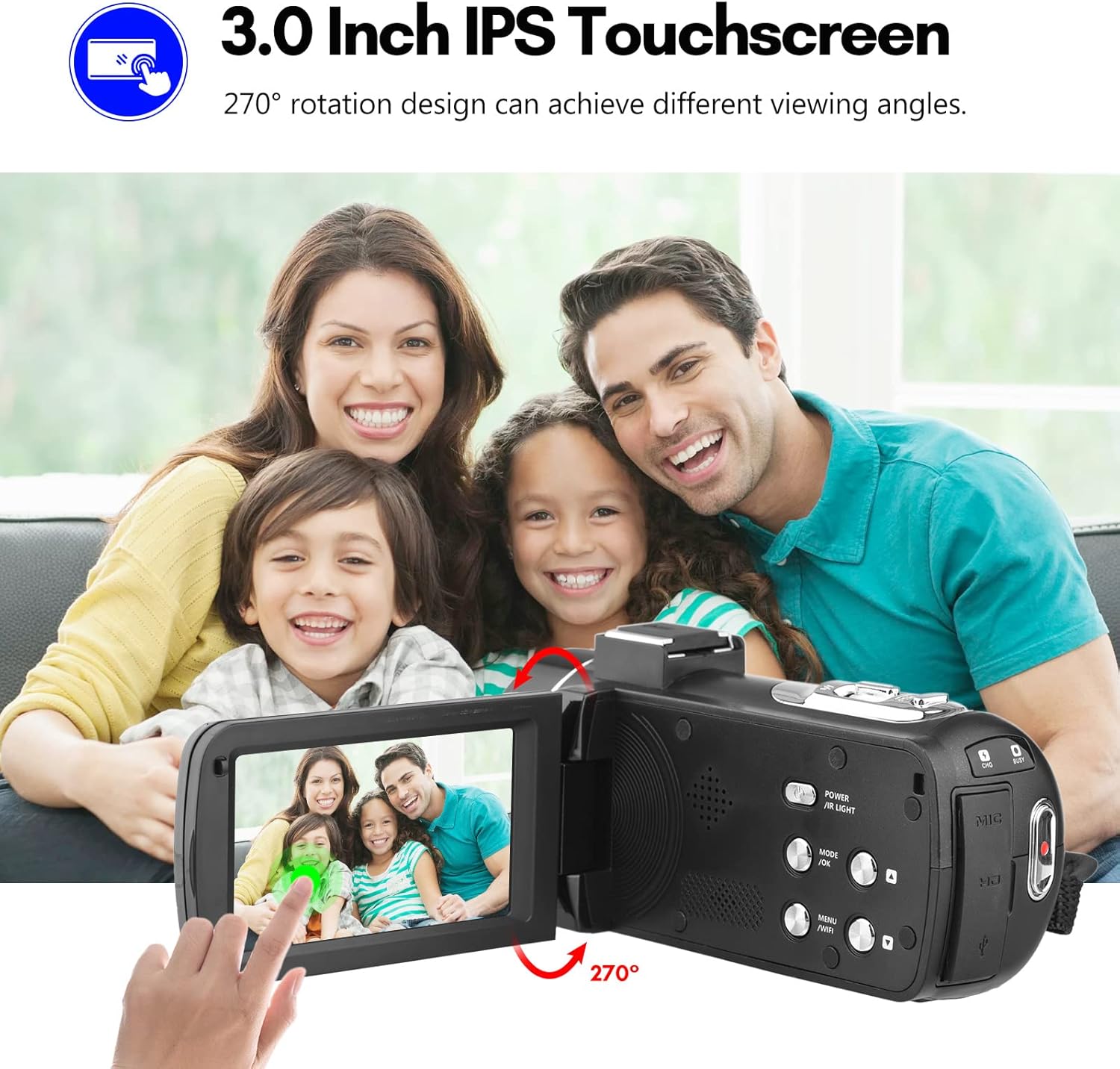
Figure 4: The 3.0-inch IPS touchscreen of the DAGROD DV56MP camera, demonstrating its 270-degree rotation capability for various viewing angles and easy interaction.
The touchscreen allows for intuitive navigation of menus, settings, and playback. Simply tap on icons or options to select them. The screen can be rotated up to 270 degrees for flexible viewing angles.
3. Digital Zoom (18X)

Figure 5: The DAGROD DV56MP camera showcasing its 18X digital zoom capability, allowing users to bring distant scenes closer and capture more detail.
Use the zoom lever located near the lens to zoom in or out. Push the lever forward to zoom in and pull it backward to zoom out. The 18X digital zoom allows you to magnify distant subjects.
4. Wi-Fi Connection

Figure 6: The DAGROD DV56MP camera demonstrating its WiFi connectivity, enabling convenient download and sharing of videos and photos directly to a smartphone.
The camera supports Wi-Fi connectivity for easy transfer of photos and videos to your smartphone or tablet. Download the dedicated app (refer to the camera's on-screen instructions or included quick start guide for app name) from your device's app store. Enable Wi-Fi on the camera via the menu, then connect your smart device to the camera's Wi-Fi network.
5. IR Night Vision
To record in low-light conditions, activate the IR Night Vision feature through the camera's menu settings. This will enable the infrared lights to capture clear footage even in complete darkness.
6. Face Detection
The camera can automatically detect and focus on faces within the frame. Enable Face Detection in the camera settings to optimize focus and exposure for portraits and group shots.
7. Using the Remote Control

Figure 7: The DAGROD DV56MP camera mounted on a tripod, demonstrating control via the included remote control for flexible operation.
The included remote control allows for convenient operation from a distance, especially when the camera is mounted on a tripod. Functions typically include power on/off, record/photo, zoom, and menu navigation. Ensure the remote control has a clear line of sight to the camera's IR receiver.
8. Connecting to a Computer or TV
- USB Connection (Computer): Connect the camera to your computer using the USB cable. The camera will appear as a removable disk, allowing you to transfer files.
- HDMI Connection (TV): Use an HDMI cable (not included) to connect the camera to an HDMI-enabled TV or monitor for direct playback of your videos and photos.
Maintenance
Cleaning the Camera
- Use a soft, lint-free cloth to clean the camera body.
- For the lens, use a specialized lens cleaning cloth and solution. Avoid touching the lens surface with your fingers.
- Do not use strong detergents or solvents, as they may damage the camera's finish.
Storage
- When not in use, store the camera in a cool, dry place, away from direct sunlight and extreme temperatures.
- Remove the battery if the camera will not be used for an extended period to prevent leakage.
- Use the provided carrying bag for protection during transport.
Troubleshooting
| Problem | Possible Cause | Solution |
|---|---|---|
| Camera does not power on. | Battery is dead or incorrectly inserted. | Charge the battery or reinsert it correctly. |
| Cannot record video/take photos. | No SD card, SD card full, or SD card error. | Insert an SD card, delete files, or format the SD card (this will erase all data). |
| Poor image/video quality. | Lens is dirty, insufficient lighting, or incorrect settings. | Clean the lens, use IR night vision in low light, or adjust resolution settings. |
| Wi-Fi connection issues. | Incorrect app, Wi-Fi not enabled, or distance too far. | Ensure correct app is installed, enable Wi-Fi on camera, and stay within range. |
Specifications
| Feature | Detail |
|---|---|
| Video Capture Resolution | 4K |
| Still Image Resolution | 56 MP |
| Digital Zoom | 18X |
| Screen Size | 3.0 Inches IPS Touchscreen (270° Rotation) |
| Connectivity Technology | USB, Wi-Fi |
| Special Features | IR Night Vision, Face Detection, Anti-vibration, Hot Shoe Mount |
| Memory Card Type | SD (Class 10 or higher recommended) |
| Video Format | MP4 |
| Image Format | JPEG |
| Focus Type | Manual and Automatic Focus |
| Included Components | 2 Batteries, Remote Control, Carrying Bag |
Warranty and Support
DAGROD products are manufactured to high-quality standards. For information regarding warranty coverage, please refer to the warranty card included in your product packaging or visit the official DAGROD website.
For technical support, troubleshooting assistance, or inquiries about your DAGROD DV56MP 4K Digital Video Camera, please contact our customer service team. Contact details can typically be found on our website or on the product packaging.
Please note: Specifications and features are subject to change without prior notice.