
GHome Smart SW5
GHome Smart Light Switch SW5 User Manual
Model: SW5
Introduction
This manual provides comprehensive instructions for the installation, operation, and maintenance of your GHome Smart Light Switch SW5. Please read this manual thoroughly before installation and use to ensure proper function and safety. The GHome Smart Light Switch SW5 is designed for single-pole lighting circuits and requires a neutral wire for operation. It integrates with 2.4GHz Wi-Fi networks for smart control via the GHome app, Amazon Alexa, and Google Home.
Important Safety Information
- Electrical Hazard: Installation requires handling 120V wiring. If you are unfamiliar with electrical wiring, consult a qualified electrician.
- Neutral Wire Required: This device requires a neutral wire for operation. Most homes built since 1978 have a neutral wire. Verify its presence before installation.
- 2.4GHz Wi-Fi Only: This device supports 2.4GHz Wi-Fi networks only. 5GHz Wi-Fi is not supported.
- Maximum Load: Do not exceed 15A (1800W) total load.
- Compatibility: Not compatible with smart bulbs or 3-way switch configurations. Designed for single-pole circuits only.
- UL & FCC Certified: This product is UL and FCC certified for safety and quality.
Package Contents
- GHome Smart Light Switch SW5
- Wallplate
- 4 Wire Nuts
- 2 Screws
- User Manual

Image: The GHome Smart Light Switch SW5 and its included accessories, such as the wallplate, wire nuts, and screws, are shown alongside the product packaging.
Product Specifications
| Model Number | SW5 |
| Input/Output Voltage | 120V/60Hz |
| Maximum Current | 15A |
| Maximum Power | 1800W |
| Wi-Fi Frequency | 2.4GHz (IEEE 802.11 b/g/n) |
| Compatibility | Amazon Alexa, Google Home |
| Certifications | UL, FCC |
| Dimensions (Switch without cover) | 4.09" H x 1.77" W x 1.18" D (104 x 45 x 30mm) |
| Dimensions (Cover) | 4.72" x 2.76" x 0.34" (120 x 70 x 8.7mm) |

Image: Detailed dimensions of the GHome Smart Light Switch SW5 and its wallplate, along with a wiring diagram illustrating the required Line, Neutral, Ground, and Load connections.
Setup and Installation
Pre-Installation Checklist:
- Confirm you have a neutral wire in your electrical box.
- Ensure your Wi-Fi network is 2.4GHz.
- Turn off power at the circuit breaker before starting.
Wiring Instructions:
- Shut off Power: Locate your circuit breaker and turn off the power to the light switch you are replacing. Verify power is off using a voltage tester.
- Remove Old Switch: Carefully remove the existing light switch from the wall box.
- Identify Wires: Identify the Line (hot), Load, Neutral, and Ground wires. The Line wire typically comes from the power source. Use a voltage detector to confirm the energized wire (Line wire) when the breaker is on, then turn it off again. Label each wire.
- Connect Smart Switch: Connect the wires to the GHome Smart Switch SW5 as follows:
- Connect the Line wire to the terminal labeled "L".
- Connect the Load wire to the terminal labeled "Load".
- Connect the Neutral wire to the terminal labeled "N".
- Connect the Ground wire to the terminal labeled "GND".
⚠ Take care to avoid electric shocks. If you are unsure, consult a qualified electrician.
- Mount Switch: Secure the smart switch into the wall box and attach the wallplate.
- Restore Power: Turn the power back on at the circuit breaker.

Image: An easy installation guide showing the steps to shut off power, remove the old switch, identify wires, and connect the Line, Load, Neutral, and Ground wires to the GHome Smart Switch SW5.
App Download and Pairing:
- Download GHome App: Search for "GHome" in your smartphone's app store (iOS or Android) and download the application.
- Register/Login: Open the GHome app and register a new account or log in with an existing one.
- Add Device: Tap the "+" icon in the top right corner of the app to add a new device. Select "Switch - Wi-Fi".
- Enter Wi-Fi Details: Ensure your phone is connected to your 2.4GHz Wi-Fi network. Enter your Wi-Fi password in the app.
- Pairing Mode:
- EZ Mode (Fast Blinking): Hold down the smart switch button for 5 seconds until the indicator light blinks rapidly (approximately twice per second). This is the default pairing mode.
- AP Mode (Slow Blinking): If EZ Mode fails, hold the switch button for another 5 seconds until the indicator light blinks slowly (approximately once per second). In the app, select "AP Mode" in the top right corner and follow the on-screen instructions to connect to the switch's Wi-Fi hotspot.
- Complete Pairing: Once the device is detected and added, you can rename it and assign it to a room.

Image: A smartphone screen displaying the GHome app download page, indicating where users can find and install the application for smart switch control.

Image: An illustration demonstrating the GHome Smart Light Switch SW5 wirelessly connecting to a 2.4GHz Wi-Fi router, emphasizing the required network frequency.
Operating Instructions
Manual Control:
Press the physical button on the smart switch to manually turn the connected light ON or OFF.
App Control (GHome App):
- Remote Control: Once paired, you can view the status of your lights and control them from anywhere using the GHome app on your smartphone.
- Scheduling and Timers: Set custom schedules for your lights to turn ON or OFF at specific times. You can also configure timers based on sunrise/sunset or countdowns.
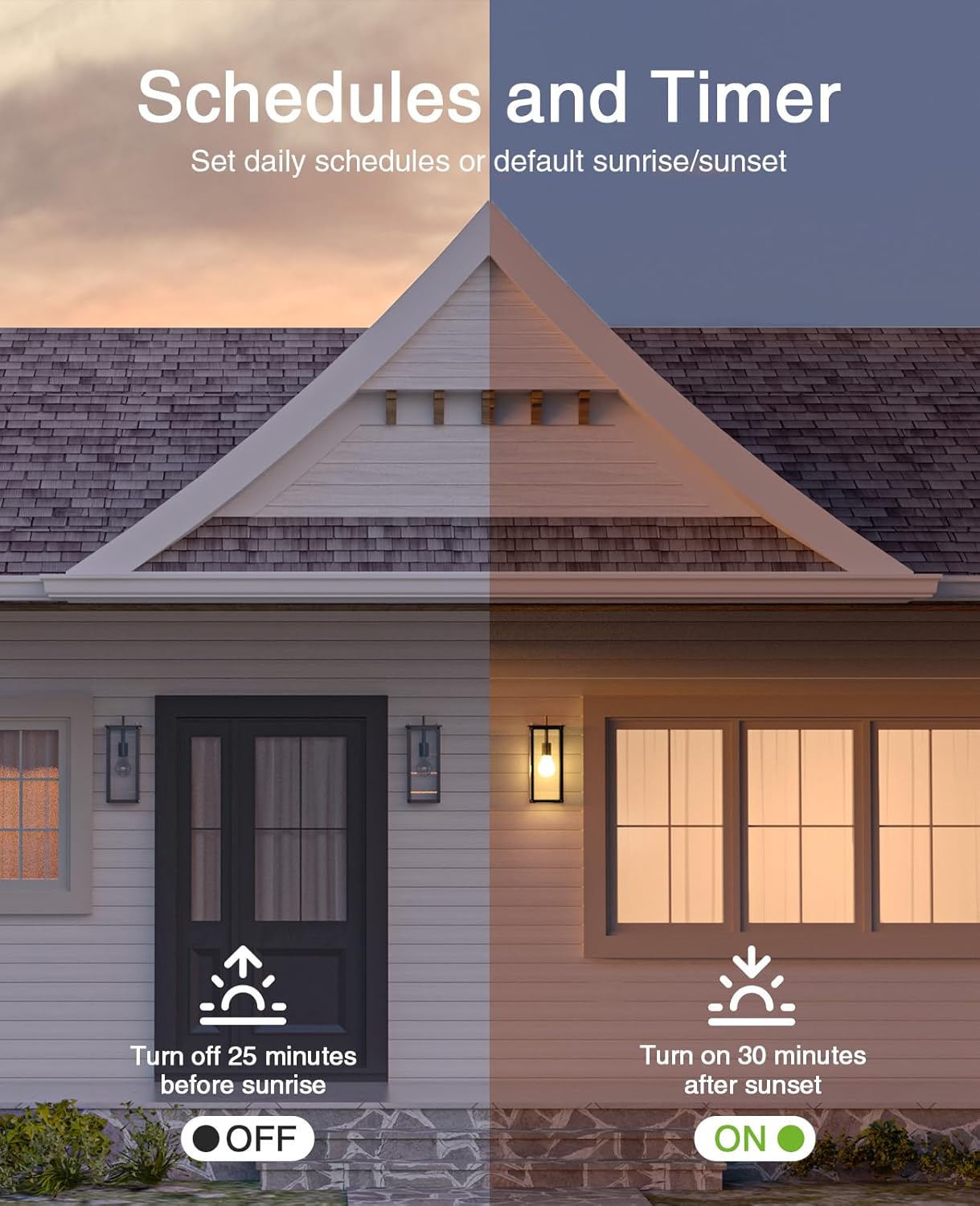
Image: An illustration depicting a house at dusk, with exterior lights automatically turning on 30 minutes after sunset and off 25 minutes before sunrise, managed by the smart switch's scheduling feature.
- Group Control: Manage multiple GHome smart switches simultaneously by grouping them within the app.
- Away Mode (Random Timer): Activate "Away Mode" to randomly turn lights ON and OFF, simulating occupancy to deter potential intruders.

Image: A house at night with various lights turning on and off at irregular intervals, demonstrating the "Away Mode" feature to simulate someone being home.
- Cycle Timing: Set lights to cycle ON and OFF at regular intervals, useful for tasks like aquarium lighting.

Image: An aquarium scene illustrating the "Cycle Timing" feature, where lights are set to turn ON and OFF at programmed intervals, beneficial for aquatic environments.
- Inching: Configure the switch to automatically turn off after a set period once it's turned on, ideal for spaces like closets or pantries.

Image: A person holding a smartphone displaying the GHome app, which is used to remotely control lights in a house, demonstrating the remote control functionality.
Voice Control:
The GHome Smart Light Switch SW5 is compatible with Amazon Alexa and Google Home. Link your GHome account to your voice assistant app to enable voice commands.
- For Amazon Alexa: Search for the "GHome" skill in the Alexa app and enable it.
- For Google Home: Link your GHome account through the Google Home app.
Once linked, you can use commands such as:
- "Alexa, turn on [Light Name]"
- "Hey Google, turn off [Light Name]"

Image: A family gathered around a dinner table, demonstrating voice control of lights using Amazon Alexa and Google Home, with speech bubbles indicating commands like "Alexa, turn on the light" and "Okay."
Maintenance
- Cleaning: Wipe the switch and wallplate with a soft, dry cloth. Do not use abrasive cleaners or solvents.
- Firmware Updates: Periodically check the GHome app for available firmware updates to ensure optimal performance and security.
- Power Outage Memory: The switch retains its last state (ON/OFF) after a power outage.

Image: An illustration depicting a light bulb illuminating after a power outage, symbolizing the smart switch's ability to remember its last state and restore it automatically.
Troubleshooting
- Switch not responding:
- Ensure the circuit breaker is ON.
- Verify the neutral wire is correctly connected.
- Check if the indicator light on the switch is active.
- Cannot connect to Wi-Fi:
- Confirm your Wi-Fi network is 2.4GHz. 5GHz networks are not supported.
- Ensure your Wi-Fi password is entered correctly in the GHome app.
- Move the switch closer to your Wi-Fi router if signal strength is weak.
- Try both EZ Mode (fast blinking) and AP Mode (slow blinking) for pairing.
- Restart your Wi-Fi router and try pairing again.
- Voice control not working:
- Ensure your GHome account is correctly linked to Amazon Alexa or Google Home.
- Verify the device name in the GHome app matches the name used in voice commands.
- Check your internet connection.
- Lights flicker or do not turn on/off correctly:
- Ensure the total load does not exceed 1800W.
- Confirm the switch is not connected to smart bulbs, as it is not compatible.
- Recheck wiring connections for any loose wires.
Warranty and Support
GHome Smart products come with a standard manufacturer's warranty. For specific warranty details, please refer to the documentation included with your purchase or visit the official GHome Smart website.
For technical support, troubleshooting assistance, or any questions regarding your GHome Smart Light Switch SW5, please contact GHome Smart customer service through their official website or the contact information provided in your product packaging.
You can also visit the GHome Smart Store on Amazon for additional product information and support resources.
Ask a question about this manual
Ask about setup, troubleshooting, compatibility, parts, safety, or missing instructions. Manuals+ will review the question and use this page’s manual context to help answer it.