
1. Introduction
This manual provides essential information for setting up, operating, maintaining, and troubleshooting your TechMagnet Galaxy Gaming Desktop PC. This system is designed for an immersive gaming experience and efficient multitasking, featuring an Intel i5 6th Gen processor, 16GB RAM, a 480GB SSD, and an AMD RX 550 dedicated graphics card. It comes with dual 24-inch curved monitors, RGB keyboard, mouse, speaker, and a webcam, all running on Windows 11.
2. What's in the Box
Please ensure all the following components are present in your package:
- TechMagnet Galaxy Desktop PC Tower
- 2x 24-inch Curved Monitors
- RGB Keyboard
- RGB Mouse
- RGB Speaker
- Webcam
- Power Cables
- Video Cables (HDMI/DisplayPort)
- User Manual

Image: Complete TechMagnet Galaxy Gaming Desktop PC setup, including the tower, dual curved monitors, RGB keyboard, mouse, speaker, and webcam.
3. Setup Guide
Follow these steps to set up your TechMagnet Galaxy Gaming Desktop PC:
- Unpacking: Carefully remove all components from their packaging. Place the desktop tower on a stable, well-ventilated surface.
- Monitor Connection: Connect each 24-inch curved monitor to the graphics card ports on the back of the PC tower using the provided video cables (HDMI or DisplayPort). Ensure a secure connection.
- Peripheral Connection:
- Connect the RGB Keyboard and RGB Mouse to available USB ports on the PC.
- Connect the RGB Speaker to the audio output port (green) and a USB port for power/RGB lighting.
- Connect the Webcam to an available USB port.
- Power Connection: Connect the power cable to the PC tower and then to a power outlet. Connect the power cables for the monitors to their respective power outlets.
- Network Connection: Your PC includes a PCI-E WiFi adapter for high-speed wireless internet. Ensure the antennas are securely attached to the back of the PC for optimal signal. Alternatively, you can connect an Ethernet cable for a wired connection.
- First Boot: Press the power button on the PC tower. The system will boot into Windows 11. Follow the on-screen instructions for initial setup, including language, region, and network configuration.
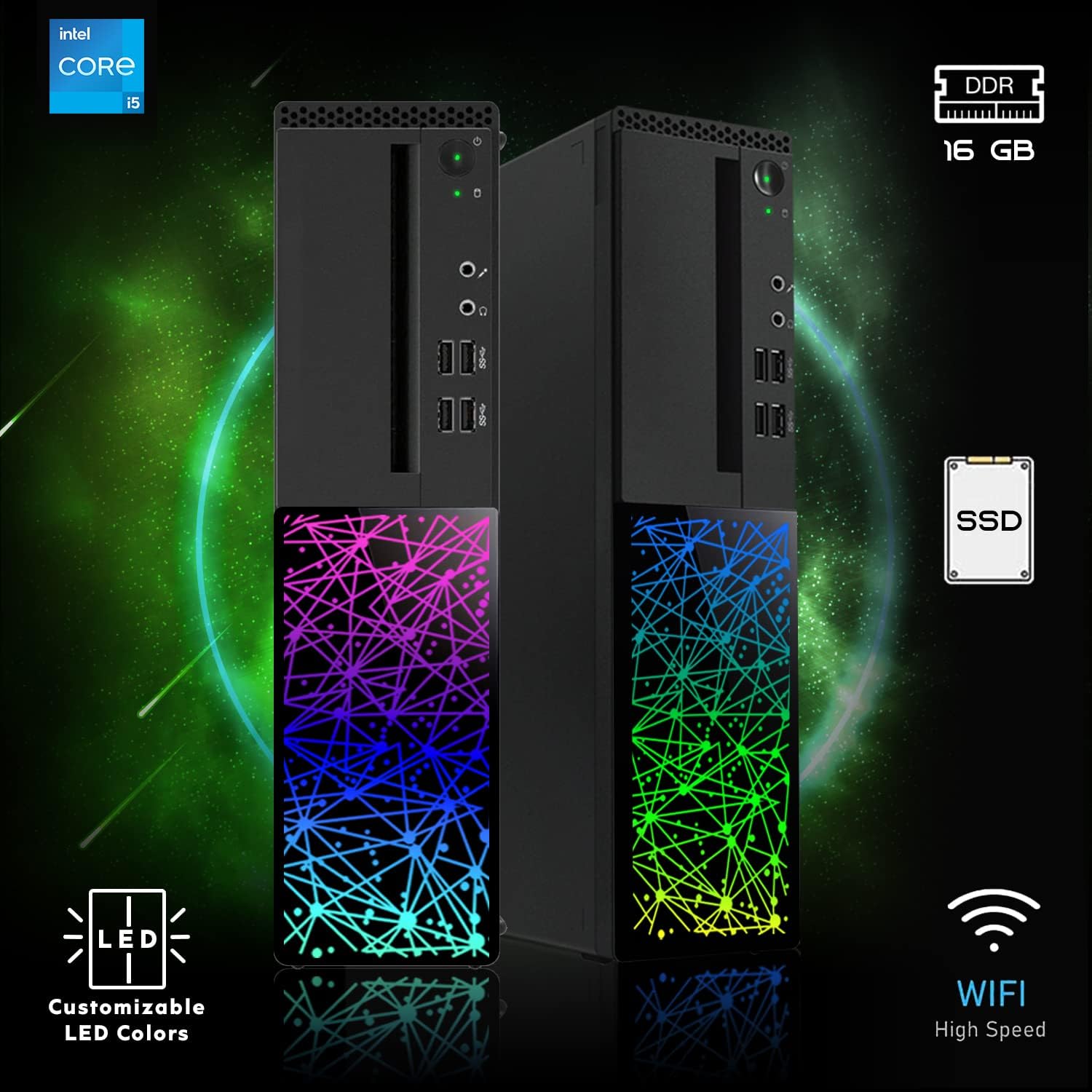
Image: Rear view of the PC tower highlighting the PCI-E WiFi adapter for enhanced wireless connectivity.
Video: An official video showcasing the MTG 24-inch monitor, demonstrating its features and visual quality.
4. Operating Instructions
Your TechMagnet Galaxy Gaming Desktop PC is pre-installed with Windows 11, offering a user-friendly interface and robust performance.
4.1. Basic Operation
- Power On/Off: Press the power button on the front of the PC tower to turn it on. To shut down, click the Start button in Windows, then Power > Shut down.
- Windows 11: Explore the Start Menu, Taskbar, and Widgets for quick access to applications and information.
- Dual Monitors: Windows 11 automatically detects dual monitors. You can configure display settings (extend, duplicate, or show only on one) by right-clicking on the desktop and selecting "Display settings."
4.2. Gaming and Graphics
The AMD RX 550 graphics card is suitable for entry-level 1080p gaming and popular esports titles. Ensure your graphics drivers are up to date for optimal performance. You can download the latest drivers from the AMD official website.

Image: The AMD Radeon RX 550 graphics card, responsible for visual processing and gaming performance.
4.3. RGB Accessories
Your RGB Keyboard, Mouse, and Speaker feature customizable lighting. Refer to the individual accessory manuals or manufacturer's website for specific instructions on changing lighting modes and colors.
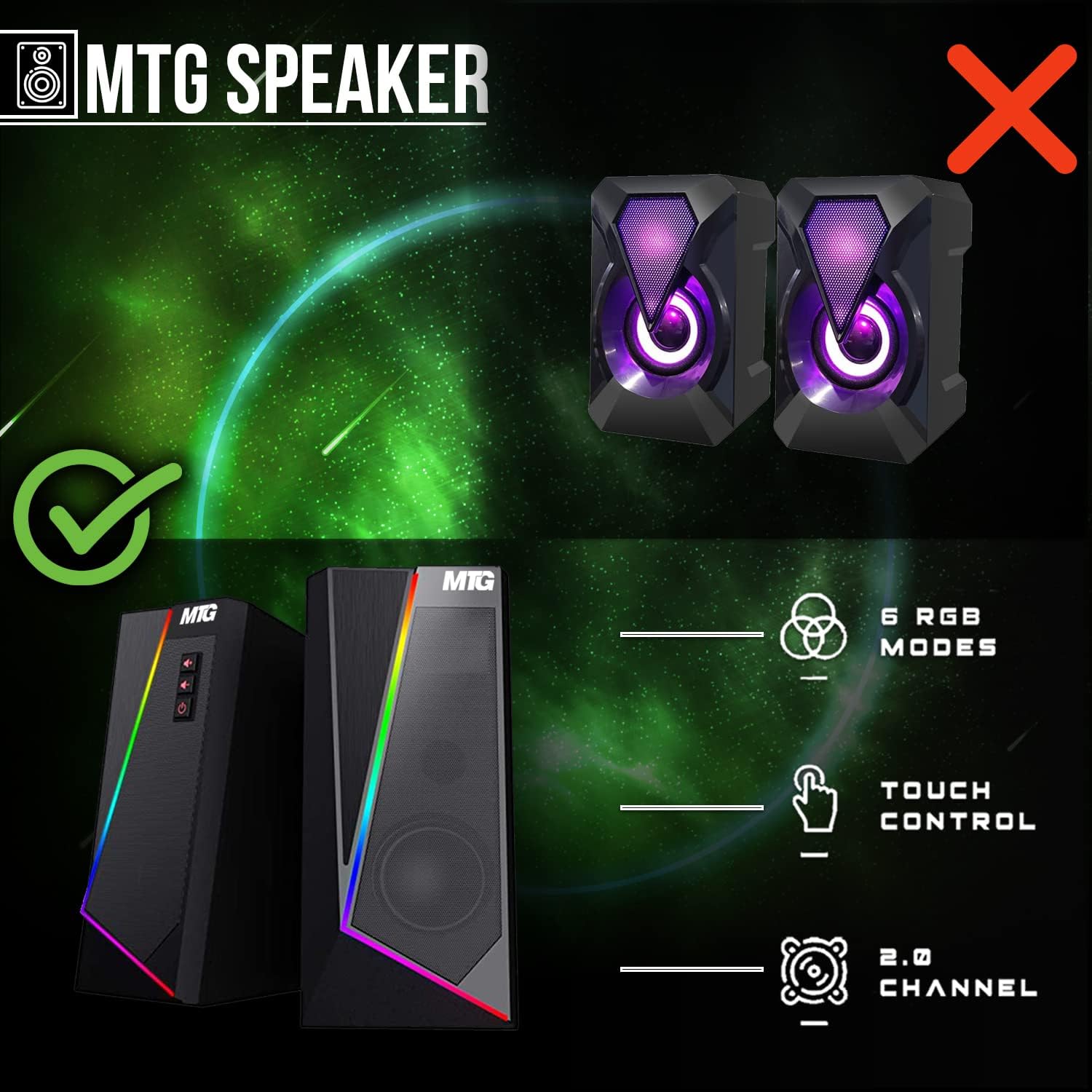
Image: The included RGB gaming keyboard and mouse, featuring customizable lighting.
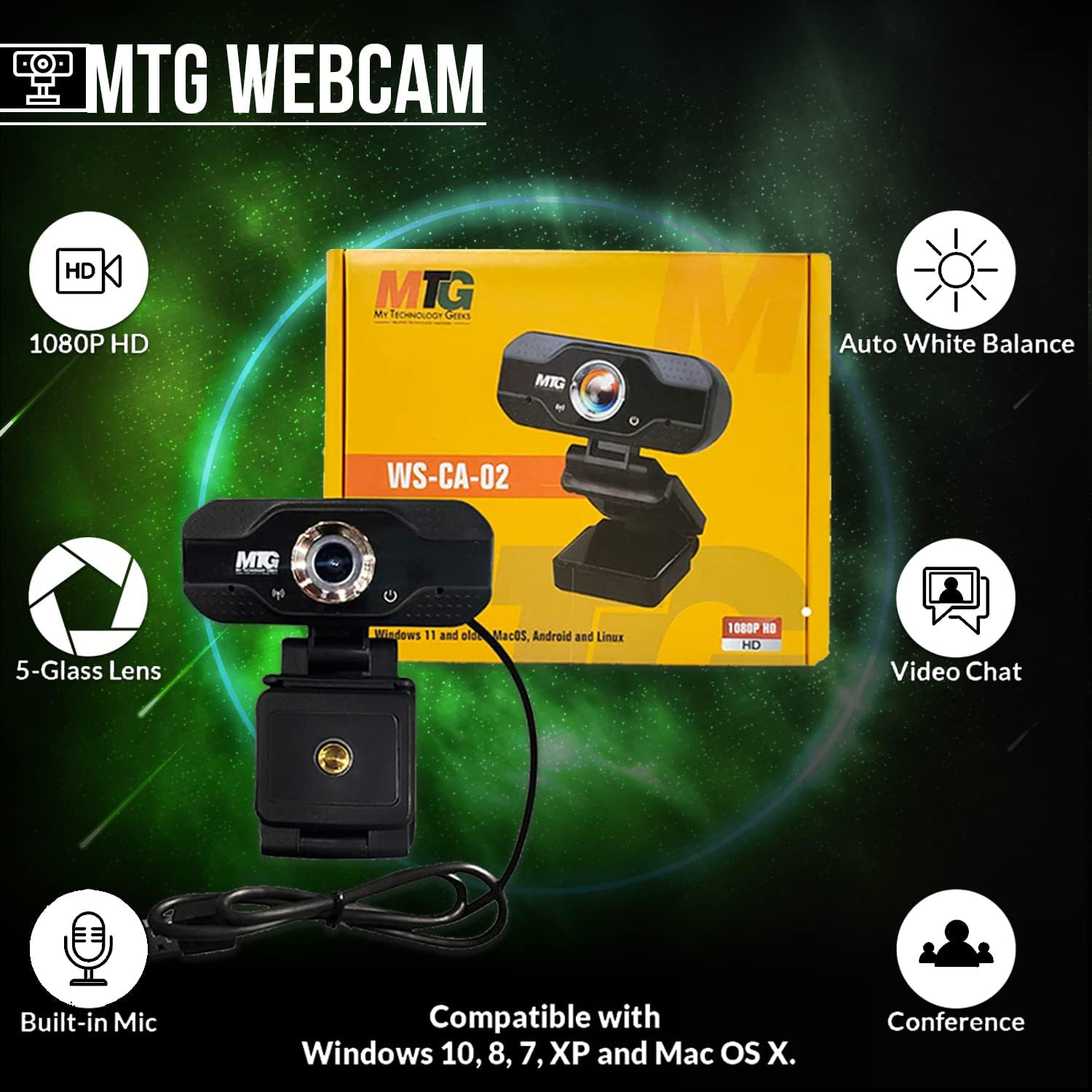
Image: The RGB gaming speakers, providing audio output with integrated lighting effects.
4.4. Webcam Usage
The built-in webcam is ideal for video conferencing, online classes, or streaming. It is plug-and-play with Windows 11. Ensure it is properly connected to a USB port and selected as the input device in your communication software.
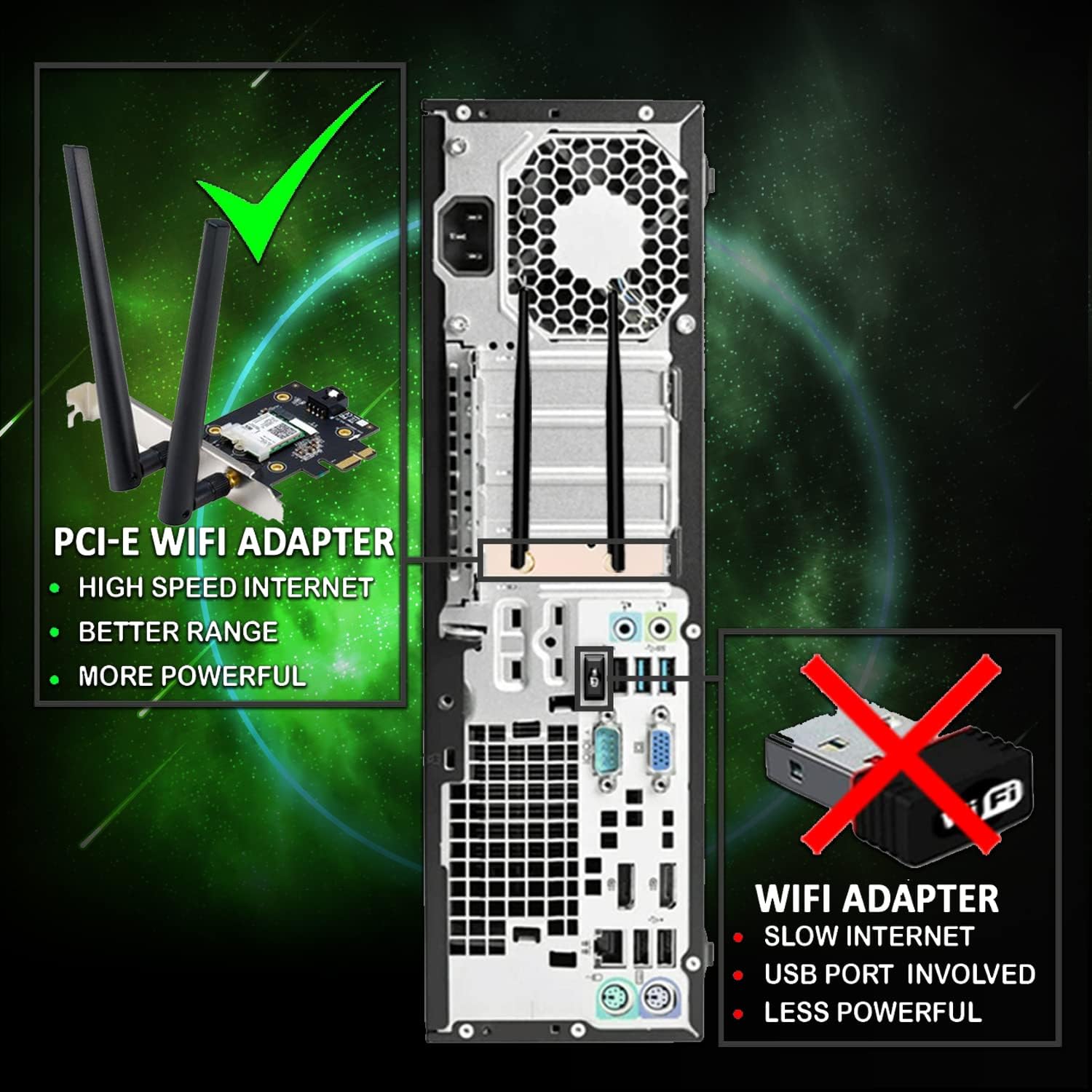
Image: The MTG 1080p HD webcam, featuring a 5-glass lens and built-in microphone for clear video communication.
5. Maintenance
Regular maintenance helps ensure the longevity and optimal performance of your PC.
- Cleaning: Use a soft, dry cloth to clean the exterior of the PC tower and monitors. For dust accumulation inside the tower, use compressed air periodically. Ensure the PC is powered off and unplugged before cleaning.
- Software Updates: Regularly check for and install Windows updates and driver updates for your graphics card and other components. This improves security, stability, and performance.
- Storage Management: The 480GB SSD provides fast boot times. To maintain performance, avoid filling the drive to full capacity. Regularly delete unnecessary files and uninstall unused programs.
- Ventilation: Ensure the PC tower has adequate airflow. Do not block ventilation openings.
6. Troubleshooting
If you encounter issues with your TechMagnet Galaxy Gaming Desktop PC, refer to the following common solutions:
- No Display on Monitor:
- Check if the monitors are powered on and video cables are securely connected to both the monitor and the graphics card on the PC.
- Ensure the PC is powered on.
- Try connecting only one monitor at a time to isolate the issue.
- Peripherals Not Responding (Keyboard/Mouse):
- Ensure USB cables are firmly connected.
- Try connecting to different USB ports.
- Restart the PC.
- No Sound:
- Check speaker power and connections.
- Verify audio output settings in Windows (right-click speaker icon in taskbar).
- Ensure audio drivers are installed and up to date.
- Slow Performance:
- Close unnecessary background applications.
- Ensure Windows and drivers are updated.
- Check for malware or viruses.
- Ensure adequate free space on the SSD.
- Network Connectivity Issues:
- Verify WiFi antennas are attached and secure.
- Restart your router/modem.
- Check network adapter drivers in Device Manager.
For more complex issues, please contact TechMagnet customer support.
7. Specifications
| Feature | Specification |
|---|---|
| Brand | TechMagnet |
| Model Name | Galaxy |
| Operating System | Windows 11 |
| CPU Model | Intel Core i5 (6th Gen) |
| CPU Speed | 3.4 GHz (Max 3.9 GHz) |
| RAM Memory Installed | 16 GB DDR4 SDRAM |
| Hard Disk Description | 480GB SSD (Solid State Drive) |
| Graphics Coprocessor | AMD Radeon RX 550 (4GB DDR4 SDRAM) |
| Monitors | Dual 24-inch Curved LED, 1920 x 1080 (Full HD), 75Hz, 3ms Response Time |
| Connectivity Technology | HDMI, Wi-Fi |
| Human-Interface Input | RGB Keyboard, RGB Mouse |
| Built-In Media | Webcam, RGB Speaker |
| Color | Black |
8. Warranty and Support
This TechMagnet Galaxy Gaming Desktop PC is a renewed product. Please refer to the specific terms and conditions provided at the time of purchase regarding its renewed status and any associated warranty.
Return Policy: This product typically comes with a 90-day refund/replacement return policy. Please check your purchase details for exact terms.
Technical Support: For technical assistance, troubleshooting, or warranty inquiries, please contact TechMagnet customer support directly. You can usually find their contact information on their official website or through your purchase platform.
For additional resources and FAQs, visit the Amazon Renewed Store.