
LUXIAR LP40 Pro
Lenovo LP40 Pro Wireless Earbuds User Manual
Model: LP40 Pro
1. Introduction
This manual provides comprehensive instructions for the proper use, setup, operation, maintenance, and troubleshooting of your Lenovo LP40 Pro Wireless Earbuds. Please read this manual carefully before using the product to ensure optimal performance and longevity.
1.1 Product Overview
The Lenovo LP40 Pro are advanced wireless in-ear earbuds featuring Bluetooth 5.1 technology, smart touch controls, and a built-in microphone with intelligent noise reduction. Designed for comfort and durability, they offer a rich Hi-Fi sound experience and are compatible with a wide range of Bluetooth-enabled devices.
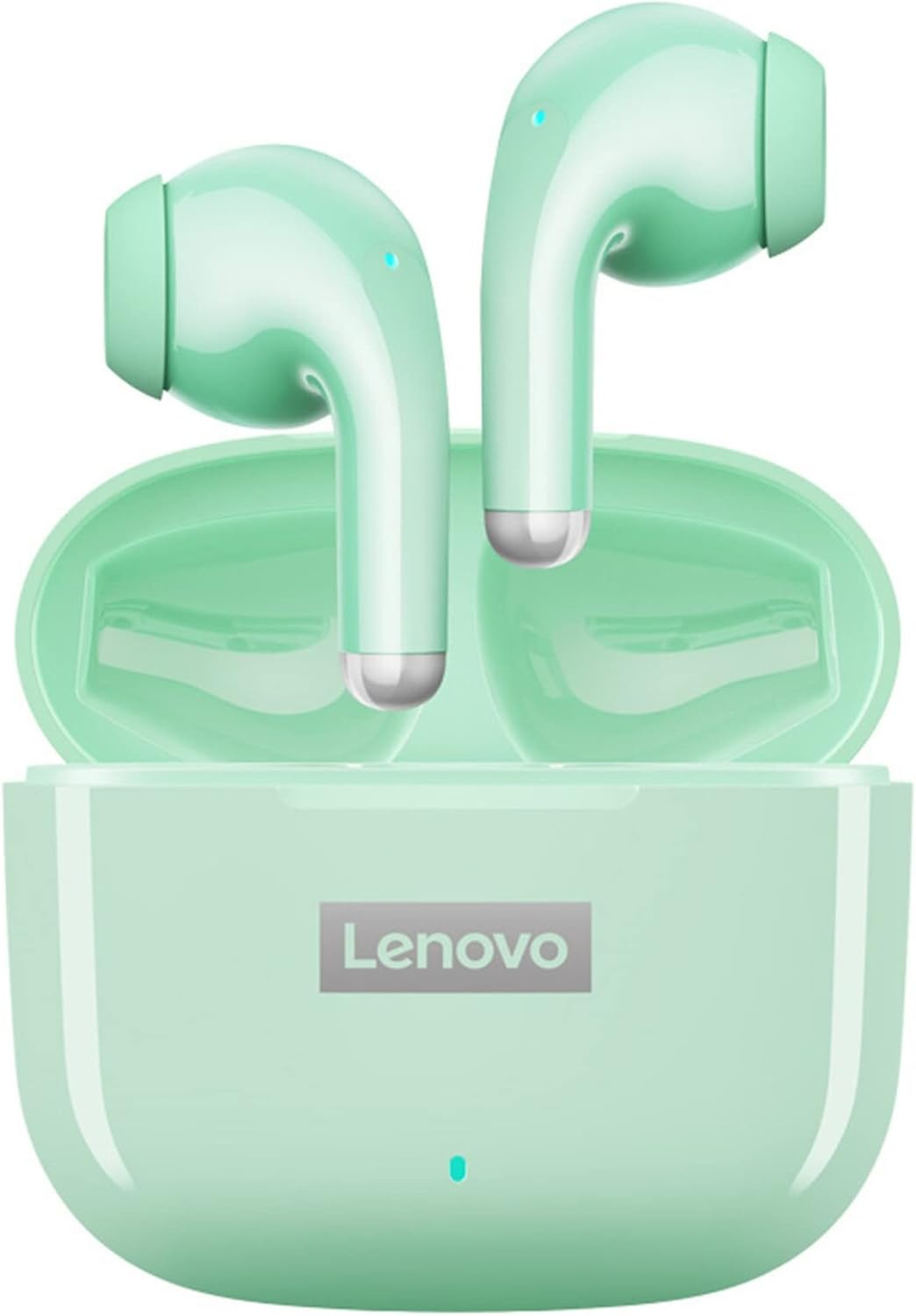
Image: The Lenovo LP40 Pro Wireless Earbuds in their mint green charging case, showcasing their compact design.
1.2 What's in the Box
Upon unboxing your Lenovo LP40 Pro Wireless Earbuds, please ensure all the following components are present:
- Lenovo LP40 Pro Wireless Earbuds (Left and Right)
- Charging Case
- USB Type-C Charging Cable
- Ear Cushions (various sizes)
- User Manual
- LUXIAR Pouch (may be included with purchase)

Image: The Lenovo LP40 Pro Earbuds alongside a complimentary LUXIAR pouch, indicating included accessories.
2. Setup
2.1 Charging the Earbuds and Case
Before first use, it is recommended to fully charge both the earbuds and the charging case.
- Place the earbuds into the charging case, ensuring they are correctly seated.
- Connect the USB Type-C charging cable to the charging port on the case and the other end to a USB power source (e.g., computer, wall adapter).
- The indicator light on the charging case will illuminate to show charging status. A full charge takes approximately 1.5 hours.
- Once fully charged, the earbuds can provide 5-6 hours of playback time.

Image: Visual representation of the Lenovo LP40 Pro's battery life and charging time, highlighting its endurance.
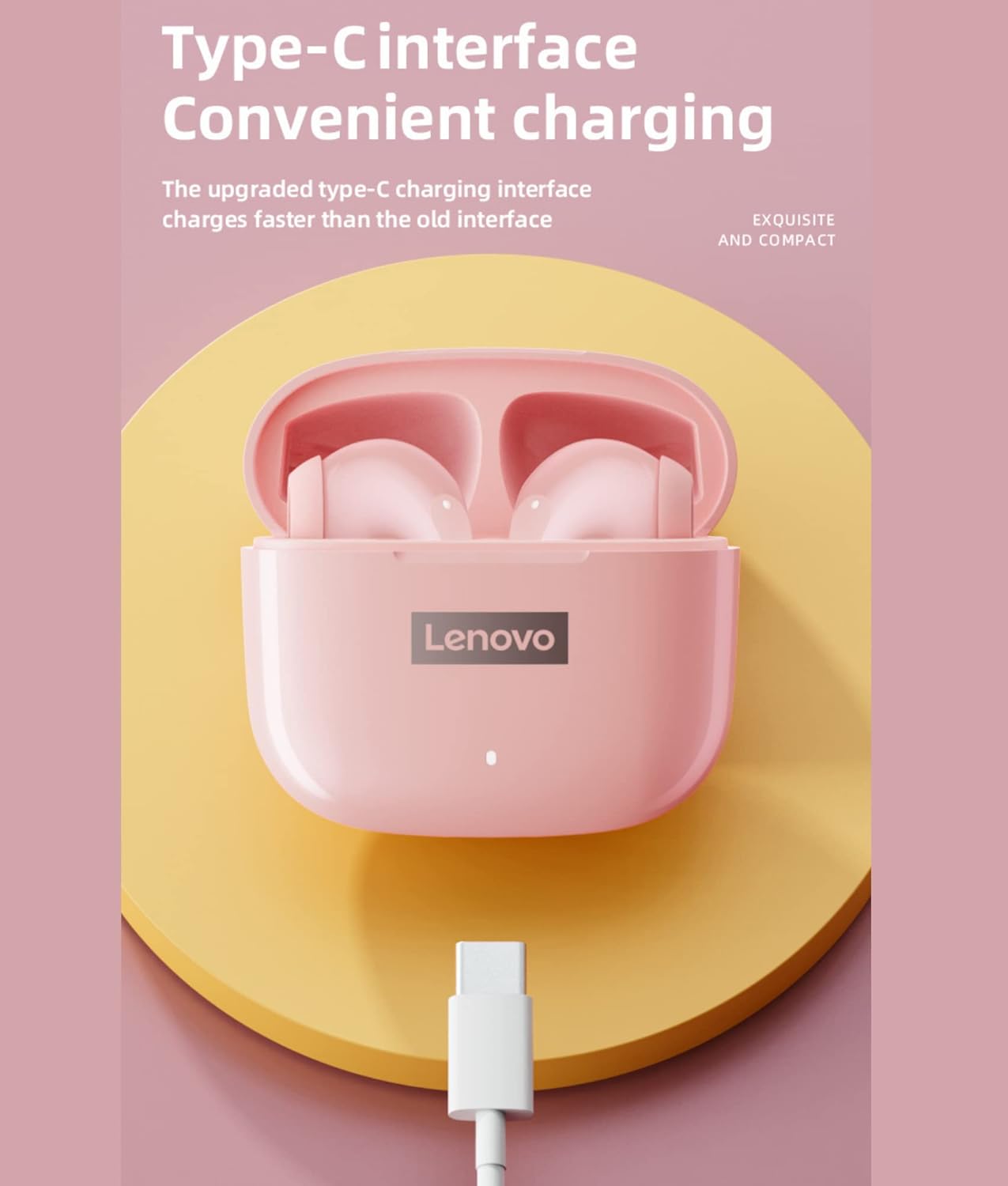
Image: Close-up of the Lenovo LP40 Pro charging case, showing the convenient Type-C charging interface.
2.2 Bluetooth Pairing
The earbuds utilize advanced Bluetooth 5.1 technology for a stable and fast connection.
- Open the charging case. The earbuds will automatically power on and enter pairing mode.
- On your device (smartphone, tablet, PC), enable Bluetooth and search for available devices.
- Select "Lenovo LP40 Pro" from the list of found devices.
- Once connected, a voice prompt will confirm successful pairing.
- For subsequent uses, the earbuds will automatically connect to the last paired device when removed from the case.

Image: The Lenovo LP40 Pro Earbuds demonstrating compatibility with various operating systems including Android, iOS, and Windows.
3. Operating Instructions
3.1 Touch Controls
The Lenovo LP40 Pro earbuds feature intuitive touch controls for easy management of calls and music.
| Action | Function |
|---|---|
| Single Tap (Left/Right Earbud) | Play/Pause Music, Answer/End Call |
| Double Tap (Left Earbud) | Previous Song |
| Double Tap (Right Earbud) | Next Song |
| Triple Tap (Left Earbud) | Volume Down |
| Triple Tap (Right Earbud) | Volume Up |
| Long Press (2 seconds) | Reject Call, Activate Voice Assistant (Siri, Google Assistant) |
3.2 Single Earbud Use
The LP40 Pro supports independent use of either the left or right earbud. You can use one earbud while the other is charging in the case.

Image: The Lenovo LP40 Pro Earbuds demonstrating the "Dual Host" feature, allowing for independent use of each earbud.
3.3 Call Management
The built-in microphone with intelligent noise reduction ensures clear calls.
- Answer/End Call: Single tap either earbud.
- Reject Call: Long press either earbud for 2 seconds.

Image: The Lenovo LP40 Pro Earbuds highlighting their capability for noise-free voice and video calls.
4. Maintenance
4.1 Cleaning and Care
To maintain the performance and appearance of your earbuds:
- Wipe the earbuds and charging case with a soft, dry, lint-free cloth.
- Do not use abrasive cleaners, solvents, or aerosol sprays.
- Regularly clean the ear tips and mesh grilles to prevent wax buildup, which can affect sound quality.
4.2 Water Resistance (IPX7)
The Lenovo LP40 Pro earbuds are rated IPX7 water-resistant, meaning they can withstand sweat, rain, and splashes.
- Do not submerge the earbuds in water for extended periods.
- The charging case is not water-resistant. Keep it dry.
- Ensure earbuds are dry before placing them back into the charging case to prevent damage.
4.3 Storage
When not in use, store the earbuds in their charging case to protect them and keep them charged. Store in a cool, dry place away from extreme temperatures.
5. Troubleshooting
If you encounter any issues with your Lenovo LP40 Pro earbuds, please refer to the following common solutions:
| Problem | Solution |
|---|---|
| Earbuds not pairing | Ensure earbuds are charged. Turn off and on Bluetooth on your device. Forget "Lenovo LP40 Pro" from your device's Bluetooth list and re-pair. |
| Only one earbud working | Place both earbuds back into the charging case, close the lid, wait a few seconds, then open and try again. Ensure both earbuds are charged. |
| No sound or low volume | Check device volume and earbud volume. Ensure earbuds are properly seated in your ears. Clean earbud mesh if blocked. |
| Charging issues | Ensure charging cable is securely connected. Try a different USB port or power adapter. Clean charging contacts on earbuds and case. |
| Touch controls unresponsive | Ensure your fingers are clean and dry. Restart the earbuds by placing them in the case and taking them out. |
6. Specifications
| Feature | Detail |
|---|---|
| Model | LP40 Pro |
| Connectivity | Bluetooth 5.1 |
| Wireless Communication Technology | Bluetooth |
| Control Type | Touch Control |
| Ear Placement | In-Ear |
| Form Factor | In-Ear |
| Noise Isolation | Active Noise Cancellation (Smart Noise Reduction for Mic) |
| Charging Port | USB Type-C |
| Charging Time | Approx. 1.5 hours |
| Usage Time | 5-6 hours (earbuds) |
| Water Resistance Level | IPX7 (earbuds only) |
| Frequency Range | 20 Hz - 20,000 Hz |
| Compatible Devices | Bluetooth-enabled smartphones, tablets, PCs (iPhone, Samsung, Huawei, Xiaomi, Android, PC, Mac) |
| Material | Metal (composite dynamic horn) |

Image: The Lenovo LP40 Pro Earbuds in a different color, emphasizing their Hi-Fi sound quality and powerful bass.

Image: A display of the various color options available for the Lenovo LP40 Pro Wireless Earbuds.
7. Warranty and Support
The product comes with a manufacturer's warranty. Please refer to the warranty card included in your packaging for specific terms and conditions. For technical support or warranty claims, please contact the retailer or manufacturer directly.
Manufacturer: LUXIAR
Model Number: LP40 Pro
ASIN: B0BRYMF9KC
Related Documents - LP40 Pro
 |
Lenovo LP40 II Wireless Earphones - User Manual and Guide Official user manual for Lenovo LP40 II Wireless Bluetooth 5.3 Earphones. Find details on features, specifications, pairing, touch controls, charging, and troubleshooting. |
 |
Lenovo thinkplus LivePods LP40 Pro True Wireless Bluetooth Earbuds User Manual User manual for Lenovo thinkplus LivePods LP40 Pro true wireless Bluetooth earbuds, covering setup, operation, specifications, and safety guidelines. |
 |
realme Buds Air Pro User Guide and Specifications Comprehensive user guide for the realme Buds Air Pro wireless earbuds, covering setup, features, noise reduction, charging, specifications, warranty, and safety information. |
 |
Power Q25 Pro Waterproof Wireless Sports Earbuds User Manual User manual for the Power Q25 Pro waterproof wireless sports earbuds, detailing Bluetooth pairing, music controls, call functions, charging, product specifications, troubleshooting, and safety precautions. |
 |
Lenovo thinkplus LivePods LP40 True Wireless Earbuds User Manual Detailed user manual for the Lenovo thinkplus LivePods LP40 true wireless earbuds, including specifications, operation, pairing, warranty, and FCC compliance information. |
 |
Q16 Pro Wireless Earbuds User Manual Comprehensive user manual for the Q16 Pro wireless earbuds, covering setup, features, charging, troubleshooting, and warranty information. Learn how to pair, use functions, and maintain your earbuds. |