
GRAUGEAR G-MP02
GRAUGEAR G-MP02 3.5 Inch Front Panel USB Hub Instruction Manual
Model: G-MP02 | Brand: GRAUGEAR
1. Product Overview
The GRAUGEAR G-MP02 is a versatile 3.5-inch front panel hub designed to expand the connectivity of your desktop computer. It provides two USB 3.2 Gen 2 Type-A ports and two USB 3.2 Gen 2 Type-C ports, offering high-speed data transfer capabilities up to 10Gbps. This hub fits into a standard 3.5-inch drive bay, enhancing your PC's accessibility and functionality.
Key features include:
- 10Gbps High Speed: Both USB-A and USB-C ports support USB 3.2 Gen 2 data transmission speeds up to 10Gbps for efficient data transfer.
- Wide Compatibility: Compatible with Windows 11/10/8/7. Converts a 3.5-inch floppy disk drive space into additional USB ports.
- Convenient Expansion: Easy installation to add ports for various external USB devices. Requires a 20-pin USB 3.2 Key-A Type-E header and a 15-pin SATA power port on your motherboard.
- Stability and Safety: Features sturdy metal construction for durability and includes multiple safety protection measures such as over-current, over-voltage, and short circuit protection.

Image: The GRAUGEAR G-MP02 front panel USB hub, showcasing its two USB-A and two USB-C ports, along with the connected USB 3.2 Gen 2 Key-A cable and SATA power cable.
2. Package Contents
Please verify that all items listed below are included in your package:
- GRAUGEAR 3.5'' Front Panel USB Hub (G-MP02)
- USB 3.2 Type-E Key-A Cable
- 15-pin SATA Power Cable
- 6 x Mounting Screws
- Instruction Manual
- Guarantee Card
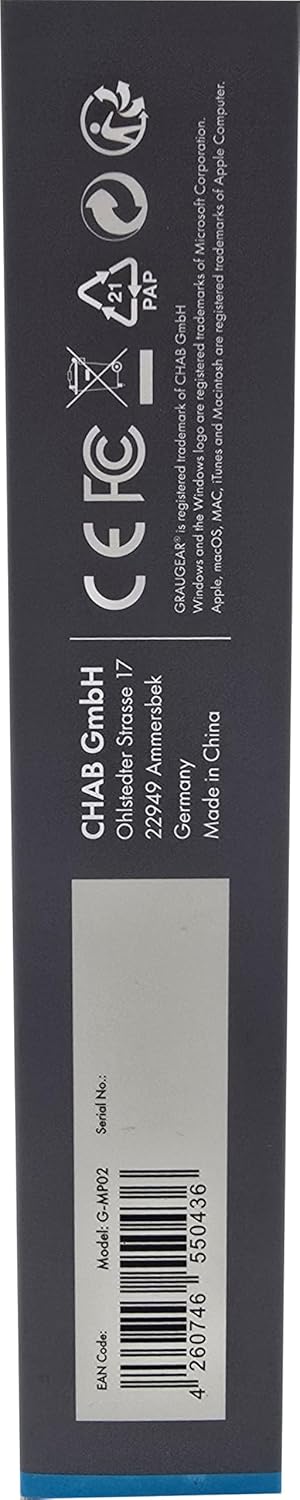
Image: Contents of the GRAUGEAR G-MP02 package, including the front panel hub, cables, mounting screws, guarantee card, and user manual.
3. Specifications
| Attribute | Detail |
|---|---|
| Model Number | G-MP02 (18045) |
| Brand | GRAUGEAR |
| Hardware Interface | USB Type C, USB Type A |
| Ports | 2x USB 3.2 Gen 2 Type-A, 2x USB 3.2 Gen 2 Type-C |
| Data Transfer Speed | Up to 10Gbps |
| Compatibility | Windows 7, 8, 10, 11 (PC Hardware Platform) |
| Installation Bay | 3.5-inch drive bay |
| Required Connectors | USB 3.2 Type-E Key-A 20-Pin Header, 15-Pin SATA Power Connector |
| Product Dimensions (LxWxH) | 4.02 x 4.02 x 0.98 inches (102 x 102 x 25 mm) |
| Item Weight | 6.3 ounces (158g) |

Image: Detailed diagram showing the dimensions and connection types of the GRAUGEAR G-MP02 front panel hub, including cable lengths for the USB 3.2 Gen 2 Key-A and SATA power cables.
4. Setup & Installation
Follow these steps to properly install your GRAUGEAR G-MP02 Front Panel USB Hub:
- Prepare your PC: Ensure your computer is powered off and unplugged from the wall outlet. Open your PC case to access the internal components.
- Locate a 3.5-inch bay: Identify an available 3.5-inch drive bay in your PC case. This is typically where floppy disk drives or card readers would be installed.
- Insert the Front Panel Hub: Carefully slide the GRAUGEAR G-MP02 into the chosen 3.5-inch bay from the front of the case.
- Secure the Hub: Use the provided mounting screws (6x) to firmly secure the front panel hub to the PC case.
- Connect the USB 3.2 Key-A Cable: Locate the USB 3.2 Type-E Key-A 20-Pin header on your motherboard. Connect the corresponding cable from the front panel hub to this header. Note: Some older motherboards may not have this header. An adapter (USB 3.0 to Type-E Key-A) or a Type-E PCIe card may be required.
- Connect the SATA Power Cable: Connect the 15-pin SATA power cable from the front panel hub to an available 15-pin SATA power connector from your power supply unit (PSU). This connection is essential for the hub's operation.
- Close PC Case: Once all connections are secure, close your PC case and reconnect the power cable.
- Power On: Power on your computer. The hub should be automatically recognized by your operating system without requiring additional drivers.

Image: A three-step visual guide demonstrating the installation process: inserting the hub into a 3.5-inch bay, fixing it with screws, and connecting the USB 3.2 Key-A and SATA power cables to the motherboard and PSU.

Image: The GRAUGEAR G-MP02 hub with its USB 3.2 Gen 2 Key-A cable and SATA 15-pin power cable clearly visible, illustrating the necessary connections for installation.
Installation Video Guide
Video: An official GRAUGEAR video demonstrating the unboxing and installation process of the 3.5 Inch 10Gbps USB-C PC Front Panel Hub, showing how to connect it to the motherboard and power supply.
5. Operation
Once installed, the GRAUGEAR G-MP02 hub operates automatically. Simply connect your USB devices to the available ports:
- USB 3.2 Gen 2 Type-A Ports: Use these ports for standard USB devices such as flash drives, external hard drives, keyboards, and mice. These ports support data transfer speeds up to 10Gbps.
- USB 3.2 Gen 2 Type-C Ports: Use these ports for devices with a USB-C connector, including modern smartphones, tablets, and external SSDs. These ports also support data transfer speeds up to 10Gbps.
The hub is designed for plug-and-play functionality, meaning devices should be recognized immediately upon connection without the need for additional software or drivers.

Image: The GRAUGEAR G-MP02 hub demonstrating its fast data transfer capabilities, showing various USB-A and USB-C devices that can be connected.
6. Maintenance
To ensure the longevity and optimal performance of your GRAUGEAR G-MP02 Front Panel USB Hub, follow these simple maintenance guidelines:
- Cleaning: Regularly clean the exterior of the hub and the port openings using a soft, dry, lint-free cloth. Avoid using liquid cleaners or abrasive materials.
- Dust Prevention: Keep your PC case clean and free of dust to prevent accumulation inside the hub, which can affect performance and lifespan.
- Proper Handling: Avoid applying excessive force when inserting or removing USB devices to prevent damage to the ports.
- Cable Management: Ensure that the internal cables (USB 3.2 Key-A and SATA power) are not kinked or strained, which could lead to connection issues.
7. Troubleshooting
If you encounter issues with your GRAUGEAR G-MP02 hub, please refer to the following common troubleshooting steps:
- No Power/Not Detected:
- Ensure the 15-pin SATA power cable is securely connected to both the hub and your PC's power supply.
- Verify that your power supply is functioning correctly.
- Devices Not Recognized:
- Check if the USB 3.2 Type-E Key-A 20-Pin cable is firmly connected to the correct header on your motherboard.
- Try connecting the device to a different port on the hub or directly to your motherboard's USB ports to rule out device issues.
- Restart your computer.
- Ensure your operating system is up to date.
- Slow Data Transfer Speeds:
- Confirm that the connected device supports USB 3.2 Gen 2 (10Gbps) speeds. Older USB 2.0 or 3.0 devices will operate at their respective maximum speeds (480Mbps or 5Gbps).
- Ensure the USB 3.2 Type-E Key-A cable is properly seated and not damaged.
- Avoid connecting multiple high-bandwidth devices simultaneously if you experience slowdowns.
- Intermittent Connection:
- Check all internal cable connections for looseness.
- Ensure the hub is securely mounted in the 3.5-inch bay.
- Verify that the motherboard's USB 3.2 header is stable and not experiencing issues.
8. Warranty & Support
GRAUGEAR products are designed for reliability and performance. For warranty information and technical support, please refer to the guarantee card included in your package or visit the official GRAUGEAR website.
For customer support, you may also contact GRAUGEAR USA directly. Details can be found on the provided customer support card or by visiting the GRAUGEAR store on Amazon.

Image: The rear view of the GRAUGEAR G-MP02 hub, showing regulatory marks (CE, FCC) and manufacturer information, indicating compliance with international standards.
Official Website: www.graugear.de
GRAUGEAR Amazon Store: GRAUGEAR USA Store
Related documentsG-MP02


Ask a question about this manual
Ask about setup, troubleshooting, compatibility, parts, safety, or missing instructions. Manuals+ will review the question and use this page’s manual context to help answer it.