
Stone White
Heyday Sound Bar User Manual
Model: Stone White
1. Introduction
This manual provides essential instructions for the setup, operation, and maintenance of your Heyday Bluetooth Sound Bar, Model Stone White. This soundbar is designed to deliver spacious sound and clear dialogue, enhancing your audio experience for various devices.
2. Safety Information
Please read all safety instructions carefully before using this product. Retain this manual for future reference.
- Do not expose the device to water or moisture.
- Do not block any ventilation openings.
- Ensure the power cord is not pinched or walked on.
- Only use attachments/accessories specified by the manufacturer.
- Unplug the device during lightning storms or when unused for long periods.
- Refer all servicing to qualified service personnel.
3. Package Contents
Verify that all items listed below are included in your package:
- Heyday Bluetooth Sound Bar (Stone White)
- Remote Control (with batteries)
- Optical Cable (6ft)
- AUX Cable (6ft)
- RCA to AUX Cable (6ft)
- Power Cable with Wall Adapter (6ft)
4. Product Overview
Familiarize yourself with the components of your Heyday Sound Bar.
4.1 Front View
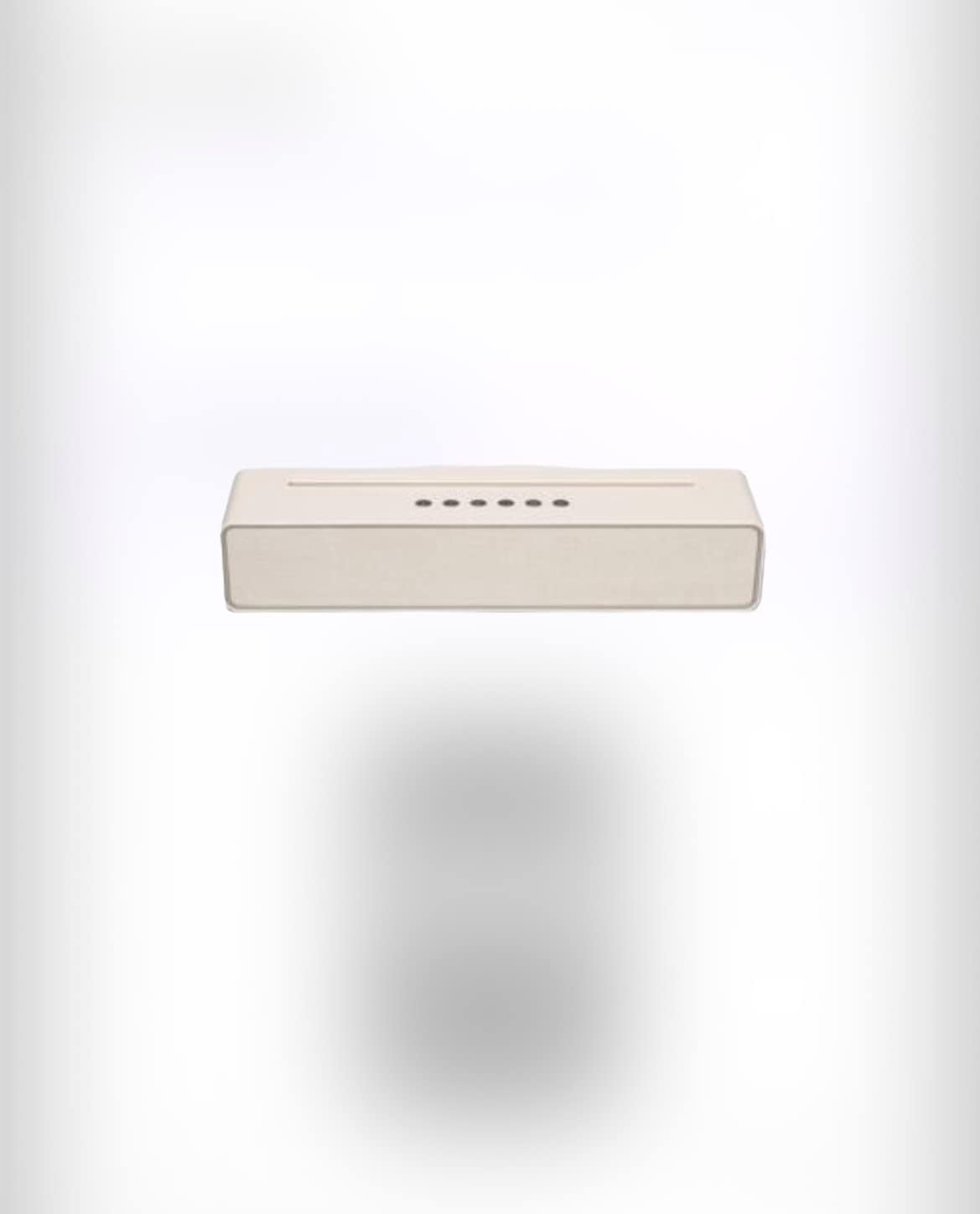
Image 1: Front view of the Heyday Sound Bar, showing the speaker grille and control indicators.
- Speaker Grille: Protects the internal speakers.
- Indicator Lights: Display current input mode and status.
4.2 Rear View (Connections)
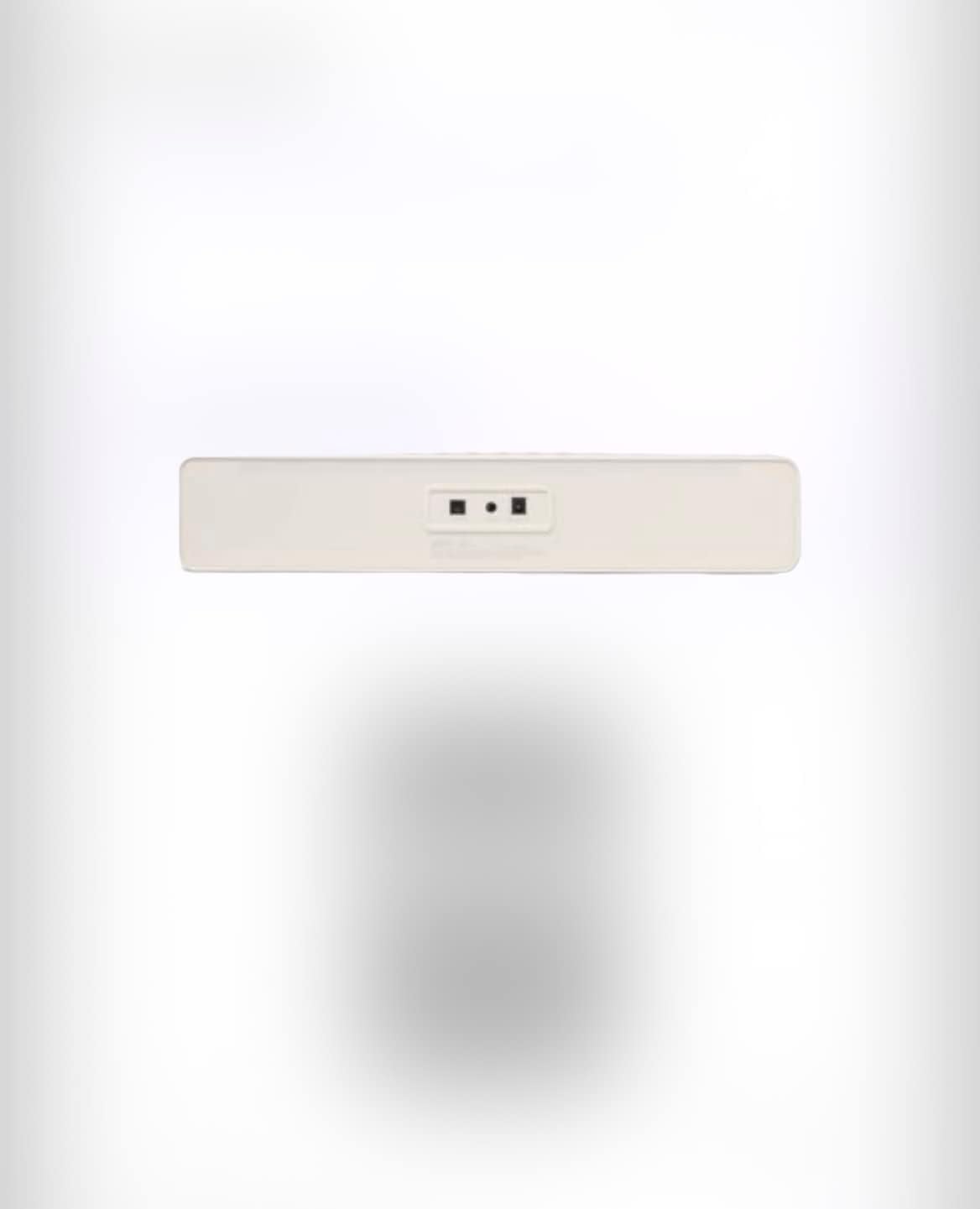
Image 2: Rear view of the Heyday Sound Bar, highlighting the various audio input ports.
- Optical Input: For connecting to devices with an optical audio output.
- AUX Input: For connecting to devices with a 3.5mm audio output.
- RCA Input: For connecting to devices with RCA audio outputs (using the RCA to AUX cable).
- Power Input: For connecting the power adapter.
4.3 Top View (Controls and Tablet Holder)

Image 3: Top view of the Heyday Sound Bar, showing the integrated tablet holder and the included remote control.
- Integrated Tablet Holder: Convenient slot for holding a tablet or smartphone.
- On-device Controls: Buttons for power, volume, and input selection (details in Operating section).
5. Setup
5.1 Power Connection
- Connect the power cable to the Power Input port on the back of the soundbar.
- Plug the other end of the power cable into a wall outlet.
- The soundbar will enter standby mode.
5.2 Audio Connections
Choose one of the following connection methods based on your audio source device:
Optical Connection (Recommended for Digital Audio)
- Connect one end of the optical cable to the Optical Input port on the soundbar.
- Connect the other end to the optical audio output port on your TV or other audio device.
- Select "Optical" as the input source on the soundbar.
AUX Connection (3.5mm Analog Audio)
- Connect one end of the AUX cable to the AUX Input port on the soundbar.
- Connect the other end to the 3.5mm audio output (headphone jack) on your device.
- Select "AUX" as the input source on the soundbar.
RCA Connection (Analog Audio)
- Connect the RCA ends of the RCA to AUX cable to the RCA audio output ports (red and white) on your TV or device.
- Connect the 3.5mm end of the RCA to AUX cable to the AUX Input port on the soundbar.
- Select "AUX" as the input source on the soundbar.
5.3 Bluetooth Pairing
- Power on the soundbar.
- Press the "Bluetooth" button on the remote or the soundbar's control panel to switch to Bluetooth mode. The indicator light will flash.
- On your mobile device (smartphone, tablet, etc.), enable Bluetooth and search for available devices.
- Select "Heyday Sound Bar" from the list of devices.
- Once paired, the indicator light on the soundbar will stop flashing and remain solid. You can now stream audio wirelessly.
- The Bluetooth range is approximately 33 feet (10 meters).
6. Operating Instructions
6.1 Basic Controls
- Power Button: Press to turn the soundbar on or off.
- Volume Up/Down: Adjust the master volume level.
- Input/Source Button: Cycle through available input sources (Optical, AUX, Bluetooth).
6.2 Using the Remote Control
The included remote control provides full functionality for your soundbar. Ensure batteries are correctly inserted.
- Power: Turn the soundbar on/off.
- Volume +/-: Increase or decrease volume.
- Mute: Mute or unmute the sound.
- Source/Input: Select input mode (BT, OPT, AUX).
- Play/Pause (BT mode): Play or pause audio playback.
- Previous/Next Track (BT mode): Skip to the previous or next track.
7. Maintenance
- Cleaning: Use a soft, dry cloth to clean the surface of the soundbar. Do not use liquid cleaners or abrasive materials.
- Storage: If storing the soundbar for an extended period, unplug it from the power outlet and store it in a cool, dry place.
8. Troubleshooting
| Problem | Possible Cause | Solution |
|---|---|---|
| No power | Power cable not connected or outlet not active. | Ensure power cable is securely connected and the outlet is functional. |
| No sound | Incorrect input source selected, volume too low, or audio cable not connected. | Verify the correct input source is selected. Increase volume. Check audio cable connections. |
| Bluetooth not connecting | Soundbar not in pairing mode, device too far, or previously paired. | Ensure soundbar is in Bluetooth pairing mode. Move device closer. Forget "Heyday Sound Bar" on your device and re-pair. |
| Remote control not working | Batteries are dead or incorrectly inserted. Obstruction between remote and soundbar. | Replace batteries. Ensure clear line of sight to the soundbar's sensor. |
9. Specifications
| Feature | Detail |
|---|---|
| Model Name | Stone White |
| Brand | Generic |
| Connectivity Technology | Bluetooth 5.0, Auxiliary, Optical, RCA |
| Wireless Range | 33 Feet (10 meters) |
| Audio Output Mode | Stereo (2.0 Channel) |
| Speaker Size | 16 Inches |
| Maximum Speaker Power Output | 100 Watts |
| Compatible Devices | Laptop, Smartphone, Tablet, Televisions, Computers |
| Control Method | Remote, On-device buttons |
| Power Source | Corded Electric |
| Material | Plastic |
| Product Dimensions | 7.62 x 9.53 x 40.64 cm; 1.88 kg |
10. Warranty and Support
This product comes with a standard manufacturer's warranty. For detailed warranty information, please refer to the documentation included with your purchase or contact the retailer.
For technical support or service inquiries, please contact the product manufacturer or your point of purchase.