
SENGBIRCH Keyboard for iPad Pro 12.9 (2018-2022)
SENGBIRCH iPad Pro 12.9-inch Keyboard Case User Manual
Model: Keyboard for iPad Pro 12.9 (2018-2022)
Brand: SENGBIRCH
1. Introduction
This manual provides instructions for the SENGBIRCH Keyboard Case for iPad Pro 12.9-inch. This accessory transforms your iPad into a versatile workstation, offering a comfortable typing experience, multi-touch trackpad, and comprehensive protection.
Compatibility
This keyboard case is compatible with the following iPad Pro 12.9-inch models:
- iPad Pro 12.9-inch 6th Generation (2022): A2436, A2437, A2764, A2766
- iPad Pro 12.9-inch 5th Generation (2021): A2378, A2379, A2461, A2462
- iPad Pro 12.9-inch 4th Generation (2020): A2229, A2069, A2232, A2233
- iPad Pro 12.9-inch 3rd Generation (2018): A1876, A2014, A1895, A1983
It is not compatible with 9.7-inch iPad 5th or 6th generation devices.
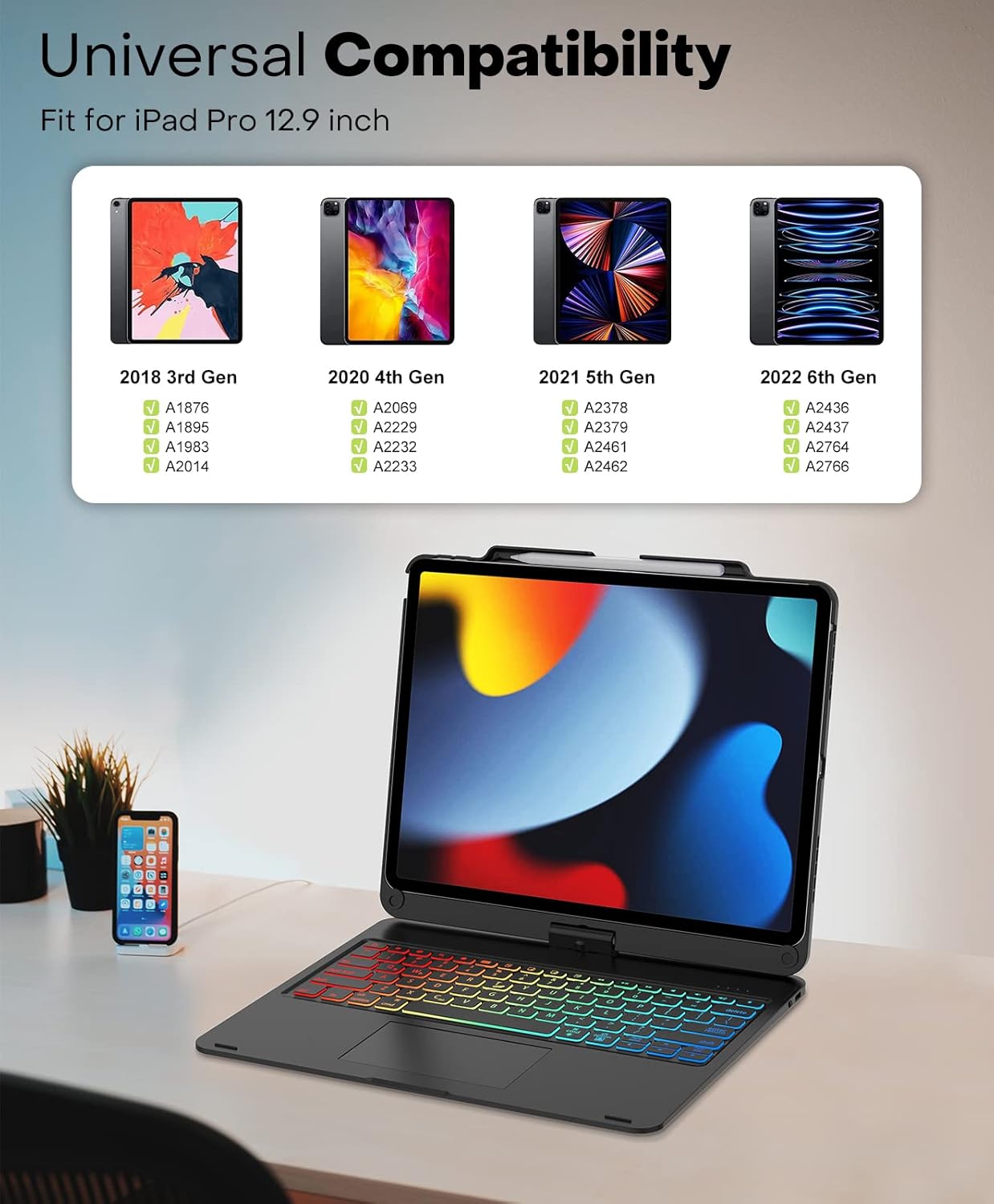
The image displays a compatibility chart, illustrating the various iPad Pro 12.9-inch models (2018 3rd Gen, 2020 4th Gen, 2021 5th Gen, 2022 6th Gen) and their corresponding model numbers that are compatible with this keyboard case.
2. What's in the Box
Upon opening the package, you will find the following items:
- 1 x Keyboard Case for iPad Pro 12.9 inch (3rd, 4th, 5th, 6th Generation)
- 1 x USB-C Charging Cable
- 1 x User Manual
Please note: The iPad tablet and Apple Pencil are NOT included.
3. Setup
3.1 Installing Your iPad
Gently align your iPad Pro 12.9-inch with the case. The case features a magnetic attachment system. Ensure the iPad's camera aligns with the cutout on the case. The iPad will snap securely into place.

This image shows the iPad Pro 12.9-inch fully integrated into the SENGBIRCH keyboard case, highlighting the vibrant backlit keyboard and the multi-touch trackpad in use.
3.2 Bluetooth Pairing
To connect the keyboard to your iPad:
- Ensure the keyboard is turned on and fully charged. Connect the provided USB-C cable to the keyboard's charging port and a power source.
- Turn on the keyboard using the power switch, usually located on the side or back of the keyboard.
- On your iPad, go to Settings > Bluetooth.
- Turn on Bluetooth. Your iPad will search for available devices.
- Locate "MF-12 91AD" or a similar name in the "MY DEVICES" list and tap to connect.
- Once connected, the keyboard will automatically recognize and connect to your iPad each time it is turned on.

The image depicts the Bluetooth connection interface on an iPad, showing the keyboard case successfully paired and connected, along with icons representing compatibility with iOS, Windows, and Android operating systems.
4. Operating Instructions
4.1 Keyboard Functions
The keyboard provides a full QWERTY layout with dedicated function keys for iPadOS shortcuts. Key features include:
- Wider Key Pitch: Designed for comfortable and accurate typing, reducing errors.
- Shortcut Keys: Control media playback (next, back, pause, volume, mute) directly from the keyboard.
- Command Key Functions: Mimics many Apple keyboard functions, such as Command + Tab for app switching, and Command + C/V for copy/paste. Pressing the Command key alone can also bring up a shortcut overlay on the iPad screen.

This image provides a close-up view of the keyboard, showcasing its full layout with RGB backlighting, highlighting the key design and spacing for an enhanced typing experience.
4.2 Backlight Control
The keyboard features 7-color backlighting with adjustable brightness levels:
- Colors: 1 solid cyan backlight and 6 tricolor backlights.
- Brightness: 3 levels of brightness.
- Backlit Switch: Press Fn + Cmd to toggle the backlight on/off.
- Switch Color: Press Fn + Alt/Option to cycle through backlight colors.
- Breathing Light Switch: Press Fn + Q to activate/deactivate the breathing light effect.
- Brightness Adjustment: Press Fn + W to adjust backlight brightness.

This diagram illustrates the RGB backlight features of the keyboard, showing the available colors, brightness levels, and key combinations for controlling the backlight, including switching colors and activating a breathing light effect.
4.3 Multi-Touch Trackpad
The integrated trackpad offers high precision and sensitivity, supporting multi-finger gestures for efficient navigation of your iPad. Common gestures include:
- Swipe: Navigate through content.
- Pinch: Zoom in or out.
- Scroll: Move through documents or web pages.
- Multi-finger Gestures: Control various iPadOS functions, as detailed in the included user manual.

This image shows a hand interacting with the multi-touch trackpad on the keyboard case, illustrating its responsive surface for precise cursor control and gesture navigation.
4.4 360° Rotation and Viewing Modes
The case features a flexible 360-degree hinge, allowing you to rotate your iPad to various angles and modes:
- Laptop Mode: Traditional laptop setup for typing and productivity.
- Stand Mode: Fold the keyboard back to use the iPad as a display for watching videos or presentations.
- Tablet Mode: Fold the keyboard completely behind the iPad for handheld tablet use.
- Share Mode: Rotate the screen to share content with others.
The hinge allows for smooth adjustment to any desired viewing angle up to 130 degrees, providing versatility for work, entertainment, and sharing.

This image displays four different usage scenarios for the keyboard case: Laptop mode for typing, Stand mode for viewing, Tablet mode for handheld use, and Share mode for collaborative viewing, demonstrating the 360-degree swivel capability.
5. Maintenance
5.1 Cleaning
To maintain the appearance and functionality of your keyboard case:
- Wipe the exterior with a soft, damp cloth. Avoid abrasive cleaners or solvents.
- For the keyboard keys, use a soft, lint-free cloth. A small brush or compressed air can be used to remove debris between keys.
- Ensure the charging port is free of dust and debris.
5.2 Battery Care
The keyboard is powered by a built-in Lithium Ion battery. To prolong battery life:
- Charge the keyboard fully before first use.
- Avoid extreme temperatures.
- If storing for an extended period, charge the battery to about 50% every few months.
- Use the provided USB-C cable for charging.

This image highlights the USB-C charging port on the keyboard case, with a charging cable plugged in, indicating the method for recharging the device's internal battery.
6. Troubleshooting
6.1 Connection Issues
- Keyboard not connecting:
- Ensure the keyboard is turned on and fully charged.
- Check that Bluetooth is enabled on your iPad.
- Forget the device in your iPad's Bluetooth settings and re-pair it.
- Restart both your iPad and the keyboard.
- Intermittent connection:
- Ensure no other Bluetooth devices are causing interference.
- Keep the keyboard and iPad within close proximity.
6.2 Keyboard/Trackpad Not Responding
- Ensure the keyboard is connected via Bluetooth.
- Check the keyboard's battery level.
- Restart your iPad.
- If specific keys are not working, ensure no debris is lodged beneath them.
7. Specifications
| Feature | Detail |
|---|---|
| Product Dimensions | 11.14 x 9.53 x 0.59 inches |
| Item Weight | 2.66 pounds |
| Manufacturer | SENGBIRCH |
| Item Model Number | Keyboard for iPad Pro 12.9 (2018-2022) |
| Batteries | 1 Lithium Ion battery required (included) |
| Connectivity Technology | Bluetooth, USB-C |
| Keyboard Description | Wireless / Rechargeable / Touchpad / Backlight |
| Special Features | Ergonomic, Backlit, Hotkeys and Media Keys, Rechargeable, Trackpad |
| Color | 360 Black (RGB Backlighting) |
| Number of Keys | 81 |
8. Warranty and Support
For warranty information and customer support, please refer to the official SENGBIRCH website or contact their customer service directly.
You can visit the SENGBIRCH Store on Amazon for more information: SENGBIRCH Amazon Store
A Safety Information PDF is also available: Safety Information (PDF)
Related Documents - Keyboard for iPad Pro 12.9 (2018-2022)
 |
SENGBIRCH F07 Keyboard Case for iPad Pro 12.9-inch (1st/2nd Gen) - User Manual Detailed user manual for the SENGBIRCH F07 keyboard case, compatible with iPad Pro 12.9-inch (1st and 2nd Generation). Covers installation, Bluetooth pairing, keyboard functions, charging, product parameters, and disposal. |
 |
typecase Touch iPad Pro 11 Keyboard Case with Trackpad - User Manual User manual for the typecase Touch iPad Pro 11-inch keyboard case (model KB201T-110). Discover features like the multi-touch trackpad, 360° rotation, and customizable backlighting. This thin and light case is designed for iPad Pro 11" (2021), iPad Air 5th Gen, and iPad Air 4th Gen, available in Pacific Blue and Violet. |
 |
Logitech Combo Touch & Crayon User Manuals Detailed user guides for the Logitech Combo Touch keyboard case and Logitech Crayon digital pencil, covering setup, features, compatibility, and care for various iPad models. |
 |
Typecase Edge Magic Style Keyboard for iPad Pro 12.9 Inch User Manual Comprehensive user manual for the Typecase Edge Magic Style Keyboard, detailing setup, features, and usage for iPad Pro 12.9 Inch (6th, 5th, 4th, 3rd Gen) with trackpad and backlit keys. |
 |
LENRICH LBK129-22 Wireless Bluetooth Keyboard Case User Manual User manual for the LENRICH LBK129-22 wireless Bluetooth keyboard case, featuring a 7-color backlit trackpad and 360-degree rotation. Includes setup, usage, and troubleshooting for tablet PCs. |
 |
NokBabo iPad Keyboard Case with Touchpad User Manual Comprehensive user manual for the NokBabo iPad Keyboard Case with Touchpad, detailing features, setup, Bluetooth pairing, keyboard functions, touchpad gestures, backlight controls, and troubleshooting for various iPad models. |