
Introduction
Thank you for choosing the Blackburn Grid 2'Fer Front and Rear Light Set. This manual provides essential information for the safe and efficient use of your new bicycle lights. The Grid 2'Fer is designed to enhance your visibility and safety during cycling, offering both white front light and red rear light capabilities with multiple modes and a rechargeable power source.
What's in the Box
- One (1) Grid 2'Fer Front Light (175 Lumens)
- One (1) Grid 2'Fer Rear Light (55 Lumens)
- One (1) USB-A to USB-C charging cable

Image: The Blackburn Grid 2'Fer Front and Rear Light Set, showing both lights and the charging cable.
Setup
Mounting the Lights
The Grid 2'Fer lights feature a versatile mounting system for easy attachment to your bicycle. Both lights can be mounted using the integrated silicone strap or clip.
- Handlebar/Seatpost Mount:
Secure the light to your handlebar (front light) or seatpost (rear light) using the flexible silicone strap. Ensure the strap is pulled tight for a secure fit. The light should be positioned to provide maximum visibility without obstructing your view or controls.
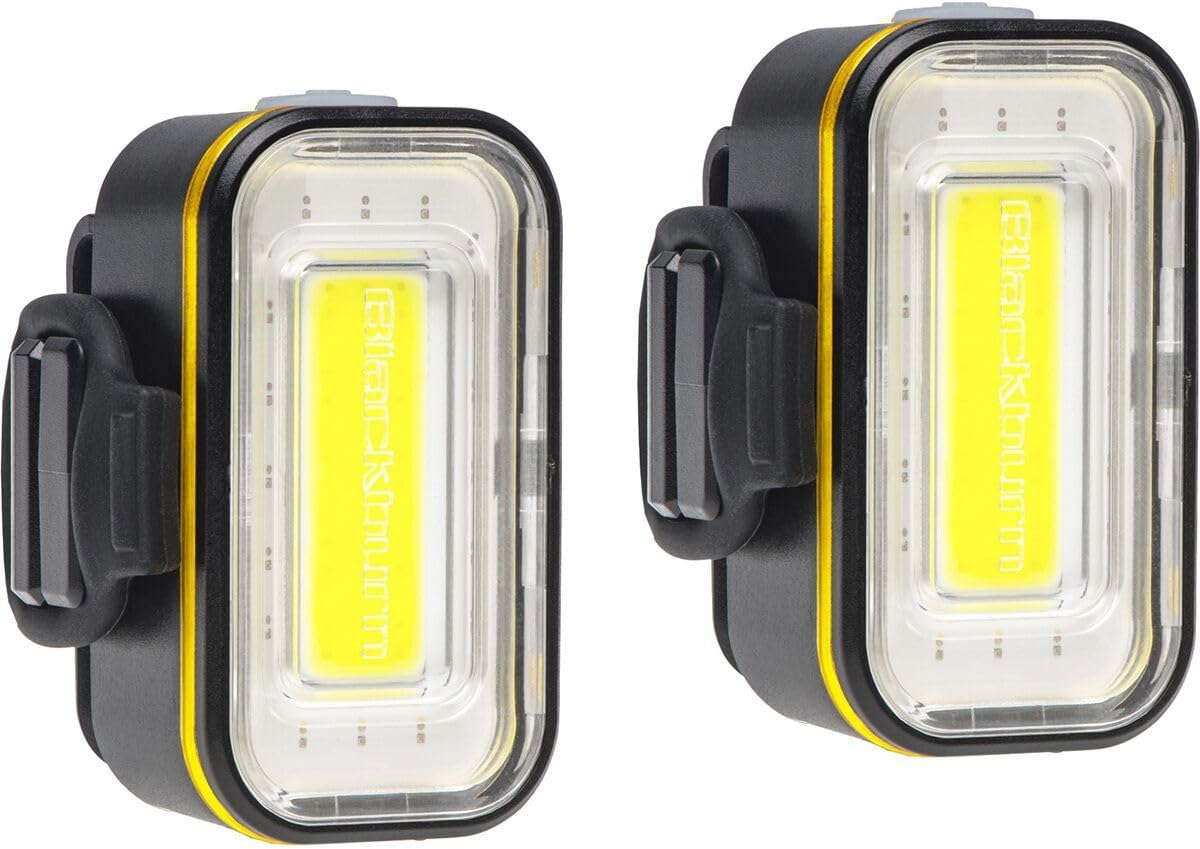
Image: Side view of the Blackburn Grid 2'Fer light showing the integrated silicone strap for mounting.
- Clip Mount:
For alternative mounting locations, such as bags or clothing, use the integrated clip. Ensure the clip is firmly attached to prevent the light from falling off during use.

Image: Rear view of the Blackburn Grid 2'Fer light showing the integrated clip for attachment to clothing or bags.
Initial Charge
Before first use, fully charge both lights. Refer to the "Charging" section for detailed instructions.
Operating Instructions
Power On/Off
- To turn the light ON, press and hold the power button for approximately 1 second.
- To turn the light OFF, press and hold the power button for approximately 1 second.
Switching Between White and Red Light
The Grid 2'Fer lights can function as either a white front light or a red rear light.
- While the light is ON, quickly double-click the power button to switch between white and red light modes.

Image: The Blackburn Grid 2'Fer light illuminated with white light, suitable for front use.
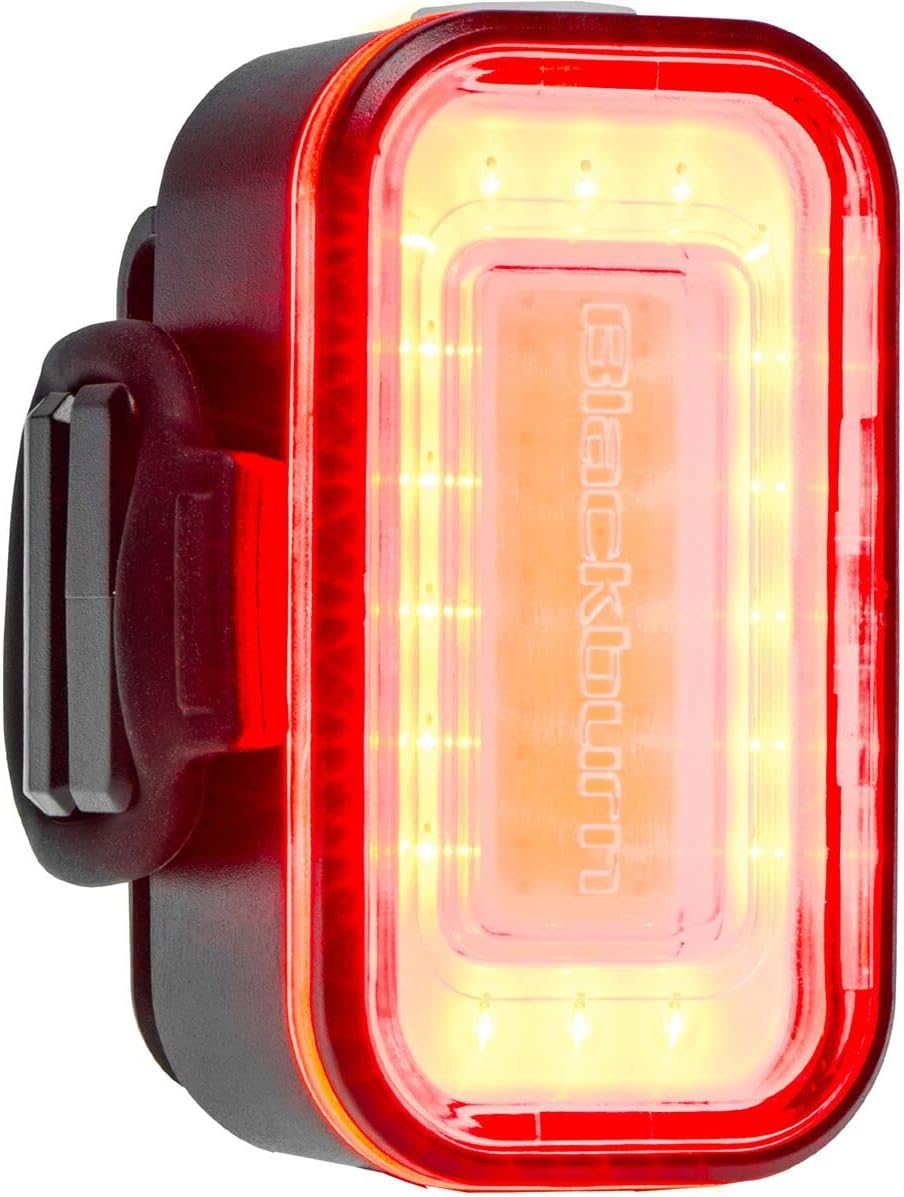
Image: The Blackburn Grid 2'Fer light illuminated with red light, suitable for rear use.
Changing Light Modes
Each light (white or red) offers four distinct modes:
- While the light is ON, single-click the power button to cycle through the available modes.
- Available modes typically include:
- High Steady
- Low Steady
- Pulse
- Strobe
- The light will remember the last mode used when turned off and on again within the same color setting.
Charging
The Grid 2'Fer lights are equipped with a USB-C charging port for convenient recharging.
- Locate the USB-C charging port on the light. This is typically covered by a rubber flap to protect against water and dust.
- Open the rubber flap and insert the USB-C end of the provided charging cable into the light's port.
- Connect the USB-A end of the cable to a powered USB port (e.g., computer, wall adapter, power bank).
- The battery gauge LED (integrated into the power button) will indicate charging status:
- Green: 100-50% charge
- Orange: 50-25% charge
- Red: 25-0% charge (time to charge)
- Once fully charged, the LED indicator will change (refer to product-specific behavior, typically solid green or off). Disconnect the light from the charging cable and securely close the rubber flap to maintain water resistance.

Image: Bottom view of the Blackburn Grid 2'Fer light, highlighting the USB-C charging port with its protective cover.

Image: The Blackburn Grid 2'Fer light connected via its USB-C cable to a laptop's USB-A port for charging.
Maintenance
Cleaning
To maintain optimal performance and appearance:
- Wipe the light body with a soft, damp cloth.
- Avoid using abrasive cleaners or solvents, as these can damage the casing or lens.
- Ensure the USB-C port cover is clean and properly sealed after charging or cleaning to maintain water resistance.
Storage
When not in use for extended periods:
- Store the lights in a cool, dry place.
- Charge the lights periodically (e.g., every 3-6 months) to prevent deep discharge and prolong battery life.
Troubleshooting
| Problem | Possible Cause | Solution |
|---|---|---|
| Light does not turn on. | Battery is depleted. | Charge the light using the provided USB-C cable. |
| Light does not charge. | Faulty cable or power source; USB-C port not fully inserted. | Try a different USB-C cable or power source. Ensure the cable is fully inserted into the light's port. |
| Light switches off unexpectedly. | Low battery. | Recharge the light. |
| Light housing separates. | Impact or manufacturing defect. | Contact Blackburn customer support for assistance. |
Specifications
| Feature | Detail |
|---|---|
| Brand | Blackburn |
| Model Number | 7149586 |
| Front Light Output | 175 Lumens |
| Rear Light Output | 55 Lumens |
| Light Source | COB LEDs |
| Power Source | Battery Powered (Rechargeable) |
| Charging Port | USB-C |
| Water Resistance | IP65 (Dust tight and protected against water jets) |
| Mounting Type | Handlebar Mount / Clip Mount |
| Number of Settings | 4 (per color mode) |
| Material | Plastic |
| Standards Met | ANSI FL-1 Standard |
Warranty and Support
Warranty Information
This product comes with a 2-Year Warranty Provision for Battery or Electrically Powered Products, Product Components, and Accessories for Such Products. Please retain your proof of purchase for warranty claims.
For detailed warranty terms and conditions, please refer to the official Blackburn website or contact customer support.
Customer Support
If you encounter any issues or have questions not covered in this manual, please contact Blackburn customer support:
- Visit the official Blackburn website for support resources and contact information.
- Refer to your product packaging for specific customer service contact details.


