
Introduction
This manual provides comprehensive instructions for the setup, operation, maintenance, and troubleshooting of your Akai Professional Recording Studio Package. This package includes the Akai Professional MPK Mini Plus USB MIDI Keyboard Controller and the M-AUDIO AIR 192I4 Audio Interface, designed to provide a complete solution for music production and recording.
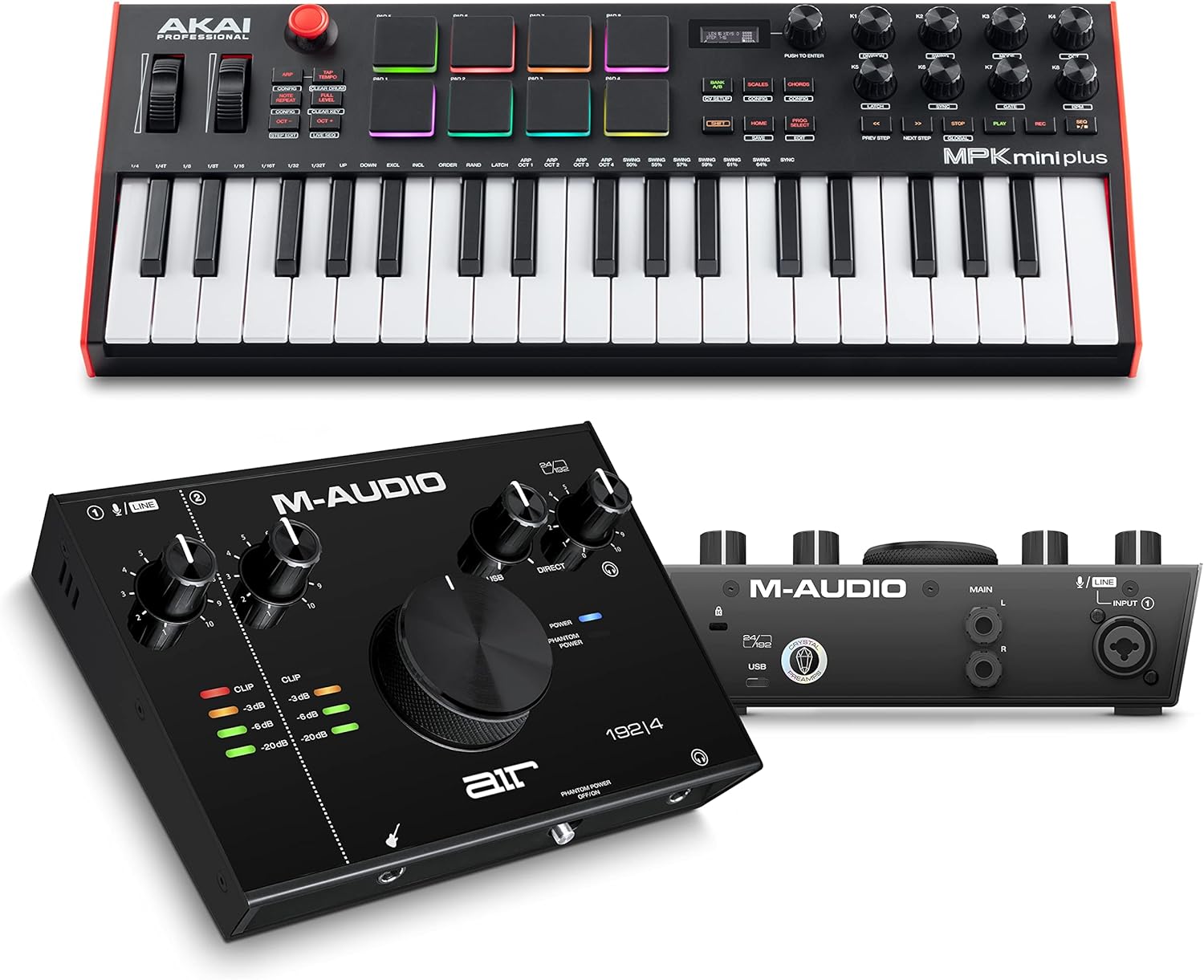
Image: The Akai Professional Recording Studio Package, featuring the MPK Mini Plus MIDI keyboard controller and the M-AUDIO AIR 192I4 audio interface.
Setup
MPK Mini Plus USB MIDI Keyboard Controller Setup
- Connect to Computer: Use the provided USB cable to connect the MPK Mini Plus to an available USB port on your computer. The device is USB-powered.
- Software Installation: Install the bundled music production software, including MPC Beats, by following the instructions provided with your product registration. This software is essential for full functionality.
- Driver Installation: Ensure any necessary drivers are installed. For most modern operating systems, the device will be class-compliant, but checking the Akai Professional website for the latest drivers is recommended.

Image: The MPK Mini Plus connected to a laptop, demonstrating its advanced connectivity with other hardware devices.
M-AUDIO AIR 192I4 Audio Interface Setup
- Connect to Computer: Connect the AIR 192I4 to your computer using the included USB-C or USB-A cable. The interface is bus-powered.
- Install Drivers: Download and install the latest drivers for the M-AUDIO AIR 192I4 from the M-Audio website to ensure optimal performance and compatibility.
- Connect Microphones/Instruments: Plug your microphones into the XLR+1/4" combo input and instruments (like guitars) into the dedicated 1/4" instrument input.
- Connect Monitoring: Connect your studio monitors to the stereo 1/4" outputs and headphones to the 1/4" headphone output.
- Phantom Power: If using condenser microphones, activate the +48V Phantom Power switch on the interface.

Image: The M-AUDIO AIR 192I4 audio interface demonstrating its connectivity options for instruments, headphones, and computer.
Operating the MPK Mini Plus
The MPK Mini Plus is a versatile MIDI keyboard controller designed for creative expression and seamless integration with your Digital Audio Workstation (DAW) and other hardware.
- 37 Mini Keys: The Gen 2 dynamic keybed provides 3 full octaves for expanded melodic and harmonic creation, offering a wide velocity range for expressive playing.
- 8 MPC Pads: Velocity-sensitive drum pads are ideal for playing beats, triggering samples, and programming drums.
- 8 Assignable Knobs: These 360-rotary knobs can be assigned to control various parameters in your DAW or virtual instruments, such as filters, automation, and pan controls.
- Transport Controls: Dedicated buttons allow for intuitive control of your DAW's transport functions (Play, Stop, Record, Rewind, Fast-Forward).
- 2-Track Step Sequencer: Capture ideas on the fly with the built-in sequencer, capable of recording up to 8 notes per chord step and up to 16 note drum step patterns.
- Connectivity: Features USB for computer connection, 5-pin MIDI I/O for external MIDI devices, and CV/Gate connectors for interfacing with modular synthesizers and other analog gear.

Image: A close-up view of the MPK Mini Plus, illustrating its key features including the 37 mini keys, 8 MPC pads, 8 control knobs, joystick, and pitch/modulation wheels.

Image: The MPK Mini Plus with its 2-track 64-step sequencer, demonstrating its capability to capture musical ideas instantly.
Operating the M-AUDIO AIR 192I4
The M-AUDIO AIR 192I4 is a high-resolution audio interface designed for studio-quality recordings with low latency.
- High-Resolution Audio: Supports 24-bit/192kHz resolution for professional recording and monitoring, capturing every nuance of your performance.
- Crystal™ Preamps: Equipped with transparent, low-noise Crystal™ Preamps that ensure the best sound from your microphones.
- Inputs: Features one XLR+1/4" TRS combo input for microphones and line-level sources, and one dedicated 1/4" instrument input with a specially designed gain and impedance stage for guitars and basses.
- Outputs: Includes stereo 1/4" main outputs and a 1/4" headphone output with independent level control for flexible monitoring.
- Zero-Latency Monitoring: The USB/Direct knob allows for direct monitoring of your input signals with no audible delay.
- Rugged Chassis: Housed in a pro-grade metal chassis for durability and reliability.

Image: A detailed view of the M-AUDIO AIR 192I4 audio interface, highlighting its key features such as VU LED meters, rugged metal chassis, USB/Direct knob for zero-latency monitoring, large central volume control, and phantom power switch.
Software Integration
The Akai Professional Recording Studio Package comes with a comprehensive software suite to get you started with music production immediately:
- AKAI Professional MPC Beats: A powerful DAW (Digital Audio Workstation) for Mac and PC, offering the iconic MPC workflow with thousands of sounds, drum samples, loops, and plugin instruments.
- Ableton Live Lite: A streamlined version of Ableton Live, providing essential workflows for composing, recording, producing, and performing.
- AIR Creative FX Collection: A collection of high-quality effects plugins to enhance your mixes.
- Touch Loops: Access to a library of samples and loops to inspire your creations.
- Xpand!2: A versatile multitimbral workstation plugin offering a wide range of sounds.
- Mini Grand: A virtual piano instrument providing realistic piano sounds.
- Revalver: A guitar amplifier and effects modeling software.
Ensure all software is installed and authorized according to the provided instructions to unlock the full potential of your recording studio package.
Maintenance
Proper maintenance will ensure the longevity and optimal performance of your Akai Professional Recording Studio Package.
- Cleaning: Use a soft, dry, lint-free cloth to clean the surfaces of both the MPK Mini Plus and the M-AUDIO AIR 192I4. Avoid using abrasive cleaners, solvents, or waxes, as these can damage the finish and internal components.
- Storage: When not in use, store the devices in a cool, dry environment away from direct sunlight, extreme temperatures, and excessive humidity.
- Cable Management: Avoid bending or crimping cables excessively. Store cables neatly to prevent damage and ensure reliable connections.
- Dust Protection: Consider using dust covers when the devices are not in use for extended periods to prevent dust accumulation, which can affect performance and lifespan.
Troubleshooting
If you encounter issues with your Akai Professional Recording Studio Package, refer to the following common troubleshooting steps:
- No Sound Output:
- Check all cable connections (USB, audio outputs to speakers/headphones).
- Verify volume levels on the interface, your computer, and within your DAW.
- Ensure the correct audio output device is selected in your computer's sound settings and your DAW's preferences.
- Device Not Recognized by Computer/DAW:
- Try connecting to a different USB port on your computer.
- Use a different USB cable.
- Reinstall the latest drivers for both the MPK Mini Plus and M-AUDIO AIR 192I4 from the manufacturer's websites.
- Restart your computer and the devices.
- High Latency (Delay in Sound):
- Adjust the buffer size in your DAW's audio settings. A lower buffer size reduces latency but requires more CPU power.
- Utilize the M-AUDIO AIR 192I4's direct monitoring feature to hear your input signal without latency.
- Close other applications that may be consuming CPU resources.
- Pads/Keys Not Responding on MPK Mini Plus:
- Ensure the MPK Mini Plus is powered on and connected via USB.
- Check MIDI input settings in your DAW to ensure the MPK Mini Plus is enabled.
- Verify that the correct program or mode is selected on the MPK Mini Plus.
- Microphone Not Working with AIR 192I4:
- If using a condenser microphone, ensure +48V Phantom Power is enabled on the interface.
- Check the input gain knob for the microphone channel.
- Test with a different microphone or cable if possible.
Specifications
Akai Professional MPK Mini Plus
- Keys: 37 velocity-sensitive mini keys (Gen 2 dynamic keybed)
- Pads: 8 velocity-sensitive MPC-style pads with Note Repeat and Full Level
- Knobs: 8 assignable 360-degree rotary knobs
- Controls: Pitch Bend/Modulation Joystick, dedicated transport controls
- Sequencer: 2-track, 64-step sequencer
- Connectivity: USB-B port, 5-pin MIDI In/Out, CV/Gate outputs (Pitch, Gate, Mod)
- Power: USB Bus-powered
- Dimensions: Approximately 18 inches (L) x 7 inches (W) x 2 inches (H)
M-AUDIO AIR 192I4 Audio Interface
- Resolution: 24-bit/192kHz
- Preamps: Crystal™ Preamps
- Inputs: 1 x XLR+1/4" TRS combo input, 1 x 1/4" TS instrument input
- Outputs: 2 x 1/4" TRS main outputs, 1 x 1/4" headphone output
- Monitoring: Direct Monitor knob (USB/Direct)
- Phantom Power: +48V switchable
- Connectivity: USB-C (USB-A compatible with included cable)
- Latency: Class-leading round trip latency of 2.59ms
Warranty and Support
Akai Professional and M-Audio products typically come with a manufacturer's warranty. Please refer to the warranty card included in your product packaging or visit the official Akai Professional and M-Audio websites for detailed warranty information and registration procedures.
For technical support, driver downloads, software updates, and additional resources, please visit the support sections of the Akai Professional and M-Audio official websites. Online knowledge bases, FAQs, and customer support contact information are available to assist you with any queries or issues.