
SAMSUNG EP-P9500TBEGUS
Samsung SmartThings Station User Manual
Model: EP-P9500TBEGUS
1. Introduction and Overview
The Samsung SmartThings Station is an innovative device that serves as both a powerful 15W Super Fast Wireless Charger and a central Smart Home Hub. It is designed to simplify your daily routines by enabling seamless automation and control of compatible smart devices within your home. With its integrated Smart Button, you can activate personalized routines with a single tap, double-tap, or hold. The station also features SmartThings Find integration, helping you locate misplaced devices.

Figure 1.1: Samsung SmartThings Station in a home environment, showcasing its dual functionality as a smart home hub and wireless charger.
What's in the Box
- Samsung SmartThings Station (EP-P9500TBEGUS)
- USB-C to USB-C Cable (1.8m)
- Quick Start Guide (QSG)
2. Setup
Setting up your SmartThings Station is designed to be simple and intuitive. Follow these steps to get started:
- Power Connection: Connect the provided USB-C to USB-C cable to the SmartThings Station and then to a compatible power adapter (25W or above recommended for Super Fast Wireless Charging, sold separately). Plug the power adapter into a wall outlet.
- Download SmartThings App: On your smartphone or tablet (Android 8.0+ or iOS 14+), download the free SmartThings app from your device's app store.
- Initial Connection: Open the SmartThings app. The app should detect the new SmartThings Station nearby and display a pop-up notification to begin the setup process. If no pop-up appears, navigate to 'Add device' within the app and select the SmartThings Station.
- Follow On-Screen Prompts: The app will guide you through connecting the Station to your Wi-Fi network and linking it to your Samsung account. You may be prompted to scan a QR code on the device for seamless connection.
- Device Integration: Once the Station is connected, you can begin adding your smart home devices (e.g., lights, sensors, thermostats) through the SmartThings app. The Station supports Wi-Fi, Bluetooth, Zigbee, Thread, and Matter protocols.

Figure 2.1: Simple and intuitive connection process via the SmartThings app.
3. Operating the SmartThings Station
Wireless Charging Functionality
The SmartThings Station features a 15W Super Fast Wireless Charging pad on its top surface. To charge a compatible device:
- Place your Qi-compatible smartphone or other device directly onto the center of the Station's top surface.
- Ensure the device is properly aligned for optimal charging.
- The charging indicator LED on the Station will illuminate to confirm charging has begun.
- You will receive an alert on your device when charging is complete.
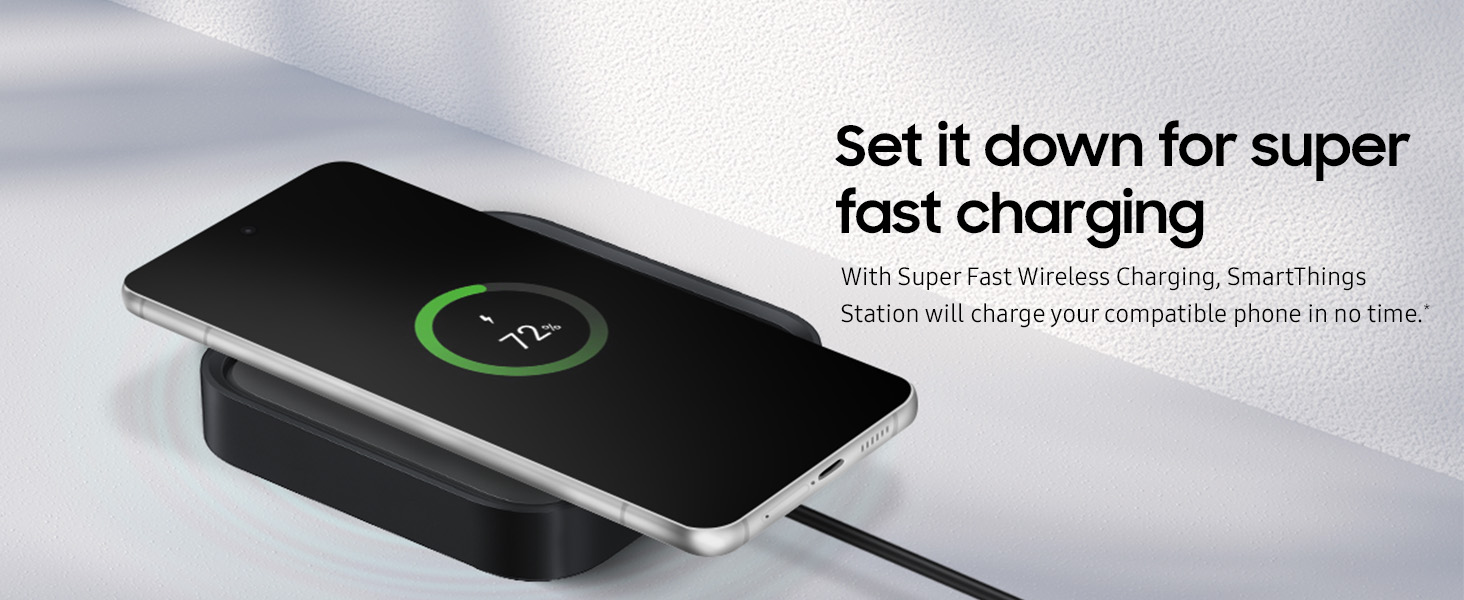
Figure 3.1: Set your device down for super fast wireless charging.
Smart Button Operations
The Smart Button on the top of the Station allows for quick activation of personalized routines configured in the SmartThings app:
- Single Tap: Activates a pre-set routine (e.g., turn off all lights).
- Double Tap: Activates a different pre-set routine (e.g., ring your phone using SmartThings Find).
- Hold: Activates a third pre-set routine (e.g., activate 'Good Night' mode, locking doors and adjusting temperature).

Figure 3.2: Optimize your day with a button, controlling smart home appliances with personalized functions.
SmartThings Find Integration
The SmartThings Station enhances the SmartThings Find feature, helping you locate compatible devices:
- Ring My Phone: Double-tap the Smart Button on the Station to make your registered phone start ringing, even if it's on silent mode, making it easier to find.
- Locate SmartTags: If you have Samsung Galaxy SmartTags, the Station can help detect their presence, notifying you if a tagged item is nearby or if you've left it behind.

Figure 3.3: Double-tap the Smart Button to ring your phone and easily track it.
4. Maintenance
To ensure the longevity and optimal performance of your Samsung SmartThings Station, follow these simple maintenance guidelines:
- Cleaning: Regularly wipe the surface of the Station with a soft, dry, lint-free cloth. Do not use abrasive cleaners, solvents, or strong chemicals, as these can damage the finish.
- Placement: Place the Station on a stable, flat surface away from direct sunlight, excessive heat sources (like radiators or ovens), and moisture. Ensure adequate ventilation around the device, especially for the direct cooling air vent.
- Cable Care: Handle the USB-C cable gently. Avoid bending, twisting, or crimping the cable, which can lead to internal damage.
- Avoid Obstructions: Do not place objects on top of the Station that could block the wireless charging area or the cooling vents.
5. Troubleshooting
If you encounter issues with your SmartThings Station, refer to the following common troubleshooting tips:
| Problem | Possible Solution |
|---|---|
| Station does not power on. | Ensure the USB-C cable is securely connected to both the Station and the power adapter, and that the power adapter is plugged into a working electrical outlet. Try a different outlet or power adapter if available. |
| Wireless charging is not working. | Verify your device is Qi-compatible and correctly centered on the charging pad. Remove any thick phone cases or metallic objects that might interfere with charging. Ensure the Station is receiving adequate power (25W adapter recommended for Super Fast Charging). |
| Cannot connect to SmartThings app. | Ensure your smartphone's Bluetooth and Wi-Fi are enabled. Restart the SmartThings app and your phone. Check if the Station's indicator lights are behaving as expected during setup. Ensure your Wi-Fi network is 2.4GHz or 5GHz and stable. |
| Smart devices are not responding. | Check the Station's internet connection. Ensure the smart devices are within range and properly paired with the SmartThings Station. Restart the Station by unplugging and re-plugging it. Verify device compatibility with SmartThings. |
| Smart Button is not activating routines. | Confirm that routines are correctly configured and assigned to the button's tap, double-tap, and hold actions within the SmartThings app. Ensure the Station is online and connected to your smart devices. |
For more detailed troubleshooting or persistent issues, please refer to the SmartThings app's help section or visit the official Samsung SmartThings support website.
6. Specifications
Detailed technical specifications for the Samsung SmartThings Station:
| Feature | Detail |
|---|---|
| Model Number | EP-P9500TBEGUS |
| Product Dimensions | 3.58 x 3.58 x 0.91 inches (9.09 x 9.09 x 2.31 cm) |
| Item Weight | 7.8 ounces (221 grams) |
| Color | Black |
| Wireless Charging Output | Up to 15W Super Fast Wireless Charging (requires 25W or above power adapter, sold separately) |
| Connectivity Technologies | Wired (USB-C), Wireless |
| Smart Home Protocols | Wi-Fi, Bluetooth, Zigbee, Thread, Matter |
| Input Voltage | 9 Volts |
| Special Features | Fast Charging, Smart Home Hub, Smart Button, Direct Air Cooling |
| Compatible Devices | Smart Devices, Smartphones (Samsung Galaxy Note10, Note20, S10, S20, S21, S9, etc.) |
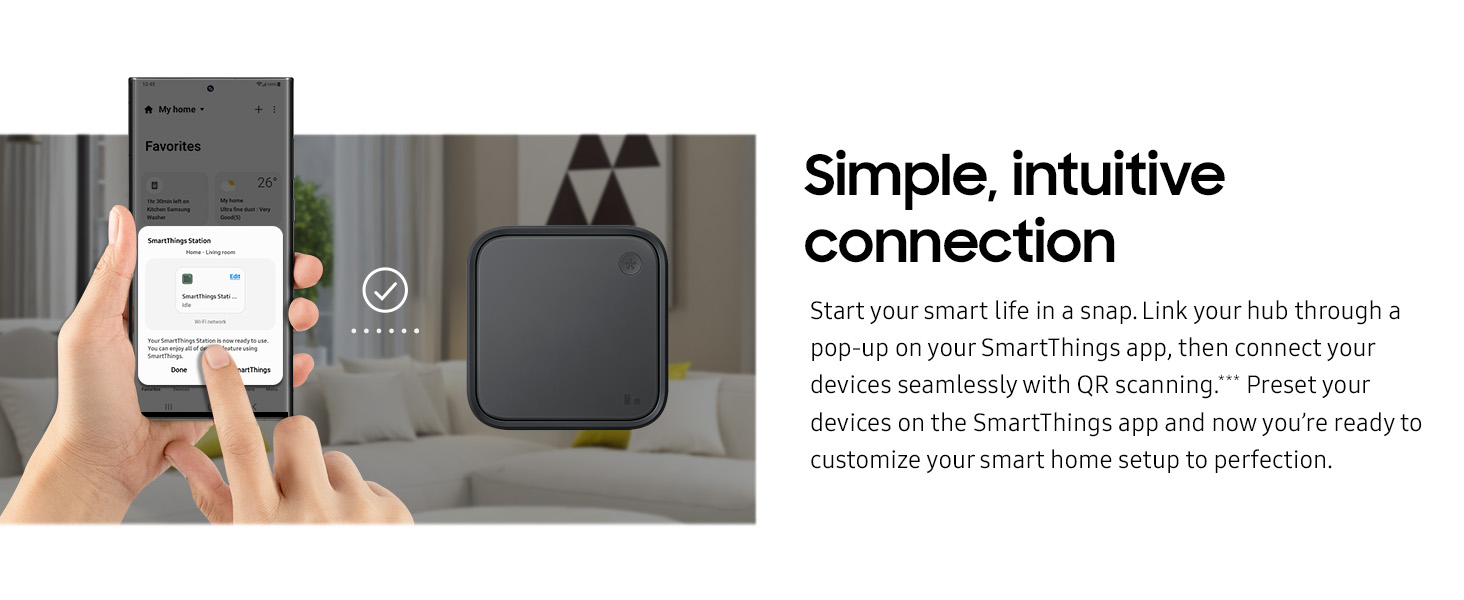
Figure 6.1: The SmartThings Station supports various connectivity protocols for broad smart home compatibility.
7. Warranty and Support
For detailed warranty information regarding your Samsung SmartThings Station, please refer to the Quick Start Guide included in the product packaging or visit the official Samsung support website for your region. Warranty terms and conditions may vary by country.
If you require technical assistance, have questions about product functionality, or need to report an issue, please contact Samsung Customer Service through their official channels. Support contact information can typically be found on the Samsung website or in your product documentation.
Online Support: www.samsung.com/us/support/
Ask a question about this manual
Ask about setup, troubleshooting, compatibility, parts, safety, or missing instructions. Manuals+ will review the question and use this page’s manual context to help answer it.