1. Introduction
This manual provides essential information for setting up, operating, maintaining, and troubleshooting your Lenovo ThinkPad T14s Gen 2 laptop. Please read this manual thoroughly to ensure proper use and to maximize the performance and longevity of your device.
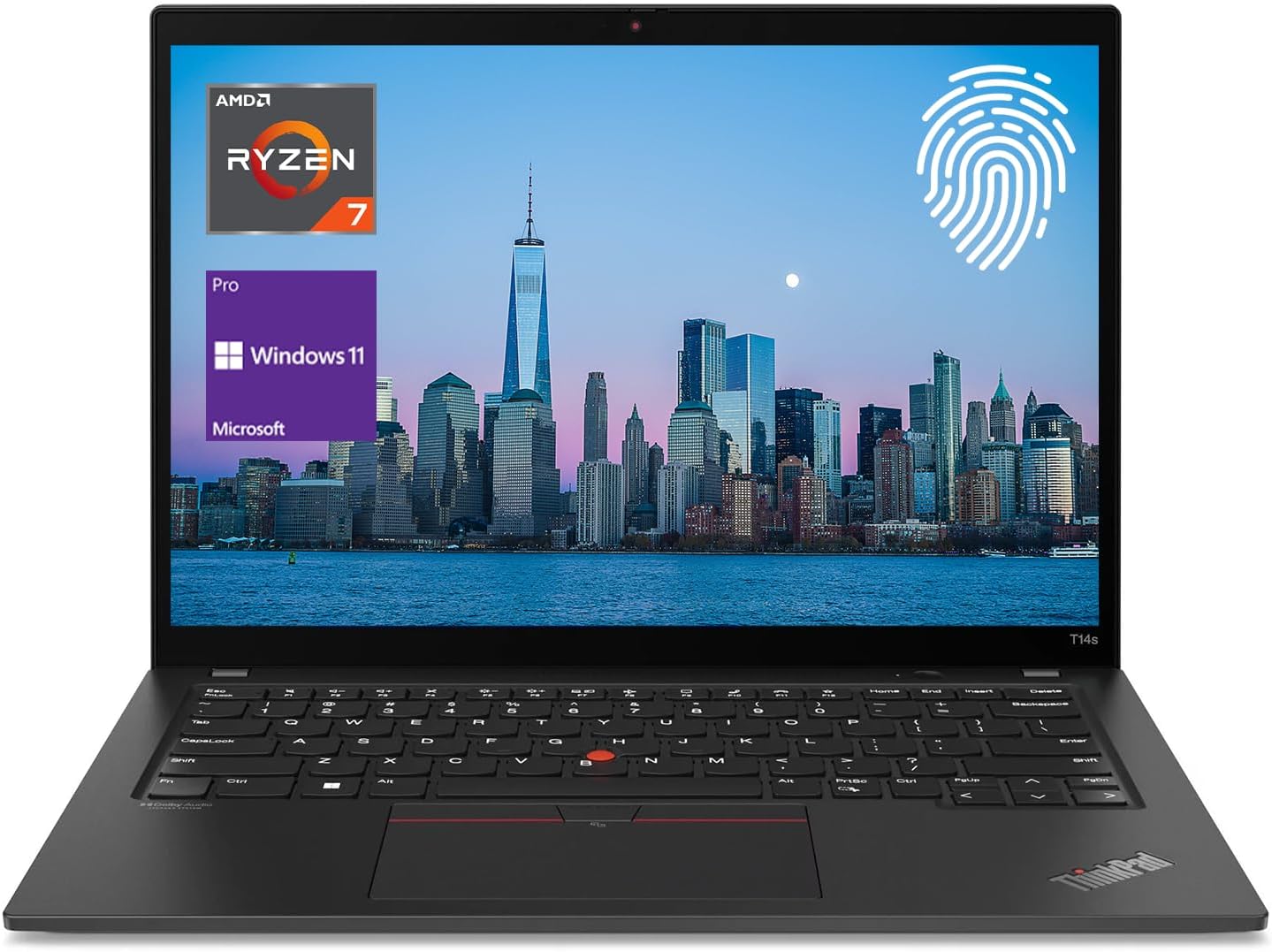
This image shows the Lenovo ThinkPad T14s Gen 2 laptop from the front, highlighting its 14-inch Full HD display. The screen features the AMD Ryzen 7 Pro and Windows 11 logos, along with a fingerprint icon, indicating key features of the device.
2. Setup
2.1 Unpacking
Carefully remove your laptop and all accessories from the packaging. Verify that all components listed in the 'What's in the Box' section are present.
2.2 Connecting Power
- Connect the power adapter to the power connector on your laptop.
- Plug the power cord into an electrical outlet.
- Allow the battery to charge fully before initial use, though you can begin using the laptop immediately while it charges.
2.3 Initial Boot-up
Press the power button located on the side or top of the keyboard deck. The laptop will guide you through the initial setup process for Windows 11 Pro, including language selection, network connection, and user account creation.
3. Operating Your Laptop
3.1 Keyboard and Touchpad
The ThinkPad T14s Gen 2 features a backlit keyboard and a multi-touch touchpad for navigation. The TrackPoint pointing device, located in the center of the keyboard, offers an alternative method for cursor control.

A top-down view of the laptop's keyboard and touchpad. This image illustrates the layout of the backlit keyboard, the TrackPoint pointing device, and the multi-touch touchpad, essential for navigation and input.
- Backlit Keyboard: Press
Fn + Spacebarto cycle through backlight brightness levels. - Touchpad: Supports multi-touch gestures for scrolling, zooming, and more. Refer to Windows settings for customization.
- TrackPoint: Use the red cap to move the cursor and the three buttons below the spacebar for clicking and scrolling.
3.2 Fingerprint Reader
The integrated fingerprint reader provides secure and convenient login. During initial setup or via Windows Hello settings, you can enroll your fingerprints.
3.3 Display Features
Your laptop is equipped with a 14-inch FHD (1920 x 1080) IPS Anti-Glare display. Adjust brightness using the function keys (F5/F6) or through Windows display settings.

An angled view of the open laptop, emphasizing the slim bezels of the 14-inch display and the ergonomic design of the keyboard. This view provides a good sense of the laptop's profile during use.
3.4 Ports and Connectivity
The laptop offers various ports for connecting peripherals and external displays.

This side view of the ThinkPad T14s Gen 2 demonstrates the available ports, including USB-C, USB-A, and HDMI, which are crucial for connecting external devices and displays.
- 2 x USB 3.2 Gen 1 Type-A
- 2 x USB-C (supports power delivery and DisplayPort)
- 1 x HDMI
- 1 x Headphone / mic combo jack
- 1 x Kensington Security Slot
- Wireless: Wi-Fi 6 and Bluetooth for network and peripheral connections.
3.5 Windows 11 Pro Basics
Your laptop comes pre-installed with Windows 11 Pro. Familiarize yourself with the new interface, including the Start menu, Taskbar, and Snap Layouts for enhanced productivity. Regular updates are recommended for security and feature enhancements.
4. Maintenance
4.1 Cleaning
- Use a soft, lint-free cloth slightly dampened with water or a screen cleaner to clean the display.
- For the keyboard and chassis, use a soft cloth. Avoid harsh chemicals.
- Ensure the laptop is powered off and unplugged before cleaning.
4.2 Battery Care
- To prolong battery life, avoid extreme temperatures.
- Periodically allow the battery to discharge to below 20% before recharging.
- If storing the laptop for an extended period, ensure the battery is charged to approximately 50-60%.
4.3 Software Updates
Regularly check for and install updates for Windows 11 Pro and Lenovo drivers. These updates provide security patches, performance improvements, and new features.
5. Troubleshooting
This section addresses common issues you might encounter.
5.1 Power Issues
- Laptop not turning on: Ensure the power adapter is securely connected and the outlet is functional. Check if the battery has sufficient charge.
- Battery not charging: Verify the power adapter and cable are not damaged. Try a different outlet.
5.2 Display Problems
- No display: Connect an external monitor to check if the issue is with the laptop's internal display. Restart the laptop.
- Dim display: Adjust brightness using function keys (F5/F6) or Windows display settings.
5.3 Connectivity Issues
- Wi-Fi not connecting: Ensure Wi-Fi is enabled in Windows settings. Restart your router and the laptop. Check for updated Wi-Fi drivers.
- Bluetooth device not pairing: Ensure the Bluetooth device is in pairing mode and within range. Check Bluetooth settings on the laptop.
6. Specifications
Detailed technical specifications for the Lenovo ThinkPad T14s Gen 2 (Model 20XF).

The rear view of the closed laptop, showcasing its sleek design and the Lenovo branding on the lid. This perspective highlights the overall compact form factor.
| Feature | Specification |
|---|---|
| Processor | AMD Ryzen 7 Pro 5850U (8 Cores, 16 Threads, up to 4.4 GHz) |
| Graphics | AMD Radeon Graphics (Integrated) |
| RAM | 16GB DDR4 SDRAM |
| Storage | 1TB PCIe NVMe M.2 SSD |
| Display | 14" FHD (1920 x 1080) IPS, Anti-Glare, 300 nits |
| Operating System | Windows 11 Pro |
| Wireless Connectivity | Wi-Fi 6, Bluetooth |
| Ports | 2x USB 3.2 Gen 1 Type-A, 2x USB-C, 1x HDMI, 1x Headphone/Mic Combo, 1x Kensington Security Slot |
| Webcam | FHD IR/RGB Hybrid with ThinkShutter |
| Security | Fingerprint Reader |
| Keyboard | Backlit |
| Dimensions (LxWxH) | 12.94 x 8.89 x 0.63 inches |
| Weight | 2.83 lbs |
| Color | Black |
7. Warranty and Support
Your Lenovo ThinkPad T14s Gen 2 laptop is covered by a standard manufacturer's warranty. For specific warranty terms and conditions, please refer to the documentation included with your product or visit the official Lenovo support website. For technical assistance, driver downloads, or service requests, please contact Lenovo customer support.
Lenovo Support Website: support.lenovo.com


