
Introduction
Welcome to the user manual for your Inandon 15.6 Inch Touch Screen Karaoke Machine. This document provides essential information for the proper setup, operation, and maintenance of your device. Please read these instructions carefully before using the product to ensure optimal performance and longevity.

Figure 1: The Inandon 15.6 Inch Touch Screen Karaoke Machine, featuring its main unit with integrated screen, two wireless microphones, and a smartphone demonstrating the mobile application control interface.
Product Features
The Inandon Karaoke Machine is designed for a comprehensive entertainment experience, integrating multiple components into a single, compact unit.
- Integrated Design: Combines microphone, pre-effector, karaoke machine, and touch display screen into one device.
- Multiple Control Methods: Order songs via touch screen, mobile app, WeChat, or intelligent voice assistant.
- Extensive Song Library: Access to 500,000 free cloud songs with weekly updates, and a 2TB hard drive capable of storing approximately 46,000 songs in various languages (Chinese, English, Cantonese, Japanese, Korean, etc.).
- Advanced Audio Adjustments: Features DSP Digital Reverb Microphone with multiple sound effect settings, including tone, high/low key, singing mode, and microphone adjustments.
- Connectivity: Supports both network cable and Wi-Fi connections for online content and cloud downloads.
- Multimedia Capabilities: Supports YouTube online viewing, online TV, movies, music apps, and game applications.
- User-Friendly Interface: Dual Android system with multi-language support (16 national languages) and real-time scoring function.

Figure 2: Illustration comparing traditional multi-component karaoke setups (microphone, pre-effector, karaoke machine, touch display screen) with the integrated Inandon Four-in-One Karaoke Machine, highlighting its space-saving, portability, ease of operation, and installation benefits.
Setup Guide
1. Unpacking and Placement
- Carefully remove all components from the packaging.
- Place the karaoke machine on a stable, flat surface.
- Ensure adequate ventilation around the unit.
2. Connecting the Device
Connect the necessary cables as shown in the diagram below.

Figure 3: Rear panel of the karaoke machine, illustrating the available ports: Digital Optical output, USB interface, MIC input, HDMI output, Coaxial output, RCA Audio Output, Recording output, Network port, Power switch, and Power input.
- Power Connection: Connect the provided power adapter to the "POWER" input on the rear of the machine and then to a wall outlet.
- Video Output: Connect an HDMI cable from the "HDMI output" port on the machine to your TV or display.
- Audio Output: For external audio systems, connect RCA audio cables from the "RCA Audio Output" to your amplifier or speakers.
- Microphone Connection: The included microphones are wireless and will connect automatically. Ensure they are charged and powered on.
- Network Connection:
- Wi-Fi: The machine has built-in Wi-Fi. You will configure this during initial software setup.
- Ethernet: For a wired connection, connect an Ethernet cable to the "Network" port.
3. Initial Power On and Software Setup
- Press the "POWER" switch on the rear of the machine to turn it on.
- Follow the on-screen prompts to select your preferred language. The machine supports 16 national languages.
- Configure your internet connection (Wi-Fi or Ethernet). For Wi-Fi, select your network and enter the password.
- Once connected to the internet, the system may prompt you to download initial song updates from the cloud. Allow this process to complete.
Operating Instructions
1. Song Selection Methods
The Inandon Karaoke Machine offers four convenient ways to select and manage songs:

Figure 4: Visual representation of the four song ordering methods: WeChat Scan Code, Mobile App, Intelligent Voice Assistant, and direct Touch Screen interaction.
- Touch Screen: Directly interact with the 15.6-inch display to browse, search, and select songs.
- Mobile App: Download the dedicated Inandon mobile application to your smartphone. Connect your phone to the same network as the karaoke machine to control it remotely.
- WeChat: Utilize WeChat's scan code function to connect and control the machine.
- Intelligent Voice Assistant: Use voice commands to search for and select songs.
2. Song Management and Playback
Once a song is selected, you can manage playback using the on-screen controls or the mobile app.
- Basic Controls: Pause, Play, Next Song, Replay.
- Vocal Modes: Switch between Original Singing (with lead vocals) and Backing Singing (instrumental only).
- Volume Control: Adjust music and microphone volumes independently.
- Real-time Scoring: Engage the real-time scoring feature for an interactive singing experience.
3. Audio and Microphone Settings
The machine features a DSP Digital Reverb Microphone system, allowing for detailed audio customization.

Figure 5: Screenshot of the user interface for adjusting DSP Digital Reverb Microphone settings, including music tone, microphone volume, frequency, and various sound effect presets and equalization options.
- Tone Adjustment: Modify the high and low keys of the music.
- Singing Mode: Select different singing modes to suit your preference.
- Microphone Settings: Adjust microphone volume, echo, and other effects for optimal vocal performance.
- Equalizer: Fine-tune audio frequencies for music and microphone.
4. Multimedia and Applications
Beyond karaoke, the machine supports various entertainment functions.
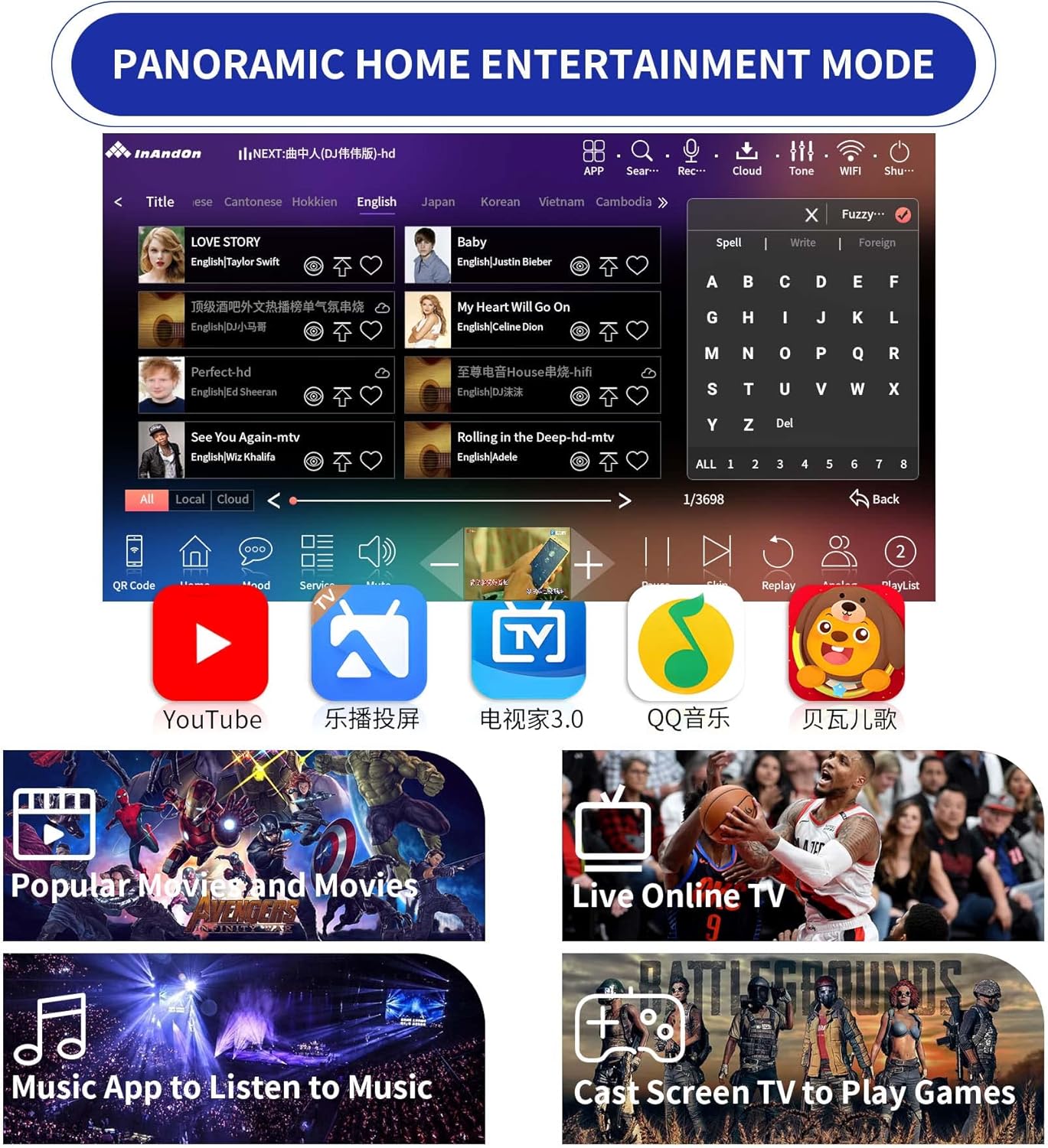
Figure 6: The "Panoramic Home Entertainment Mode" interface, showing icons for YouTube, online TV, music applications, and the option to cast games from other devices.
- Online Video: Access platforms like YouTube for online viewing.
- Online TV/Movies: Watch online television and movies.
- Music Apps: Listen to music through integrated or downloadable music applications.
- Gaming: Download and play games, or cast games from compatible devices.
- Background Customization: Change the on-screen background to suit your mood.
5. Language Selection
The system supports 16 national languages for its interface.

Figure 7: The multi-language selection screen, displaying flags and names for 16 different languages, allowing users to switch the system's interface language.
Navigate to the system settings to change the display language as needed.
6. Song Library and Cloud Downloads
The machine comes with a vast song library and free lifetime cloud updates.

Figure 8: An overview of the extensive song library, indicating 500,000 songs available for free cloud download and real-time weekly updates. It also details the number of songs available in Chinese, Cantonese, Hokkien, English, Japanese, Korean, Vietnamese, Thai, and Malaysian languages.
- Cloud Library: Access over 500,000 songs from the cloud, with new songs updated weekly.
- Local Storage: The 2TB hard drive can store approximately 46,000 songs for offline playback.
- Downloading Songs: Connect to the internet to download songs from the cloud. Once cached, songs can be played without an internet connection.
Maintenance
- Cleaning: Use a soft, dry cloth to clean the touch screen and exterior surfaces. Avoid abrasive cleaners or solvents.
- Ventilation: Ensure the ventilation openings are not blocked to prevent overheating.
- Software Updates: Periodically check for system software updates to ensure optimal performance and access to new features.
- Storage: When not in use for extended periods, store the machine in a cool, dry place away from direct sunlight.
Troubleshooting
| Problem | Possible Cause | Solution |
|---|---|---|
| Machine does not power on. | Power cable not connected; Power switch off; Power outlet malfunction. | Ensure power cable is securely connected. Flip the power switch to ON. Test the power outlet with another device. |
| No display on TV/monitor. | HDMI cable loose or faulty; Incorrect input selected on TV. | Check HDMI cable connections. Select the correct HDMI input source on your TV. |
| No sound output. | Audio cables loose; Volume too low; External audio system off or muted. | Verify RCA audio cable connections. Increase machine and external system volume. Ensure external system is powered on and not muted. |
| Microphones not working. | Microphones off; Low battery; Not paired correctly. | Ensure microphones are powered on. Check battery levels and replace/recharge if necessary. Refer to microphone pairing instructions if issues persist. |
| Cannot connect to Wi-Fi/Internet. | Incorrect Wi-Fi password; Router issues; Out of range. | Double-check Wi-Fi password. Restart your router. Move the machine closer to the router or use a wired Ethernet connection. |
| Songs not downloading from cloud. | No internet connection; Cloud service temporarily unavailable. | Ensure a stable internet connection. Check the cloud service status or try again later. |
Specifications
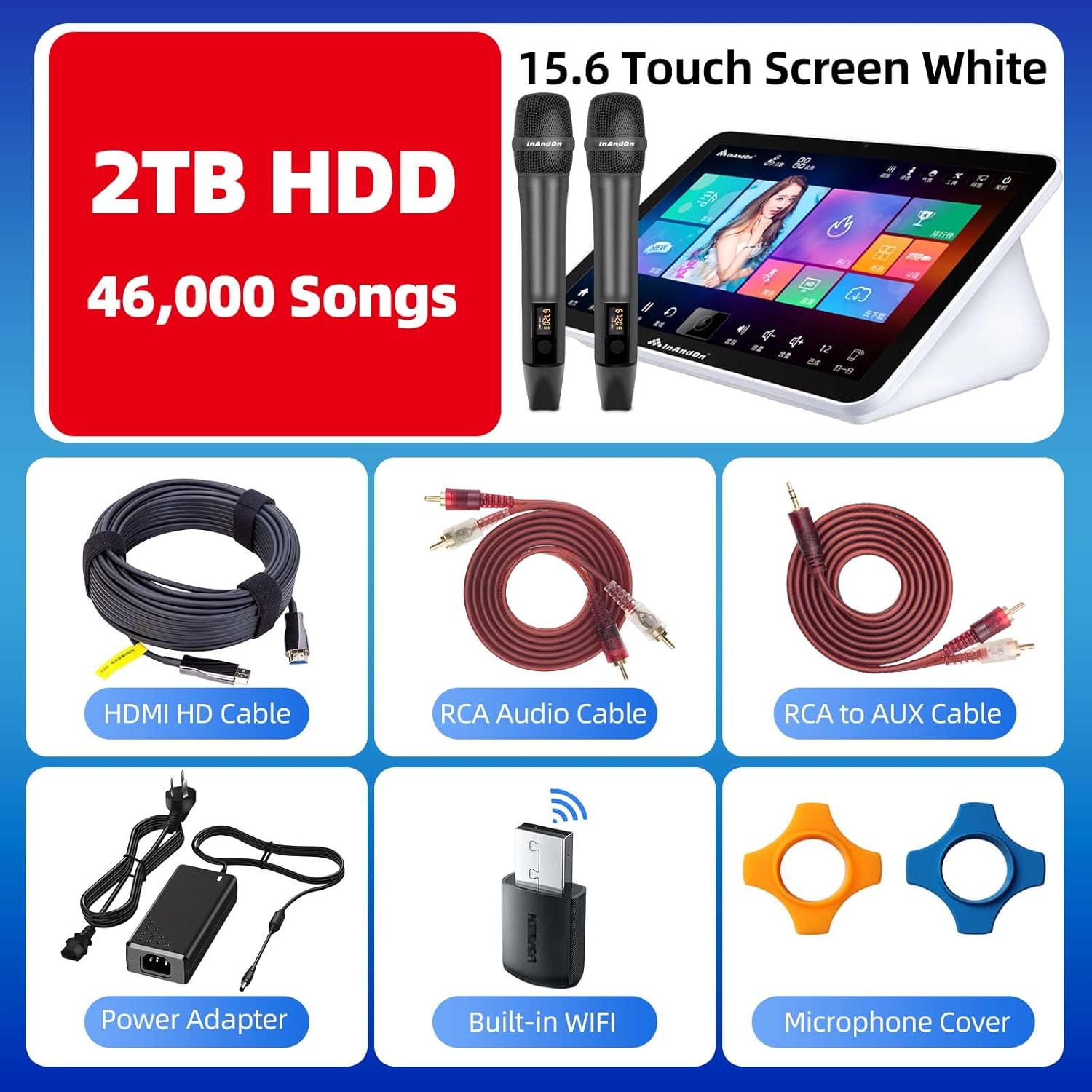
Figure 9: The Inandon 15.6 Inch Touch Screen Karaoke Machine, highlighting its 2TB HDD storage capacity for 46,000 songs, and displaying the included accessories: HDMI HD Cable, RCA Audio Cable, RCA to AUX Cable, Power Adapter, Built-in WiFi adapter, and Microphone Covers.
| Feature | Detail |
|---|---|
| Model | 2T |
| Screen Size | 15.6 inches (Touch Screen) |
| Dimensions (L x W x H) | 9.5 x 9.6 x 6.6 inches |
| Item Weight | 11 pounds |
| Storage | 2TB HDD (approx. 46,000 songs capacity) |
| Memory | 8GB |
| Processor | 8-Core Chip |
| Audio Processor | Built-in DSP Chip |
| Power Source | External Power Adapter (12V DC) |
| Connectivity | Wi-Fi, Ethernet (Network Port), USB |
| Video Output | HDMI |
| Audio Output | RCA Audio Output, Digital Optical Output, Coaxial Output |
| Microphone Input | MIC Input (for wired mics, wireless mics connect automatically) |
| Compatible Devices | Smartphone (for app control) |
| Media Format | AVI (and others supported by Android system) |
| Included Components | Karaoke Machine, 2 Wireless Microphones, 2TB HDD, HDMI HD Cable, RCA Audio Cable, RCA to AUX Cable, Power Adapter, Built-in WiFi Adapter, Microphone Covers |
Warranty and Support
For detailed warranty information and technical support, please refer to the official Inandon website or contact their customer service directly. Keep your purchase receipt for warranty claims.
Online Resources:
- For product updates and FAQs, visit the Inandon Official Website. (Note: This is a placeholder link as no official website was provided in the data.)
- For app downloads and support, search for "Inandon" in your mobile device's app store.


