
Product Overview
The TP-Link Archer BE24000 Quad-Band WiFi 7 Router (Archer BE900) is designed to deliver cutting-edge wireless performance and extensive network capabilities. It features the latest Wi-Fi 7 technology, providing blazing-fast speeds and robust connectivity for a multitude of devices. This router is ideal for demanding home network environments, supporting 4K/8K streaming, immersive AR/VR gaming, and rapid downloads.

Figure 1: Front view of the TP-Link Archer BE24000 (Archer BE900) WiFi 7 Router.
What's in the Box
Verify that all items are present in your package:
- Wi-Fi 7 Router Archer BE900
- Power Adapter
- RJ45 Ethernet Cable
- Quick Installation Guide
Key Features
The Archer BE900 offers a range of advanced features to enhance your networking experience:
- Quad-Band Wi-Fi 7: Delivers speeds up to 24.4 Gbps across four bands, including a new 6GHz band for dedicated, congestion-free channels.
- Dual 10G Ports: Equipped with one 10 Gbps Ethernet/Fiber Combo WAN/LAN port and one 10 Gbps WAN/LAN port, plus four 2.5 Gbps ports, one 1 Gbps port, and two USB ports for versatile connectivity.
- Maximized Coverage: Features 12 optimally positioned internal antennas and Beamforming technology for stronger, more reliable connections and reduced interference across your home.
- LED Touch Screen: An intuitive LED touch screen provides easy management and customization of router settings and displays network status.
- EasyMesh-Compatible: Seamlessly integrates with other EasyMesh routers and range extenders to create a unified whole-home mesh Wi-Fi network.
- TP-Link HomeShield: A premium security service offering network protection, parental controls, Quality of Service (QoS), and comprehensive reports to secure your home network and IoT devices.

Figure 2: The LED touch screen on the Archer BE900 for easy interaction.
Setup Guide
1. Unboxing and Placement
Carefully remove all components from the packaging. Place the Archer BE900 router in a central location in your home, away from obstructions and devices that may cause interference (e.g., microwaves, cordless phones). An elevated position is generally recommended for optimal signal distribution.
2. Hardware Connection
- Power Off: Disconnect the power from your modem.
- Connect Router: Connect one end of the provided RJ45 Ethernet cable to the WAN/LAN port (usually labeled "Internet" or "WAN") on your Archer BE900 router. Connect the other end to your modem's Ethernet port.
- Power On: Connect the power adapter to the router's power port and plug it into an electrical outlet. Power on your modem first, then wait for it to fully boot up (usually indicated by stable indicator lights). Finally, power on your Archer BE900 router.
- Connect Devices: For wired devices, connect them to any of the LAN ports on the router using Ethernet cables. For wireless devices, connect to the default Wi-Fi network name (SSID) and password found on the label at the bottom of the router.

Figure 3: Rear view of the Archer BE900 showing the various Ethernet and USB ports.
3. Initial Configuration
You can configure your router using the TP-Link Tether app or a web browser.
- Using Tether App: Download the TP-Link Tether app from your mobile device's app store. Follow the in-app instructions to set up your router. This method is highly recommended for its ease of use.
- Using Web Browser: Open a web browser on a device connected to the router (wired or wirelessly). Type tplinkwifi.net or the router's default IP address (e.g., 192.168.0.1) into the address bar. Follow the on-screen instructions to create a login password and configure your internet connection and Wi-Fi settings.
Operating the Router
LED Touch Screen and Display
The Archer BE900 features an interactive LED touch screen that displays real-time information such as time, weather, network status, and connected devices. You can customize the display and interact with various settings directly from the screen. The LED display can also show animated graphics and text.
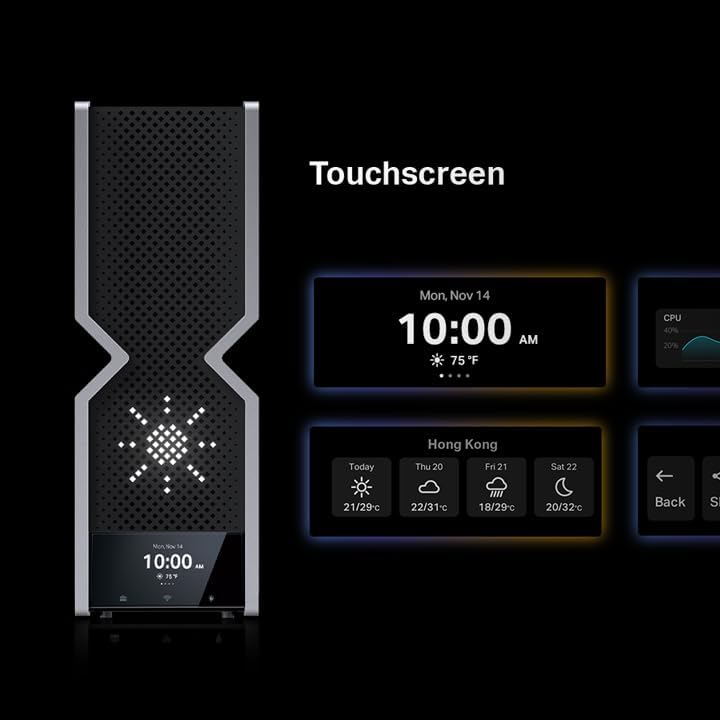
Figure 4: Examples of information and customization options available on the router's touchscreen.
Tether App Control
The TP-Link Tether app provides comprehensive control over your router from your smartphone or tablet. This includes managing connected devices, setting up parental controls, configuring guest networks, and updating firmware. The app offers a user-friendly interface for convenient remote management.
Wi-Fi 7 Performance
Leverage the full potential of Wi-Fi 7 (802.11be) with the Archer BE900. This router supports 16-stream quad-band operation, including dual 5 GHz bands and a 320 MHz wide 6 GHz channel, along with 4K-QAM modulation. This combination ensures maximum throughput and minimal latency for all your connected devices, even in dense network environments.
Video 1: An introductory video showcasing the TP-Link Archer BE24000 Quad-Band WiFi 7 Router and its design.
Network Security with HomeShield
The Archer BE900 integrates TP-Link HomeShield, a comprehensive security suite designed to protect your home network and connected devices. HomeShield offers:
- Network Protection: Includes security scans and IoT device identification to detect and prevent threats.
- Parental Controls: Manage online time and filter content to ensure a safe internet experience for family members.
- Quality of Service (QoS): Prioritize devices or activities to ensure optimal performance for critical applications like gaming or streaming.
- Comprehensive Reports: Receive weekly and monthly reports on network usage and security events.
For advanced features like DDoS Attack Prevention, enhanced IoT Protection, and more granular parental controls, consider upgrading to HomeShield Pro (subscription fees apply).

Figure 5: Overview of TP-Link HomeShield's security and management capabilities.
Maintenance
Regular maintenance ensures optimal performance and longevity of your router:
- Firmware Updates: Periodically check for and install firmware updates via the Tether app or web interface. Updates often include performance improvements, new features, and security patches.
- Rebooting: If you experience network slowdowns or connectivity issues, try rebooting the router by unplugging it from the power source for 10 seconds and then plugging it back in.
- Cleaning: Keep the router clean and free from dust buildup, especially around ventilation areas, to prevent overheating. Use a soft, dry cloth for cleaning.
- Placement: Ensure the router remains in a well-ventilated area and is not covered, which could impede airflow.
Troubleshooting
If you encounter issues with your Archer BE900 router, consider the following common solutions:
- No Internet Access:
- Check all cable connections between the router, modem, and wall outlet.
- Reboot both your modem and router.
- Verify your internet service provider (ISP) connection is active.
- Slow Wi-Fi Speed:
- Ensure your devices support Wi-Fi 7 for optimal performance.
- Move closer to the router or consider adding EasyMesh extenders for larger homes.
- Check for interference from other electronic devices.
- Use the Tether app to check network traffic and prioritize devices with QoS.
- Cannot Connect to Wi-Fi:
- Double-check the Wi-Fi password.
- Ensure the Wi-Fi signal is enabled on the router (check LED screen or Tether app).
- Try forgetting the network on your device and reconnecting.
- Router Not Responding:
- Perform a hard reboot by unplugging and replugging the power.
- If issues persist, perform a factory reset (refer to the Quick Installation Guide for instructions). Note that a factory reset will erase all custom settings.
Specifications
| Feature | Detail |
|---|---|
| Brand | TP-Link |
| Model Name | Archer BE900 |
| Product Dimensions | 11.9 x 10.3 x 3.8 inches |
| Item Weight | 11.62 pounds |
| Frequency Band Class | Quad-Band (2.4 GHz, Dual 5 GHz, 6 GHz) |
| Wireless Communication Standard | 802.11n, 802.11ax, 802.11g, 802.11ac, 802.11be (Wi-Fi 7) |
| Connectivity Technology | Wi-Fi, USB, Ethernet |
| Ethernet Ports | 1x 10 Gbps Ethernet/Fiber Combo WAN/LAN, 1x 10 Gbps WAN/LAN, 4x 2.5 Gbps LAN, 1x 1 Gbps LAN |
| USB Ports | 1x USB 2.0, 1x USB 3.0 |
| Special Feature | WPS, LED Touch Screen, EasyMesh, HomeShield, VPN Support |
| Recommended Uses | Gaming, 4K/8K Streaming, AR/VR |
| Manufacturer | TP-Link |
| Country of Origin | Vietnam |
Warranty and Support
For warranty information and technical support, please refer to the official TP-Link website or the Quick Installation Guide included in your product package. TP-Link offers various support resources, including FAQs, troubleshooting guides, and contact options for customer service.
Legal Disclaimer: Maximum wireless signal rates are physical rates derived from IEEE Standard 802.11 specifications. Actual wireless data throughput, wireless coverage, and connected devices are not guaranteed and will vary as a result of network conditions, client limitations, and environmental factors. Use of Wi-Fi 7 (802.11be) and its features requires clients to also support the corresponding features. Not all 320 MHz channels may be available in the 6 GHz band in some regions/countries due to regulatory restrictions. HomeShield includes the Free Basic Plan; fees apply for the Pro Plan. This router may not support all mandatory features as ratified in the IEEE 802.11be specification.
Protection plans are available for extended coverage. Please visit the Amazon product page for details on 3-Year, 4-Year, or Complete Protect plans.


