
Oilsky D22
Oilsky D22 MP3 Player User Manual
Model: D22

The Oilsky D22 MP3 Player, shown with its wired earphones, features a sleek black design and a color display.
1. Introduction
Thank you for choosing the Oilsky D22 MP3 Player. This device is designed to provide a high-quality portable audio experience with versatile features. It combines a compact design with advanced functionalities like Bluetooth 5.0, a built-in speaker, FM radio, and voice recording capabilities. This manual will guide you through the setup, operation, and maintenance of your new MP3 player.
2. Setup
2.1. Package Contents
Please check the package for the following items:
- 1 x Oilsky D22 32GB Bluetooth 5.0 MP3 Player
- 1 x USB-C Cable
- 1 x Wired Earphones
- 1 x User Manual

This image illustrates the standard contents included in the Oilsky D22 MP3 Player package: the player itself, a USB-C charging cable, wired earphones, and the user manual.
2.2. Charging the Device
Before first use, fully charge the MP3 player. Connect the provided USB-C cable to the player's charging port and the other end to a USB power adapter (not included) or a computer's USB port. The battery indicator on the screen will show charging status.

The image highlights the internal 300mAh battery of the Oilsky D22 MP3 Player and demonstrates how to charge it using the USB-C cable.
2.3. Inserting a Micro SD Card
The Oilsky D22 comes with 32GB of internal memory. If you require additional storage, you can expand it up to 128GB using a Micro SD card. Locate the Micro SD card slot on the side of the device and gently insert the card until it clicks into place.

This image illustrates the Oilsky D22 MP3 Player's 32GB internal memory and its capability to expand storage with a Micro SD card, shown connected to a computer for data transfer.
3. Operating Instructions
3.1. Power On/Off
- To Power On: Press and hold the Power button until the screen lights up.
- To Power Off: Press and hold the Power button until the power-off prompt appears, then confirm.
3.2. Navigating the Menu
The D22 features a user-friendly interface with tactile buttons. Use the navigation buttons (up, down, left, right) and the central 'OK' button to select options. The 'Back' button allows you to return to the previous screen.

This image displays the main menu of the Oilsky D22 MP3 Player, featuring icons for various functions such as Music, Favorites, Bluetooth, Button Light, Screen Lock, Built-in Speaker, FM Radio, Recorder, Photos, and Settings.
3.3. Playing Music
To transfer music, connect the MP3 player to your computer using the USB-C cable. The device will appear as a removable disk. Drag and drop your audio files into the 'Music' folder on the player. The D22 supports various audio formats including MP3, WMA, WAV, FLAC, APE, and OGG.

A person is shown enjoying music with the Oilsky D22 MP3 Player, while the image highlights the supported audio formats: MP3, WAV, FLAC, APE, and OGG.
3.4. Bluetooth Connectivity
The D22 features Bluetooth 5.0 for wireless audio streaming. To pair with Bluetooth headphones or speakers:
- Go to the 'Bluetooth' menu on the player.
- Ensure your Bluetooth device is in pairing mode.
- Select 'Search Device' on the MP3 player.
- Choose your device from the list and confirm pairing.
Note: The Oilsky D22 cannot pair with smartphones, PCs, or cars via Bluetooth. If your BT earphones were previously connected to another device, disconnect them before attempting to pair with the D22.
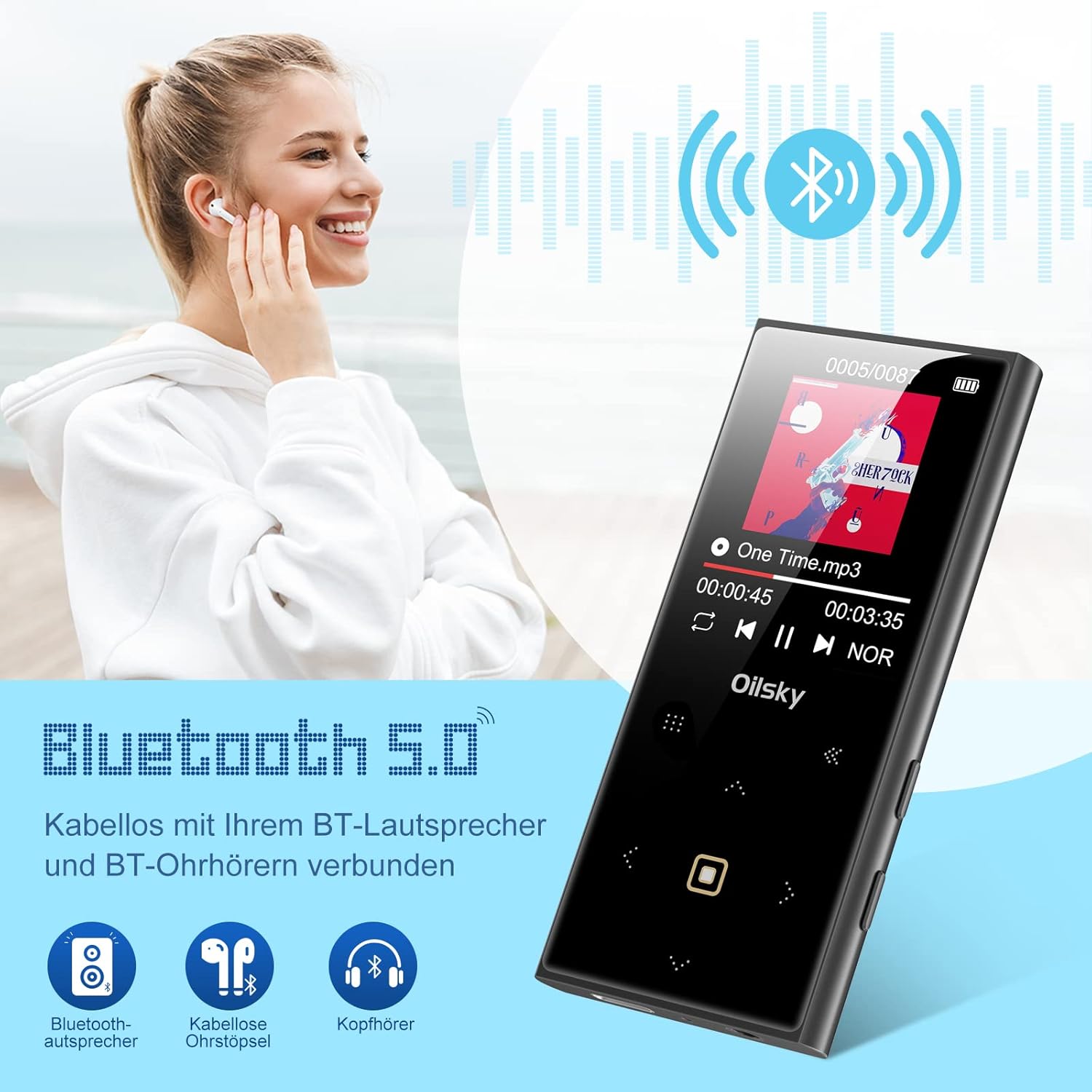
This image shows a woman enjoying music wirelessly, emphasizing the Bluetooth 5.0 capability of the Oilsky D22 MP3 Player, which allows connection to Bluetooth speakers and headphones.
3.5. FM Radio
To use the FM radio function, ensure wired earphones are connected as they act as the antenna. Navigate to the 'FM Radio' menu, then select 'Auto Search' to find available stations or manually tune to a frequency.
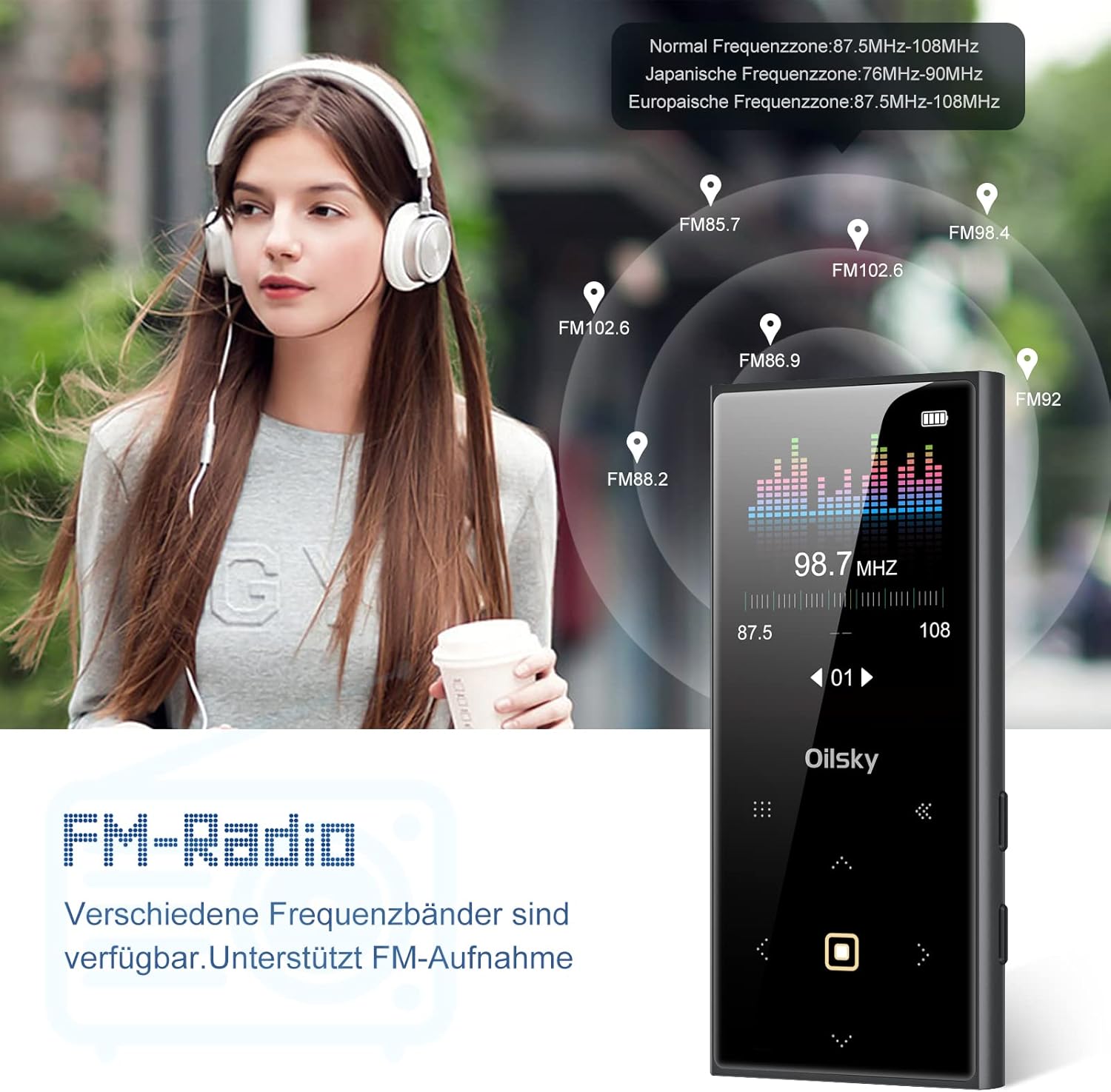
A woman is shown listening to the FM radio feature on the Oilsky D22 MP3 Player, with the screen displaying various radio frequencies and signal strength.
3.6. Voice Recorder
The D22 includes a voice recorder function. Go to the 'Recorder' menu to start, pause, and save recordings. Recordings are typically saved in WAV format.

This image demonstrates the line-in recording capability of the Oilsky D22 MP3 Player, showing it connected to a smartphone via an AUX cable to transfer and record audio.
3.7. Screen Lock/Unlock
To lock the screen and prevent accidental presses, press and hold the 'MENU' button for approximately 3 seconds. Repeat this action to unlock the screen.
4. Maintenance
To ensure the longevity and optimal performance of your Oilsky D22 MP3 Player, follow these maintenance guidelines:
- Cleaning: Use a soft, dry cloth to clean the device. Avoid using liquid cleaners or abrasive materials.
- Storage: Store the player in a cool, dry place away from direct sunlight, extreme temperatures, and humidity.
- Handling: Avoid dropping the device or subjecting it to strong impacts.
- Battery Care: For optimal battery life, avoid fully discharging the battery frequently. Charge it regularly.
5. Troubleshooting
| Problem | Possible Cause | Solution |
|---|---|---|
| Device is unresponsive or frozen. | Software crash or temporary malfunction. | Press and hold the Power button for approximately 10 seconds to force a restart. |
| Cannot connect to Bluetooth device. | Bluetooth device not in pairing mode, or previously connected elsewhere. | Ensure your Bluetooth headphones/speaker are in pairing mode. If they were connected to another device, disconnect them first. Remember, the D22 cannot connect to phones or cars. |
| Poor sound quality. | Low quality audio files, incorrect equalizer settings, or faulty earphones. | Ensure you are using high-quality audio files. Adjust the equalizer settings in the device menu. Try different earphones to rule out a faulty pair. |
| Device stuck on indexing after adding files. | Large number of files or corrupted files. | Disconnect from PC and allow time for indexing to complete. If stuck for an extended period, try restarting the device (hold power for 10s) and re-transferring files in smaller batches. Check for corrupted files. |
| Screen light is too bright/dim or consumes too much power. | Default brightness settings. | The button light can be turned off to save energy. Adjust brightness settings in the device menu. |
6. Specifications
| Feature | Specification |
|---|---|
| Brand | Oilsky |
| Model Name | D22 |
| Connectivity Technology | Bluetooth 5.0 |
| Internal Memory Storage Capacity | 32 GB |
| Expandable Memory | Up to 128 GB (Micro SD card) |
| Screen Size | 1.77 Inches |
| Display Technology | LCD |
| Battery Composition | Lithium-polymer |
| Rechargeable Battery | Yes |
| Item Weight | 61 Grams |
| Included Components | Earphones, USB Cable |
7. Warranty & Support
7.1. Warranty Information
Oilsky offers an unconditional 90-day refund for any quality issues caused by the MP3 player itself. Please retain your proof of purchase for warranty claims.
7.2. Customer Support
If you have any questions or encounter issues during the use of your Oilsky D22 MP3 player, please do not hesitate to contact our customer service team. Refer to the contact information provided on the product packaging or the official Oilsky website for support.
Ask a question about this manual
Ask about setup, troubleshooting, compatibility, parts, safety, or missing instructions. Manuals+ will review the question and use this page’s manual context to help answer it.