
V310
V310 OBD2 Car Diagnostic Tool User Manual
Model: V310 | Brand: generic
Introduction
The V310 OBD2 Car Diagnostic Tool is a professional-grade scanner designed to help vehicle owners and technicians diagnose engine-related issues. This device supports all OBDII protocols, allowing it to read and clear diagnostic trouble codes (DTCs), view live data, check I/M readiness status, and perform various other diagnostic functions. Its plug-and-play design ensures ease of use, providing quick access to vehicle information.
Product Overview

Figure 1: Front view of the V310 OBD2 scanner, showing the LCD screen, navigation buttons (VIN, DTC, Up, Down, OK, Back), and the integrated OBDII cable.
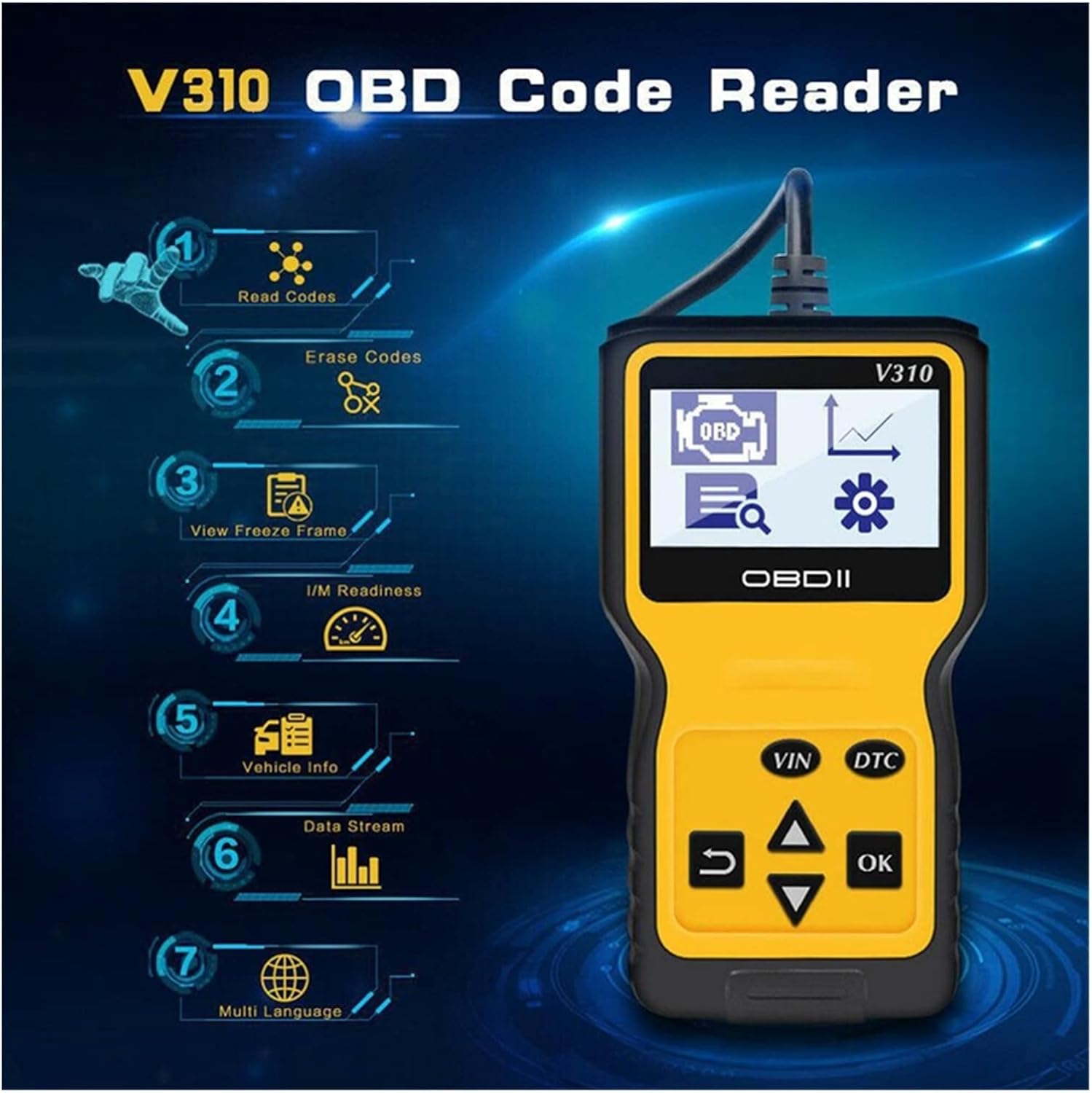
Figure 2: The V310 scanner highlighting its seven primary functions: Read Codes, Erase Codes, View Freeze Frame, I/M Readiness, Vehicle Info, Data Stream, and Multi Language support.

Figure 3: A composite image illustrating different screens of the V310, including the Diagnostic Menu, Realtime Curve display (Car Speed, Load Value, Coolant Temp, RPM), System Setup, and DTC Lookup with code definitions.
Key Components:
- LCD Display: Shows diagnostic information, menus, and data.
- OBDII Connector: Connects the tool to the vehicle's OBDII port.
- Navigation Buttons:
- VIN/DTC: Quick access buttons for Vehicle Identification Number and Diagnostic Trouble Codes.
- Up/Down Arrows: Navigate through menu options.
- OK: Confirms selections.
- Back/Exit: Returns to the previous screen or exits a function.
Setup and Connection
- Locate the OBDII Port: The OBDII port is typically located under the dashboard on the driver's side of the vehicle. Refer to your vehicle's owner's manual if you cannot find it.
- Connect the Scanner: With the vehicle's ignition off, firmly plug the V310's OBDII connector into the vehicle's OBDII port.
- Turn On Ignition: Turn the vehicle's ignition to the "ON" position (do not start the engine). The V310 scanner will automatically power on and display the main menu.
- Language Selection (Optional): If needed, navigate to the "System Setup" menu and select "Language" to choose your preferred language.

Figure 4: The language selection screen, showing options like English, Spanish, French, etc.
The V310 is a plug-and-play device and does not require batteries or external power sources, as it draws power directly from the vehicle's OBDII port.
Operating Instructions
Once connected and powered on, the V310 will display the main diagnostic menu. Use the Up and Down arrow buttons to navigate through the options and the OK button to select.
Main Diagnostic Functions:
- Read Codes:
Select "Read Codes" to retrieve Diagnostic Trouble Codes (DTCs) from the vehicle's Engine Control Unit (ECU). This function displays both pending and permanent codes, along with their descriptions. This helps identify the cause of the "Check Engine Light" (MIL).
- Erase Codes:
After addressing the underlying issue that triggered the DTCs, select "Erase Codes" to clear the codes from the vehicle's memory and turn off the Check Engine Light. Caution: Do not erase codes before fixing the problem, as this will only temporarily turn off the light and the code will reappear.
- View Freeze Frame:
When an emission-related fault occurs, the ECU records certain vehicle parameters at the time the fault was detected. "View Freeze Frame" allows you to access this snapshot of data, which can be crucial for diagnosing intermittent problems.
- I/M Readiness:
"I/M Readiness" (Inspection/Maintenance Readiness) indicates whether the various emission-related systems on the vehicle are operating correctly and have completed their self-tests. This is often used to determine if a vehicle is ready for an emissions test.
- Vehicle Info:
This function retrieves vehicle information such as the Vehicle Identification Number (VIN), Calibration ID (CALID), and Calibration Verification Number (CVN).
- Data Stream:
View live data parameters from the vehicle's sensors and components in real-time. This includes engine RPM, vehicle speed, coolant temperature, oxygen sensor readings, and more. This data can be displayed numerically or graphically (Realtime Curve).
- DTC Lookup:
The V310 includes a built-in DTC lookup library. Enter a specific DTC code to view its generic description, helping you understand the nature of the fault without needing an external reference.
Using Quick Access Buttons:
- Press the VIN button to quickly display the vehicle's VIN.
- Press the DTC button to quickly access the Diagnostic Trouble Codes menu.
Maintenance
- Cleaning: Use a soft, dry cloth to clean the exterior of the scanner. Do not use abrasive cleaners or solvents.
- Storage: Store the V310 in a clean, dry environment away from extreme temperatures, direct sunlight, and excessive dust.
- Cable Care: Avoid bending or twisting the OBDII cable excessively. Always grasp the connector when plugging or unplugging to prevent damage to the pins.
Troubleshooting
| Problem | Possible Cause | Solution |
|---|---|---|
| Scanner does not power on. |
|
|
| "LINK ERROR" message displayed. |
|
|
| Cannot clear codes. |
|
|
Specifications
- Model: V310
- Display: Backlit LCD, 128 x 64 pixels
- Operating Voltage: 9-16V (from vehicle battery)
- Operating Temperature: 0 to 50°C (32 to 122°F)
- Storage Temperature: -20 to 70°C (-4 to 158°F)
- Supported Protocols: ISO9141, KWP2000, SAE J1850 VPW, SAE J1850 PWM, CAN (Controller Area Network)
- Dimensions: Approximately 125mm x 70mm x 22mm (4.9 x 2.7 x 0.9 inches)
- Weight: Approximately 200g (0.44 lbs)
Warranty and Support
For specific warranty information, please refer to the documentation provided with your purchase or contact the seller directly. Technical support may be available through the product manufacturer or the point of purchase.
Always ensure you are using the device according to the instructions to maintain its functionality and validity of any warranty.
Related Documents - V310
 |
V310 OBD2 Code Reader Features and Specifications Technical specifications and feature overview for the V310 OBD2 diagnostic code reader, supporting multi-brand vehicles, live sensor data, and various communication protocols. |
 |
V310 OBD2 Scanner: Multi-Protocol Car Diagnostic Tool for J1939, J1587, J1708 Engines Comprehensive guide to the V310 OBD2 scanner, detailing its specifications, multi-protocol support (SAE J1850, ISO9141, ISO14230, ISO15765 CAN), features, and functions for clearing fault codes and reading live data on 1996+ vehicles. |
 |
V310 Car Diagnostic Tool User's Manual Comprehensive user manual for the V310 Car Diagnostic Tool, covering safety precautions, tool description, OBD II diagnostics, and warranty information. |
 |
V310 Car Diagnostic Tool User's Manual Comprehensive user manual for the V310 Car Diagnostic Tool, covering safety precautions, tool description, specifications, OBD diagnostics, reading and erasing codes, freeze frame data, I/M readiness, vehicle information, data stream, waveform display, fault code query, and warranty information. |
Ask a question about this manual
Ask about setup, troubleshooting, compatibility, parts, safety, or missing instructions. Manuals+ will review the question and use this page’s manual context to help answer it.