
1. Introduction
This user manual provides comprehensive instructions for the ienRon 10 Port Gigabit Unmanaged Ethernet Switch. This device is designed to expand your network connectivity with high-speed Gigabit ports, offering a reliable and efficient solution for various networking needs in homes, small offices, and businesses. Its plug-and-play design ensures easy setup without complex configurations.
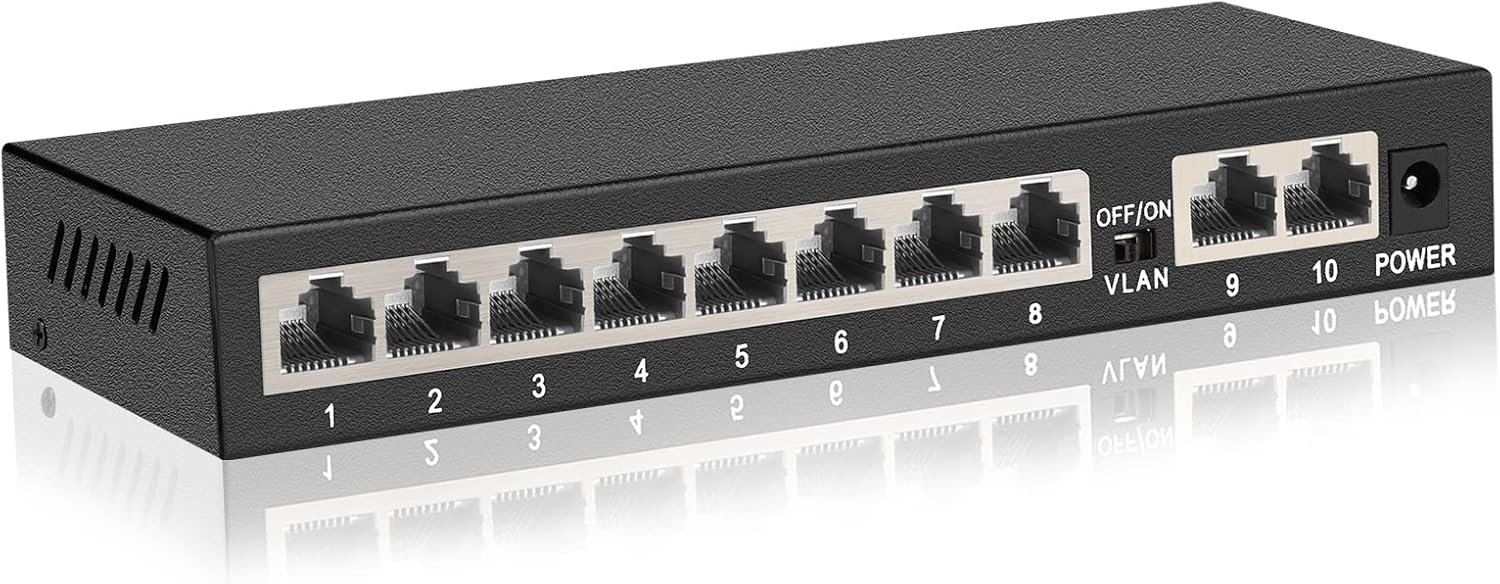
Figure 1: ienRon 10 Port Gigabit Unmanaged Ethernet Switch - Front View
2. Key Features
- 10 Gigabit Ports: Features 8 x 1000Mbps Ethernet ports with auto-negotiation and 2 x 1000Mbps Uplink ports with Auto MDI/MDIX, ensuring wire-speed forwarding for all ports.
- Plug and Play: Simple setup requiring no software installation or configuration, ideal for home, small office, and small-medium business environments.
- VLAN Mode: When enabled, ports 1-8 are isolated from each other and communicate only with uplink ports (9 and 10), enhancing network security and processing capacity.
- Durable Metal Case & Fanless Design: Robust metal casing provides excellent resistance to impacts. The fanless design ensures silent operation and efficient heat dissipation, with an operating temperature range of -10°C to 55°C.
- 4KV Lightning Protection: Built-in protection circuit withstands high voltage lightning strikes (4000 volts or more) and prevents circuit failure by automatically fusing ports in case of short circuit or overload.
- Multi-scenario Application: Suitable for various high-forwarding network environments including schools, families, SMEs, and mini-monitoring setups.
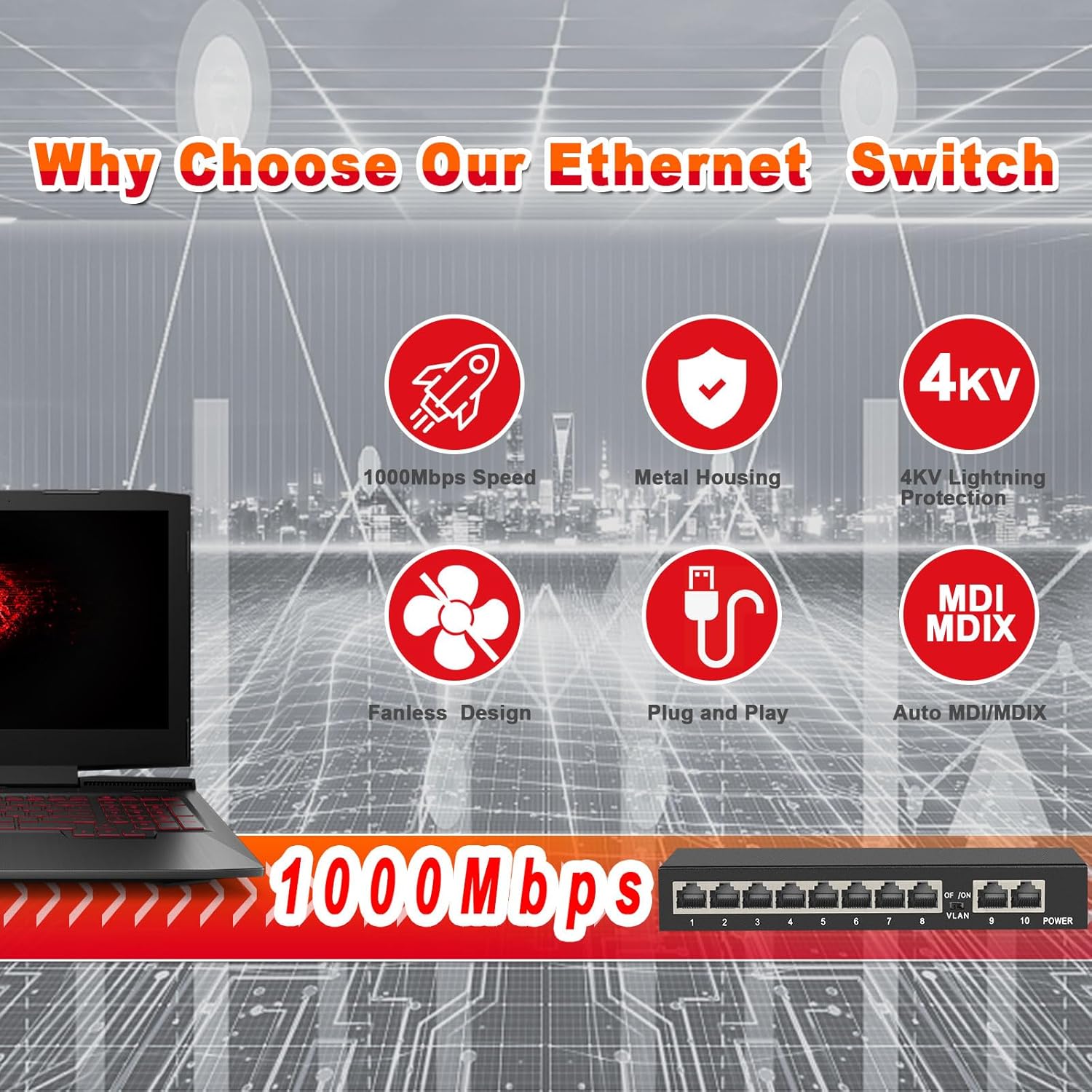
Figure 2: Overview of the switch's key features.
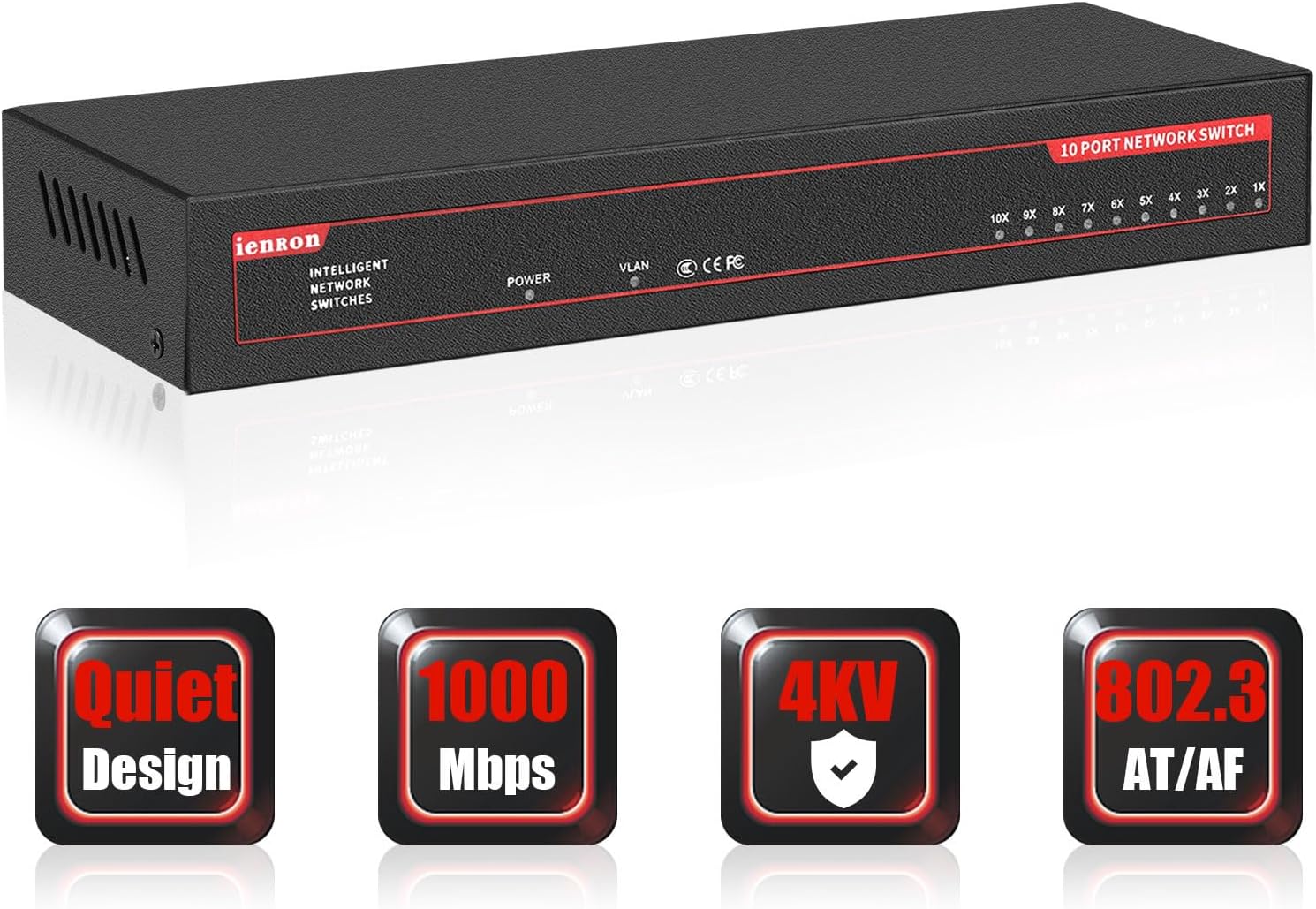
Figure 3: Additional features highlighting quiet operation and speed.
3. Setup Guide
The ienRon Gigabit Switch is designed for easy installation. Follow these simple steps to get your network up and running:
- Connect Power: Plug the included power adapter into the switch's power port and then into a standard electrical outlet. The power indicator light on the switch will illuminate.
- Connect Devices: Use standard Ethernet cables (RJ45) to connect your network devices (e.g., computers, routers, gaming consoles, IP cameras, network printers) to any of the 8 Gigabit Ethernet ports (ports 1-8).
- Connect to Main Network (Uplink): Connect your main router or network backbone to one of the 2 Gigabit Uplink ports (ports 9 or 10) using an Ethernet cable. These ports are designed for connecting to your primary network source.
- Verify Connection: Once connected, the corresponding LED indicators for each active port on the switch will light up, indicating a successful connection.

Figure 4: Visual guide for connecting the switch.
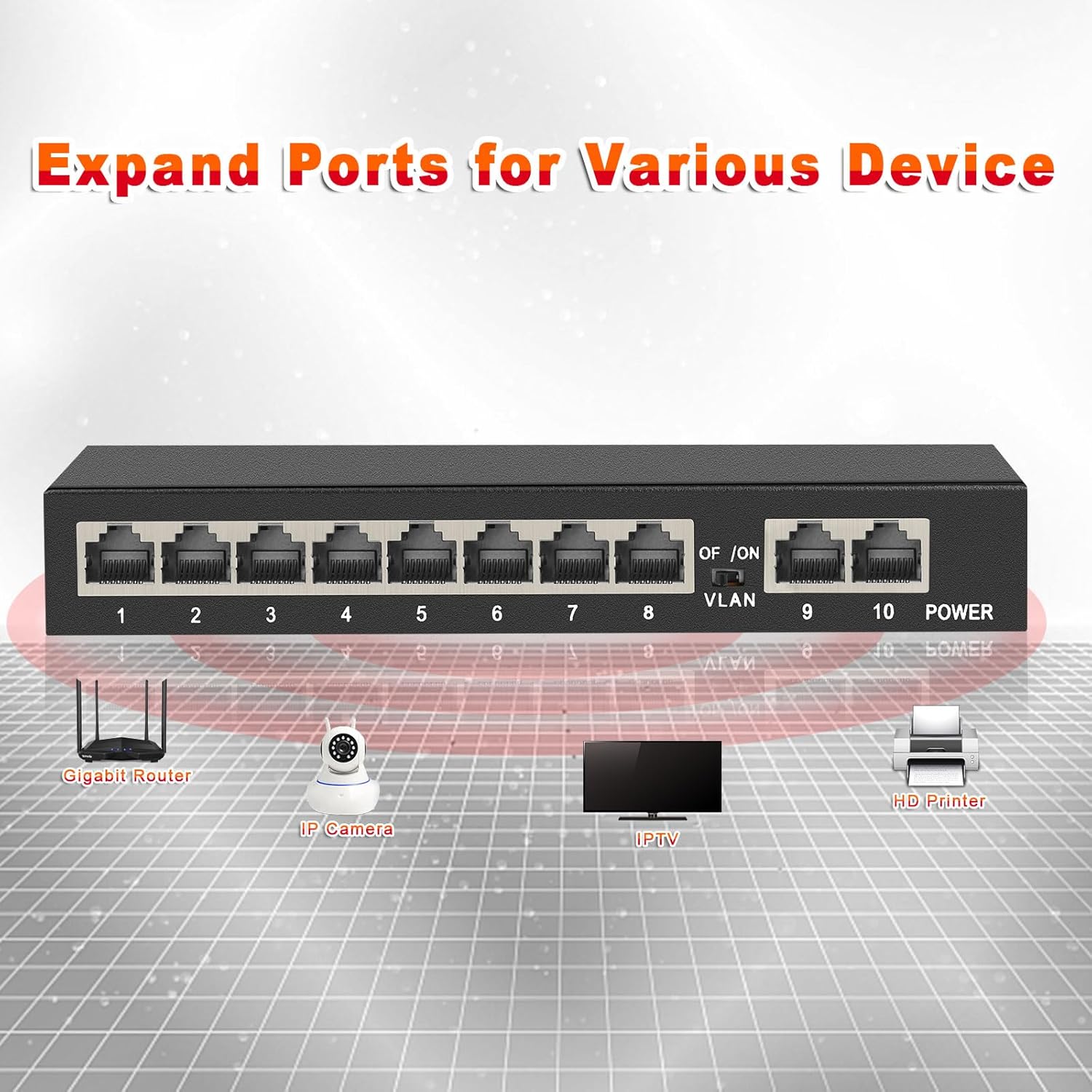
Figure 5: Illustrates how the switch expands ports for multiple devices.
Setup Demonstration Video
Video 1: This video demonstrates the simple plug-and-play setup of the ienRon 10 Port Gigabit Switch, including connecting power and network cables. It also briefly shows the VLAN mode functionality.
4. Operating Modes
VLAN Mode
The ienRon 10 Port Gigabit Switch features a VLAN (Virtual Local Area Network) mode, which can be toggled using the "OFF/ON VLAN" switch located near port 8. This mode provides enhanced network security and performance by segmenting your network.
- VLAN ON: When the VLAN switch is set to "ON", ports 1 through 8 are isolated from each other. Devices connected to these ports can only communicate with devices connected to the uplink ports (ports 9 and 10). This is useful for isolating specific devices or networks (e.g., surveillance cameras, guest networks) from your main internal network, improving security and preventing broadcast storms.
- VLAN OFF (Default): When the VLAN switch is set to "OFF", all 10 ports (1-10) operate as a standard unmanaged switch. All connected devices can communicate with each other, allowing for seamless data sharing across the entire local area network.

Figure 6: Front and back panel of the switch, showing port labels and VLAN switch.

Figure 7: VLAN mode for network segmentation and security.
5. Installation
The ienRon Gigabit Switch is designed for flexible placement and can be installed in two primary ways:
- Desktop Mount: The compact and fanless design allows the switch to be placed conveniently on any flat surface, such as a desk, shelf, or cabinet. Ensure adequate ventilation around the device.
- Wall Mount: For space-saving or organized installations, the switch can be securely mounted to a wall. Use appropriate screws (not included) and anchors for your wall type, aligning them with the mounting holes on the bottom of the switch.
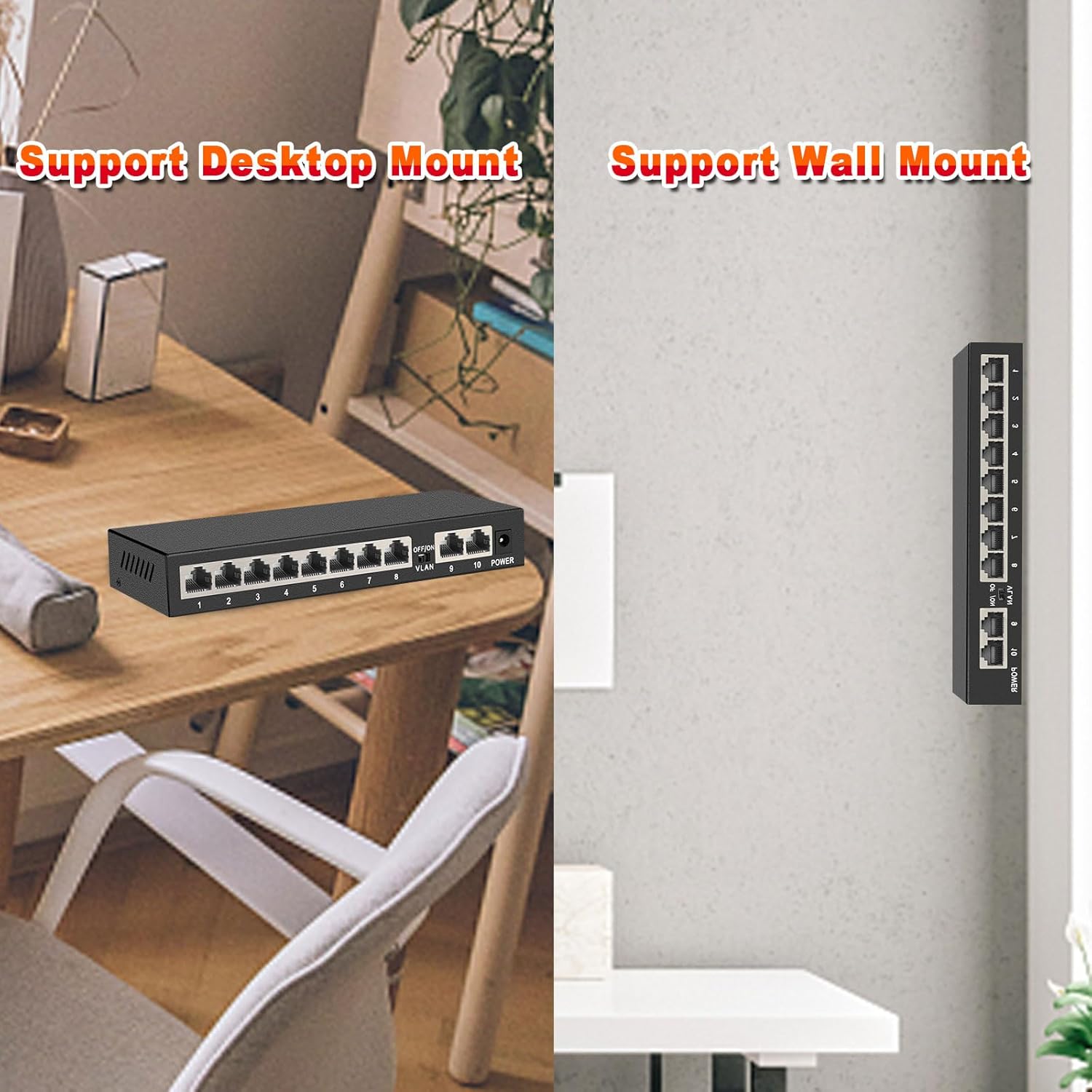
Figure 8: Desktop and Wall Mount options for the switch.
6. Application Scenarios
This unmanaged Gigabit switch is versatile and suitable for a wide range of networking environments:
- Home Networks: Expand your home network to connect multiple smart devices, gaming consoles, smart TVs, and computers with reliable wired connections.
- Small to Medium Businesses (SMEs): Provide stable and high-speed network access for office workstations, servers, and network peripherals.
- Surveillance Systems: Ideal for connecting IP cameras and Network Video Recorders (NVRs), especially when utilizing the VLAN mode for isolated surveillance networks.
- School Dormitories/Educational Institutions: Offer dedicated wired connections for students' devices, ensuring stable internet access for learning and personal use.

Figure 9: Multiple application scenarios for the ienRon Gigabit Switch.
7. Specifications
| Attribute | Detail |
|---|---|
| Brand | ienRon |
| Model Number | 10 Ports丨8 Gigabit Ports+2 Uplink |
| Number of Ports | 10 (8 Gigabit Ethernet + 2 Gigabit Uplink) |
| Data Transfer Rate | 1000 Megabits Per Second (1Gbps) |
| Interface Type | RJ45 |
| Switch Type | Unmanaged (Push Button for VLAN) |
| Case Material | Metal |
| Product Dimensions | 7.1"L x 1.06"W x 2.36"H |
| Item Weight | 0.38 Kilograms (13.4 ounces) |
| Voltage | 240 Volts (Input for Power Adapter) |
| Maximum Power Consumption | 12 Watts |
| Operating Temperature | -10°C to 55°C |
| Included Components | 10 Port Gigabit Switch, Power Adapter, Manual |
| Compatible Devices | Gaming Console, Desktop, Router, Camera, Wireless AP |

Figure 10: Product dimensions.
8. Maintenance
To ensure optimal performance and longevity of your ienRon Gigabit Switch, follow these simple maintenance guidelines:
- Keep Clean: Regularly wipe the exterior of the switch with a soft, dry cloth to remove dust and debris. Avoid using liquid cleaners or aerosols.
- Ensure Ventilation: Although the switch has a fanless design, ensure it is placed in a well-ventilated area to prevent overheating. Do not block the ventilation slots on the sides of the device.
- Protect from Elements: Keep the switch away from direct sunlight, excessive heat sources, moisture, and corrosive substances. The metal casing provides durability, but proper environmental conditions are crucial.
- Power Cycle (If Needed): If you experience network issues, a simple power cycle (unplugging the power adapter for 10 seconds and plugging it back in) can often resolve minor glitches.
- Cable Management: Ensure all connected Ethernet cables are properly routed and not excessively bent or strained, which can affect signal integrity.
9. Troubleshooting
If you encounter issues with your ienRon Gigabit Switch, refer to the following common troubleshooting steps:
| Problem | Possible Cause | Solution |
|---|---|---|
| No Power Indicator Light | Power adapter not connected or faulty; power outlet issue. | Ensure the power adapter is securely plugged into the switch and a working electrical outlet. Try a different outlet or adapter if available. |
| No Link/Activity Light for a Port | Incorrect cable connection; faulty Ethernet cable; connected device is off or faulty. | Verify that the Ethernet cable is securely connected to both the switch port and the device. Try a different Ethernet cable. Ensure the connected device is powered on and functioning correctly. |
| Devices Cannot Communicate (VLAN Mode) | VLAN mode is enabled, isolating ports. | If you want all devices to communicate freely, ensure the VLAN switch is set to "OFF". If you intend to use VLAN mode, remember that ports 1-8 only communicate with uplink ports 9 and 10. |
| Slow Network Speed | Cable quality; network congestion; device limitations. | Ensure you are using Gigabit-compatible Ethernet cables (Cat5e or higher). Check for other devices consuming high bandwidth on your network. Verify that your connected devices support Gigabit speeds. |
| Switch is Unresponsive | Temporary software glitch. | Perform a power cycle: unplug the power adapter, wait 10 seconds, then plug it back in. |
10. Warranty and Support
ienRon is committed to providing high-quality digital communication solutions. For specific warranty information regarding your 10 Port Gigabit Switch, please refer to the warranty card included in the product packaging or visit the official ienRon website. The warranty period and terms may vary by region.
For technical support, troubleshooting assistance beyond this manual, or any product-related inquiries, please contact ienRon customer support through the following channels:
- Online Support: Visit the ienRon official website for FAQs, driver downloads, and online support forms.
- Email Support: Refer to your product packaging or the official website for the customer service email address.
- Retailer Support: If purchased from a specific retailer (e.g., Amazon), you may also contact their customer service for return or exchange policies.
Please have your product model number and purchase information ready when contacting support to ensure efficient service.


