
Introduction
This manual provides detailed instructions for the COLORLIZARD Selfie Stick Tripod with Bluetooth Remote, Model 202+. Please read this manual carefully before use to ensure proper operation and to maximize the product's lifespan. Keep this manual for future reference.
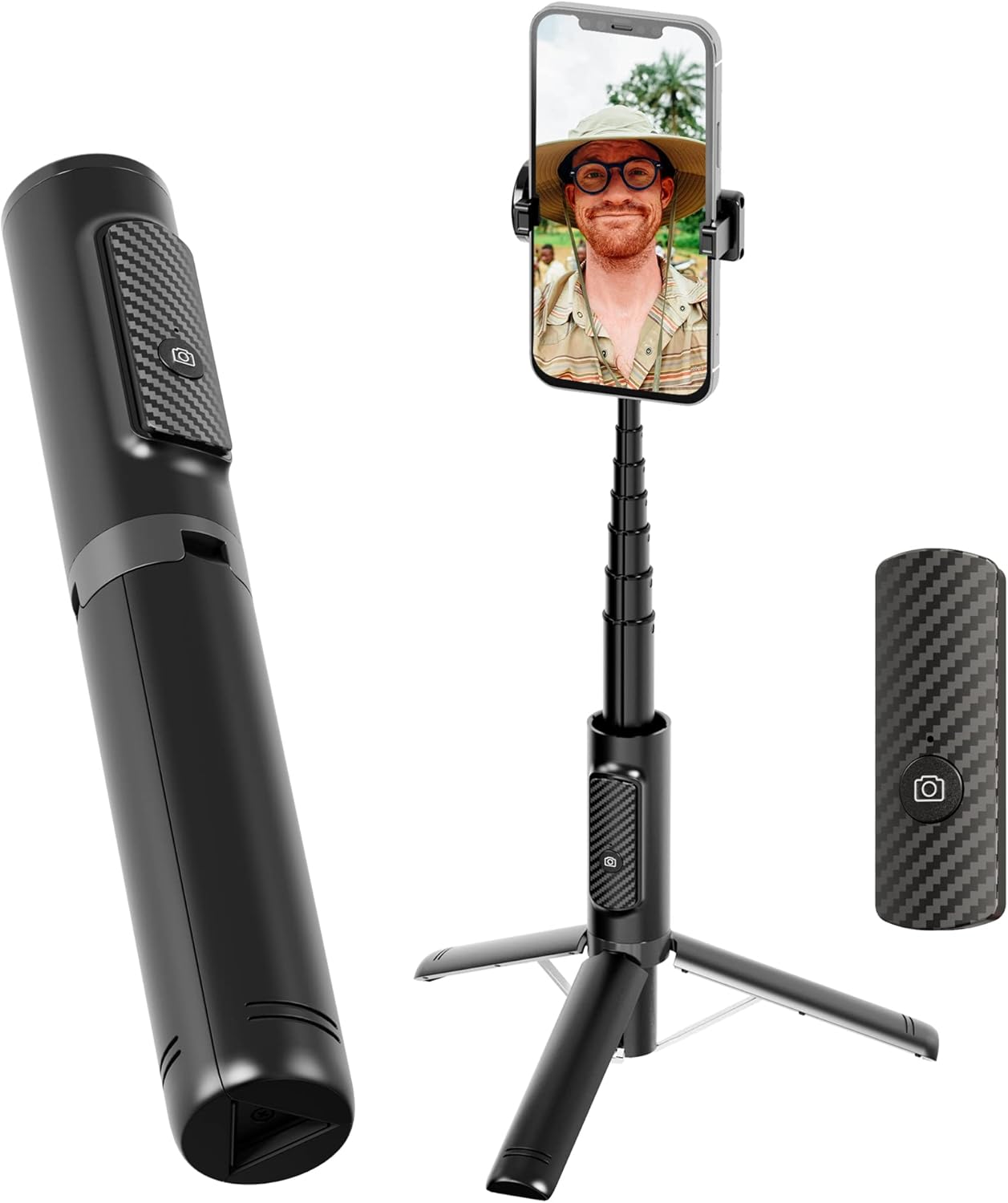
Image: The COLORLIZARD Selfie Stick Tripod shown both folded and extended as a tripod with a smartphone mounted, alongside its detachable Bluetooth remote.
What's in the Box
Verify that all items are present in the package:
- 1 x Selfie Stick Tripod
- 1 x Bluetooth Remote
- 1 x USB Cable (for remote charging)
Product Overview
The COLORLIZARD Selfie Stick Tripod is a versatile 3-in-1 device designed for mobile photography and videography. It functions as a handheld selfie stick, a stable tripod, and a desktop phone holder. Constructed from durable aluminum alloy, it offers both portability and stability.

Image: Key components of the selfie stick tripod, highlighting the aluminum alloy construction, stable tripod legs, and the rechargeable Bluetooth remote.

Image: The selfie stick tripod in its folded, compact state, demonstrating its portability and light weight (177g, 22cm).
Setup
- Unfolding the Tripod: Gently pull the bottom part of the selfie stick to extend the tripod legs. Ensure the legs are fully spread for maximum stability.
- Extending the Stick: Pull the top section upwards to extend the aluminum alloy pole to your desired length (up to 33 inches).
- Mounting Your Phone:
- Open the phone holder clamps.
- Carefully place your smartphone into the holder, ensuring it is securely gripped. The holder accommodates phones with widths between 5.3cm (2.08in) and 8.4cm (3.31in).
- Pairing the Bluetooth Remote:
- Remove the Bluetooth remote from its magnetic slot on the stick.
- Turn on the remote (usually by pressing and holding the button). An indicator light will flash.
- On your smartphone, go to Bluetooth settings and search for available devices.
- Select "SelfieCom" or a similar device name to pair. The indicator light on the remote will stop flashing once paired.
- The remote is compatible with both iOS and Android phones.

Image: Illustrates the phone holder's width range (5.3cm-8.4cm) and its 150° neck rotation and 270° head rotation capabilities.
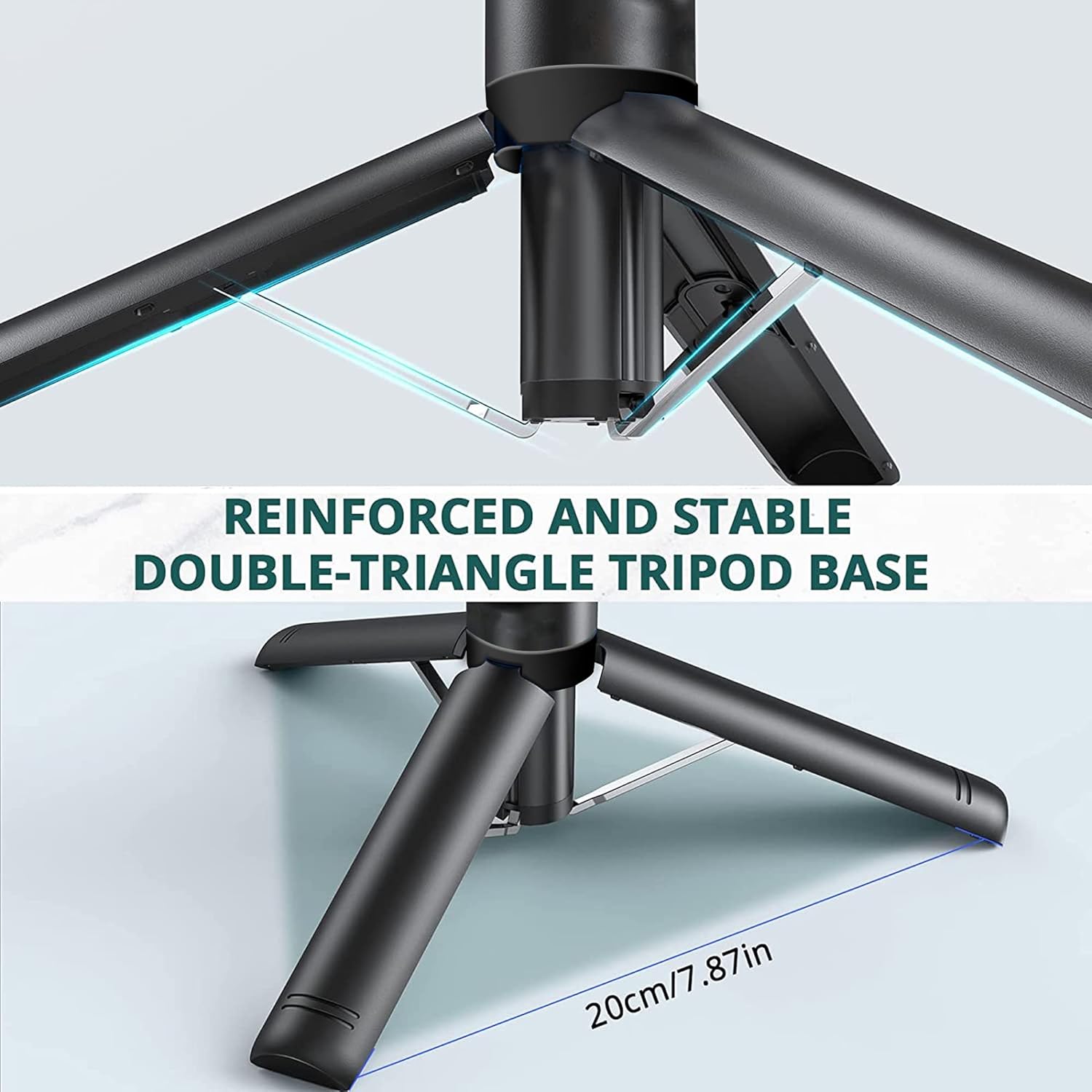
Image: A detailed view of the reinforced double-triangle tripod base, emphasizing its stability when extended.
Operating Instructions
Using as a Selfie Stick:
Hold the device by the handle. Extend the aluminum alloy pole to your desired length. Adjust the phone holder's angle for the best shot. Use the detachable Bluetooth remote to capture photos or start/stop video recording.
Using as a Tripod:
Extend the tripod legs fully and place the device on a flat, stable surface. Extend the pole to the desired height. Adjust the phone holder's angle and rotation (220° bracket rotation, 270° phone holder rotation) to achieve the perfect shooting angle. Use the Bluetooth remote for hands-free operation.

Image: Shows the various rotation and flexibility options of the phone holder, allowing for precise angle adjustments.
Bluetooth Remote Operation:
- Press the button on the remote once to take a photo or start/stop video recording (functionality depends on your phone's camera app settings).
- Ensure the remote is charged. Use the provided USB cable to charge it when the battery is low.

Image: Demonstrates the use of the Bluetooth remote control for hands-free photo capture, suitable for both iOS and Android devices.
Common Use Cases:
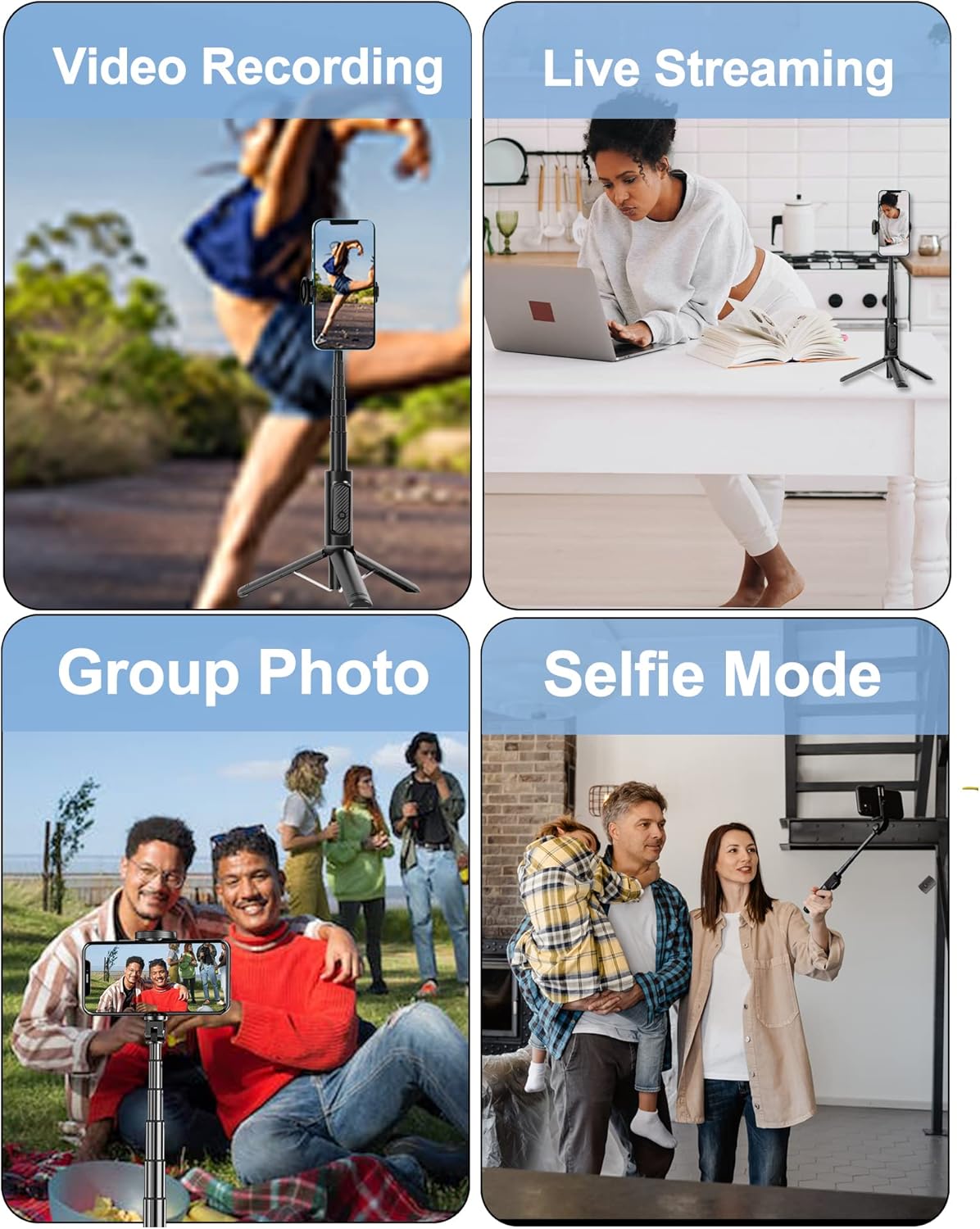
Image: Examples of the selfie stick tripod in various applications, including video recording, live streaming, taking group photos, and traditional selfie mode.
Maintenance
- Cleaning: Wipe the selfie stick tripod with a soft, dry cloth. Avoid using abrasive cleaners or solvents.
- Storage: When not in use, fold the tripod completely and store it in a cool, dry place away from direct sunlight and extreme temperatures.
- Battery Care (Remote): Charge the Bluetooth remote regularly, even if not in frequent use, to maintain battery health. Avoid overcharging.
- Handling: Handle the device with care. Avoid dropping it or applying excessive force to the extendable pole or phone holder.
Troubleshooting
| Problem | Possible Cause | Solution |
|---|---|---|
| Remote not pairing with phone. | Remote battery low; Bluetooth not enabled on phone; remote not in pairing mode; interference. | Charge the remote. Ensure phone's Bluetooth is on. Press and hold remote button to enter pairing mode. Move closer to the phone. Forget previous pairings and try again. |
| Remote not taking photos/videos. | Not paired; camera app settings; remote battery low. | Ensure remote is successfully paired. Check your phone's camera app settings to ensure the volume button (which the remote often emulates) is set to take photos/videos. Charge the remote. |
| Tripod unstable. | Legs not fully extended; uneven surface; phone too heavy or off-center. | Ensure tripod legs are fully extended and locked. Place on a flat, stable surface. Center your phone in the holder. Avoid extending the pole to its maximum height with heavy phones if stability is an issue. |
| Phone not fitting in holder. | Phone width exceeds limits. | Verify your phone's width is within the 5.3cm to 8.4cm range. Remove bulky phone cases if necessary. |
Specifications
- Model: 202+
- Material: Aluminum Alloy
- Folded Size: Approximately 7.7 inches (22 cm)
- Extended Length: Up to 33 inches
- Item Weight: 6 ounces (171 grams)
- Phone Holder Width: 5.3 cm - 8.4 cm (2.08 in - 3.31 in)
- Rotation: 220° adjustable bracket, 270° rotatable phone holder
- Remote Control: Detachable Bluetooth remote, rechargeable (Lithium Ion battery included)
- Compatibility: Compatible with most iPhone and Android smartphones.
- Product Dimensions: 1.3 x 1.18 x 7.68 inches (folded)
Warranty Information
Warranty details for this product are not provided in the available information. Please refer to the product packaging or contact the retailer/manufacturer for specific warranty terms and conditions.
Support
For further assistance or inquiries, please refer to the contact information provided on the product packaging or the retailer's website. You may also visit the official colorlizard website for support resources.