
1. Introduction
This manual provides essential information for the proper setup, operation, and maintenance of your IWERAWA SUNMI V2s Smart Mobile Terminal. Please read this manual thoroughly before using the device to ensure optimal performance and safety.
The SUNMI V2s is a versatile smart mobile terminal designed for various business applications, including point-of-sale (POS), order management, inventory, and ticket checking. It features a 5.5-inch HD+ display, integrated 58mm thermal printer, and supports multiple connectivity options.
2. Package Contents
Verify that all items are present in the package:
- SUNMI V2s Smart Mobile Terminal
- Battery
- Power Adapter
- Type-C USB Cable
- Quick Start Guide
- 58mm Paper Roll
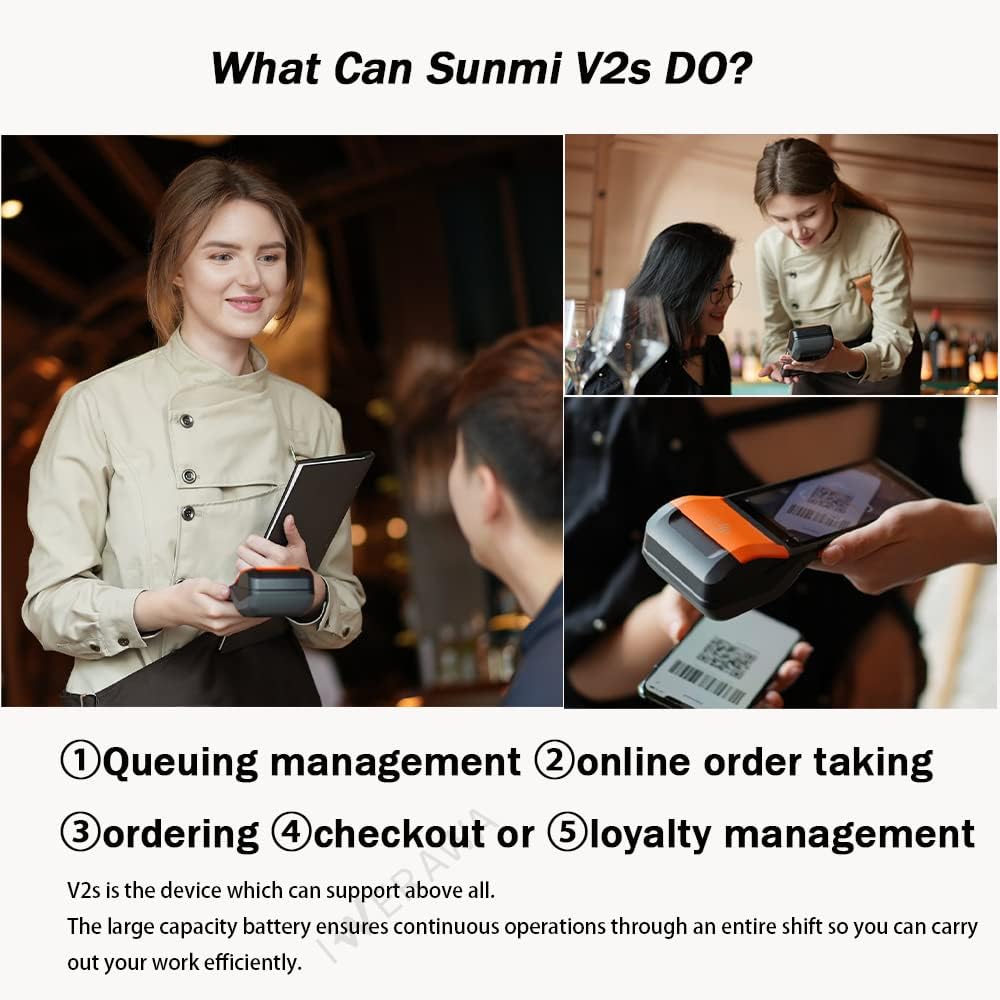
Figure 2.1: SUNMI V2s Package Contents
3. Device Overview
Familiarize yourself with the various components and ports of your SUNMI V2s terminal.

Figure 3.1: Device Dimensions and Front View
3.1 Front and Top Components
- 5.5" HD+ Display: Main interface for interaction.
- Printer: Integrated 58mm thermal printer.
- NFC (Optional): Contactless payment and data transfer.
- Front Camera (Optional): For specific applications.
3.2 Side Components
- Scan Button (Optional): Activates the 2D barcode scanner.
- Power Button: Powers the device on/off and controls screen.
- Volume Buttons: Adjusts device volume.
- Type-C USB Port: For charging and data transfer.
- Earphone Hole: For audio output.
3.3 Rear Components
- Barcode Scanner (Optional): Integrated 2D scanner.
- Rear Camera: For image capture.
- Pogo Pin: For charging with a compatible dock (not included).
4. Initial Setup
4.1 Installing Paper Roll
- Open the printer cover by gently lifting the orange latch.
- Insert a 58mm thermal paper roll into the paper bin, ensuring the printing side faces the correct direction (usually outward).
- Pull a small length of paper out past the cutting edge.
- Close the printer cover firmly until it clicks into place.

Figure 4.1: Inserting Paper Roll
4.2 Installing SIM/MicroSD Card and Battery
- Gently open the back cover of the device.
- Locate the Nano SIM and Micro SD card slots. Insert your Nano SIM card(s) and/or Micro SD card into the appropriate slots.
- Insert the removable Lithium Polymer battery into its compartment, ensuring proper alignment.
- Close the back cover firmly.

Figure 4.2: SIM/MicroSD and Battery Installation
4.3 Attaching Hand Strap (Optional)
If desired, attach the provided hand strap to the designated slots on the back of the device for secure handling.
4.4 Powering On and Basic Configuration
- Press and hold the Power button until the device powers on.
- Follow the on-screen prompts to select your preferred language and connect to a Wi-Fi network.
- The device runs on SUNMI OS based on Android 11, providing a familiar interface.
5. Key Features and Functions
5.1 Dual Printing (Receipt and Label)
The SUNMI V2s supports both ticket (receipt) and label printing. It features SUNMI's label position auto-detection algorithm for accurate label printing. A movable fixator enhances paper roll installation stability.

Figure 5.1: Dual Printing Functionality
5.2 2D Scanning
Equipped with a professional 2D scan engine, the device can read 1D/2D barcodes efficiently, even if they are scratched, folded, or stained. This is ideal for inventory management and product identification.

Figure 5.2: 2D Barcode Scanning in Use
5.3 NFC Functionality (Optional)
The NFC-enabled versions support various NFC card types (Type A&B card, Mifare card, Felica card; ISO/IEC 14443 and ISO15693 compliant) for contactless transactions.

Figure 5.3: NFC Payment
5.4 Enhanced Performance
The V2s is equipped with an upgraded quad-core 2.0GHz CPU and 2GB RAM + 16GB ROM memory, running on SUNMI OS based on Android 11. This configuration provides enhanced operating speed and efficient multitasking. The built-in 3500mAh removable battery ensures long-lasting operation.

Figure 5.4: Performance Enhancements
5.5 Durability
Rubber seals are added to the edges of the paper bin, charging port, and earphone port to protect against water, oil, and dirt damage. The device also features reinforced protection to resist drops from up to 1.2 meters.

Figure 5.5: Water, Oil, and Dirt Protection
5.6 Application Compatibility
Based on Android 11, SUNMI OS is compatible with a wide range of Android applications, enabling integration with various business management software such as Loyverse, iREAP, CasierStock, Kyte, and Pozool.

Figure 5.6: Wide App Compatibility
6. Operational Procedures
6.1 Mobile Order Processing
The SUNMI V2s can be used to take mobile orders directly from customers. Input items, calculate totals, and process payments efficiently.

Figure 6.1: Mobile Ordering
6.2 Takeaway Order Management
Manage takeaway orders by inputting customer selections, processing payments, and printing receipts for quick service.
6.3 Goods Inventory Management
Utilize the integrated 2D scanner to efficiently manage product inventory. Scan barcodes to add or remove items, update stock levels, and print inventory reports.
6.4 Label Printing
Generate and print product labels directly from the device. This is useful for pricing, product information, or shelf labeling.

Figure 6.2: Label Printing
6.5 Ticket Checking
Scan tickets or QR codes for quick and accurate entry verification or event management.
7. Product Video Overview
Watch this official product video for a visual guide on the SUNMI V2s, including unboxing, features, and various operational demonstrations.
Video 7.1: Sunmi V2s POS Receipt Printer Product Description. This video demonstrates the unboxing, key features, and various applications of the SUNMI V2s Smart Mobile Terminal, including paper installation, SIM/battery setup, mobile ordering, NFC payment, inventory scanning, and ticket checking.
8. Specifications
| Feature | Detail |
|---|---|
| Product Dimensions | 0.7"D x 3.15"W x 8.62"H |
| Controller Type | Android (SUNMI OS based on Android 11) |
| Maximum Media Size | 58MM Width |
| Print Media | Labels, Receipts, Tickets |
| Scanner Type | Portable, 2D Scan Engine |
| Compatible Devices | Smartphones (for app integration) |
| Sheet Size | 58mm |
| Dual-sided printing | No |
| Hardware Interface | USB Type C |
| Additional Printer functions | Scan |
| Control Method | App |
| Item Weight | 1.54 pounds (0.7 Kilograms) |
| Item model number | SBUS |
| Manufacturer | Sunmi |
| Connectivity Technology | Bluetooth, USB, NFC, 4G |
| Printing Technology | Thermal |
| Special Feature | Receipt Printing, Label Printing, Ticket Printing, Thermal Printer |
| Color | Orange, Black |
| Model Name | Sunmi V2S |
| Printer Output | Black |
| Max Printspeed Monochrome | 80mm/s |
9. Troubleshooting
This section addresses common issues you might encounter with your SUNMI V2s terminal.
9.1 Device Not Powering On
- Ensure the battery is correctly installed and fully charged.
- Connect the device to the power adapter and try powering it on again.
- If the issue persists, contact customer support.
9.2 Printing Issues
- Check if the paper roll is installed correctly and not jammed.
- Ensure the printer cover is securely closed.
- Verify that the thermal paper is of the correct size (58mm) and type.
- If printing is faint, the thermal head might be dirty or the paper roll is running out. Replace the paper roll or clean the thermal head.
9.3 Connectivity Problems (Wi-Fi/4G)
- For Wi-Fi, ensure you are within range of a known network and have entered the correct password.
- For 4G, verify that the Nano SIM card is correctly inserted and has an active data plan.
- Restart the device and try connecting again.
9.4 Scanner Not Reading Barcodes
- Ensure the barcode is clean, undamaged, and well-lit.
- Hold the device at an appropriate distance and angle from the barcode.
- Check the scanner settings within your application to ensure it is enabled and configured correctly.
10. Maintenance
Proper maintenance ensures the longevity and optimal performance of your device.
10.1 Cleaning the Device
- Use a soft, dry cloth to clean the exterior of the device.
- For the screen, use a microfiber cloth and a screen-safe cleaning solution.
- Regularly clean the thermal print head with an alcohol swab to prevent print quality issues. Ensure the device is powered off before cleaning.
10.2 Battery Care
- Avoid exposing the battery to extreme temperatures.
- Charge the battery regularly, even if the device is not in use, to maintain its health.
- If the device will not be used for an extended period, store it with a partial charge (around 50%).
10.3 Software Updates
Regularly check for and install software updates to ensure your device has the latest features, security patches, and performance improvements.
11. Warranty and Support
The IWERAWA SUNMI V2s Smart Mobile Terminal comes with a limited warranty. Please refer to the warranty card included in your package or contact your retailer for specific terms and conditions.
For technical support, service, or further inquiries, please contact the manufacturer or your authorized dealer.