
CNUNMC
Travel USB Plus International Power Adapter User Manual
Model: CNUNMC
1. Introduction
This manual provides comprehensive instructions for the safe and effective use of your Travel USB Plus International Power Adapter. Please read this manual thoroughly before using the device and retain it for future reference.
The Travel USB Plus International Power Adapter is designed to provide power for up to three devices simultaneously, featuring USB Type-C, USB-A, and universal AC outlets. It is compatible with a wide range of international power standards, making it suitable for worldwide travel.
2. Important Safety Information
- This device is an adapter, not a voltage converter. Ensure your electronic devices are compatible with the local voltage (100V-240V) before plugging them into the adapter. Failure to do so may damage your devices.
- Do not expose the adapter to liquids, extreme temperatures, or direct sunlight.
- Do not disassemble or attempt to repair the adapter. Refer all servicing to qualified personnel.
- Keep out of reach of children.
- Always unplug the adapter from the wall outlet when not in use.
- Do not overload the adapter. Refer to the specifications for maximum load.
3. Product Overview
The Travel USB Plus International Power Adapter features a compact, all-in-one design with multiple plug configurations and charging ports.

Figure 3.1: Front and side view of the Travel USB Plus International Power Adapter. This image displays the main universal AC outlet, along with the USB-C and USB-A charging ports on the side. The device is black and compact.
3.1 Key Features
- Universal AC Outlet: Compatible with various plug types (US, UK, EU, AUS/NZ, CN).
- Dual USB-A Ports: For charging standard USB devices.
- USB Type-C Port: For charging modern USB-C devices.
- Integrated Surge Protector: Provides protection against power surges.
- Pin Lock Mechanism: Securely locks pins in place for stable connection.
- Compact and Durable Design: All-in-one unit, no loose parts.
4. Setup and Operation
4.1 Selecting the Correct Plug Type
The adapter features retractable pins for different regions. To deploy the correct pins:
- Identify the required plug type for your destination (US, EU, UK, AUS/NZ).
- Slide the corresponding button on the side of the adapter to extend the pins. Ensure the pins click into place to lock securely.
- To retract the pins, press the release button (if applicable) and slide the pins back into the adapter.
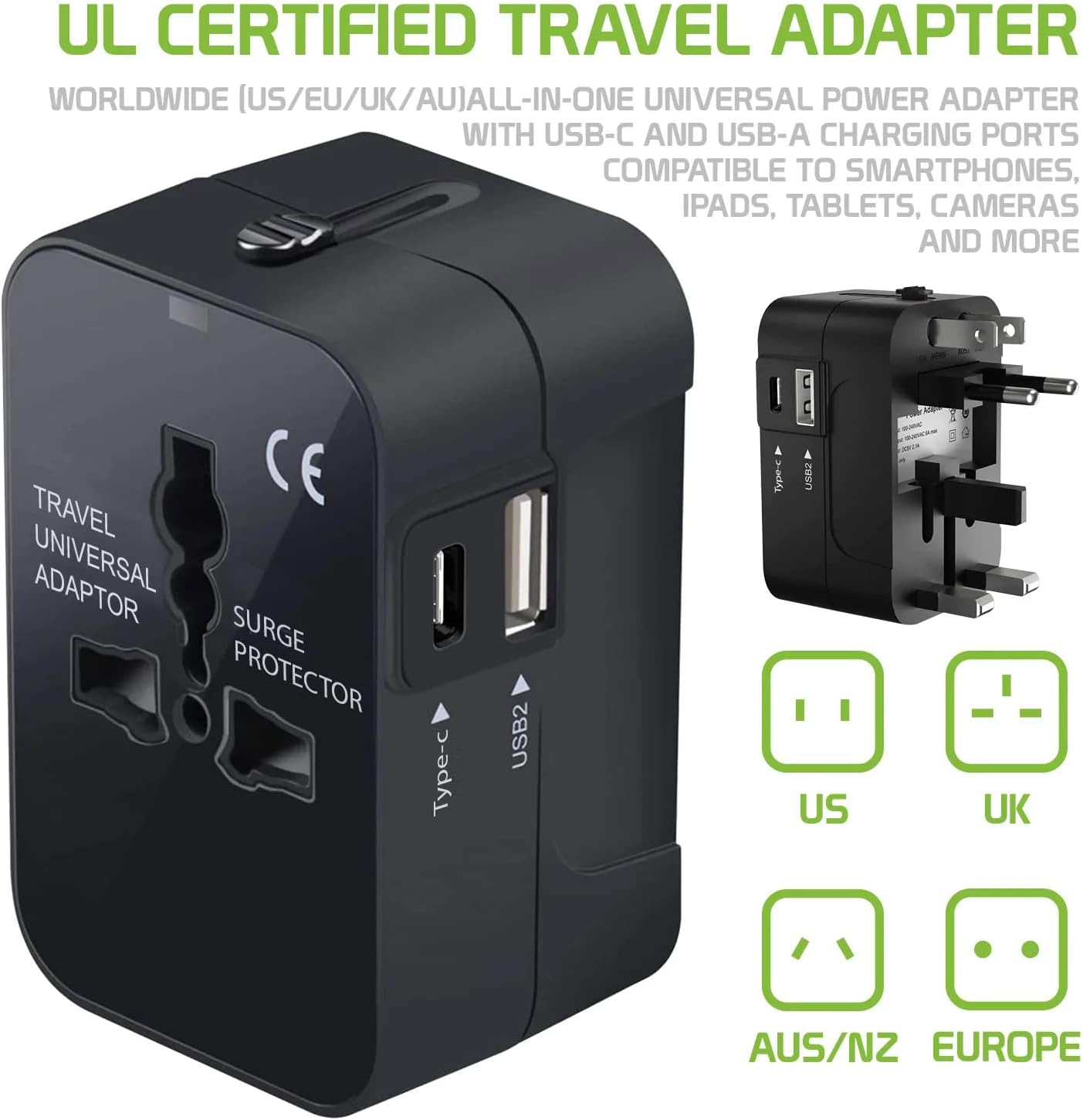
Figure 4.1: Deployment of various plug types. This image illustrates the mechanism for extending the US, European, Australian/New Zealand, and UK plug pins from the adapter body.
4.2 Connecting Devices
Once the correct plug type is extended and locked:
- Plug the adapter into the wall outlet.
- For AC powered devices, plug your device's power cord into the universal AC outlet on the front of the adapter.
- For USB-powered devices, connect your USB-A or USB-C cable to the corresponding port on the side of the adapter, then connect the other end to your device.
- You can charge multiple devices simultaneously using the AC outlet and USB ports, up to the adapter's maximum power rating.

Figure 4.2: Connecting devices to the adapter. This image demonstrates the adapter in use, plugged into a power strip, with both USB-A and USB-C ports actively charging a smartphone and another electronic device.

Figure 4.3: Device compatibility. This image illustrates the wide range of electronic devices that can be powered or charged using the adapter, such as gaming consoles, cameras, mobile phones, tablets, and laptops.
5. Maintenance and Care
- Clean the adapter with a soft, dry cloth. Do not use abrasive cleaners or solvents.
- Store the adapter in a cool, dry place when not in use.
- Avoid dropping the adapter or subjecting it to strong impacts.
6. Troubleshooting
| Problem | Possible Cause | Solution |
|---|---|---|
| Device not charging/powering on. |
|
|
| Pins do not extend or retract smoothly. | Mechanism obstructed or damaged. | Ensure no debris is blocking the mechanism. Do not force the pins. If damaged, discontinue use. |
7. Specifications
| Feature | Detail |
|---|---|
| Model Number | CNUNMC |
| Input Voltage | 100-240V AC, 50/60Hz |
| USB-A Output | 5V/2.4A (Max per port) |
| USB Type-C Output | 5V/3A (Max) |
| Total USB Output | 5V/3.4A (Max) |
| AC Power Rating | 6A Max (e.g., 600W at 100V, 1440W at 240V) |
| Dimensions (L x W x H) | 2 x 1.5 x 2 inches (approx.) |
| Weight | 4 ounces (approx.) |
| Material | PC fireproof material |
| Certifications | UL, CE |
Note: This adapter does not convert voltage. Ensure your devices are dual voltage (100-240V) compatible.
8. Warranty and Support
For warranty information or technical support, please refer to the product packaging or contact the manufacturer directly. Keep your purchase receipt as proof of purchase.
Manufacturer: Shenzhen Xiaoqiao Electronic Technology Co.,Ltd
Ask a question about this manual
Ask about setup, troubleshooting, compatibility, parts, safety, or missing instructions. Manuals+ will review the question and use this page’s manual context to help answer it.